Zoom meetings that stall in Chrome almost always fail at a permission, a cookie, or the handoff to the desktop client. None of those need a Zoom reinstall.
Start with the prerequisites: Chrome 102 or higher and a 64-bit system. Then work through camera and microphone access, pop-ups, third-party cookies, and the zoommtg:// protocol handler. An Incognito test then shows whether Chrome or your profile is to blame.
In this guide, I have covered:
Contents
Why Zoom Meeting Stops Working in Chrome
Your Zoom meeting opens but the camera stays black, the audio never connects, or the desktop client refuses to launch. All three problems usually trace back to the same place: a Chrome permission, a cookie, or a pop-up setting.
Zoom’s web app runs on standard browser features: WebRTC for audio and video, notifications, and third-party cookies for sign-in. Block any of those at the Chrome level and the meeting stalls, often with no error message at all.
Most fixes live in Chrome, not in the Zoom client. Work through the sections below in order.
Check the Basics First
Two prerequisites can stop Zoom before you ever reach a permission prompt. The Zoom Web App needs Chrome 102 or higher, and since December 15, 2025 it no longer supports 32-bit Windows or 32-bit browsers.

If your computer is running 32-bit Windows, the Zoom web app will not load in any browser, including Chrome. You will need to install the Zoom desktop client or switch to a 64-bit operating system.
- Open Chrome, type chrome://version in the address bar, and press .
- Check the line that begins with Google Chrome. The first number is your version, and it must be 102 or higher.
- On Windows, press + (or right-click Start and choose System) and confirm the System type reads 64-bit operating system. On macOS, every supported Mac is already 64-bit.
If Chrome is outdated, follow the update guide below before you touch anything else. If you are on 32-bit Windows, the desktop client is your only route into a meeting.
Allow Camera and Microphone Access for Zoom
Zoom asks for camera and microphone access every time you join, and Chrome remembers a Block you clicked once. That single click leaves the meeting loading with audio and video off.
Fix both devices in the same place:
- Click the
 menu in the top-right corner of Chrome and choose Settings.
 - In the left sidebar, click Privacy and security, then Site settings.
- Scroll to the Permissions section and click Camera.
- Under Default behavior, make sure Sites can ask to use your camera is selected.
- Scroll to the Allowed to use your camera list and confirm zoom.us is listed. If it is not, click next to that heading, type zoom.us, and click again.
- Go back to Site settings and repeat the same steps under Microphone, adding zoom.us if it is missing there too.
Reload the Zoom tab. When the prompt comes back, click .
No prompt? Click the padlock  or tune
  at the left of the address bar, reset the site’s camera and microphone permissions, then reload.
Allow the Open Zoom Pop-up Prompt
You click Open Zoom Meetings and nothing happens. Chrome has to open a small pop-up to hand the meeting link to the desktop client, and if pop-ups are blocked for the site, that prompt never appears.
Fix it for Zoom only:
- While you are on zoom.us or app.zoom.us, click the tune at the left of the address bar.
- Find Pop-ups and redirects and set it to Allow.
Click Open Zoom Meetings again. The pop-up should appear in the top-right corner and the client should launch. If it does not, jump to the protocol handler section below.
Clear Chrome’s Cookies and Cache
A meeting that fails to load, or keeps looping you back to the sign-in page, is often holding on to stale cookies. Clearing them gives Zoom a clean slate for the WebRTC handshake.
- Open the Google Chrome on your computer.
- Click on the More
 for menu options, and hover on the More Tools menu.
 - Select the Clear Browsing Data... sub-menu from the list.
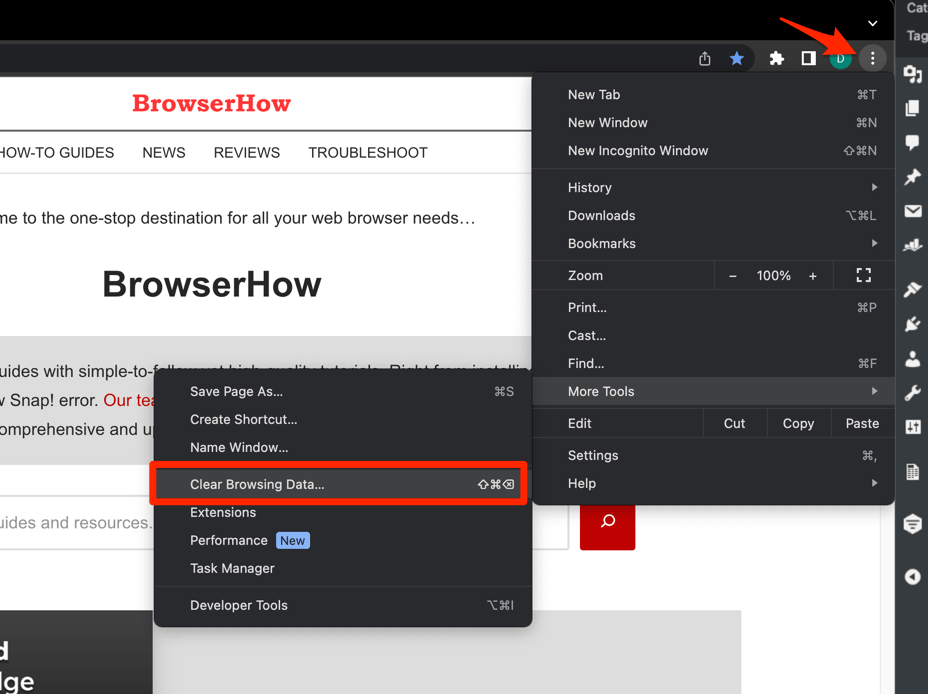 It will open the Clear browsing data settings window.
 - Choose the Time Range from the drop-down and select the checkboxes for the 'Cookies and other site data' and 'Cached images and files' options.
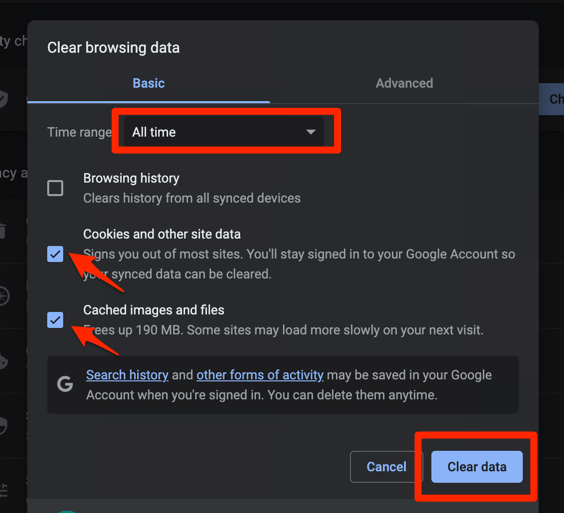
- Finally, hit the command button.
It will delete the stored cookies and cache data from your Chrome browser.
You will be signed out of every site you are logged into. Have your passwords ready or use a password manager. If you only want to reset Zoom, open chrome://settings/content/all and delete just the zoom.us entry instead.
Reload the meeting tab and sign in again. You’ll know it worked when Zoom loads the meeting page fresh instead of bouncing you back to the login screen.
Manage Third-Party Cookies for Zoom
Business accounts that sign in through SSO depend on third-party cookies. Block them in Chrome and the meeting may load, but you cannot sign in or start it.
- Click at the top right of Chrome and choose Settings.
- Select Privacy and security in the left sidebar.
- Click Site settings.
- Click Third-party cookies.
- If the toggle is set to Block third-party cookies, switch it to Allow third-party cookies or Block third-party cookies in Incognito mode.
- Close the tab and reload reddit.com.

TIP: The fastest way to allow third-party cookies for just zoom.us is to click the tune at the left of the address bar while on a Zoom page, set Third-party cookies to Allow, and reload. Chrome remembers this as a 90-day exception in normal browsing.
Reload the Zoom tab and try again. You’ll know it worked when the sign-in flow runs through to the end instead of looping back to the Zoom home page.
Allow Notifications from Zoom
Notification permission is what lets Chrome tell you that someone joined, that you are unmuted, or that a chat message arrived. Blocked at the site level, every one of those alerts disappears from the web app.
- Open Settings from the menu, then click Privacy and security and Site settings.
- Click Notifications under Permissions.
- Confirm Sites can ask to send notifications is selected at the top.
- Scroll to Allowed to send notifications and click .
- Type https://zoom.us and click .
Reload the Zoom tab and click when the notification prompt appears.
Remove a Stale zoommtg:// Protocol Handler
Every click on Open Zoom Meetings goes through a registered protocol handler called zoommtg://, which hands the link to your operating system. A broken or conflicting entry from an older install makes Chrome fail silently, and the page simply refreshes.
- Open a new tab and go to chrome://settings/handlers.
- Look for any site that lists zoom.us under its Protocol handlers. Note the site URL.
- Click the menu next to that entry and choose Remove.
- Reinstall or repair the Zoom desktop client so the protocol gets re-registered cleanly.
If you do not see a zoom.us entry under protocol handlers, the desktop client has never been registered with Chrome. Install the desktop client from Zoom’s download page and try the meeting again.
Rejoin the meeting. You’ll know the handler is registered when the desktop client opens instead of the page reloading on itself.
Disable Conflicting Chrome Extensions
Ad blockers, privacy extensions, and cookie managers break Zoom’s WebRTC handshake more often than most people expect. Turning them off for one meeting takes a minute and settles the question.
- Launch the Google Chrome on your computer.
- Click on the More for the list menu.
- Hover on the More Tools menu and choose the Extensions sub-menu.
 It will open the Chrome Extensions Manager page with the list of installed extensions.
 - Toggle the switch to Disable the extension.

Reload the Zoom tab and join a test meeting. If the meeting starts with everything disabled, an extension is the cause. Re-enable them one at a time and add zoom.us to the allow-list of whichever one breaks it.
Update Chrome
Chrome updates itself in the background, and a stalled update can leave you on an old build that no longer matches what Zoom’s web app expects. Check this before you dig any deeper.
- Launch the Google Chrome on your computer.
- Click on More for the options list, and select the Settings menu.

- Switch to the About Chrome tab in the left sidebar pane.
 The browser should automatically start looking for the latest updates.
 - Hit on the button.
 It will complete the Chrome browser update process.
Relaunch Chrome and rejoin the meeting. You’ll know it worked when chrome://version shows a newer build than the one you saw in the first section.
If Chrome was already current, the failure is a permission or cache problem, and the earlier sections are where you will find it.
Test Zoom in an Incognito Window
Incognito skips your extensions, cookies, and cached data, which makes it the cleanest way to tell whether the problem is Chrome-wide or only in your main profile.
- Launch the Google Chrome on your computer.
- Click on the More menu for the list.
- Select the New Incognito Window option.
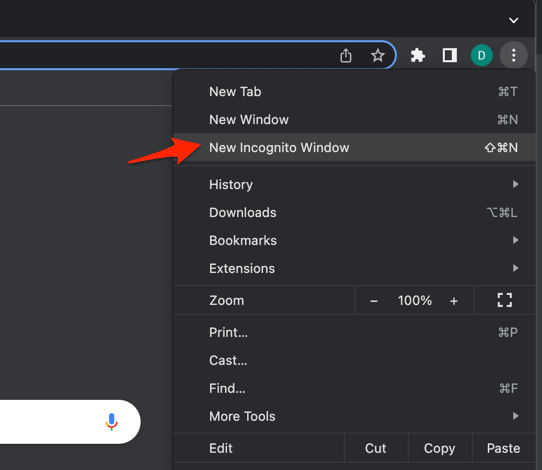 It will start a new incognito window in the browser.
Go to zoom.us/join in the Incognito window and try to join a meeting. If it works there, the problem sits in your main profile: an extension, a corrupt cookie, or a stuck permission. The earlier sections fix all three.

Frequently Asked Questions
Why does Zoom keep saying “Please open Zoom Meetings” in Chrome?
Chrome cannot hand the zoommtg:// link to the desktop client. The usual causes are a missing or broken protocol handler (see the protocol handler section above) or a pop-up blocker that suppresses the Open Zoom prompt.
Can I use Zoom in Chrome without the desktop client?
Yes. The Zoom Web App runs entirely in Chrome. It needs Chrome 102 or higher, a 64-bit operating system as of December 15, 2025, and permission for your camera, microphone, and notifications. Miss any of those and the web app will not start a meeting.
Why is my camera or microphone blank in the Zoom web app?
A blank device almost always means Chrome is blocking access at the site level. Go back to the camera and microphone section and confirm zoom.us appears in the allowed list for both. Then click the padlock or tune in the address bar and check that the current site’s camera and microphone permissions are not set to Block.
Does Chrome block Zoom meetings?
No. Chrome does not block Zoom. Its permission and cookie settings can stop individual features from working, and those settings are the most common reason a meeting fails to start, blocks audio, or refuses to launch the desktop client.
What if Zoom shows a “site can’t be reached” or load error in Chrome?
That points to a connection or DNS problem rather than a permission problem. Our guide to the site can’t be reached error in Chrome covers DNS, VPN, and firewall checks alongside Chrome’s own resets.