Discord can refuse to load, get stuck on 'Connecting,' or drop voice and video when something in Chrome breaks. A stale cookie, an over-blocking extension, an outdated browser build, or a misbehaving GPU driver is usually behind it.
These nine fixes move from the fastest test to the deepest reset. You'll check Incognito mode, update Chrome, clear site data, allow JavaScript, disable extensions, toggle hardware acceleration, reset flags, flush Chrome's DNS cache, and reset Chrome settings.
In this guide, I have covered:
Contents
Why Discord Is Not Working in Chrome
You opened Discord in Google Chrome and it refuses to cooperate. Maybe the screen stays gray, maybe it sits on ‘Connecting,’ or maybe voice never connects. Discord’s web app leans on WebSockets, JavaScript, hardware-accelerated video, and persistent cookies. When one of those breaks in Chrome, your login, presence, and voice channels stop working.
The usual culprits are an outdated Chrome build, a corrupt cookie or cached file, an extension that blocks too much, JavaScript turned off for discord.com, hardware acceleration fighting your GPU driver, or a leftover Chrome flag. Each fix below targets one of those. Start at the top and work down.

If Discord works in an Incognito window but not in your normal Chrome profile, the problem is almost certainly an extension, cookie, or cached file. Run the Incognito test first, before changing any settings.
Quick Check: Test Discord in an Incognito Window
Before you change any settings, open Discord in an Incognito window. Incognito disables most extensions and starts with a clean cookie jar. In about 30 seconds, that tells you whether the problem lives in your Chrome profile or somewhere else: your network, Discord’s servers, or your PC.
- Launch the Google Chrome on your computer.
- Click on the More
 menu for the list.
 - Select the New Incognito Window option.
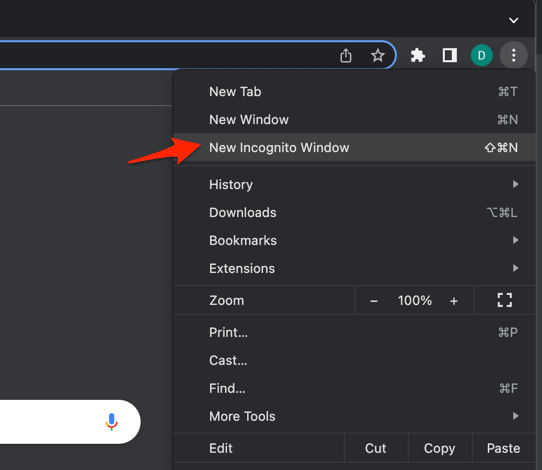 It will start a new incognito window in the browser.
Discord loaded normally in Incognito? The issue lives in your main profile, usually an extension, cookie, or cached file. Keep working down the list.
If Incognito fails too, jump to the reset settings section, then check Discord’s status page. For shortcut keys and what Incognito really clears, see our guide to Chrome safe-mode and Incognito.
Update Chrome to the Latest Version
An outdated Chrome build is the most common hidden cause of Discord bugs. Discord ships WebRTC and WebSocket updates that match current Chrome releases. Running two or three versions behind is enough to break voice or video. Update Chrome first, then try Discord again.
- Launch the Google Chrome on your computer.
- Click on More for the options list, and select the Settings menu.

- Switch to the About Chrome tab in the left sidebar pane.
 The browser should automatically start looking for the latest updates.
 - Hit on the button.
 It will complete the Chrome browser update process.
After Chrome relaunches, reopen Discord. You’ll know this worked when the page gets past ‘Connecting’ and loads your channels. If it still hangs, move to clearing your browsing data.
Clear Cookies and Cache for Discord
Stale cookies and cached files are the next usual suspect. Discord stores your auth token and gateway connection in cookies and IndexedDB. A Chrome update can corrupt either one. In current Chrome, the menu label is Delete browsing data, not the older ‘Clear browsing data.’
- Go to chrome://history/clearBrowserData in the address bar.
- Select the Time range from the drop-down.
- Enable the checkboxes for Browsing history, Cookies and other site data, and Cached images and files.
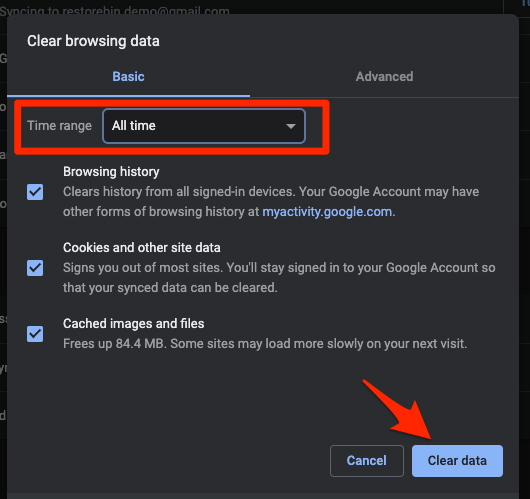
- Hit the Clear data button.
After you delete the data, sign back into Discord at discord.com/chrome (or discord.com) and confirm it loads. For a closer look at what gets removed, see our guide to clearing cookies and cache in Chrome. If you’re troubleshooting on a phone, the same cache fix is covered in our Chrome for Android and Chrome for iPhone guides.

TIP: To clear only Discord’s data, use Settings → Privacy and security → Site settings → View permissions and data stored across sites, search for discord.com, and click Delete data.
Allow JavaScript for discord.com
Discord is a JavaScript single-page app. If JavaScript is blocked for discord.com, the page can appear blank or stay stuck on the loading spinner. Check the setting, then whitelist discord.com if needed.
- Click the three-dot menu at the top right of Chrome and choose Settings.
- Select Privacy and security in the left sidebar.
- Click Site settings.
- Scroll to the Content section and click JavaScript.
- Confirm the top toggle reads Sites can use JavaScript. If it says Don't allow sites to use JavaScript, click it to turn JavaScript on.
- Under Customized behaviors, check the Not allowed to use JavaScript list for discord.com.
- If discord.com is there, click the three-dot next to it and choose Remove.
- (Optional) Click Add next to Sites allowed to use JavaScript, type discord.com, and click Add to whitelist it.
Reload Discord. You’ll know it worked when the page renders instead of sitting on a blank tab.
Disable Suspicious or Ad-Blocker Extensions
Privacy extensions, ad-blockers (uBlock Origin, AdBlock, AdGuard), and script blockers (NoScript, ScriptSafe) frequently break Discord’s WebSocket connection, push-to-talk, or voice routing. Turn them all off first, then re-enable them one at a time to find the culprit.
- Launch the Google Chrome on your computer.
- Click on the More for the list menu.
- Hover on the More Tools menu and choose the Extensions sub-menu.
 It will open the Chrome Extensions Manager page with the list of installed extensions.
 - Toggle the switch to Disable the extension.

Reload Discord with extensions off. If it works, one of those extensions caused the break. Re-enable each one, reload Discord after each, and stop when Discord breaks again.
Then remove that extension or whitelist discord.com in it. Ad-blockers in particular usually need discord.com, discord.gg, discord.media, and discordapp.com allowed.
Turn Off Hardware Acceleration
Hardware acceleration offloads rendering to your GPU. On some drivers, especially older Intel HD graphics or after a Windows update, that breaks video and freezes Discord on the gray connecting screen. Turning it off forces Chrome to render with the CPU instead.
- Open Chrome Settings.
- Click System in the left sidebar. (If your Chrome still groups it under an expandable Advanced section, the path is Settings > Advanced > System.)
- Toggle Use graphics acceleration when available on or off, then relaunch Chrome.
Chrome will ask you to relaunch. After it restarts, open Discord again. You’ll know it worked when voice and video connect normally. If Chrome feels slower after this change, update your GPU driver from Intel, NVIDIA, AMD, or your laptop manufacturer.
Reset Chrome Flags to Default
Chrome flags (chrome://flags) are experimental settings. If you or an installer ever toggled one, it can quietly break Discord, WebRTC, or WebSockets. Reset them all to default.
- Type chrome://flags into Chrome's address bar and press .
- Click the Reset all button at the top of the page.
- Click the Relaunch button at the bottom. Chrome will restart with default flags.
Open Discord after the relaunch. If a flag was the cause, Discord will load normally now.
Clear Chrome’s Internal DNS Cache
If Discord loads the page but can’t reach the gateway, Chrome’s built-in DNS resolver may be holding a stale entry. Chrome keeps its own DNS cache separate from your operating system’s. Flushing it is fast and safe.
- Launch Google Chrome on your Computer.
- Type in chrome://net-internals/#dns in the address bar, and hit key.
It will open the Chrome DNS network page. - Hit the command button.
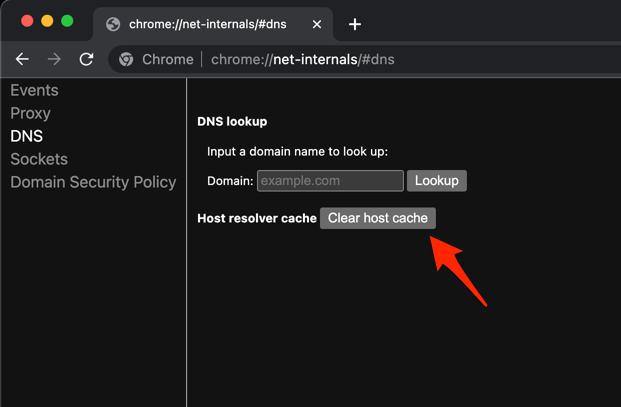
- Relaunch the Chrome browser.
It will clear the Chrome DNS host cache.
After Chrome restarts, try loading Discord again. If your entire PC has trouble reaching discord.com, not just Chrome, see our guide on fixing site can’t be reached errors in Chrome.
Reset Chrome Settings to Their Original Defaults
If nothing else worked, reset Chrome’s settings. This turns off all extensions, clears temporary site data, and resets your home page and search engine. Your saved bookmarks, passwords, and history stay intact.
- Launch the Chrome browser on the computer.
- Click on the More for menu list, and select the Settings menu.
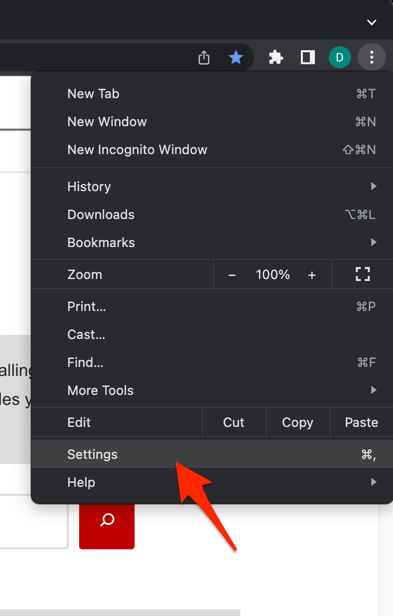 It will open the Chrome browser's Settings page.
 - Switch to the Reset settings tab in the left sidebar, and select Restore settings to their original defaults option.
- Finally, hit the command button.
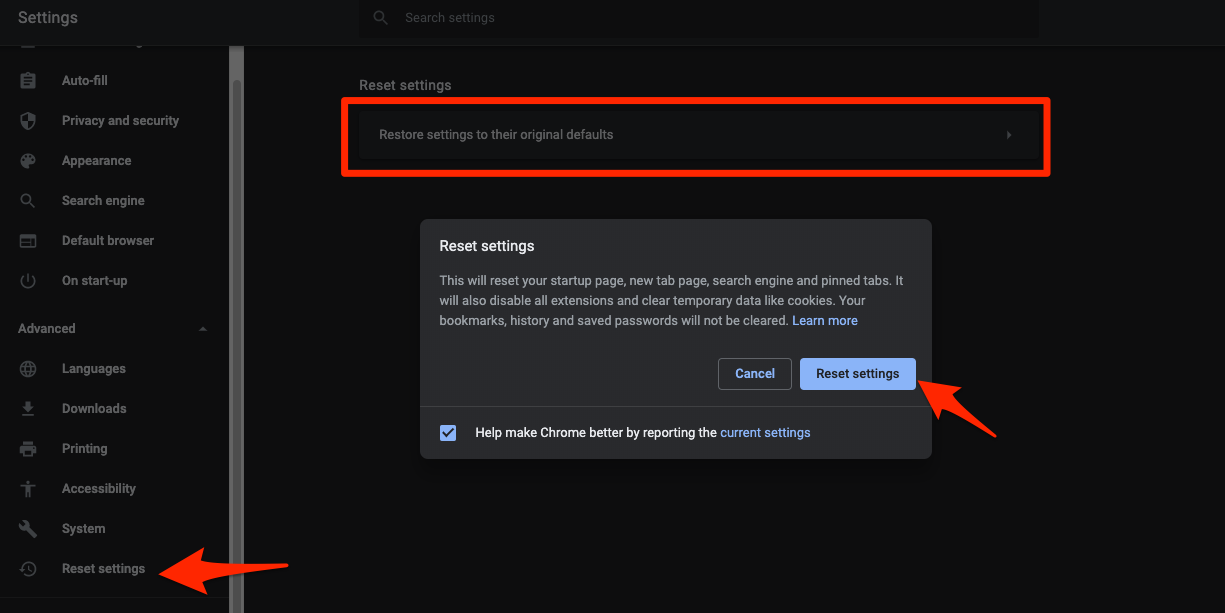 It will reset the Chrome browser settings, clear temporary data, and disable all extensions.
Chrome will relaunch with default settings. Open Discord and sign in. If Discord still does not work after a reset, the problem is outside Chrome: Discord’s servers, your network, or your PC. Check Discord’s status page and use the desktop app as a workaround.

Frequently Asked Questions
Why is Discord stuck on ‘Connecting’ or ‘RTC Connecting’ in Chrome?
The ‘Connecting’ loop almost always means Chrome can’t open a WebSocket or WebRTC connection to Discord’s gateway. The usual causes are an outdated Chrome version, an over-blocking extension, or hardware acceleration misbehaving on your GPU. Update Chrome, test Incognito, and turn off hardware acceleration to fix it in most cases.
Will clearing cookies log me out of Discord?
Yes. Discord stores your session token in cookies, so clearing them signs you out. You’ll need to log in again with your email and password, plus your 2FA code if enabled. Your servers, messages, and friends list are stored on Discord’s side, so nothing is lost.
How do I check if Discord itself is down?
Open Discord’s official status page in another browser or on your phone. If Discord reports an incident, no Chrome setting will help. Use the Discord desktop app or mobile app while you wait.
Is there a difference between the Discord desktop app and the browser version in Chrome?
Yes. The desktop app bundles its own Chromium runtime. It is not affected by your Chrome extensions, flags, or hardware acceleration setting. If every Chrome fix fails, the desktop app is a reliable workaround while you keep troubleshooting.
Should I disable hardware acceleration for everything, or only for Discord?
Chrome does not let you disable hardware acceleration per site. It is an all-or-nothing setting. If turning it off fixes Discord but slows other pages, update your GPU driver, then turn hardware acceleration back on.