Pop-ups and redirects can ruin a browsing session, especially on mobile. If you're tired of random windows opening or being sent to spammy sites, Opera on Android gives you a simple toggle to block them.
By default, Opera blocks most pop-ups, but you can check or change the setting in Privacy and Security.
In this guide, I have shared instructions about:
Contents
Block Pop-ups and Redirects
- Launch the Opera browser on your phone.
- Tap the Profile menu (the red O icon at the bottom) and select Settings.
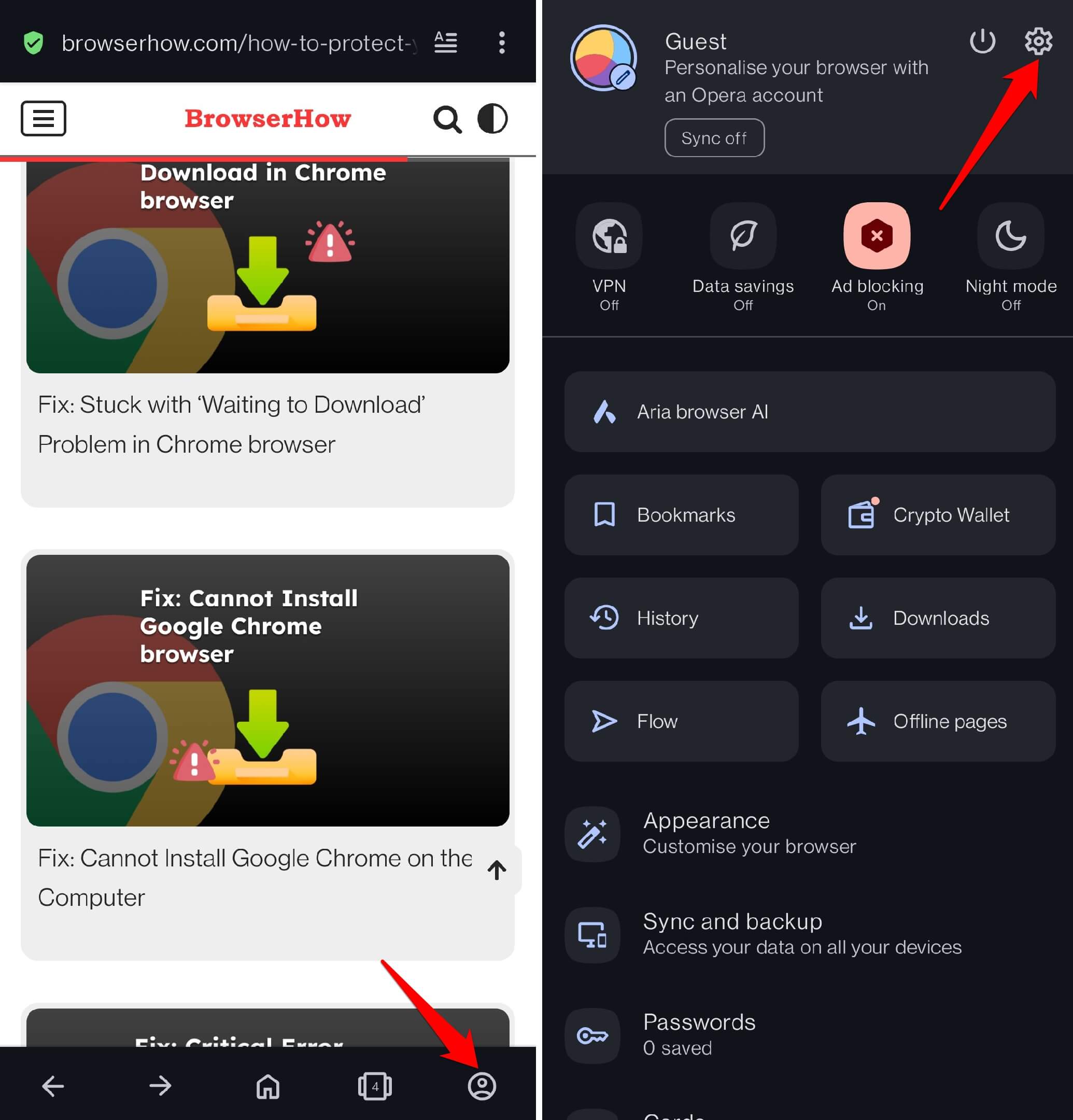
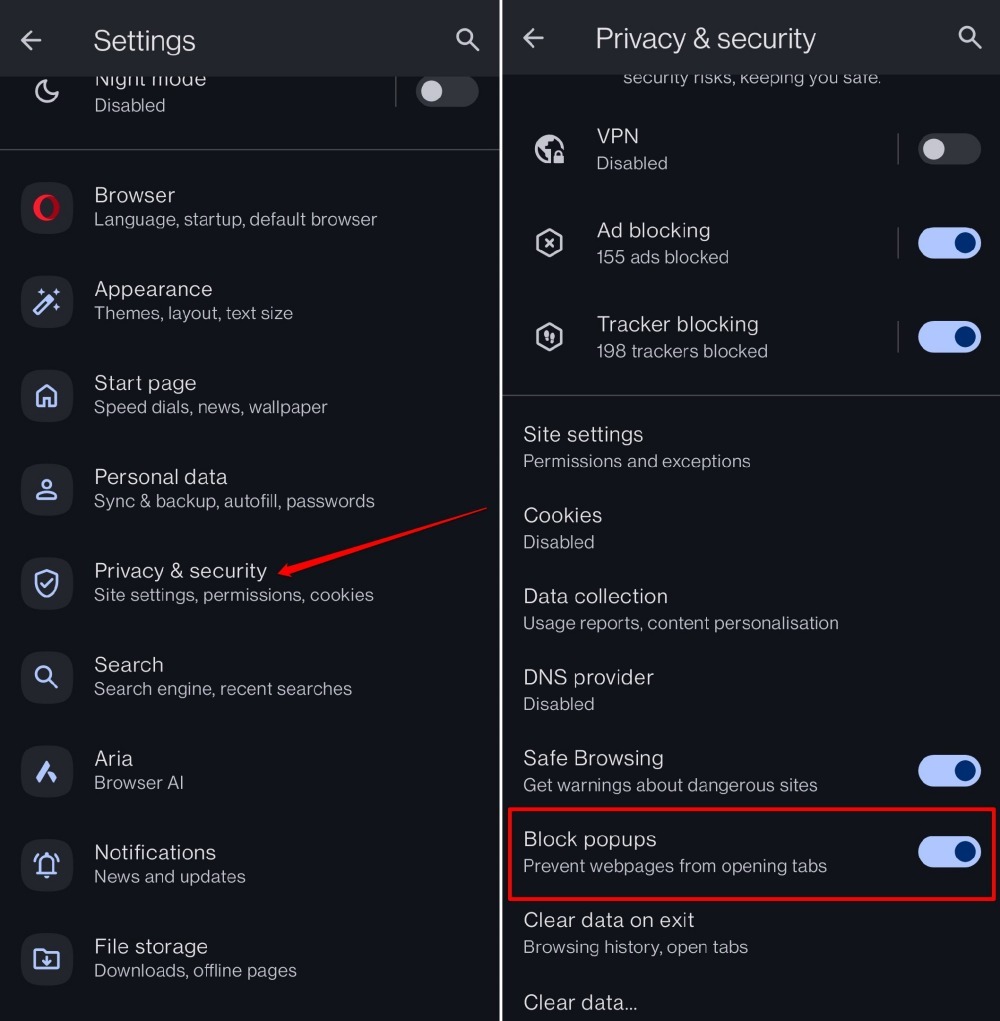
- Scroll down and select Privacy and Security.
- Tap Block pop-ups and use the toggle to turn the feature on or off.

Pop-ups are more prevalent on unsecured websites. Within the Opera Privacy settings, you can enable Safe Browsing to get warnings about dangerous sites.
Bottom Line
You’ll know the block is working when you visit a site that used to throw pop-ups and nothing happens. If you ever need to allow pop-ups for a specific site (like a banking portal), just flip the toggle back. Keeping pop-ups blocked is the safer choice for everyday browsing.