Firefox's Request Desktop Site toggle only exists on mobile, and the menu path differs between Android and iPhone. When the toggle refuses to stick or reloads the mobile layout, the fix usually comes down to clearing the site's saved data, switching the global preference, or updating Firefox.
This guide walks through every verified fix for Firefox on Android and iPhone, including the Firefox 133 behavior change on large screens and what to try if no menu toggle works at all.
In this guide, I have covered:
Contents
Why the “Request Desktop Site” Toggle Stops Working in Firefox
Firefox on Windows, macOS, and Linux does not have a “Request Desktop Site” menu at all. The toggle is a mobile-only feature, so the problem only appears on Firefox for Android, Firefox for iPhone, or Firefox Focus.
If you cannot find the toggle on your phone or tablet, the cause is almost always one of three things: you are looking in the wrong menu, the page is serving a cached mobile redirect, or the version of Firefox you are running has a known bug on large-screen devices.
Firefox for Android has two separate switches: an in-tab toggle that only affects the current page, and a global “Always request desktop site” preference in Site Settings. Firefox for iPhone only ships the in-tab toggle, which is why some readers think the feature is missing when it is simply located in a different place. Mozilla documents the Focus variant of this same feature in its official support article for Firefox Focus on Android.

Desktop Firefox has no equivalent menu. If you need a website to load its desktop layout on a computer, you must use the regular desktop site by default or change your user agent through an extension. The steps below do not apply to the desktop version.
Use the In-Tab “Desktop Site” Toggle in Firefox on Android
This is the fastest way to reload a single page in its desktop layout without changing any global settings.
- Open Firefox on Android and load the page that is showing the mobile layout.
- Tap the three-dot menu
 in the top right corner of the address bar.
 - Find the "Desktop site" toggle in the list and tap it so the switch turns blue.
- Wait for the page to reload automatically, or pull down to refresh it manually if the layout does not change.
To switch back, open the same menu and turn the “Desktop site” toggle off. The setting applies only to the current tab and resets when you close it. If you want every site to load as desktop by default, use the global setting in the next section.
Set “Always Request Desktop Site” Globally in Firefox on Android
If the in-tab toggle does not stick, or you want every new tab to open with the desktop layout, switch the global default in Site Settings.
- Tap the three-dot menu in Firefox for Android.
- Tap Settings to open the preferences screen.
- Scroll down and tap Site Settings.
- Find "Always request desktop site" near the bottom of the list and tap the toggle to turn it on.
- Reload any open tabs so the new default takes effect.
When the global toggle is on, Firefox sends a desktop user agent to every site you visit, so most mobile redirects stop firing. The setting also overrides any per-site overrides you may have set previously, which is the most common reason the in-tab toggle suddenly “stops working” after a recent update. For a broader walkthrough, see our guide to switching to the desktop view in Firefox for Android.

TIP: If you only want desktop mode for a single site, leave the global toggle off and use the in-tab switch instead. The two settings can conflict, and the global one always wins.
Request the Desktop Site in Firefox on iPhone
Firefox for iPhone has the toggle in a different place than Android, and there is no global “All Websites” switch. Each tab must be flipped individually.
- Open Firefox on your iPhone or iPad and load the page that is showing the mobile layout.
- Tap the hamburger menu
 at the bottom right corner of the screen.
 - Find "Request Desktop Site" in the menu and tap it.
- Wait for the page to reload with the desktop layout.
To go back to the mobile layout, open the same menu and tap “Request Mobile Site”. If the option does not appear, the website is forcing a mobile redirect through your saved cookies, and you need to clear the site data in the next step. The complete iPhone walkthrough is in our guide on switching to the desktop view in Firefox on iPhone.
Firefox for iOS has no “Always request desktop site” master switch. That toggle is a Safari feature, and it lives in the iOS Settings app under Safari, not inside Firefox. Do not confuse the two.
Clear the Site’s Saved Data When the Toggle Has No Effect
Some websites store a “force mobile” flag in cookies or local storage. The Firefox toggle sends a new user agent, but the site still serves the mobile layout because it remembers your last visit. Clearing that site’s data forces the server to forget the choice.
On Android
- Tap in Firefox and choose Settings.
- Tap Site Settings and find the site under "Clear site settings".
- Tap Clear next to the site entry.
- Return to the page, reload it, and re-enable the "Desktop site" toggle.
On iPhone
- Open the iOS Settings app.
- Scroll down and tap Firefox.
- Tap Clear Private Data and confirm.
- Return to Firefox, reload the page, and turn the desktop toggle on again.
Need more help with the iOS clears? Our Firefox cookie and cache clearing guide covers every option on both platforms.
Clearing site data signs you out of most websites. Make sure you have your passwords saved before you do this, especially on iPhone where there is no per-site “forget this site” option.
Update Firefox to the Latest Build
Older builds of Firefox on Android, especially anything before Firefox 133, had a bug where the “Always request desktop site” toggle reset to off after a restart. Updating is the cleanest fix for most “toggle stopped working” complaints.
Update Firefox on Android
- Open the Google Play Store on your Android device.
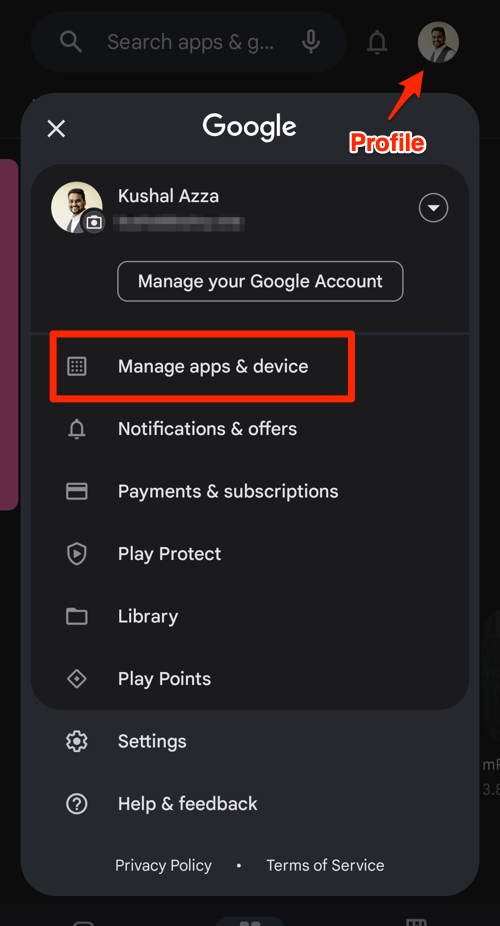
- Tap the Profile icon from the top right corner, and select the Manage apps & device menu.
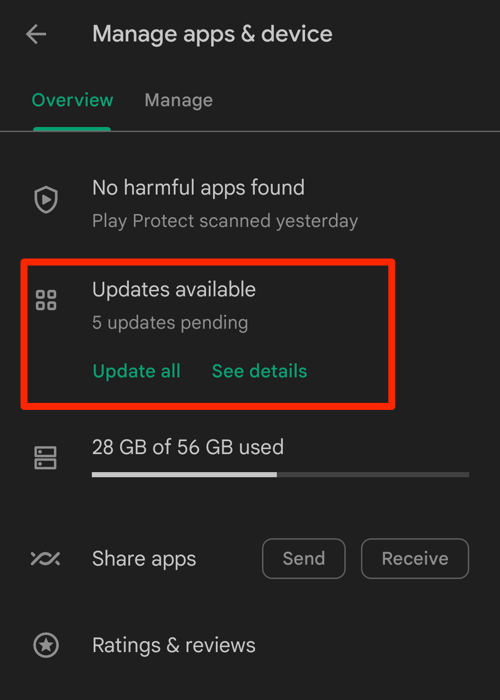
- Tap on the See details command under the Updates available menu.
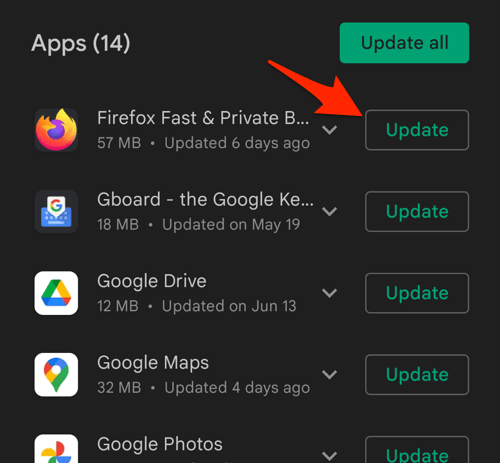
- If Firefox is on the list of apps with available updates, tap on next to it.
Update Firefox on iPhone
- Open the App Store on your iPhone.
- Tap on your Profile icon in the top right corner.
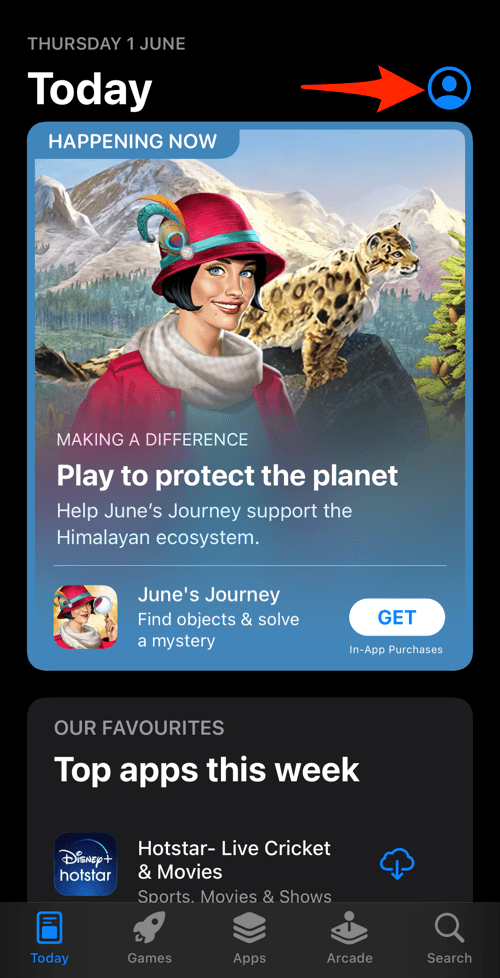
- Scroll down to the Available Updates section.
- If an update for Firefox is available, tap on next to it.
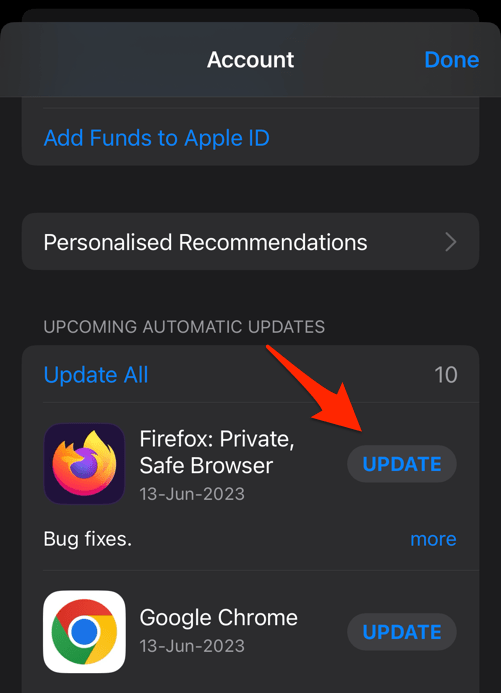 The browser will complete the update in the background.
Once Firefox is current, re-check the toggle in the (Android) or (iPhone) menu. If the entry is still missing, your device may be classified as a tablet by Firefox 133, which hides the mobile-only menu on certain large screens. Force the phone profile in about:config by setting android.ui.mode.phone to 1, then restart the browser.
Try a Private Tab as a Quick Test
Private browsing in Firefox does not share cookies, cache, or service workers with your normal session. If the toggle works in a private tab but not in a normal one, the cause is a cached mobile redirect, not a Firefox bug.
- Tap in Firefox for Android or in Firefox for iPhone.
- Select New Private Tab on Android or Private Browsing on iPhone.
- Open the same website and check whether the desktop layout loads.
If the private tab works, return to your normal session and clear the site’s data using the steps above. The toggle itself is fine; the site is the one forcing the mobile view.
Last-Resort Workarounds if Nothing Helps
When every menu toggle, every cache clear, and every update still leaves you on the mobile layout, the website itself is overriding the user agent string. A handful of banking, shopping, and government sites block Firefox on mobile from loading their desktop view entirely, even when the correct header is sent.
As a last resort, copy the URL into Chrome, which treats desktop user agents differently and often succeeds where Firefox fails on stubborn sites. Both Chrome on Android and Chrome on iPhone have a working “Desktop site” entry, and they tend to be more forgiving on sites that fingerprint the browser.

ALERT: Never install a third-party “user agent switcher” extension from an unknown developer just to force a desktop layout. These extensions can read every page you load and silently log your activity, including banking and shopping sessions.

Frequently Asked Questions
Why does Firefox snap back to the mobile site after I request desktop?
The site is storing a “force mobile” preference in your cookies or service worker storage. Clear that site’s data from the Firefox menu under Settings, then re-enable the “Desktop site” toggle.
Does Firefox on Windows or Mac have a “Request Desktop Site” menu?
No. The toggle is mobile-only. On desktop Firefox, the browser always identifies itself as desktop, so a “request desktop site” option is not needed and does not exist in the menu.
Is there an “Always request desktop site” setting in Firefox for iPhone?
Not inside Firefox. The global “All Websites” switch for desktop view in iOS lives in the Settings app under Safari, not inside the Firefox app. Firefox for iOS only exposes the per-tab toggle.
Did Firefox 133 change how the desktop site toggle works?
Yes. Firefox 133 for Android introduced new menu entries on devices it classifies as tablets or large-screen phones, which can hide the “Always request desktop site” option. Updating to the latest build and, if needed, toggling the android.ui.mode.phone preference in about:config brings the menu back.
Will using a private tab force a site to load its desktop layout?
Usually, yes. Private tabs do not share cookies, cache, or service workers, so any stored “mobile user” flag is ignored. If the desktop layout loads in a private tab, the problem is the site’s cached data, not Firefox itself.