Opera Android 102 is rolling out with a movable address bar that can sit at the bottom of the screen, plus a rebuilt QR code scanner for opening links faster. Search also stays one tap away even while you scroll a long page.
The update ships through the Google Play Store in phases. Here is what is new in Opera 102, how to grab it manually on your phone, and how to confirm the version after installing.
In this guide, I have covered:
Contents
What’s New in Opera Android 102
Opera Android 102 rolls out with three targeted fixes: a bottom address bar, search that stays close while you scroll, and a rebuilt QR code scanner. The official Opera 102 announcement frames all three as everyday usability changes.
The bottom address bar is the headline. You can move the address bar to the bottom of the screen, so your thumb reaches it without stretching across a large display.
Search also stays one tap away while you scroll a long page. You no longer have to jump back to the top just to open a new tab.
Opera rebuilt the QR code scanner from scratch for this release. The new reader replaces the older one with a faster, cleaner way to open codes from menus, posters, and other screens.
How to Update Opera Android to Version 102
Opera 102 ships through the Google Play Store in phases. If the update has not reached your account yet, you can pull it manually.
- Open the Google Play Store on your Android device.
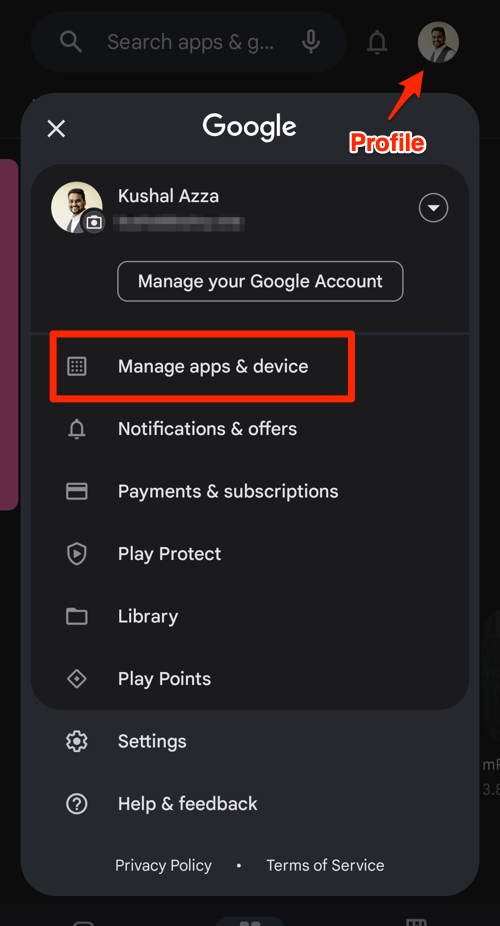
- Tap the Profile icon from the top right corner, and select the Manage apps & device menu.
- Tap on the See details command under the Updates available menu.
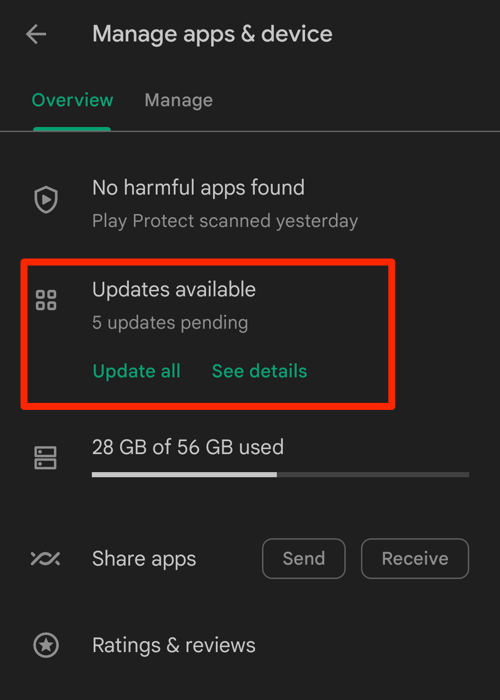
- If Opera is on the list of apps with available updates, tap on next to it.
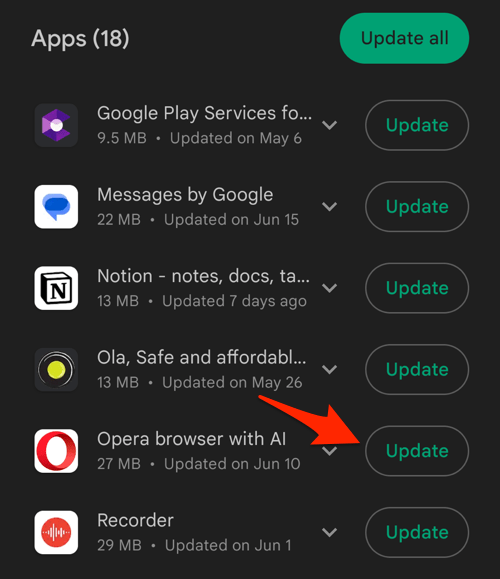 It will complete the browser update on your Android device.
Relaunch Opera after the update installs so the new build takes effect. If Play Store still reports the older version, wait a day and try again. Opera stages these rollouts over several days.
For a step-by-step walkthrough from first install to the latest build, see our Opera download and update guide.

Opera stable builds on Play Store use phased rollouts that take roughly 24 to 72 hours to land in every region. On an existing install, force-stopping the browser can sometimes help Play Store see the update right away.
How to Check Your Opera Android Version
Once the update lands, confirm you are running 102. Open Opera, tap the Opera menu  in the bottom corner, choose Settings, and open About. The version number sits at the top of that screen.
If the About screen still shows the previous build after a relaunch, the rollout has not reached your account yet. Try the manual Play Store update steps again in a day, or clear the Play Store cache from Android’s app settings.
Getting the Most Out of the New Address Bar
A bottom address bar works best with clean search history and a default browser setup. If you want to tidy up old searches, see our guide on clearing search history in Opera on Android.
While you are in settings, you can also decide how Opera handles site cookies on your phone. Our cookie settings guide for Opera on Android walks through the options.
For the full install-to-update path, head to our Opera download and update guide.

Frequently Asked Questions
What is new in Opera Android 102?
Opera Android 102 adds a movable address bar that can dock at the bottom of the screen, keeps search one tap away while you scroll, and replaces the older QR code scanner with a rebuilt version. Together they make the browser easier to use with one hand and faster for scanning links.
How does the new QR scanner work in Opera 102?
The QR scanner in version 102 replaces the previous reader in the browser. Open it from the QR entry point in Opera for Android and point the camera at any printed or on-screen code. The link opens in the current tab.
Why is my Opera Android still on the previous version?
Stable updates from Opera ship through the Google Play Store in phases, so not every phone sees the new build at the same time. Wait a day, force a manual update from the Play Store listing, or reinstall the app to pick up 102.
How do I confirm I am running Opera 102 on Android?
Open Opera, tap the Opera menu , choose About, and read the build number at the top of the screen. If it reads 102, the update is active on your device.