Safari sometimes stops loading a page halfway, so images, menus, or whole sections of the site never appear. The rest of the page sits there blank, and reloading changes nothing.
Most of the time the cause is stored site data, a content blocker, or a cookie setting, and you can fix it in Safari on your Mac in a few minutes. The steps below run from quick tests to deeper settings changes, reloading the page after each one.
In this guide, I have covered:
Contents
Why Safari Loads a Page Only Halfway
Safari can stall partway through a page for several reasons, and most of them sit on your Mac rather than on the site. A stale cached copy, a content blocker hiding elements, JavaScript switched off, blocked cookies, or an outdated macOS can each leave a page half-rendered.
You can test every one of those in Safari itself, without emailing the site owner. The fixes below run from one-minute checks, like a Private Window and a hard reload, to deeper settings changes. Work through them in order and reload the broken page after each step.
Start With Quick Tests in Safari
Before you change a single setting, spend a minute working out whether the problem is Safari or the site. Four checks narrow that down fast.
- Open the site in a Private Window with ++. Private windows ignore most extensions and stored cookies, so a clean load here points at saved data as the cause.
- Hard-reload the original tab with ++. That empties the cached copy and forces Safari to download the page from the server again.
- Open the same page in Chrome or any non-Safari browser. If it renders fully there, the cause is Safari-specific.
- Check Apple’s System Status page to rule out an active Safari or iCloud outage.

TIP: If the page loads fully in a Private Window, jump to the clearing-data and extensions sections. Those two fix that exact symptom most of the time.
Clear Cookies, Cache, and Site Data
A corrupted cache file or a cookie left over from an older version of the site is the most common reason Safari shows half a page. Clearing both gives Safari a clean copy to fetch.
- Launch the Safari app on your Mac computer.
- Click on the Safari menu from the menu bar, and select the Settings... sub-menu.
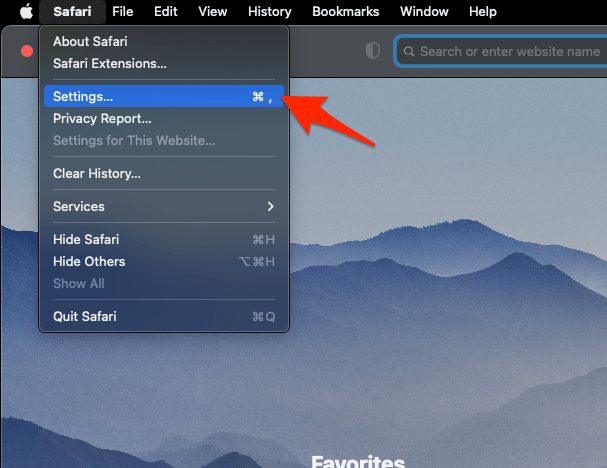 It will open the Safari Settings window.
 - Switch to the Privacy tab, and click to open the button.
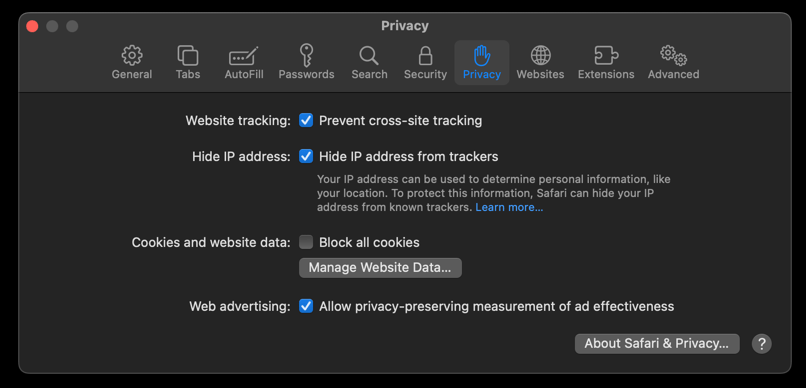 It will load the list of websites currently storing the cache and cookies in the browser.
 - Hit on the command and then the button.
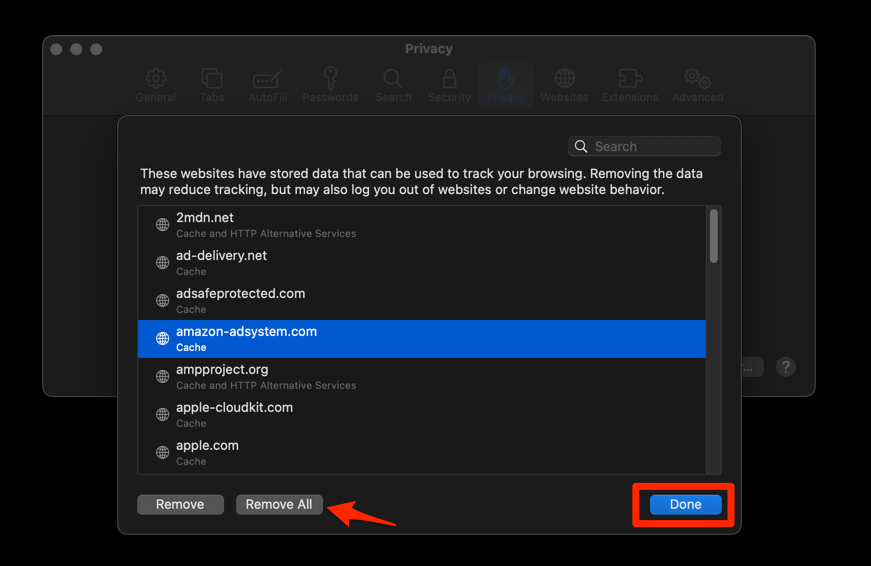 It will flush the cookies and cache for all sites in Safari.
You’ll know it worked when the page renders completely on the next reload. If you want to clear cookies without wiping your history, or pick off sites one by one, Safari’s Manage Website Data options on Mac cover each one.
Disable Safari Extensions
Ad blockers, content blockers, and privacy extensions can hide images, comment threads, embedded videos, and entire page sections without any warning. Turning them off is the fastest way to find out whether one of them is the culprit.
- Launch the Apple Safari app on your Mac computer.
- Click on the Safari menu from the menu bar at the top, and select Settings... sub-menu.It will open the Safari Settings window.
- Switch to the Extensions tab in the Settings window.
It will display the list of all the Safari extensions installed. - Uncheck the checkbox in the left side pane to Disable the extension.
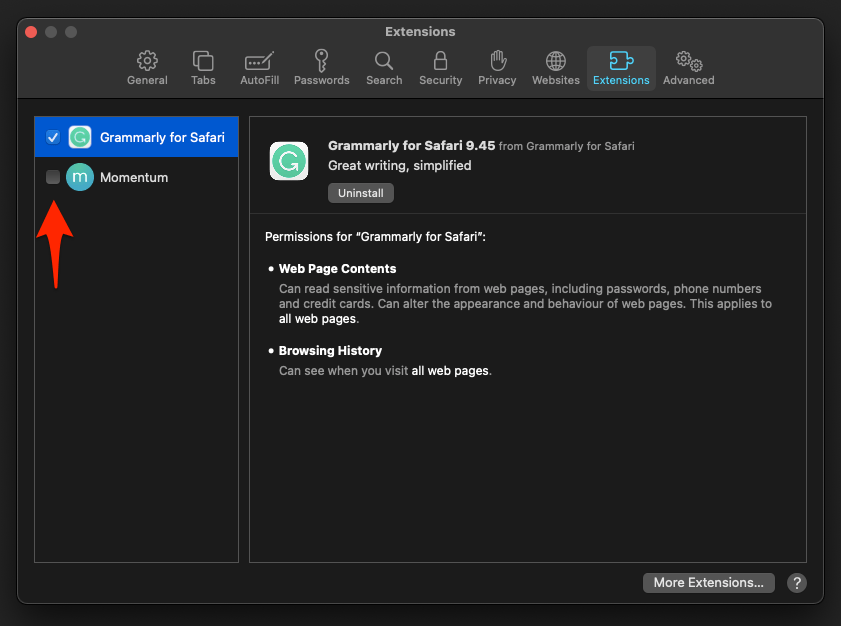
You’ll know it worked when the full page appears with every extension switched off. Then re-enable them one at a time, reloading after each toggle. The moment the missing content drops out again, you’ve found the blocker.
Clear the DNS Cache
A stale DNS entry can leave Safari pointed at a server that no longer serves the site, which looks exactly like a half-loaded page. Clearing the local DNS cache makes macOS look the address up from scratch.
- Open the Apple Safari app on your Mac, and select Safari > Settings... from the menu bar.It will open the Safari Settings window.
- Switch to the Advanced tab, and enable the checkbox for the Show Develop menu in the menu bar option.
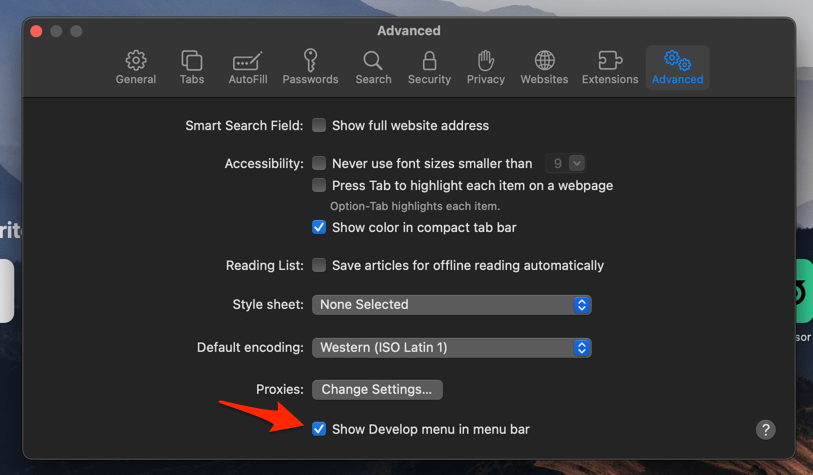 It will enable a new Develop menu in the Safari menu bar.
 - Click on the Develop menu and select the Empty Caches command.
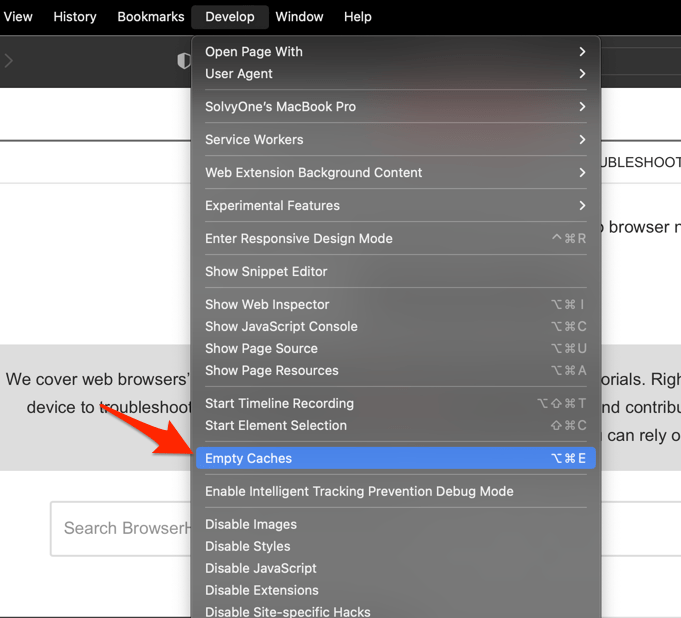 It will clear all cache, including the Safari DNS host cache.
Reload the page in Safari once the command finishes. Still cut off mid-load? Move to the JavaScript and cookie settings below.
Make Sure JavaScript Is On
Most modern sites use JavaScript to render menus, videos, comment threads, and, on news and social sites, the article text itself. With JavaScript off, those sections never appear at all.
- In Safari, open the Safari menu and choose Settings.
- Click the Security tab.
- Check that Enable JavaScript is selected.
- Reload the page.

Apple ships JavaScript on by default. If the box is empty, an MDM profile or another admin tool may have turned it off. Re-enable it unless you have a specific reason to leave it disabled.
Turn Off Block All Cookies
Many sites need cookies to load the page content itself, not just to track you. Apple says as much inside this setting, warning that blocking them “may cause webpages to not work.”
- Open the Safari menu and choose Settings.
- Click the Privacy tab.
- Uncheck Block all cookies (in newer builds, toggle off Block All Cookies).
- Reload the page.
You can leave the other privacy protections on without breaking pages. Block All Cookies is the one switch that hides page content most often.
Disable Cross-Site Tracking as a Test
Cross-site tracking protection is worth keeping on. A small number of sites, though, won’t render properly while it’s enabled, and switching it off for a minute is the only way to confirm.
- Open Safari → Settings → Privacy.
- Uncheck Prevent cross-site tracking.
- Reload the page.
If the page loads fully now, the site has a known conflict with Safari’s tracking filter. Turn the setting back on afterward: it’s the site that needs fixing, not your privacy defaults. The same control exists on iPhone and iPad, and turning off cross-site tracking in Safari on iPhone covers it.
Update macOS
Sites that misbehave in older Safari builds often work fine once macOS is current. Apple ships WebKit and rendering fixes inside system updates, not through a separate Safari updater.
- Click the Apple menu and choose System Settings (or System Preferences on macOS Monterey and earlier).
- Click General, then Software Update.
- If an update is offered, click and wait for it to finish.
- Restart your Mac when prompted, then reopen Safari and reload the page.
Reset Safari as a Last Resort
When every fix above has failed, the remaining suspects are session state, website data, and stored permissions. This sequence clears all three.
- Quit Safari with +.
- Reopen Safari while holding the key. It launches without restoring the previous session and clears transient state.
- Open Safari → Settings → Privacy → Manage Website Data.
- Click and confirm.
- Restart your Mac and reload the broken page.

Frequently Asked Questions
A few questions come up again once you’ve worked through the fixes above.
Why does Safari load only part of a website?
Safari can stop mid-page because of a stale cached file, a content blocker hiding elements, JavaScript being switched off, cookies being blocked, or an outdated macOS. To narrow it down, open the site in a Private Window. If it loads fully there, your extensions or your stored data are usually the cause.
Will clearing Safari history delete my saved passwords?
No. Clearing history, cookies, and cache removes browsing data and website storage only. Saved passwords live in System Settings → Passwords, separate from Safari’s history file. To clear cookies without losing history, use Manage Website Data in Safari’s Privacy pane.
Does turning off JavaScript break the web?
Menus, videos, comments, and login flows on most modern sites are rendered by JavaScript, which is why Apple leaves it on by default. Leave it on unless a specific site needs it off, and switch it back on as soon as you finish testing.
Why do some sites work in Chrome but not Safari?
Safari renders with WebKit, Chrome with Blink. A site built around a Chrome-only feature can look fine in Chrome and break in Safari. Your fix is to update macOS, since Apple ships WebKit fixes through system updates rather than a separate Safari updater.
How do I tell if a content blocker is the problem?
Open Settings → Extensions and uncheck every content blocker, ad blocker, and privacy extension. Reload the page. If it loads now, re-enable them one at a time, reloading after each, until the page breaks again.
If the page still won’t load after all of this, try it in another browser on the same Mac. When it fails there too, the site is what’s broken, and reporting the URL to the site’s support beats resetting Safari one more time.