Pages that keep refreshing themselves are usually a privacy or extension issue. Most of these have a setting-based fix in Safari for Mac that you can try before anything more drastic.
Start with cross-site tracking, then clear cookies and cache, test your extensions, and check iCloud before you reset anything.
In this guide, I have covered:
Contents
Why Safari keeps reloading pages on Mac
Your page refreshes on its own, you did not touch anything, and a minute later it happens again. Safari is the one reloading the tab, and the most reported trigger is Prevent cross-site tracking.
That setting blocks requests to other domains. On pages built from embedded widgets or iframes, the blocked pieces can push Safari into a refresh loop.
Other causes are less common, but they show up often enough. An extension with a faulty background script, stale cookies or cache, a JavaScript error, or iCloud tab sync replaying an older session can all trigger reloads. Most of these have a setting-based fix, so a reinstall is almost never necessary.
Watch for the “This web page was reloaded” message
Safari shows a small banner that reads “This web page was reloaded because a problem occurred” when the browser kills a tab and starts it over. The banner is informational, not a fix, but it tells you Safari triggered the reload rather than the site.
See it every few seconds on one site and the cause is almost always a JavaScript error, a broken cross-origin iframe, or a misbehaving extension. The steps below target those three in order.
Turn off Prevent Cross-Site Tracking
If the loop hits sites with embedded widgets, chat tools, or social logins, start here. Cross-site tracking protection is the most reported cause of unwanted Safari reloads, and toggling it takes a few seconds.
- Open Safari and choose Safari in the menu bar, then click Settings.
- Click the Privacy tab at the top of the window.
- Uncheck the box next to Prevent cross-site tracking.
- Reload the affected tab and watch whether the page stabilizes.
You’ll know it worked when the tab sits still for a full minute without you touching it.

Turning off cross-site tracking reduces your privacy on every other site you visit. If this stops the reload loop, you can leave it off. We cover the same setting for Safari on iPhone and iPad.
Clear cookies and cache in Safari
Reload loops that survive the tracking toggle usually come from stale or corrupted site data, especially after a site update or a long session. Clearing cookies and cache forces Safari to fetch a fresh copy from the server.
- Launch the Safari app on your Mac computer.
- Click on the Safari menu from the menu bar, and select the Settings... sub-menu.
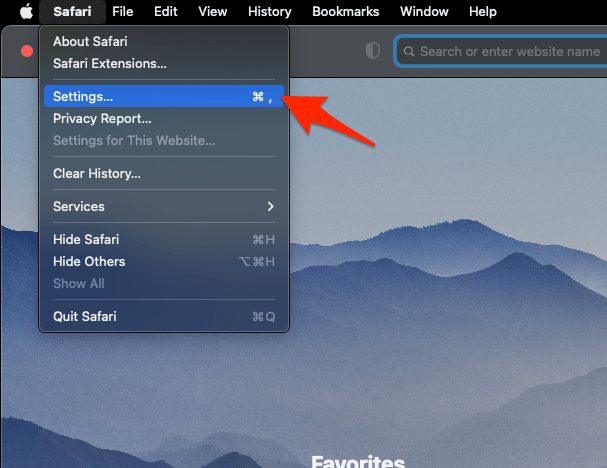 It will open the Safari Settings window.
 - Switch to the Privacy tab, and click to open the button.
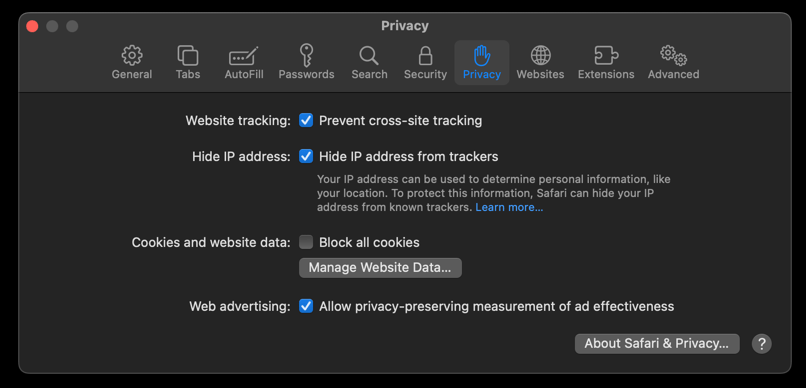 It will load the list of websites currently storing the cache and cookies in the browser.
 - Hit on the command and then the button.
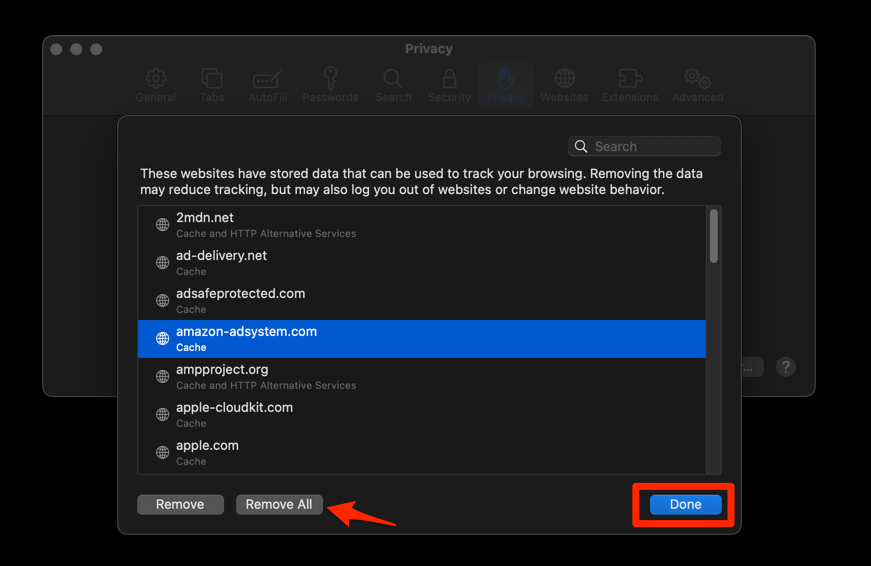 It will flush the cookies and cache for all sites in Safari.
You’ll know it worked when you sign back in and the page stays put. If only one site still loops, its own cached files are the culprit, and a hard refresh and reload re-downloads that page’s assets without signing you out everywhere else.
Disable Safari extensions to test
Content blockers, password managers, and shopping extensions are the usual suspects. When their background scripts restart, they can take the tab down with them, and Safari reloads it.
- Launch the Apple Safari app on your Mac computer.
- Click on the Safari menu from the menu bar at the top, and select Settings... sub-menu.It will open the Safari Settings window.
- Switch to the Extensions tab in the Settings window.
It will display the list of all the Safari extensions installed. - Uncheck the checkbox in the left side pane to Disable the extension.
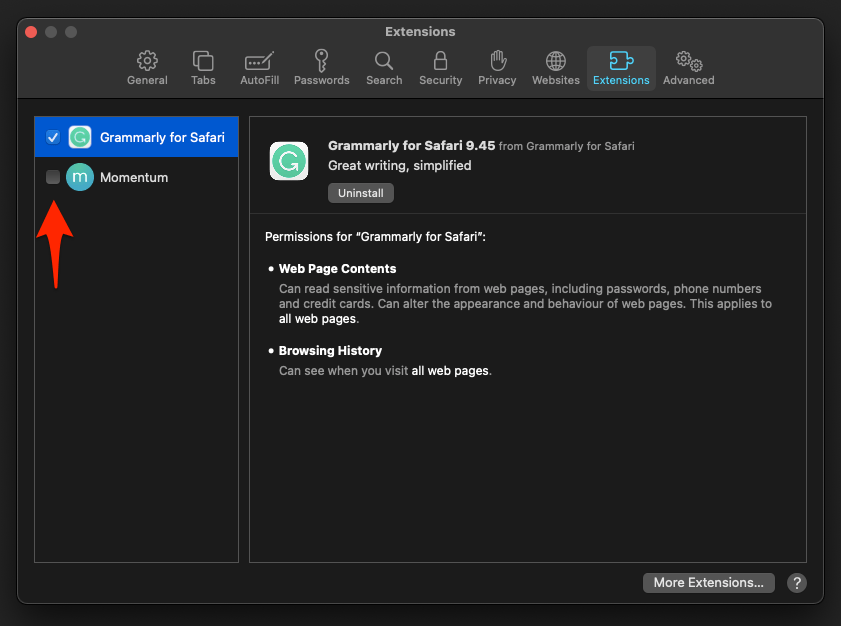
If the page stops reloading with extensions off, re-enable them one at a time from Safari → Settings → Extensions. The last one you turn back on before the loop returns is the cause. You’ll know it worked when the page stays put with that extension disabled.
Make sure JavaScript is enabled
Some sites refresh endlessly when a script they need fails to run. JavaScript is on by default in Safari, so if it is off, something else changed it: a managed profile, a content filter, or a step you tried earlier while troubleshooting.
- Open Safari and choose Safari → Settings.
- Click the Security tab.
- Check the box next to Enable JavaScript if it is not already selected.
- Reload the page and confirm the loop is gone.
You’ll know it worked when the page renders fully instead of blanking out and refreshing again.
Test the page in a private window
A private window starts clean: no cookies, no cache, and extensions off by default. If the page behaves there, the problem lives in your regular profile’s data or in an extension.
- Click File in the menu bar and choose New Private Window, or press ++.
- Open the same URL that was reloading in your normal Safari window.
- Watch the tab for a minute. If it stays put, your regular cookies, cache, or an extension is involved.

TIP: For a faster check, try the page in a different browser first. If it is stable in Chrome or Firefox but reloads in Safari, the problem is specific to Safari settings or extensions.
Check iCloud Safari settings
If you use Safari on more than one Apple device, iCloud can push a tab refresh from another device or replay an older session. Toggling iCloud Safari off and back on resets that sync state.
- Open System Settings on your Mac from the Apple menu.
- Click your name at the top, then click iCloud.
- Find Safari in the app list and turn it off.
- Wait about 30 seconds, then turn Safari back on.
- Open Safari and recheck the page.
Reloads that stop after this were coming from the sync, not from the site itself.
Update macOS and Safari
Safari updates ship inside macOS updates, so an old system can leave you on a build with known reload bugs. This is worth checking early if the reloads started right after a recent update.
- Click on the Apple
 menu from the menu bar and select the System Settings... sub-menu.
  It will open the System Settings window.
 - Select the General tab in the left sidebar, and choose the Software Update tab.
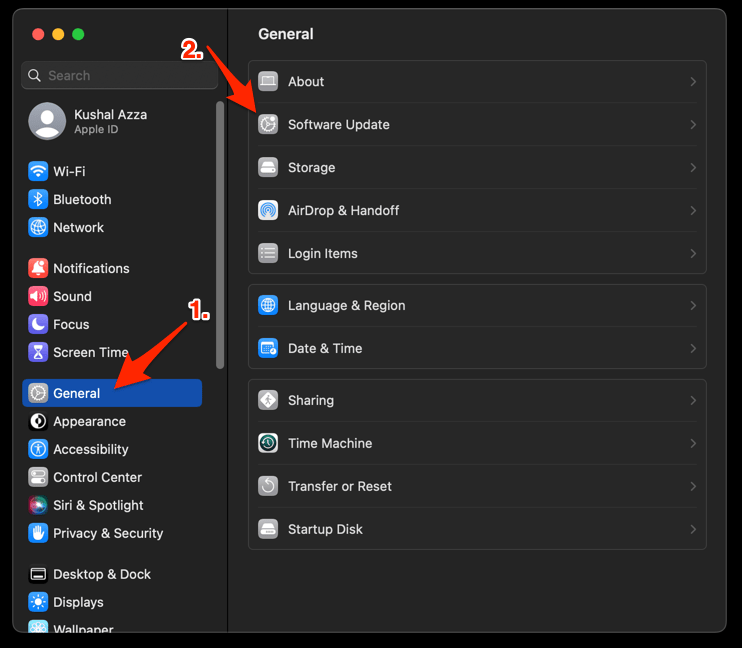 The macOS System will check for any available upgrades in the background.
 - Click on the More Info... tab and enable the checkbox for Safari updates (if any are available).
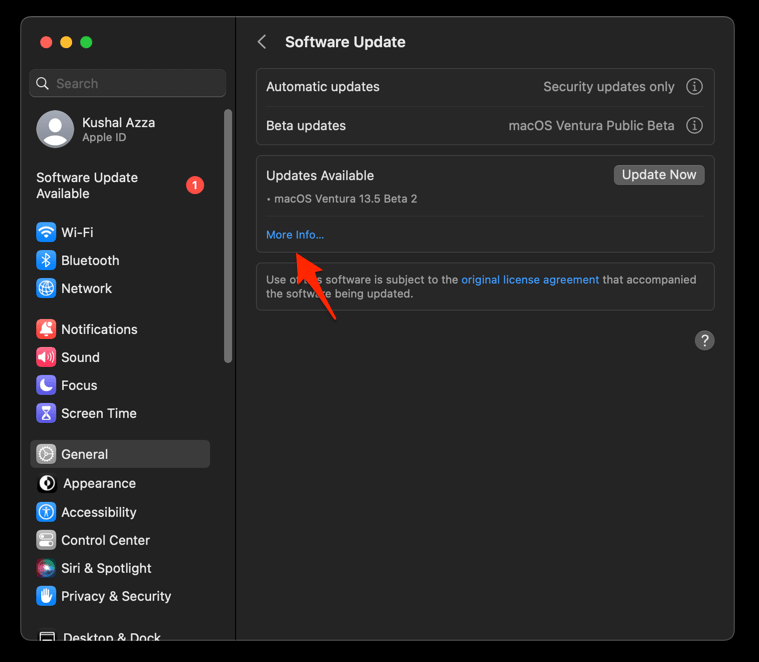
- Hit on the button.
It will update the Safari browser.
Reopen Safari and try the page once the update finishes. If the reloads began right after an update and still happen, wait for the follow-up macOS patch or switch browsers in the meantime.

Frequently Asked Questions
Why does Safari keep reloading the same page over and over?
Usually because Prevent cross-site tracking is fighting with iframes or scripts on that page. Extensions, stale cookies, and JavaScript turned off are the next most likely triggers.
How do I stop Safari from auto-refreshing tabs on Mac?
There is no single auto-refresh toggle in Safari. The reloads come from the site, an extension, or Safari’s own recovery when a script crashes, so work through the settings above in order, starting with cross-site tracking.
Does turning off Prevent Cross-Site Tracking stop the reloads?
Often, especially on sites with embedded widgets, chat tools, or social logins. It takes a few seconds to toggle, and you can switch it back on if it makes no difference.
Can a Safari extension cause pages to reload?
Yes. Content blockers, ad blockers, and password managers can all trigger reloads when their background scripts restart. Turning extensions off from Safari → Settings → Extensions is the fastest way to test this.
Should I reset Safari if the reloads keep happening?
Not yet. Clear cookies and cache, disable extensions, and update macOS first. If the loop survives all three, toggle iCloud Safari off and on, then use a different browser until Apple ships a fix.