The QR code scans, your iPhone asks for Face ID, and the desktop just sits on “Connecting to your device”. That dead end is usually a relay problem, not a broken passkey.
Close the stalled attempt, start a fresh sign-in, and update Chrome on both devices. If a new QR code still hangs, sign in on the iPhone itself or try Edge on the computer.
In this guide, I have covered:
Contents
Your iPhone scanned the code, but Chrome keeps connecting
The scan works. Your iPhone or iPad shows the passkey sheet, the desktop tab says “Connecting to your device”, and then nothing happens. That stall is the whole problem, and it rarely means the passkey is gone.
Cross-device passkey sign-in pairs a desktop Chrome tab with your phone through a temporary QR code. Once the phone scans, both devices open a secure relay before the desktop can finish signing in.
One tracked Chrome failure happened when Chrome rejected an invalid TLS certificate for Apple’s passkey relay at cable.auth.com. The relay never started, so the desktop stayed on the connecting screen even though the scan had clearly worked.
That incident was later marked resolved on the server side. Testing did not tie it to an older phone or an older iOS release, so treat a hang you see now as a new failure, not as proof that your saved passkey or your iPhone is too old.
If other secure pages also throw ERR_CERT_AUTHORITY_INVALID, the trouble is wider than passkeys. Work through the Chrome certificate error guide first, then come back.

ALERT: Never bypass a TLS certificate warning to force a passkey connection.
Start a new QR-code attempt
If the desktop is still sitting on the connecting screen, that QR session is dead. Close it and generate a fresh code instead of rescanning the old one or rebuilding the passkey.
- On the computer, close the tab showing “Connecting to your device.”
- Reopen the site’s sign-in page.
- Start the site’s passkey sign-in option again.
- On the iPhone or iPad, open Camera and scan the new QR code.
- Continue from the system passkey sheet when it appears.
- Complete the Face ID, Touch ID, or device-passcode request on the iPhone or iPad.
The attempt worked when the desktop leaves the connecting screen and the site signs you in. If a brand-new code hangs the same way, stop rescanning and use one of the alternatives below.

A QR code belongs to the one sign-in attempt that created it. If it goes stale, or your phone drops back to Camera, close the attempt and generate a new code from the site.
Update Chrome on the computer
Your phone does the scanning, so updating the computer first feels backwards. Do it anyway: the desktop is the side that generates the QR code and holds the relay connection.
- Launch the Google Chrome on your computer.
- Click on More
 for the options list, and select the Settings menu.
- Switch to the About Chrome tab in the left sidebar pane.
 The browser should automatically start looking for the latest updates.
 - Hit on the button.
 It will complete the Chrome browser update process.
You’ll know it worked when Chrome relaunches on the newer version and a fresh passkey request produces a new QR code. The tracked certificate failure was server-side, so a fresh request still matters either way.
Update Chrome on iPhone or iPad
The same applies to the phone in your hand. Update mobile Chrome before you test the saved passkey or scan another code.
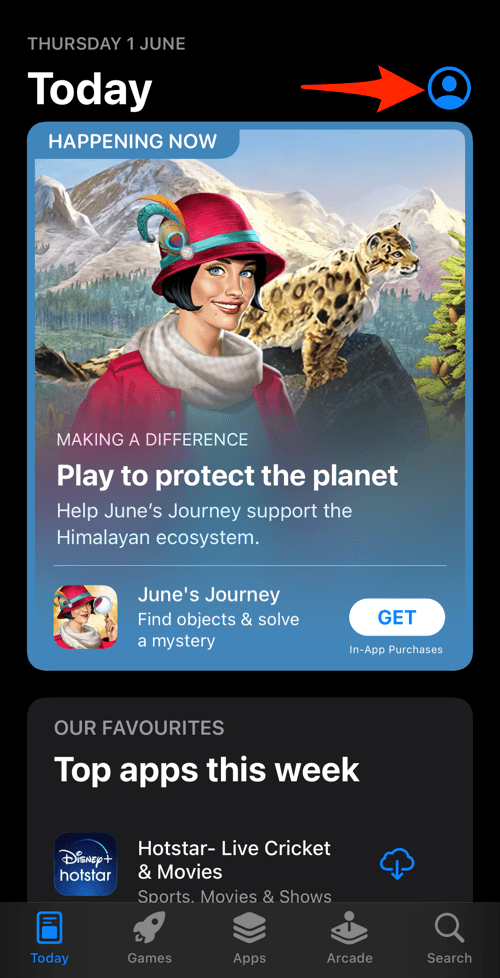
- Open the App Store on your iPhone.
- Tap on your Profile icon in the top right corner.
- Scroll down to the Available Updates section.
- If an update for Chrome is available, tap on next to it.
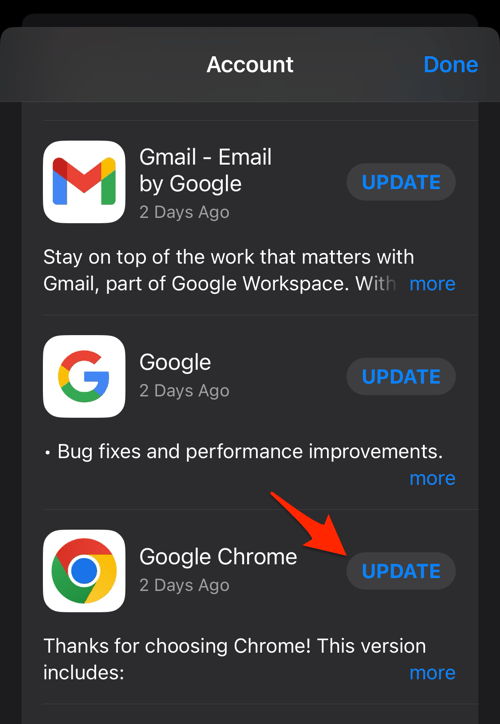
You’ll know it worked when Chrome reopens on the newer version. Then return to the site and continue with the passkey check below. A stalled desktop connection is no reason to delete the passkey.
Check the internet, Bluetooth, and your iOS version
The scan worked, so you may assume the network is fine. It isn’t that simple: the relay also needs both devices online, Bluetooth on, and a recent enough iOS.
- Connect the computer to a reliable internet connection.
- Connect the iPhone or iPad to a reliable internet connection.
- Turn on Bluetooth on the computer if it is disabled.
- Turn on Bluetooth on the iPhone or iPad if it is disabled.
- Open the Settings
 app.
app. - Tap General.
- Tap About.
- Check that Software Version is iOS or iPadOS 17 or later when using Google Password Manager passkey storage.
Google’s Chrome developer documentation lists iOS 17 or later as a prerequisite for Google Password Manager passkey storage on iPhone and iPad. That requirement is separate from the relay certificate failure that was fixed.
If ordinary sites also fail to load, fix the general connection before you test passkeys again.

Check that Chrome can find the passkey
You’re probably tempted to delete the passkey and start over. Check what’s actually stored first: a cross-device relay failure says nothing about whether the credential was removed.
- Open Chrome on the iPhone or iPad.
- Tap the menu.
- Tap Settings.
- Tap Autofill and passwords.
- Tap Password Manager.
- Tap Passwords.
- Confirm that the saved passkey for the account appears.
If the passkey is listed, use the same-device method below. If it’s missing, don’t delete and recreate it just because the desktop QR flow failed. Passkeys on iPhone and iPad can also be provided through iCloud Keychain.
Sign in without the stuck desktop QR flow
You want in now, not after the next Chrome update. Two confirmed alternatives finish the sign-in while Chrome’s desktop QR connection is hanging.

TIP: Try same-device authentication first. It uses the saved passkey with no QR relay at all, so within seconds you know whether the credential itself works.
Use Chrome on the iPhone or iPad
- Open the same site’s sign-in page in Chrome on the iPhone or iPad.
- Choose the passkey option offered by the site.
- Select the saved passkey for the account.
- Complete the Face ID, Touch ID, or device-passcode prompt.
You have succeeded when the account opens without a QR code anywhere. Same passkey, no desktop relay.
Use Microsoft Edge on the computer
- Open the same sign-in page in Microsoft Edge on the computer.
- Start a new cross-device passkey sign-in.
- Scan Edge’s new QR code with the iPhone or iPad.
- Complete the authentication request on the iPhone or iPad.
If Edge completes the sign-in, the passkey is fine and the fault sits in Chrome’s desktop QR path.
The original failure was intermittent, and it cleared for some readers without any local setting change. If same-device sign-in works but a new Chrome QR code still hangs, keep using the method that works and retry Chrome later.
Report a repeated Chrome passkey failure
You’ve updated both copies of Chrome, checked the connections, and a new QR code still stalls. That is worth a report, and it should come from the computer showing the connecting screen.
- On the computer, open the menu.
- Choose Help.
- Choose Report an issue.
- Describe that Chrome remains on “Connecting to your device” after the iPhone or iPad scans the QR code.
- State whether same-device authentication and Microsoft Edge worked.
- Send the completed report.
Include the site, the time of the failure, and which alternative succeeded. Keep the active QR code, the passkey, and any one-time authentication code out of the report and out of any screenshot.
Frequently Asked Questions
Why is my Chrome passkey QR code stuck on “Connecting”?
A tracked incident occurred when Chrome could not validate the certificate for the secure passkey relay. That server-side problem was reported as resolved, so a hang you see now may be a different network or connection failure.
Is the passkey problem caused by an old iPhone or iOS version?
The tracked QR failure was not traced to device age or an older iOS release. Google Password Manager passkey storage on iPhone and iPad does require iOS or iPadOS 17 or later.
How can I use the passkey without scanning the QR code?
Open the site in Chrome on your iPhone or iPad, choose its passkey option, and complete the Face ID, Touch ID, or device-passcode prompt. This bypasses the desktop cross-device connection entirely.
Should I delete the passkey, clear cookies, or reinstall Chrome?
Not for the tracked relay failure, because it did not indicate a damaged passkey or incorrect Chrome profile data. Check that the passkey is available, then use the same-device or Edge workaround while reporting a repeated Chrome hang.
Why does Microsoft Edge work when Chrome does not?
If the same passkey completes through Edge or on the iPhone itself, the credential is usable. The remaining problem is Chrome’s desktop QR connection path, not your account and not the saved passkey.