Netflix can go black, stall on a spinner, drop quality, or throw an error after Edge's graphics settings change. The acceleration toggle changes how Edge decodes video, but it is not behind every Netflix failure.
Test the toggle in both directions with a restart in between, confirm the decoder status in edge://gpu, update Edge, then check extensions and stored site data before you try the title again.
In this guide, I have covered:
Contents
Why Netflix playback changes in Edge
You open Netflix in Edge and get a black screen, a spinner that never stops, a softer picture, or an error code. Nothing changed on your side except one graphics setting.
Edge calls that control graphics acceleration. Most people still say hardware acceleration, and both names point to the same toggle on the same settings page.
This walkthrough uses Edge on Windows. Netflix’s supported-browser requirements list Edge 118 or later on Windows 10 or Windows 11 for playback up to Ultra HD (2160p). If your PC or the stream falls short of those conditions, no Edge setting will fix it.
Switching acceleration off usually lowers quality, because Edge falls back to software decoding. Netflix never names that switch as a 4K requirement, so treat it as a diagnostic first and a fix second.
Error codes are a different clue. Netflix’s D7703-1003 guidance asks you to refresh stored browser information or update the computer. That error on its own does not prove acceleration is broken.
Turn graphics acceleration on for the first test
Start here if the toggle was turned off at some point, or if Netflix quietly dropped to a lower quality with no error at all.
- Click the Edge address bar.
- Type edge://settings/system.
- Press .
- Select System and performance.
- Select System.
- Turn on Use graphics acceleration when available.
- Select when Edge prompts you.
- Open Netflix after Edge restarts.
- Start the title or episode that failed.
Picture and sound should return to normal. If acceleration was already on, leave it on and run the opposite test next.

The setting takes effect only after Edge restarts. If the toggle is missing or locked, an organization policy may control it through HardwareAccelerationModeEnabled.
Turn graphics acceleration off as a diagnostic
If the black screen or the freeze started right after acceleration was enabled, turn it off once and compare like for like. This test can bring back basic playback, and it can cost you quality.
- Click the Edge address bar.
- Type edge://settings/system.
- Press .
- Select System and performance.
- Select System.
- Turn off Use graphics acceleration when available.
- Select when prompted.
- Open Netflix after Edge restarts.
- Start the title or episode that failed.
Playback that returns only with acceleration off points at the graphics decoding path. Leave the setting off for basic playback while you inspect Edge’s decoder status.
Check whether Edge is using hardware decoding
Your picture keeps stalling and the toggle tests got you nowhere. Edge can answer the question directly: the edge://gpu report shows whether the GPU is decoding the video.
- Open Netflix in an Edge tab.
- Start the affected title or episode.
- Leave the video playing for several seconds.
- Press +.
- Type edge://gpu in the address bar.
- Press .
- Scroll to Video Acceleration Information.
- Find Video Decode.
- Confirm that its status reads Hardware accelerated.
If the line reads Hardware accelerated, the accelerated decoder is doing the work. If it does not, repeat the restart and toggle tests before you blame Netflix.
Inspect media details for a persistent decoder failure
When the GPU report looks fine and the picture still stalls, reproduce the failure and read edge://media-internals. That page lists the media player and the video Edge tried to decode.
- Open Netflix in one Edge tab.
- Start the affected title or episode.
- Wait until the picture stalls or the error appears.
- Press +.
- Type edge://media-internals in the address bar.
- Press .
- Review the player information for the failed video.
The page is diagnostic output, not a setting you change. Compare what it shows with the Video Decode status from edge://gpu.

Update Edge before changing Windows settings
If the decoder checks come back clean and Netflix still fails, update the browser before you touch Windows.
- Launch Microsoft Edge on your computer system.
- Click on the More
 for the menu list, and select the Settings menu.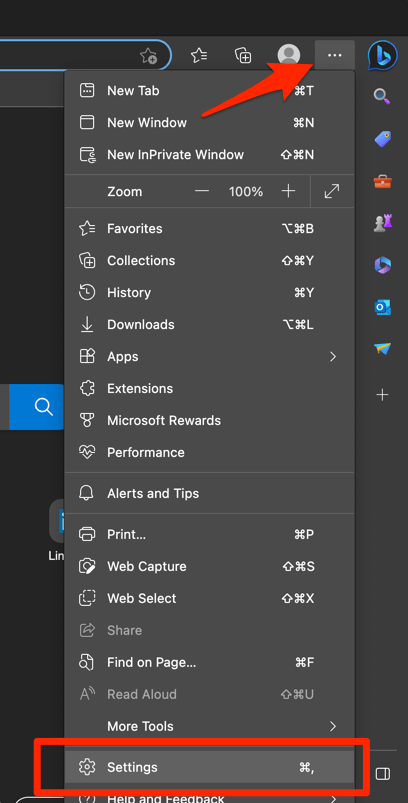
- Switch to the About Microsoft Edge tab from the left side pane.
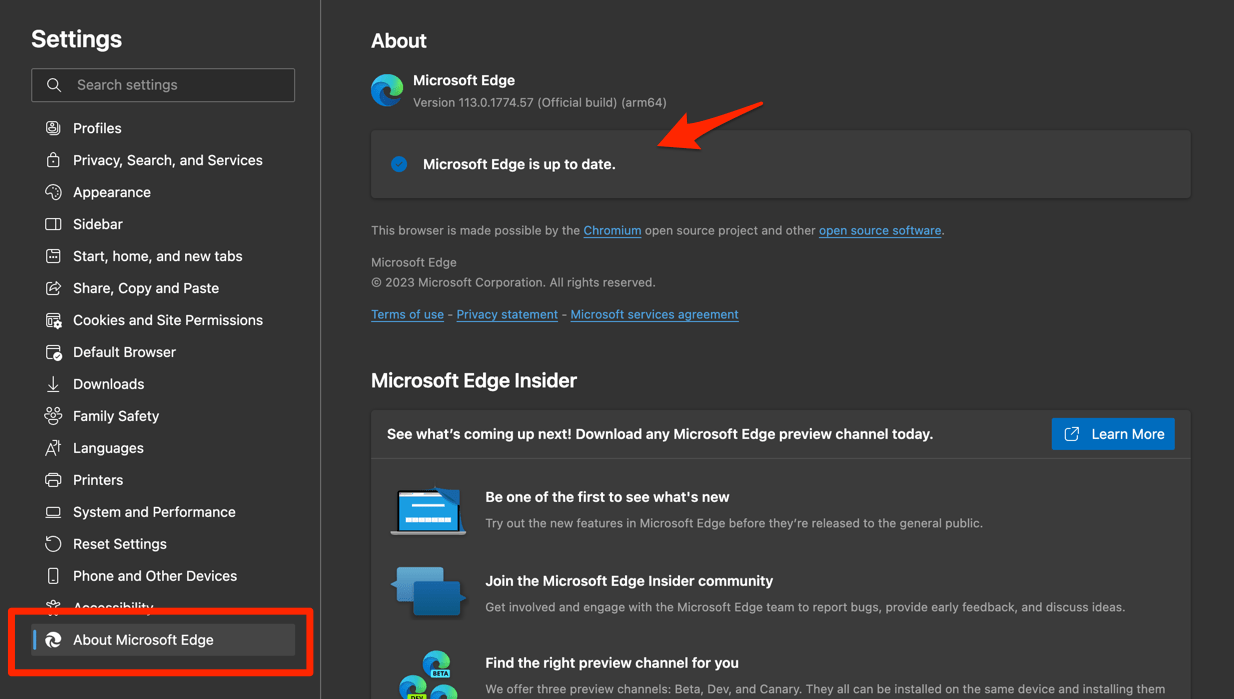 The Edge will automatically start checking for updates and installs, if any are available.
 - Finally, hit the button if available after the (major) update.
Edge browser will be updated to the latest version.
Reopen Netflix and play the same title. You’ll know it worked when the stall or the error is gone. If nothing changed, move on to the extension and site-data checks instead of toggling acceleration a third time.
Compare normal browsing with InPrivate
Before you uninstall anything, find out whether the problem lives in your profile. Your everyday Edge window carries extensions, sign-ins, and stored data that a private window leaves behind, and an InPrivate session isolates exactly that.
- Press ++.
- Sign in to Netflix if requested.
- Open the title or episode that fails in the normal profile.
- Start playback.
If the video plays only in InPrivate, inspect extensions and stored data in the normal profile. If it fails in both windows, keep going with decoding, updates, site data, and Windows requirements.

TIP: InPrivate is a comparison test, not a permanent fix. A video that works there but fails in the normal profile is your strongest signal that the profile’s extensions or stored data are involved.
Disable extensions in the normal Edge profile
If Netflix played in InPrivate, the extensions loaded in your normal profile are the first suspects. Switch them all off, then test again.
- Launch the Edge browser on your computer.
- Click on the More for the menu list, and select the Extensions menu.
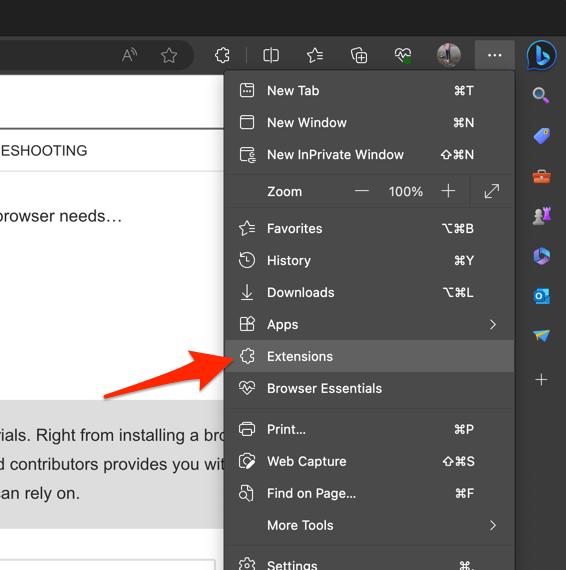 It will open the Edge browser's extensions manager page.
 - Toggle the switch to Turn Off the extension in Edge browser.
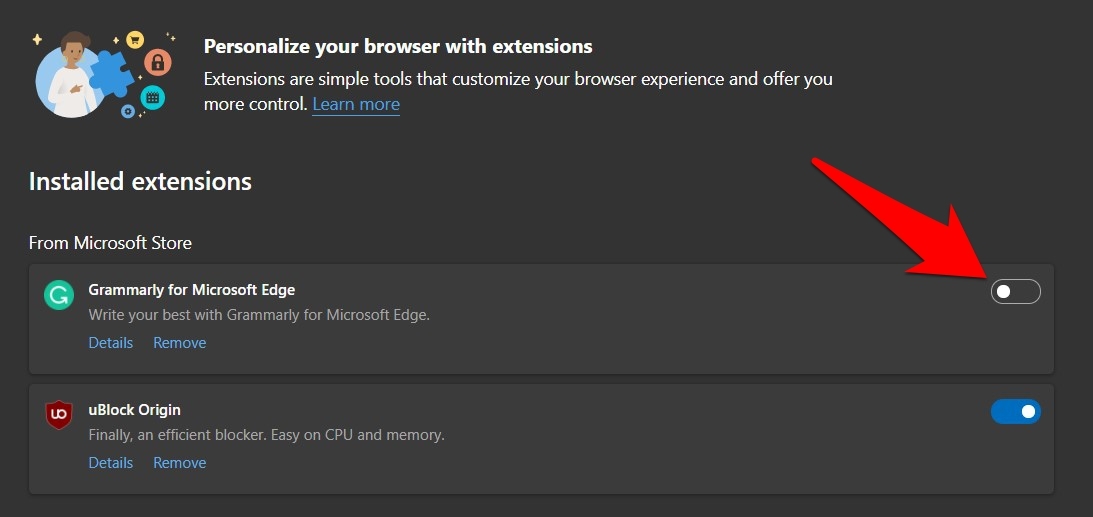
Play the affected video in the normal profile. You’ll know it worked when playback holds with extensions disabled, which means you can re-enable them a few at a time to find the one responsible.
Clear all Edge cache and cookies
Netflix still failing, or still showing D7703-1003? Clear cached files and cookies for every Edge site so the browser starts from a clean slate.
Sign in to Netflix and play the same title. This reset covers all sites in Edge, so expect a few other logins to come back too.
Check Windows updates for D7703-1003
When D7703-1003 survives a browser data refresh, look at the operating system next.
- Open Windows Settings.
- Click the Settings search box.
- Type Windows Update.
- Open the Windows Update page.
- Select .
- Install any available updates.
- Restart Windows if prompted.
- Open Netflix after the restart.
- Start the affected title or episode.
If the error is still there after Windows finishes updating, acceleration is not the only possible cause. Go back to Netflix’s official error guidance and the browser requirements listed at the top of this page.
Frequently Asked Questions
Should I turn hardware acceleration on or off for Netflix in Edge?
On, for your first test, especially if it was recently disabled or Netflix lost higher-quality playback. Turn it off only as a comparison when playback broke after it was enabled, because software decoding can lower the quality you get.
Why does Netflix still fail after I enable graphics acceleration in Edge?
Check edge://gpu and confirm the Video Decode line reads Hardware accelerated after the restart. If it does, work through the media report, the Edge update, the extension test, and the site-data reset instead of toggling the setting again.
What does Netflix error D7703-1003 mean in Edge?
Netflix describes it as a general need to refresh stored browser information or update the computer. Edge cache and cookies are both relevant checks, but the code does not name hardware acceleration as the cause.
Will Netflix 4K work if I turn Edge acceleration off?
Turning it off can confirm a decoder conflict, and it can also reduce the quality you get. Ultra HD still depends on meeting Netflix’s own computer, browser, and stream requirements.
Why is the graphics acceleration toggle missing in Edge?
An organization policy may be controlling it through HardwareAccelerationModeEnabled. Ask an administrator to check the policy, since the setting is enforced and applies only after Edge restarts.
Run these checks in order and you will either get playback back or rule acceleration out. Both results count. A ruled-out cause sends you to the graphics driver and Netflix’s device requirements instead of another round of toggling.