A white screen in Chrome on Android usually means a stuck tab, damaged cached data, or an installation that has stopped working. The page stays blank while the rest of the app still responds.
Close the tab and force-stop Chrome first. If the page is still blank, clear cached files and site data, update the app, and reinstall Chrome as a last resort.
In this guide, I have covered:
Contents
Why Chrome shows a white screen on Android
You tap a link or reopen Chrome, and the page stays blank. No error, no spinner, just white. That usually means Chrome is drawing an empty page instead of the site content, and the cause is often a stuck tab, damaged cached data, or an app installation that has stopped working correctly.
Work from the least destructive fix upward. The steps below run from closing one tab to reinstalling the app, so stop as soon as a page loads.
Close the stuck tab and restart Chrome
Start here when a single tab has gone white but the rest of Chrome still responds to taps. Close that tab, then force-stop the app from Android Settings so the browser process starts clean.
- Open the Android Settings app.
- Tap Apps or Apps & notifications, depending on your device.
- Find and tap Chrome.
- Tap .
- Open Chrome and test the page again.
If the page loads now, you’re done. A temporary glitch in the tab or the Chrome process caused the white screen.
Clear Chrome cache and site data
When the same site keeps coming back blank, the stored copy of that page is often the problem. Clearing cached files and site data forces Chrome to download everything fresh.
The trade-off: you will be signed out of websites and have to log in again.
- Open Chrome and tap the
 menu at the top right.
 - Tap Settings.
- Tap Privacy and security.
- Tap Delete browsing data.
- Choose a time range, such as All time if you want to remove more than the recent activity.
- Tap More options and select the data types to remove, including Cached images and files and Cookies and other site data.
- Tap .
- Reopen the affected website in Chrome.
For the full walkthrough of Chrome’s data controls, see clear browsing and site data in Chrome on Android.

Clearing browsing data can remove cookies and sign you out of websites. Use the site-specific storage option when you only want to reset one website.
You’ll know it worked when the site renders normally on the first try. Still white? The app itself may be out of date, which is the next place to look.
Update Chrome on Android
Still blank after a data clear? An out-of-date Chrome build can fail to render pages that other browsers handle without trouble. Updating is safer than reinstalling because your bookmarks, history, and signed-in sessions stay exactly where they are.
- Open the Google Play Store on your Android device.
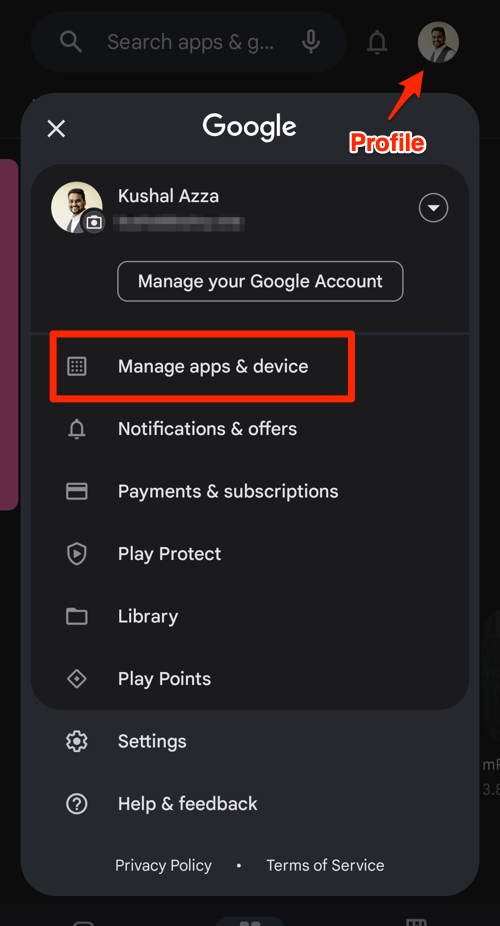
- Tap the Profile icon from the top right corner, and select the Manage apps & device menu.
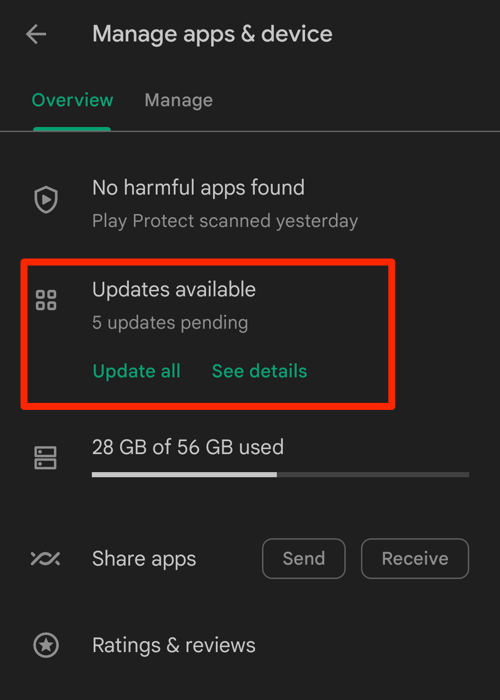
- Tap on the See details command under the Updates available menu.
- If Chrome is on the list of apps with available updates, tap on next to it.
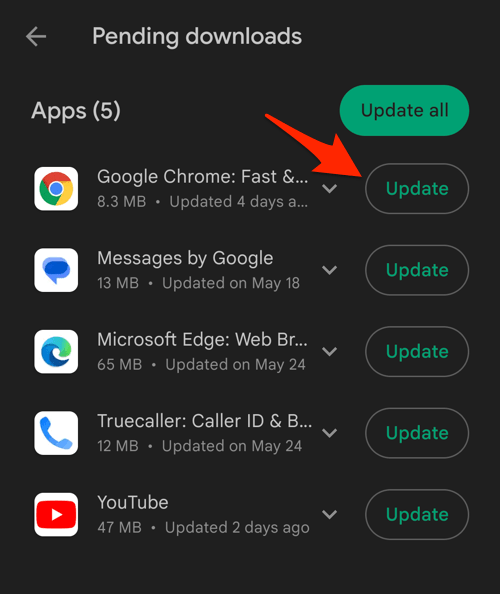
After the update finishes, force-stop Chrome once more, reopen it, and load the page that went white. You’ll know it worked when the page paints on the first try.
Reinstall Chrome if the problem continues
If clearing data and updating both fail, the installation itself is likely damaged. Uninstalling and installing again from the Play Store gives you a clean copy of the app.
Expect to sign in again, and assume anything you had not synced to your Google account is gone.
- Open the Google Play Store.
- Search for Chrome.
- Open the Chrome app listing.
- Tap .
- Open the Play Store again, search for Chrome, and tap .
- Open Chrome and test a website.
If Chrome was your default browser, Android may ask you to set it as the default again after installation. Accept that prompt if links on your phone have stopped opening in Chrome.

ALERT: Uninstalling Chrome can remove locally stored browser data that has not synced. Before reinstalling, check that important bookmarks, passwords, and history are available in your Google account or another backup.
Is it one website or every website?
Before you reinstall anything, find out whether the white screen follows one site or every site. Open a second tab and visit another website. If that page loads, the problem lives in the original page, its stored data, or how it behaves in Chrome. If the second site is white too, the app or the device is the culprit.
- Tap the new tab button in Chrome.
- Open a different, widely used website.
- Open the original website again in a new tab.
- Open the original website in an Incognito tab.
If the site works in Incognito, stored cookies, site permissions, or cached data are the likely cause. Clear that one site instead of wiping everything: view and clear site storage data in Chrome on Android.
If every site stays white after the reinstall, restart the Android device and check for a system update.
What to do if Chrome still shows a white screen
Nothing has worked, so the next question is whether Chrome is the only thing failing on the phone. Check your connection and load a page in another browser to find out.
- Open another browser on the device and load a website.
- Return to Chrome and close any other open tabs.
- Force-stop Chrome from Android Settings.
- Reopen Chrome with one tab and one website.
If another browser works and Chrome does not, repeat the update and reinstall steps. If no browser loads pages at all, the problem is the connection or the device, not Chrome. Restart the phone and check your network.

Frequently Asked Questions
How do I fix a white screen in Chrome on Android?
Force-stop Chrome and reopen the affected tab first. If the page stays blank, clear cached files and site data, update Chrome from the Play Store, and reinstall the app if nothing else works.
Does clearing Chrome data fix a white screen?
Often, yes. Corrupted cached files or site data can stop a page from rendering. Clearing cookies and site data also signs you out of websites, so use the narrowest option that fixes it.
Should I update Android System WebView to fix Chrome?
Chrome on Android does not run on Android System WebView. Updating Chrome itself is the relevant step for this issue, while WebView updates matter for apps that render pages inside WebView.
Will reinstalling Chrome delete my bookmarks and passwords?
It can remove locally stored data that was never backed up. Sign in to your Google account and confirm that bookmarks, passwords, and history are synced before you uninstall.
Why does only one website show a white screen in Chrome?
A single-site problem usually points to that site’s cached data, cookies, permissions, or page compatibility. Test it in Incognito and clear its site data before you reinstall Chrome.