A CAPTCHA that reloads instead of accepting your answer is usually an Edge issue, not a site issue: blocked cookies, an extension touching the challenge, or stale profile data. Test the site after each check below.
Start with the Edge update, then relax cookie blocking and disable extensions. Reset Edge only if those steps fail, since a reset changes far more than the verification controls.
In this guide, I have covered:
Contents
Why Edge keeps looping the CAPTCHA verification
You tick the checkbox, the challenge reloads, and you land back on the same verification screen. That loop usually means Edge can’t finish the handshake behind a Cloudflare or similar security check: cookies are blocked, tracking protection is interfering, an extension is rewriting the challenge frame, or data from the failed attempts is stuck in the profile.
Some reports came from an Edge Dev build that was later corrected, yet other people hit the same failure on Stable. Work through the fixes below in order and check the site after each one. That way you know which change actually ended the loop.
Update Microsoft Edge
An Edge update can fix a browser-side verification problem without you changing a single privacy setting.
- Launch Microsoft Edge on your computer system.
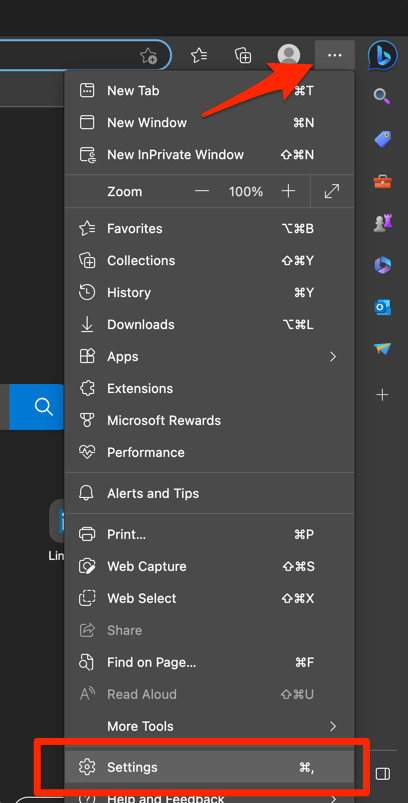
- Click on the More
 for the menu list, and select the Settings menu.
- Switch to the About Microsoft Edge tab from the left side pane.
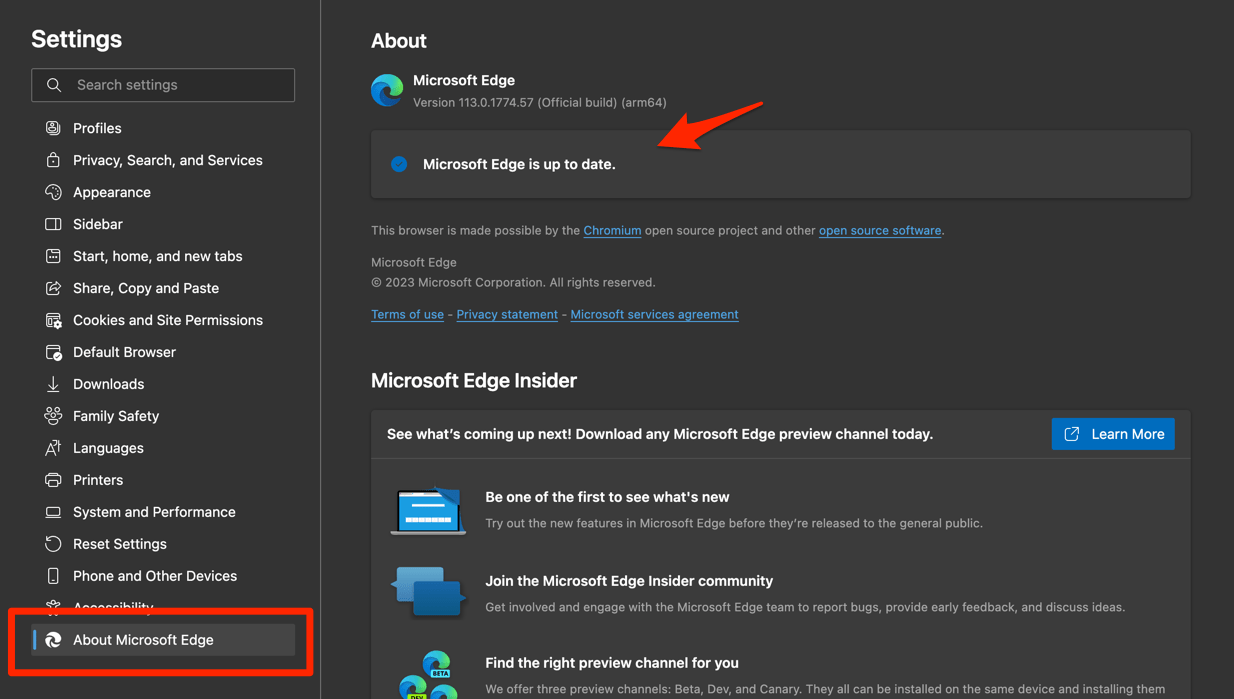 The Edge will automatically start checking for updates and installs, if any are available.
- Finally, hit the button if available after the (major) update.
Edge browser will be updated to the latest version.
Reopen the affected site once the update finishes. You’ll know it worked when the challenge completes and the page loads, instead of dropping you back on the same verification screen.

If the loop began while you were on the affected Edge Dev build, moving to a corrected release resolved that particular browser issue. Reports also came from Edge Stable, so continue with the checks below if the loop remains.
Allow the cookies the security check needs
CAPTCHA systems use cookies to tie the challenge page to the site that requested it. Block those cookies and the check can never complete, so it starts over. Test the affected site with Edge’s cookie restrictions relaxed.
- Open edge://settings/cookies in Edge’s address bar.
- Select Privacy, search, and services, then open Cookies.
- Turn off Block third-party cookies.
- Confirm that Allow sites to save and read cookie data is turned on.
- Reload the affected page and complete the verification again.
If the CAPTCHA works now, tighten the setting again afterward. You may only need to allow cookies for the site hosting the challenge rather than leaving third-party cookies on everywhere.
To see each cookie control Edge offers, read how to block or allow browser cookies in Edge on the computer.
Turn off extensions and test again
Privacy tools, script blockers, antivirus add-ons, and translation extensions all touch the scripts a security check depends on. One of them may be breaking the challenge before it finishes. Disable the whole set for a minute and see what changes.
- Launch the Edge browser on your computer.
- Click on the More for the menu list, and select the Extensions menu.
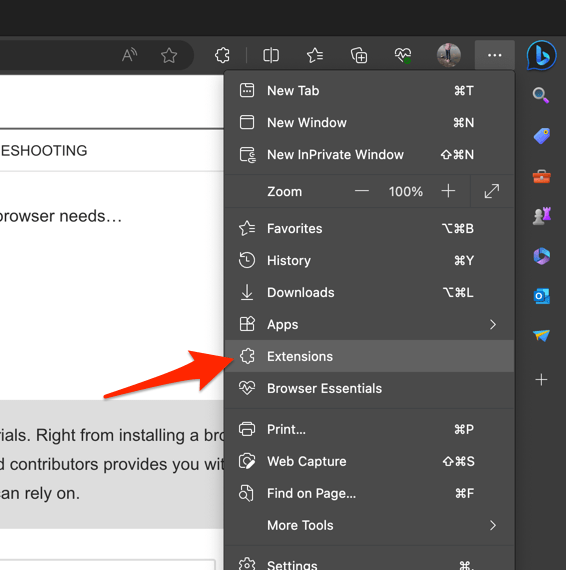 It will open the Edge browser's extensions manager page.
- Toggle the switch to Turn Off the extension in Edge browser.
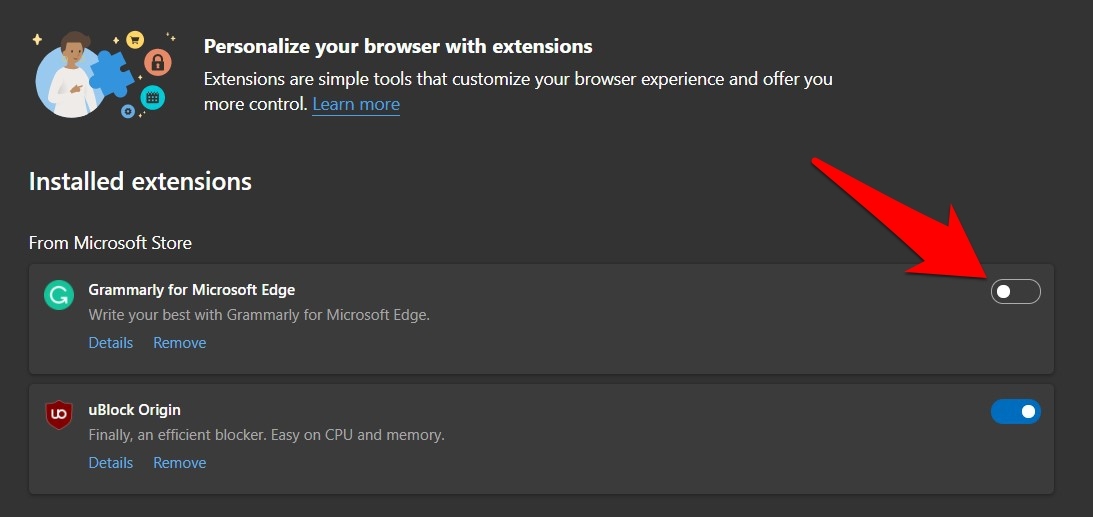
Close the affected tab, open it again, and retry the verification. If it passes, switch extensions back on one at a time and reload the page after each. You’ll know which one is responsible when the loop comes back.
Don’t permanently remove an extension you trust. Find the conflict first, then update it, adjust its site permissions, or leave it off only on the sites where it causes trouble.
Test the site in an InPrivate window
An InPrivate window gives you a clean test without most of your normal profile data. If the loop comes from stored site data or a profile setting, this is where it shows.
- Open an InPrivate window with ++.
- Visit the affected website.
- Complete the CAPTCHA.
If the check succeeds in InPrivate, the likely cause is stored site data, an extension in your normal profile, or a privacy setting. If it still loops, the problem sits outside the profile, which points at the browser build or the site itself.
Reopen the site after Edge restarts and run the verification again. You’ll know it worked when the challenge completes, or when you get a different challenge instead of the same one repeating.
Reset Edge settings if the loop remains
If the update, cookie check, and extension test all came up empty, Edge’s own settings are the remaining suspect. A reset returns them to defaults, and it reaches much further than the few controls tied to CAPTCHAs.
- Launch the Microsoft Edge browser.
- Open edge://settings/resetProfileSettings in the address bar.
It will open the reset browser confirmation dialog box. - Hit the button to confirm the browser reset.
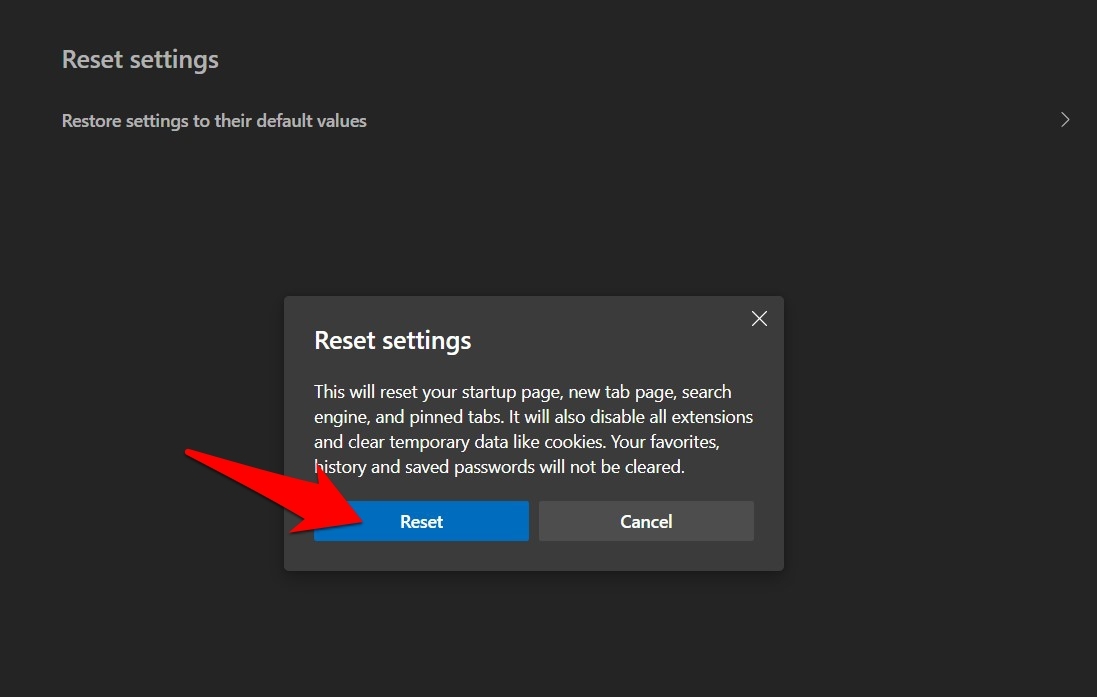 It will reset the Edge browser to the original default, clearing the temporary data and disabling all extensions.
After Edge restarts, test the CAPTCHA before changing anything else. Otherwise you won’t know what fixed it. If the loop survives the reset, try the same site in another browser or on another device.
What to check when the loop still won’t break
Some loops are not yours to fix. Before going further, check which Edge version you have and what is currently shipping for your channel. A corrected build may already exist that your browser has not installed.
Compare Edge with another browser on the same computer. If the challenge works there, keep adjusting Edge. If it fails everywhere, look at the website, your network, your account, or a system-wide security tool.
The original investigation is documented in the Microsoft Edge Insider community discussion, where several users reported the same repeating verification.

Frequently Asked Questions
Why does the CAPTCHA refresh over and over in Microsoft Edge?
Edge can’t complete the verification when it also can’t save or read cookies, when a privacy feature or extension interferes with the challenge, or when the browser version carries a verification defect.
Does clearing cookies in Edge fix a looping CAPTCHA?
It can. A failed check may leave stale site data behind that keeps sending you around the loop. Clear Edge’s cache and cookies only after checking what the site needs, since this removes stored data for other sites too.
Should I allow third-party cookies for every site?
No need to leave them unrestricted if a temporary test is what got the CAPTCHA working. Allow cookies for the affected site, or restore your previous Edge setting once you’ve confirmed the cause.
Can an Edge extension cause a CAPTCHA loop?
Yes. Script blockers, privacy tools, antivirus extensions, and similar add-ons can alter the scripts or frames a security check relies on. Disable them temporarily, then re-enable one at a time.
What should I do if the CAPTCHA still loops after resetting Edge?
Test the same site in another browser and on another device. If it works elsewhere, Edge or its profile data is likely responsible. If it fails everywhere, check the site and your network before changing more browser settings.