Chrome throws DNS_PROBE_POSSIBLE when it cannot get a usable answer for a web address. That points at DNS, your network, or the domain itself, not at a broken browser install.
Change Chrome's Secure DNS provider first, then clear the browser's DNS cache and cached files, and check the DNS servers set in Windows or macOS. Restart the connection and test the site on another network before you reinstall anything.
In this guide, I have covered:
Contents
Why Chrome shows DNS_PROBE_POSSIBLE
Your page refuses to load and Chrome replaces the site with a DNS_PROBE_POSSIBLE message. That code appears when Chrome asks for a site’s DNS records and comes back without a usable answer, or with no answer at all.
The cause usually sits with DNS, your network, or the domain itself. It is rarely a damaged Chrome install. And it is not the same as DNS_PROBE_FINISHED_NXDOMAIN, which Chrome reports when it gets a definite “this domain does not exist” reply. If that is your error, start with fixing DNS_PROBE_FINISHED_NXDOMAIN in Chrome instead.
Otherwise, work through the fixes below in order and stop the moment the site loads.
Change Chrome’s Secure DNS provider
If the resolver Chrome is using is the part that failed, pointing it somewhere else is the quickest way around the problem. Chrome can use the resolver built into the browser or a provider you pick in Settings.
- Click the
 menu, then select Settings.
- Select Privacy and security, then Security.
- Find Use secure DNS and turn it on if it is off.
- Select Choose a service provider.
- Select a different service provider from the available list.
- Close the settings tab and reload the website.

Secure DNS may be unavailable or controlled by a parent, school, or organization. If the setting cannot be changed, ask the administrator to check the Chrome policy for your device.
You’ll know it worked when the site reloads normally. If that provider is no better, pick another from the list before you move on.

Clear Chrome’s DNS cache
Already switched resolvers and the error is still there? The next suspect is an old DNS entry Chrome keeps reusing. Chrome holds its own DNS cache, separate from the one Windows or macOS maintains.
- Launch Google Chrome on your Computer.
- Type in chrome://net-internals/#dns in the address bar, and hit key.
It will open the Chrome DNS network page. - Hit the command button.
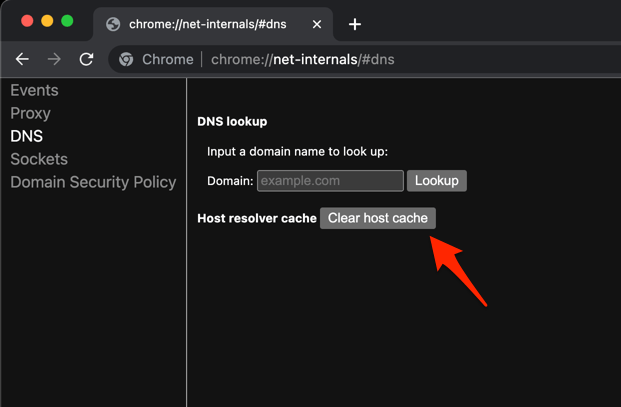
- Relaunch the Chrome browser.
It will clear the Chrome DNS host cache.
Go back to the affected tab and reload it. You’ll know it worked when the page comes up on its own, with no error screen in between.

TIP: Clearing Chrome’s DNS cache does not clear the operating system’s cache, and the reverse is also true. If the error survives, clear both.
Clear cached files in Chrome
A cached copy of the page, or connection details saved alongside it, can keep the failure alive even after the DNS cache is clean. Clearing cached files is a sensible second sweep before you touch system settings.
- Go to chrome://history/clearBrowserData in the address bar.
- Select the Time range from the drop-down.
- Enable the checkboxes for Browsing history, Cookies and other site data, and Cached images and files.
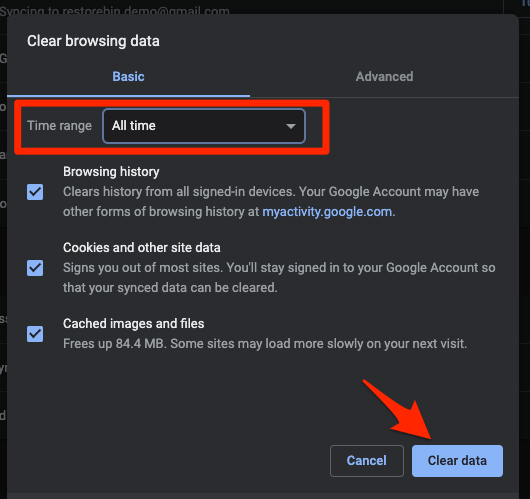
- Hit the Clear data button.
Reopen Chrome and test the site again. You’ll know it worked when the page loads and the rest of the steps become unnecessary. If you would rather clear only one site’s stored data, see viewing cache and clearing site storage in Chrome.
Change DNS in Windows
Still broken on a Windows PC? The DNS servers Windows hands to Chrome are the next layer, and they matter most when your router or ISP resolver is down.
- Search and open the Control Panel using the Windows Start menu.
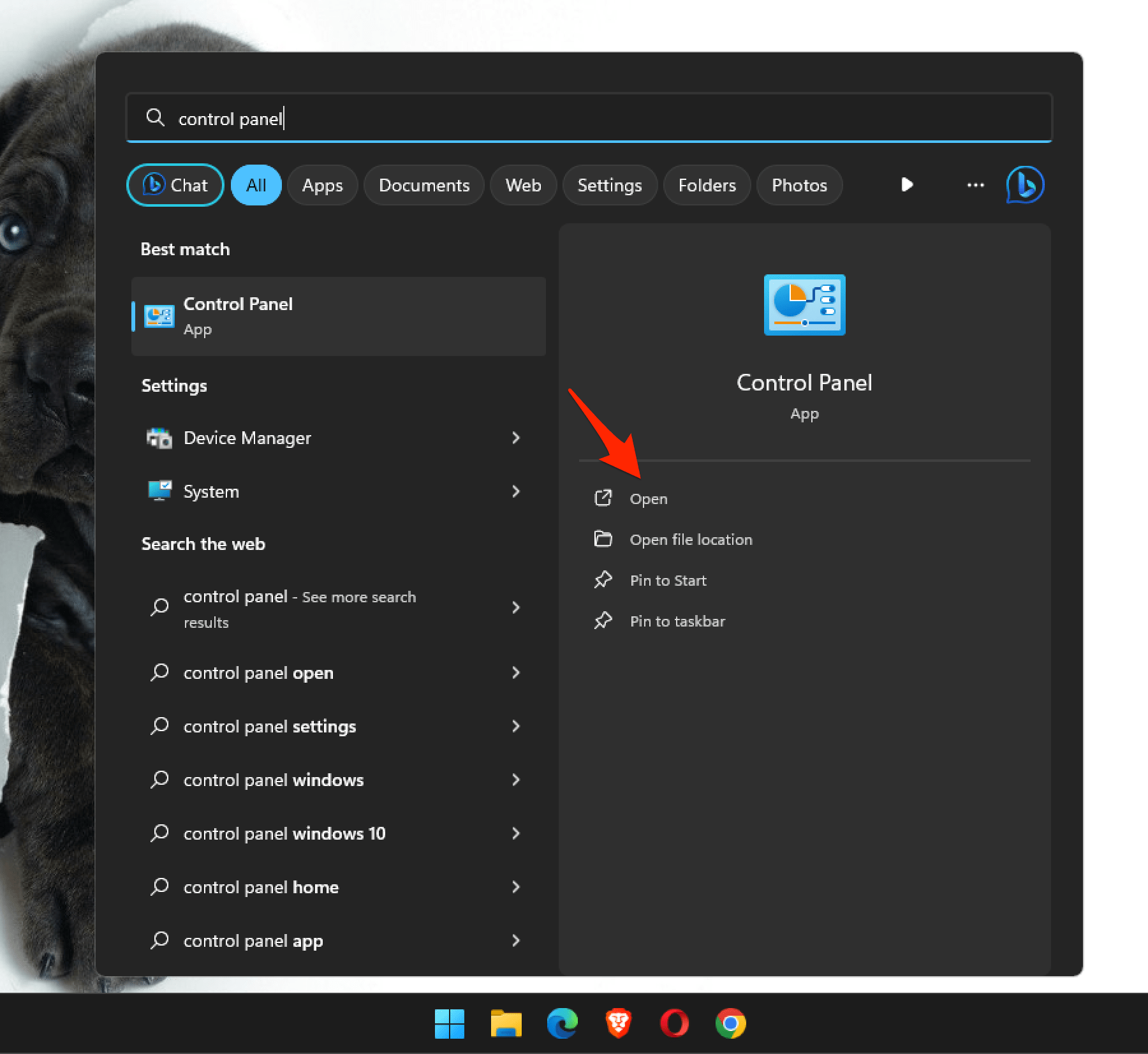 It will open the Control Panel window.
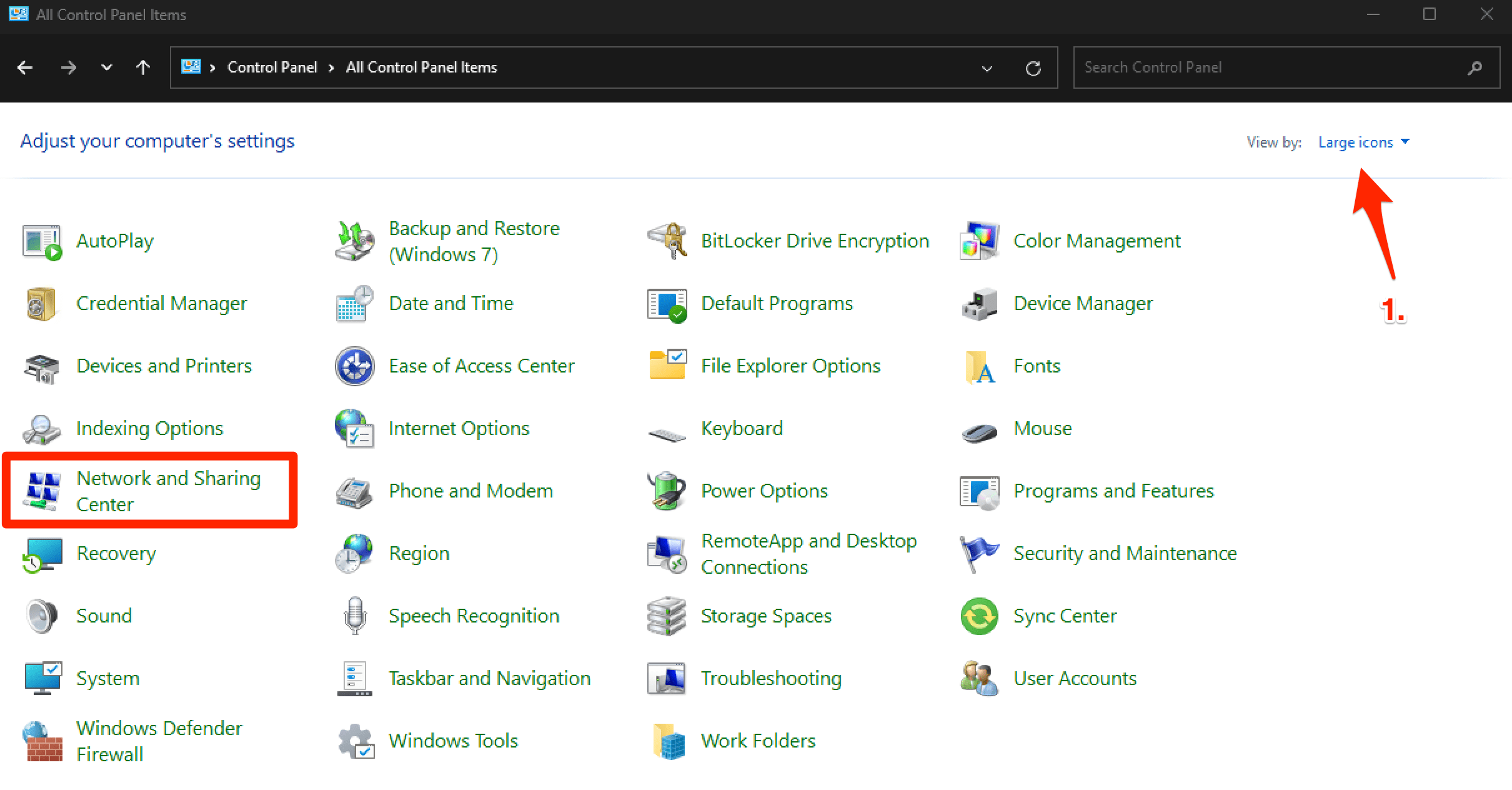
- Switch the View by to Large icons option, and select the Network and Sharing Center menu.
- Click on Change adapter settings from the left menu bar.
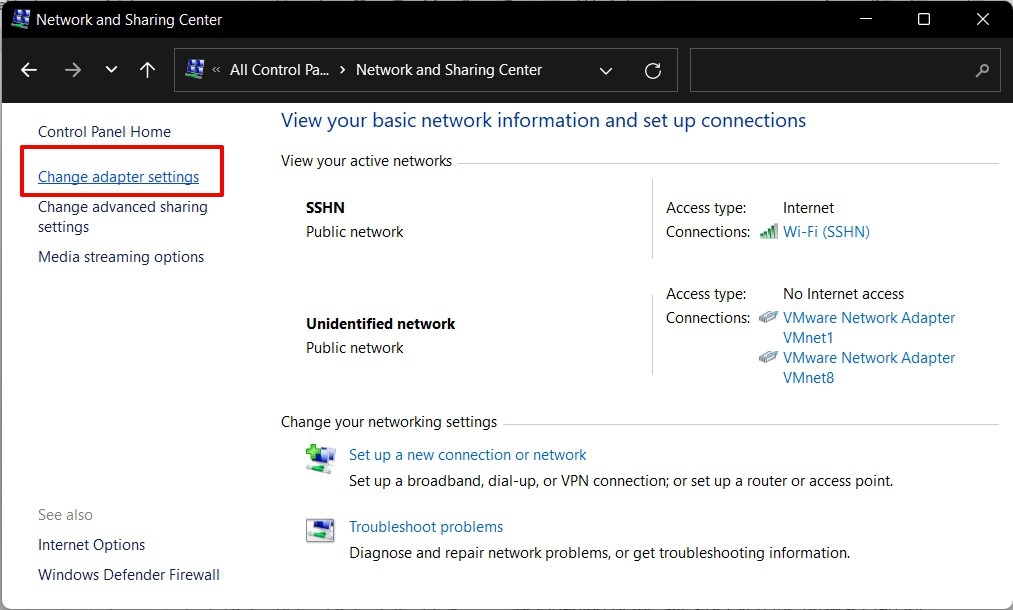
- Right-click on your active Network Adapter (Wi-Fi or Ethernet) for the context menu, and select the Properties command.
It will open the Adapters Properties pop-up window. - Double-click on the Internet Protocol Version 4 option.
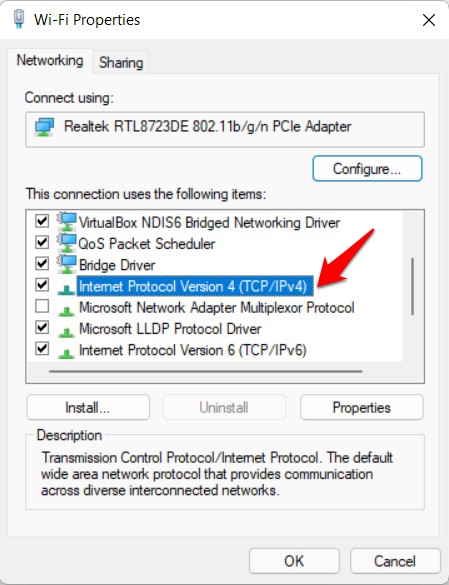
- Select Use the following DNS server addresses option, and input the following Google DNS Addresses.
Preferred DNS Address: 8.8.8.8
Alternate DNS Address: 8.8.4.4
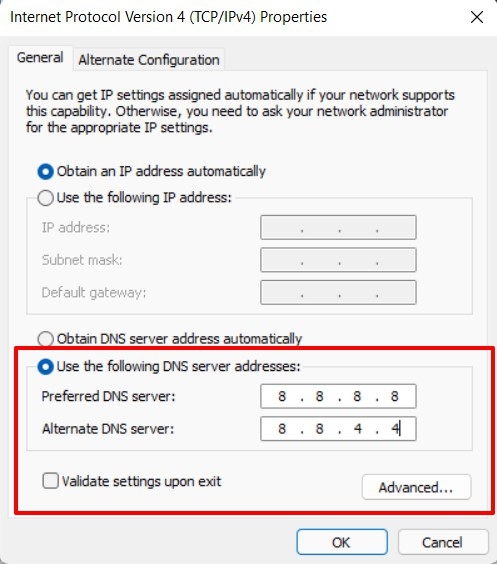
- Hit the button to save the changes.
It will change the DNS addresses of your network adapter on your Windows PC.
Close Chrome completely, open it again, and reload the site. You’ll know it worked when that page loads and other sites resolve without a long pause too.
Change DNS in macOS
If you are on a Mac, this setting is not in Chrome at all. It lives in System Settings, so a Windows fix will never apply to your machine.
- Click on the Apple
 menu, and choose the System Settings... sub-menu.
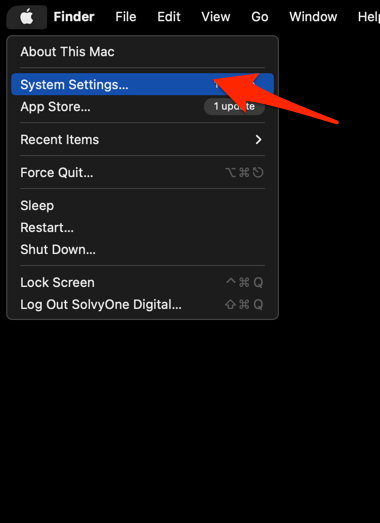 It will open the Apple Settings window.
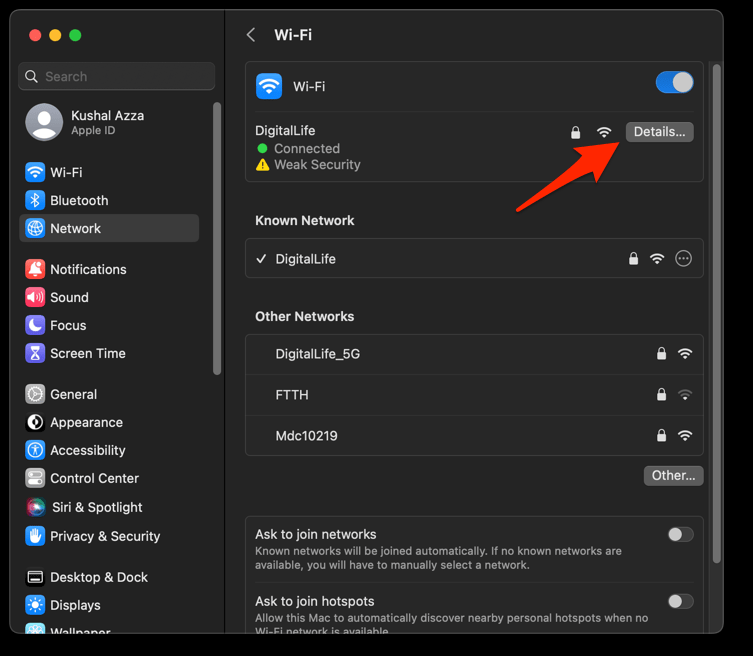
- Switch to the Network settings tab in the left pane, and select the Network Adapter (say Wi-Fi) that's connected for internet access.
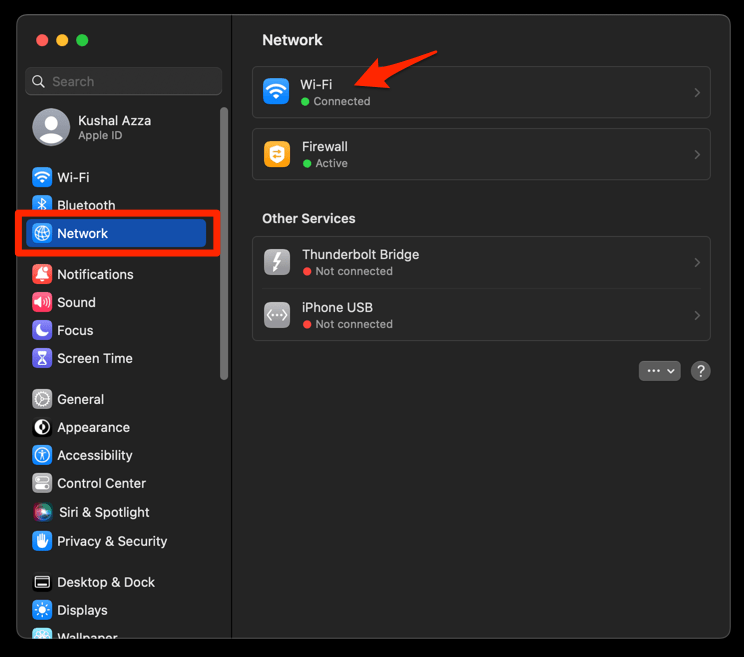
- Click the button to open the network configuration window.
- Switch to the DNS tab in the left sidebar, and click the Plus
 button at the bottom of the DNS Servers list.
- Enter the Google DNS Server addresses: 8.8.8.8 and 8.8.4.4.
- Finally, hit the button to save DNS addresses.
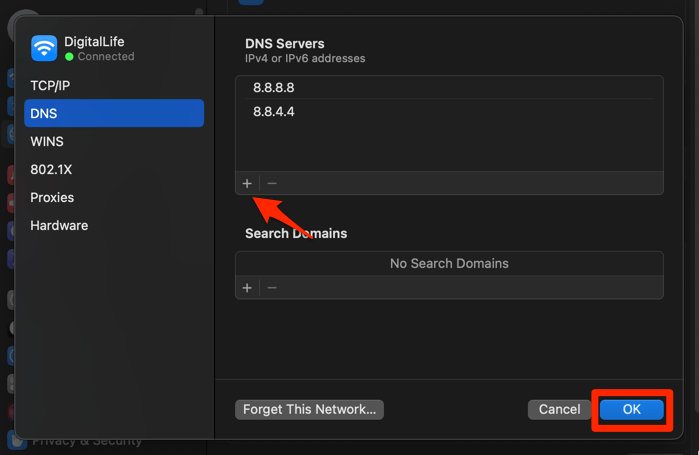 It will set the new DNS address to the selected network adapter on your Mac.
Quit Chrome and start it again after the change, then load the site. When the page opens, the new DNS servers are doing their job. If more sites fail than before, the servers you entered may be unreachable, so switch back or try another pair.
Restart the network connection
A router that has been up for weeks can keep serving failed DNS answers long after Chrome’s cache is empty. Reconnecting from scratch asks for a fresh address and a fresh resolver path.
- Turn Wi-Fi off (or unplug the Ethernet cable) before you reopen Chrome.
- Restart your computer. This clears anything still trying to phone home from memory.
- Stay offline until you have finished the rest of the cleanup steps below.
Once the computer is back, open Chrome and try the site before changing anything else. You’ll know it worked when the first load succeeds without a manual reload.
Check whether the problem is limited to Chrome
Nothing above helped, so scope is now the useful question: is this Chrome, this computer, or the network? Four quick tests separate the three.
- Open another website in Chrome and check whether it loads normally.
- Connect another device to the same network and open the affected website.
- Try the affected website on a different network, such as a mobile hotspot.
- Return to the original network and repeat the test if the site works elsewhere.
If the site fails on every device and every network, the domain or its DNS records are the problem, and nothing on your machine will change that. If it fails only in Chrome, keep looking at Chrome settings and extensions. The symptoms also overlap with a site that cannot be reached in Chrome, which is worth reading next.
Quick checks before you go further
Reinstalling Chrome is usually unnecessary for a DNS error, so run this list first.
- The web address is spelled correctly and complete. A typo looks exactly like a DNS failure.
- Chrome’s Use secure DNS option is on and points at a provider that answers.
- Windows or macOS has the DNS servers you meant to set, not the old ones.
- Chrome and the computer were both restarted after the DNS change.
- The site was tested on your network and, if you could, on another one.
Chrome working on another network but not yours points at the router or the local DNS setup. Chrome failing everywhere, including on a phone, points at the site’s own DNS.
Frequently Asked Questions
The same handful of questions comes up every time this error appears.
What does DNS_PROBE_POSSIBLE mean in Chrome?
It is a Chrome-specific DNS diagnostic status shown when Chrome cannot resolve a website address or the DNS probe returns an inconclusive result. It often points to a DNS or network problem.
Does DNS_PROBE_POSSIBLE mean the website is permanently down?
No. Chrome cannot tell from this code alone whether the website is down. Test the address on another device and network, and check whether the domain’s DNS configuration is working.
Should I clear cookies to fix this error?
Cookies are not the cause of a DNS lookup failure. Clear Chrome’s DNS cache and cached files instead, because these can contain outdated connection information.
Why does the error only appear in Chrome?
Chrome may be using a different DNS provider or retaining a failed DNS result. Changing Secure DNS, clearing the DNS cache, and disabling extensions temporarily can help identify whether Chrome is the source of the problem.
Will reinstalling Chrome fix DNS_PROBE_POSSIBLE?
Reinstalling Chrome is usually unnecessary because DNS resolution depends on the browser’s resolver and the computer’s network configuration. Change Secure DNS, clear the cache, check the operating system, and test another network first.