Chrome alerts turn noisy fast once a few sites ask for permission, and the prompts keep coming until you decide. You can let every site ask, stop the asking entirely, or pick which sites may notify you.
Open the Notifications page in Chrome on your computer, set the default, then review the allowed and blocked lists. Adding or removing a single site takes two clicks.
In this guide, I have covered:
Contents
Where Chrome Keeps Notification Settings on a Computer
Something keeps pinging you from a browser tab, or a site you actually care about has gone quiet, and you want Chrome to stop, start, or ask first. All of those controls sit on one page: Notifications under Site settings.
That page sets the default for every website, then lets you override it site by site. Nothing on it changes your history, downloads, or saved passwords.
Watch the Video Tutorial
The walkthrough above covers the same page. The steps below get you there in a few clicks.
Open Chrome’s Notification Settings
A site is spamming you, or a trusted one went silent and you need to see what you decided. Either way, start here.
- Open Google Chrome on your computer.
- Click the More
 menu.
menu. - Select Settings.
- Select Privacy and security in the left sidebar.
- Select Site settings.
- Scroll to Content and select Notifications.
The internal address for this page is chrome://settings/content/notifications. It opens the same Notifications page without the menu walk, so it is worth bookmarking if you change site permissions often.
Block Notification Requests for All Sites by Default
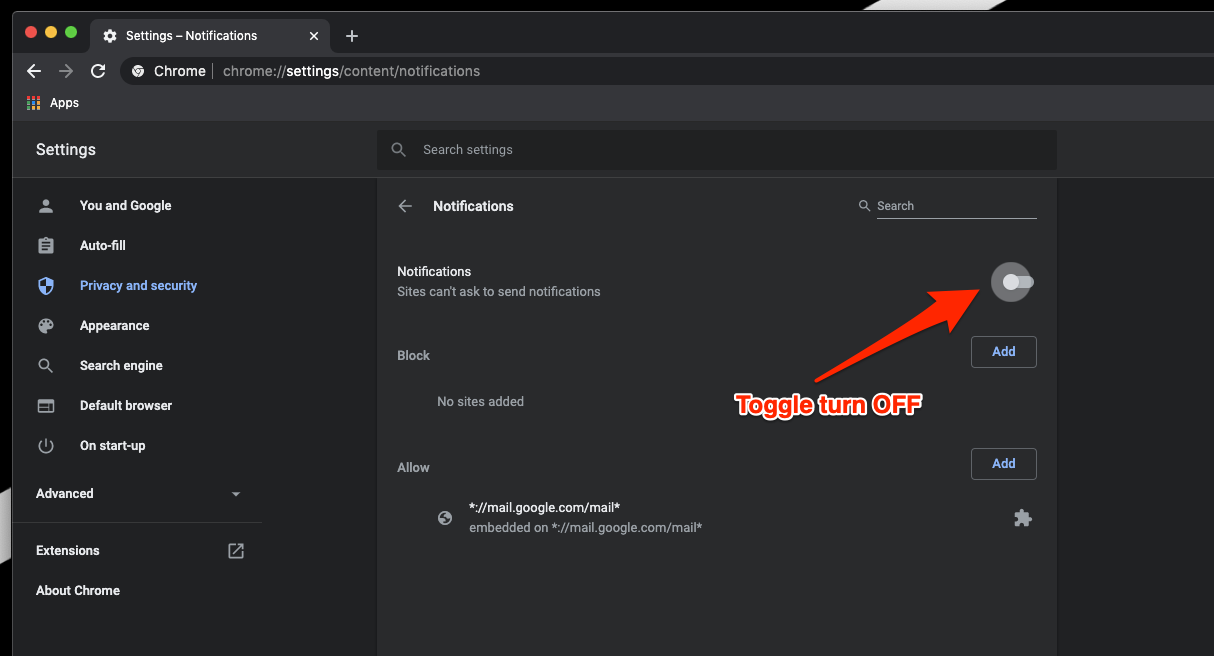
Chrome asks every few minutes, or you never want a site to request alerts at all. Turn the default off and the prompts stop for every site that relies on it.
- Open the Notifications page.
- Turn off Sites can ask to send notifications.
You’ll know it worked when a fresh site loads and no permission bubble appears. Sites you already allowed keep sending alerts, so check Allowed to send notifications if you want a strict block.
Allow Sites to Ask for Notifications by Default
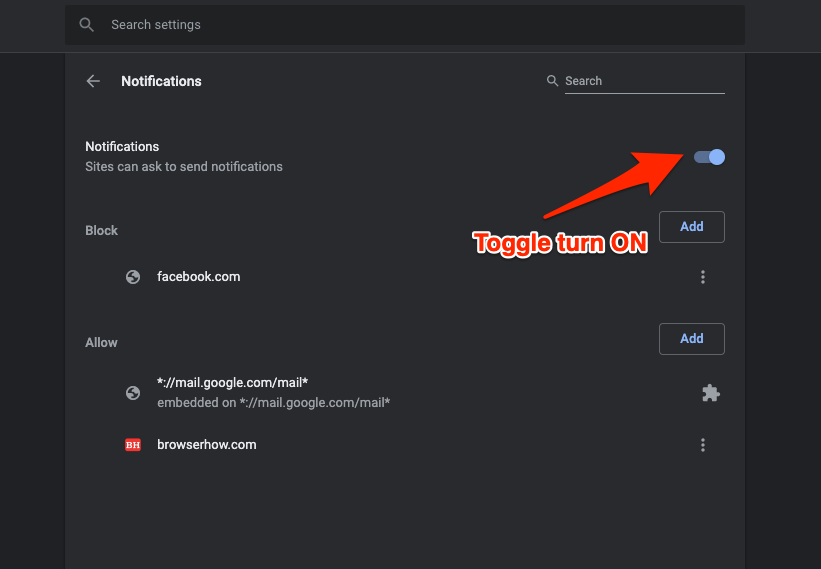
You want sites to request alerts again, but you still want the final say on each one. Turn the default back on.
- Open the Notifications page.
- Turn on Sites can ask to send notifications.
The next time a site asks, Chrome shows the or prompt again. Nothing is granted until you click one of them.
Set Notifications for a Specific Website
One site is too noisy, or one trusted site needs alerts while everything else stays blocked. That is what the two site lists are for.
Allow a specific website
- Open the Notifications page.
- Find Allowed to send notifications.
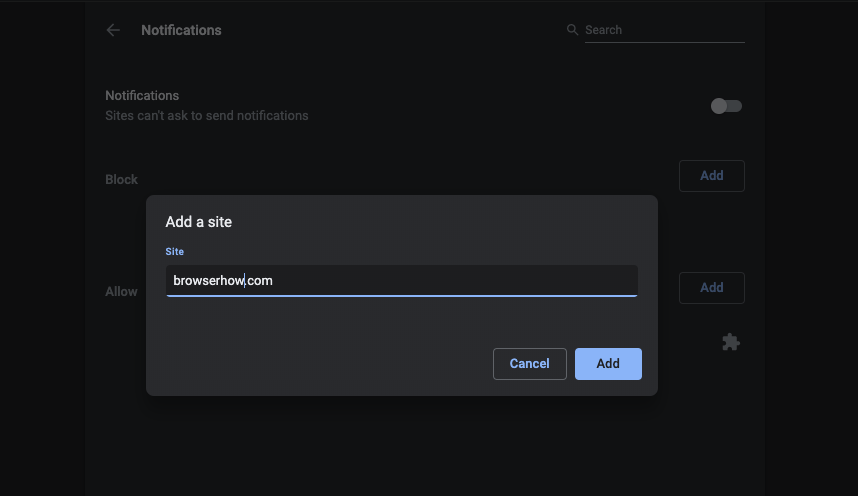
- Click .
- Type the site’s domain, such as example.com.
- Click to save it.
The domain can now send notifications without a new permission prompt.
Block a specific website
- Open the Notifications page.
- Find Not allowed to send notifications.
- Click .
- Type the site’s domain, such as example.com.
- Click to save it.
The site stays blocked even when the global setting lets other sites ask for permission.
Answer a Website’s Notification Request
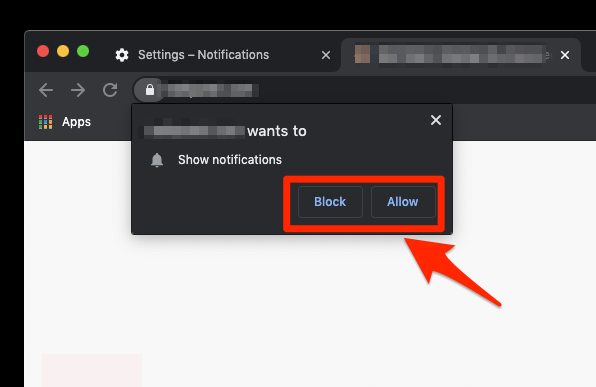
A site asks for permission while you are mid-article, and whichever button you click sticks. Here is what each choice does.
- Open the website that requested notification access.
- Select or in Chrome’s notification prompt.
The site then appears under Allowed to send notifications or Not allowed to send notifications, depending on your choice. You can change that decision later from the same page.
Use Quieter Messaging for Notification Requests
Permission prompts are useful, just too loud. Quieter messaging tones them down without blocking anything.
- Open the Notifications page.
- Turn on Use quieter messaging.
Prompts become less intrusive and you keep the ability to allow or block each site. Expect the next request to be far less in your face than a full permission bubble.

Chrome may also show Review removed notifications when it has removed permissions from unused sites. Open it to see the list and restore access only for a site you trust.
Troubleshoot Notification Settings That Do Not Work
A site still pings you after you blocked it, or an allowed site never says a word. Check three things, in this order.
- Open the Notifications page.
- Confirm that Sites can ask to send notifications is in the state you expect.
- Look for the site’s domain in Allowed to send notifications and Not allowed to send notifications.
- If the site is allowed but no alert appears, check the computer’s notification controls for Google Chrome.
Chrome also blocks sites on its own when they send intrusive or misleading notifications. For the browser-side rules, see Google’s official Chrome notification help.
If the same problem follows you to your phone, set up the notification settings in Chrome on Android separately.

Frequently Asked Questions
How do I open Chrome’s notification settings on a computer?
Enter chrome://settings/content/notifications in Chrome’s address bar and press . The same page is under Settings > Privacy and security > Site settings > Notifications.
Does allowing sites to ask for notifications allow every site to send alerts?
No. It lets a site request permission. Chrome still shows a prompt unless you have already saved an allow or block decision for that site.
How do I block notifications from one website?
Add its domain under Not allowed to send notifications, or select when Chrome asks for permission.
Why is there no Allow or Block notification prompt?
The site may already have a saved decision. Check both site lists on the Notifications page, especially if the domain appears under Not allowed to send notifications.
Why is Chrome not showing notifications for an allowed site?
Confirm that the global setting and the site’s list entry allow notifications. Then check whether computer notifications for Google Chrome are disabled and whether the website actually sent an alert. When all three line up, the alert lands.