Reference pages and long documentation can bury the one line you need, even when the word appears a dozen times. Safari's Find bar highlights every match, counts them, and moves you between results without reloading the page.
Press Command-F, or click the Page menu button in the Smart Search field, then type the word you're after. Switch the matching rule between contains and begins with when a search comes back empty.
In this guide, I have covered:
Contents
Find a Word on the Page You’re Reading in Safari
You’re three screens into a long help page and the one line you need is nowhere in sight. Find on Page searches the text of the tab in front of you and jumps straight to the matches. It does not search the wider web.
In current Safari on Mac, the path runs through the Page menu button in the Smart Search field, which opens the Find command. Apple’s guide to finding text on a webpage in Safari documents the same steps.
- Open the website in Safari on your Mac.
- Click the Page menu button in the Smart Search field.
- Choose Find from the menu.
- Type the word or phrase you want to find.
- Check the match count and the highlighted result on the page.
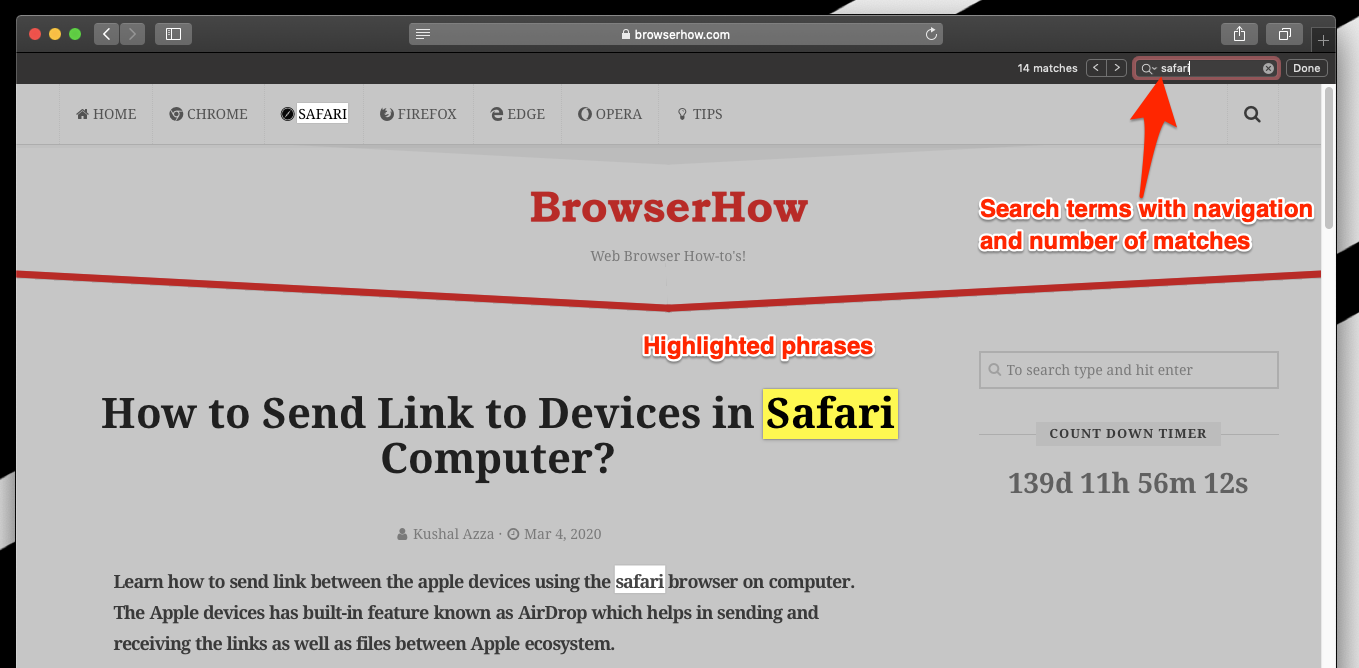
You’ll know it worked when the Find bar appears and the first match is highlighted. No highlight means Safari found nothing for that spelling, so shorten the word or change the matching option described below.

Older Safari guides point to Edit > Find > Find…. That menu path no longer matches current Safari on Mac, so use the Page menu button or + .
Use Command-F to Search the Page from the Keyboard
If your hands are already on the keys, the shortcut beats reaching for the toolbar. + opens the same Find bar in the active Safari window.
- Press + .
- Type the word or phrase you want to locate.
- Review the match count and the highlighted text on the page.
The bar reports how many times the word appears, and Safari scrolls to the first hit. That count answers the real question fast: does this page mention the term at all?
Refine Matches and Move Between Results
The word shows up nine times and you want the fourth one. Two controls do most of the work here: the matching option in the Find field and the buttons that step through results.
- Open the pop-up menu in the Find field.
- Choose contains or begins with for the text you entered.
- Move to a result with the or button.
- Select the text in the Find field to replace it.
- Type a different word or phrase.
- Click to close the Find bar.
The arrow keys also move between results if you’d rather keep your hands on the keyboard.
You’ll know it worked when the count changes for the new term and each click moves the highlight. closes the bar and leaves you where you were on the page.
Safari on iPhone and iPad uses touch controls instead of this Mac menu path. The steps for finding text on a page in Safari on iPhone and iPad cover the mobile version.

Frequently Asked Questions
What is the fastest way to find text in Safari on Mac?
Press + , type the word or phrase, then read the highlighted result. It opens the same Find bar as the Page menu route, with fewer clicks.
How do I move to the next match in Safari?
Use for the next result and for the previous one. The arrow keys work as well.
Why does my Safari search return no results?
Check the spelling first, then try a shorter word. Switch the Find option between contains and begins with, because each rule returns a different set of matches.
Why does the old Edit menu guide not match my Mac?
Apple’s current guide uses the Page menu button in the Smart Search field, while older guides may show Edit > Find > Find…. On current Safari, use the Page menu route or + .
Does Find on Page search the web or only the open page?
It searches the page open in the current tab. For the wider web, type your question into Safari’s Smart Search field instead.
Most of the time, + is all you need: open the bar, type a few letters, and let the match count tell you whether the word is on the page at all. The Page menu route is there for the days you’re already working with the mouse.