

If Chrome or Android System WebView refuses to update in Google Play, treat them as two separate apps. A Chrome update never installs a WebView update, so each listing has to be checked on its own.
Restart the phone, pause a stuck download, clear Play Store data, leave beta testing, and reset WebView to its factory version before you try the Play Store again.
In this guide, I have covered:
Contents
Why Chrome and WebView don’t always update together
You check Google Play and find that one app updated while the other did not. That is normal. Chrome and Android System WebView are two separate Android apps, each with its own Play Store listing and version number.
WebView renders web content inside other apps. Chrome is the browser you open yourself. A Chrome update never installs a WebView update, and the two version numbers do not need to match.

TIP: Check both listings before you start. If one already shows Open, only the other package needs attention.
Update Android System WebView from Google Play
If WebView is the one stuck, start with its Play Store listing. When the store offers an update there, the pending updates list is where the download begins.
- Open the Google Play Store on your Android device.
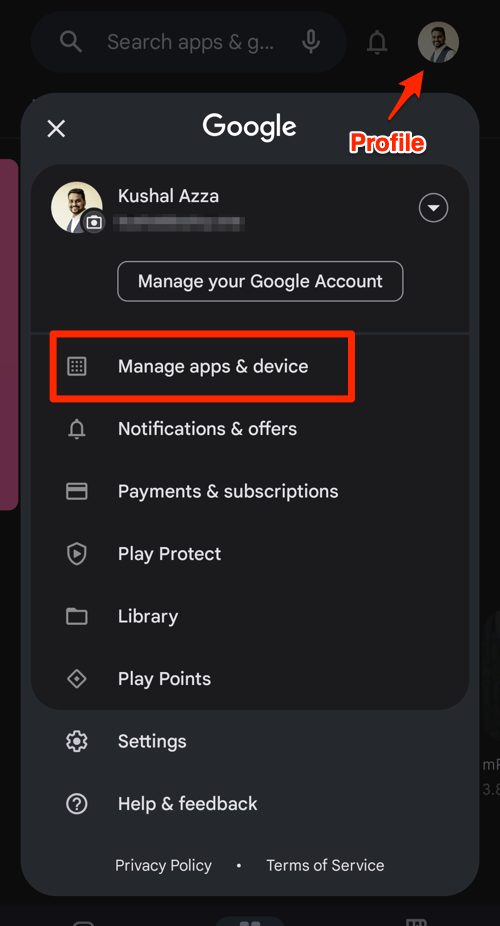
- Tap the Profile icon from the top right corner, and select the Manage apps & device menu.
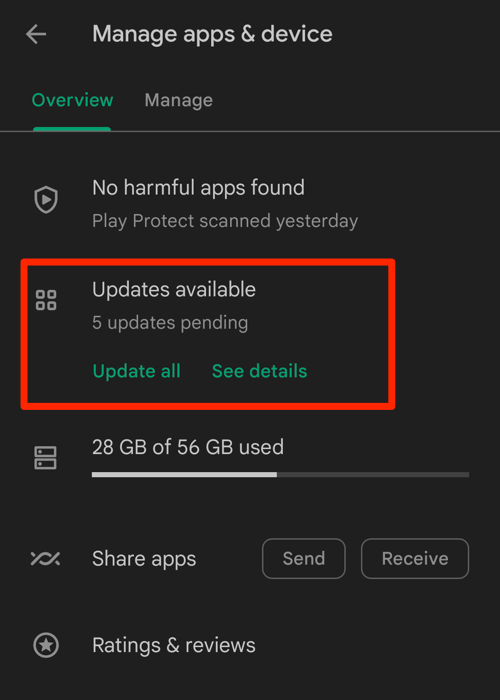
- Tap on the See details command under the Updates available menu.
- If Android System WebView is on the list of apps with available updates, tap on next to it.

You’ll know it worked when the Update button changes to Open and the version or date on the listing changes. On newer Play Store layouts, that same update list sits behind Manage apps and devices in the profile menu.
If your Play Store keeps pending updates under Library > Updates, use that list instead. Google’s Manage apps and devices in Google Play support page explains the options available from the profile menu.
Update Chrome on Android separately
If Chrome is the one still showing Update, work from its own listing. It often has a pending update waiting even after WebView finishes, and the WebView listing will never handle both packages.
- Open the Google Play Store on your Android device.
- Tap the Profile icon from the top right corner, and select the Manage apps & device menu.
- Tap on the See details command under the Updates available menu.
- If Chrome is on the list of apps with available updates, tap on next to it.
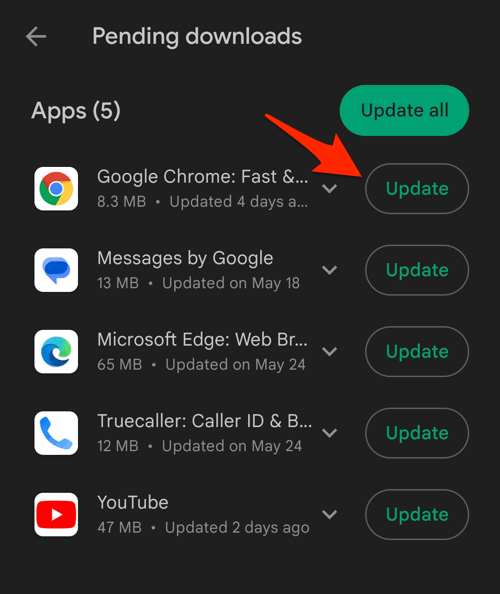
You’ll know it worked when Chrome’s Update button changes to Open. That does nothing for Android System WebView, so open that listing next.
Pause a stuck update and restart the phone
Is the Play Store sitting on Pending, Downloading, or Waiting for Wi-Fi? Start with the connection and any competing downloads. A restart also clears a Play Store process that has stopped responding.
- Connect the phone to a stable Wi-Fi or mobile network.
- Disable data saver temporarily if it is enabled.
- Disconnect from a VPN temporarily if one is connected.
- Restart the phone.
- Open Google Play Store.
- Tap the Profile icon in the top-right corner.
- Tap Manage apps and devices.
- If an update is currently running, tap .

- Open See details under Updates available.
- Tap beside Android System WebView.
- Tap beside Google Chrome if it is listed.
After the restart, the update should move out of Pending. If the listing shows Open instead of Update, the Play Store is not offering an update for that app right now.
Clear Google Play Store data that may block the download
If the update sits there with no error and no progress, a stale Play Store cache is a likely cause. Clear the Google Play Store cache and storage, reopen the store, and retry the update.
- Open Settings and select the Apps menu on your Android phone.

- Tap the See all apps menu and select the desired App to open the App info page.
 You can also use the Search icon to find the App.
- On the App info page, tap to open the Storage & Cache menu.

- Tap on the and commands to wipe out the App cache data.

- Entire app data will be deleted from the Android phone.
Select Google Play Store when the app list appears. The store may take a moment to load after its storage is cleared.
If it still will not update, repeat the same app-data procedure for Google Play services. You can also clear the cache and storage of another affected Android app using the same Settings path.
Force stop Android System WebView before another retry
If the WebView update keeps failing, an active WebView process may be holding the package open while the Play Store tries to replace it. Force stop it from Android Settings, then retry.
- Open Settings.
- Tap Apps. On older Android versions, this menu may be labeled Apps and notifications.
- Tap See all apps.
- Search for Android System WebView.
- If it is not listed, tap the
 menu.
- Choose Show system apps.
- Open the Android System WebView app information page.
- Tap .
- Open Google Play Store.
- Open the Android System WebView listing.
- Tap if the update is offered again.
If the update still fails, run the app-data procedure above with Android System WebView selected. Do not disable WebView, because other Android apps depend on it.
Leave beta testing if you joined the program
Did you or someone else enroll WebView in the beta program? A beta build can be the exact thing that fails to update. Return to the stable version before you try again.
- Open Google Play Store.
- Search for Android System WebView.
- Open the app listing.
- Scroll to the beta program section.
- If you are enrolled, tap .
- If appears after leaving, tap it to remove the downloaded beta update.
- Open the listing again and tap if a stable version is offered.

The listing should no longer mark you as a beta tester. If no beta section appears at all, skip this step and go back to the Play Store data reset.
Reset WebView to the version shipped with your phone
If the WebView update seems stuck or the listing behaves oddly, remove the downloaded Play Store update. Uninstall for Android System WebView restores the factory version that shipped with the phone. It does not remove WebView as a core system component.
- Open Google Play Store.
- Search for Android System WebView.

- Open the app listing.
- Tap .
- Confirm the uninstall prompt.
- Open the listing again.
- Tap if an update is offered.
The listing should return to a working version, usually the factory one, and the Play Store can offer a later update again. If Uninstall is not available, leave the system app alone instead of disabling it.
Check whether an Android system update controls WebView
Both listings can say Open while WebView still looks old, because on some phones the manufacturer’s own Android build controls the WebView package. In that setup Chrome still comes from the Play Store. If an Android update is pending, install it first.
- Open Settings.
- Open System update. The menu name varies by phone maker.
- Install the available system update.
- Restart the phone.
- Open Google Play Store and check both app listings.
If neither version changes after the system update, your device maker or Google Play Store support can confirm whether a newer package exists for your phone.
Confirm that each app updated successfully
You’ve cleared data, left the beta, and tried again. Now open each Play Store listing and compare. The button should read Open instead of Update, and the version or date should have changed after installation. Chrome and WebView do not need matching version numbers.
If both updates finished and a site still misbehaves, the update was not the culprit. Check Chrome’s site settings and site information for that domain.
A page that renders oddly can also be a site layout issue rather than a WebView fault. Viewing the desktop site is a quick way to tell the two apart.

Frequently Asked Questions
Why does Chrome update but Android System WebView does not?
Chrome and Android System WebView are separate apps with their own Play Store listings and versions. Updating Chrome does not automatically install a WebView update.
Why is there no Update button for Android System WebView?
The Play Store is not currently offering an update for that listing. On some device builds, WebView changes through an Android system update instead, so check both update paths.
Can I uninstall Android System WebView?
Choose Uninstall in Google Play to remove the downloaded update and restore the factory version. Do not disable WebView permanently because other Android apps use it.
Should I install Chrome or WebView APKs from another site?
Avoid third-party APK sites for these system apps. Use the Play Store or your phone maker’s system-update channel to avoid an incompatible or unsafe installation.
How do I know the update worked?
Open the Chrome and WebView listings and confirm that Update has changed to Open. Their version numbers can be different even when both apps are up to date.
Thank you so much this has aggravated me all week y’all are doing great I definitely love the picture of the phone on where you can find it on your phone again thanks so much
Clearing play store app data and cache helped, thanks
Thanks for your support! Your advices helped me in fixing my phone!
Thank you very much. That worked perfectly!
The uninstalling of the webview worked for me, then I was able to get everything updated to the unf*&ked version. Thank you!
Does not work 😔
I’m sorry Linda, that’s all we have. But, please do not lose hope and keep trying. Maybe it’s something to do with your device storage.
None of the solutions given worked for me. Not even the APK download. Any thoughts on a solution that might work?
Hi Linda, seems like clearing the cache and storage of Google Play Store app is working well for the most. Can you give this a second try? Please reboot your device after clearing the data.
THANK YOU!!! This post is so helpful – I was beside myself trying to poke around and fix the issues, and your information was EXACTLY what worked to get my phone back to “normal.” YOU ARE AWESOME!
Thanks very much for this, been frustrated for days! Now all ok.
Thanks so much, clearing the cache and storage of Google Play worked for me.
You are a real lifesaver.
Thank you. Clear storage and clear cache of the playstore app worked for me.