Typing your full address on a mobile form is tedious. Opera for Android can save your address and autofill it, so you don't have to type it each time.
You can store multiple addresses, like home and work, and turn autofill on or off whenever you need.
In this guide, I have covered:
Contents
Save an Address in Opera for Android
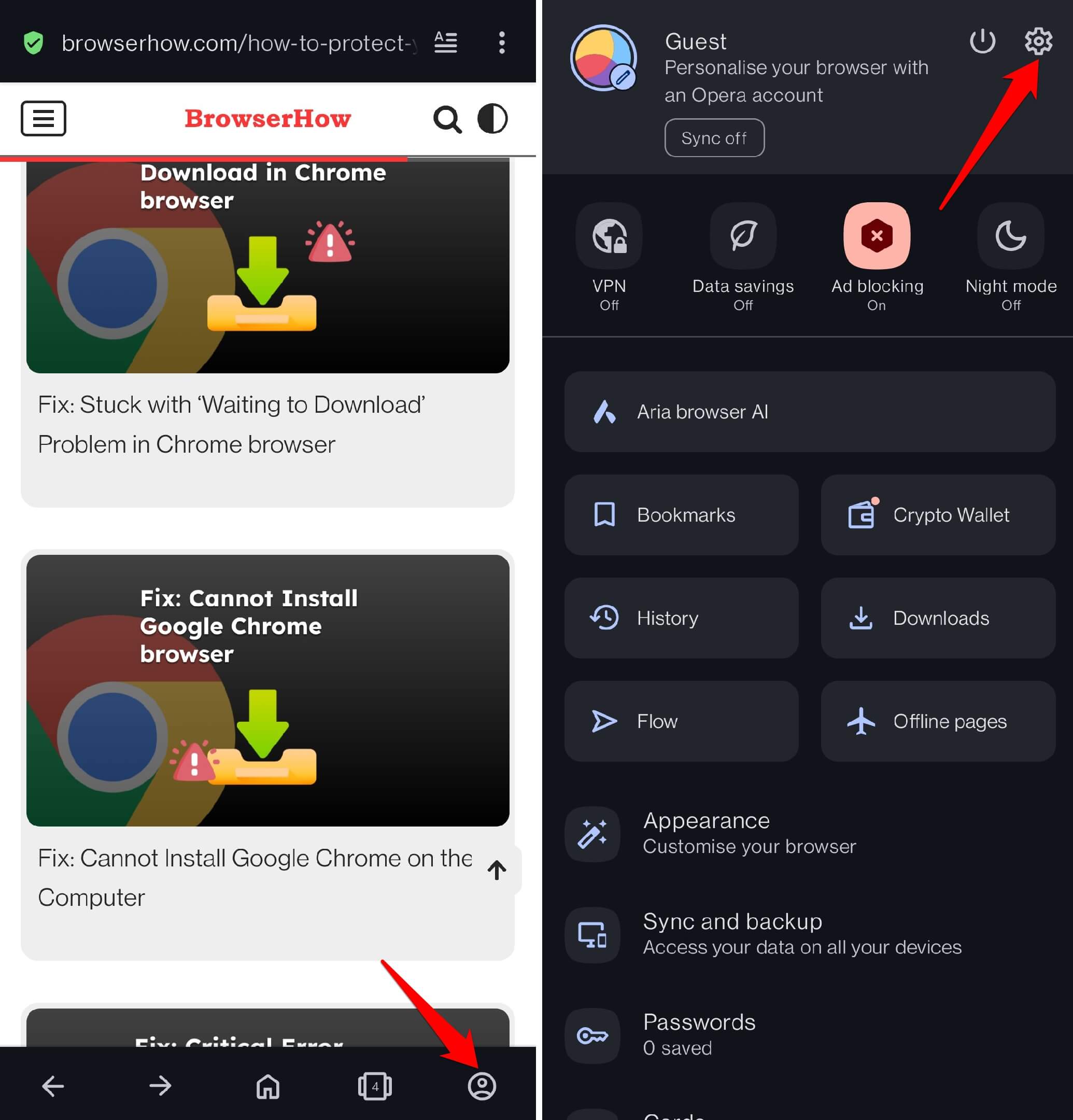
- Open Opera on your phone and tap your profile icon.
- Tap the
 icon to open Settings.
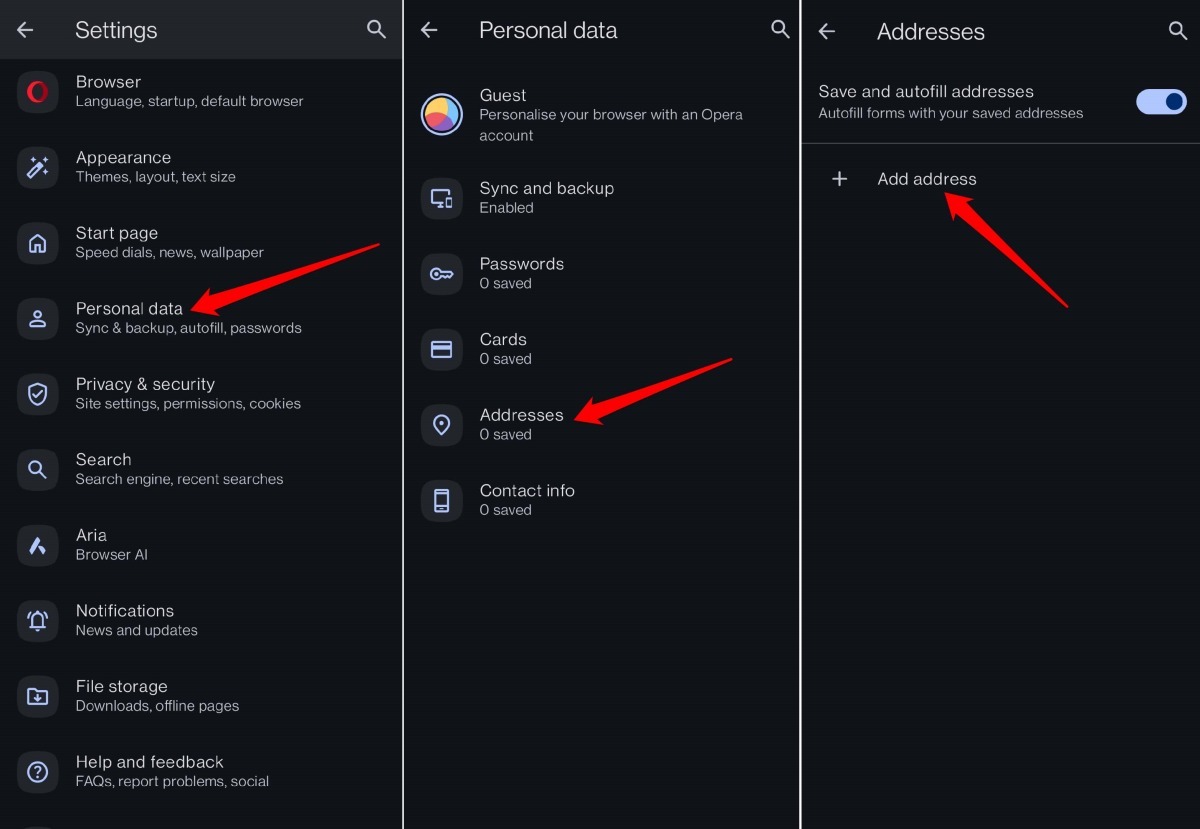
- Scroll down and tap Personal Data.
- Tap Addresses and select Add Address.
- Fill in your full address details.
Enable Address Autofill on Opera
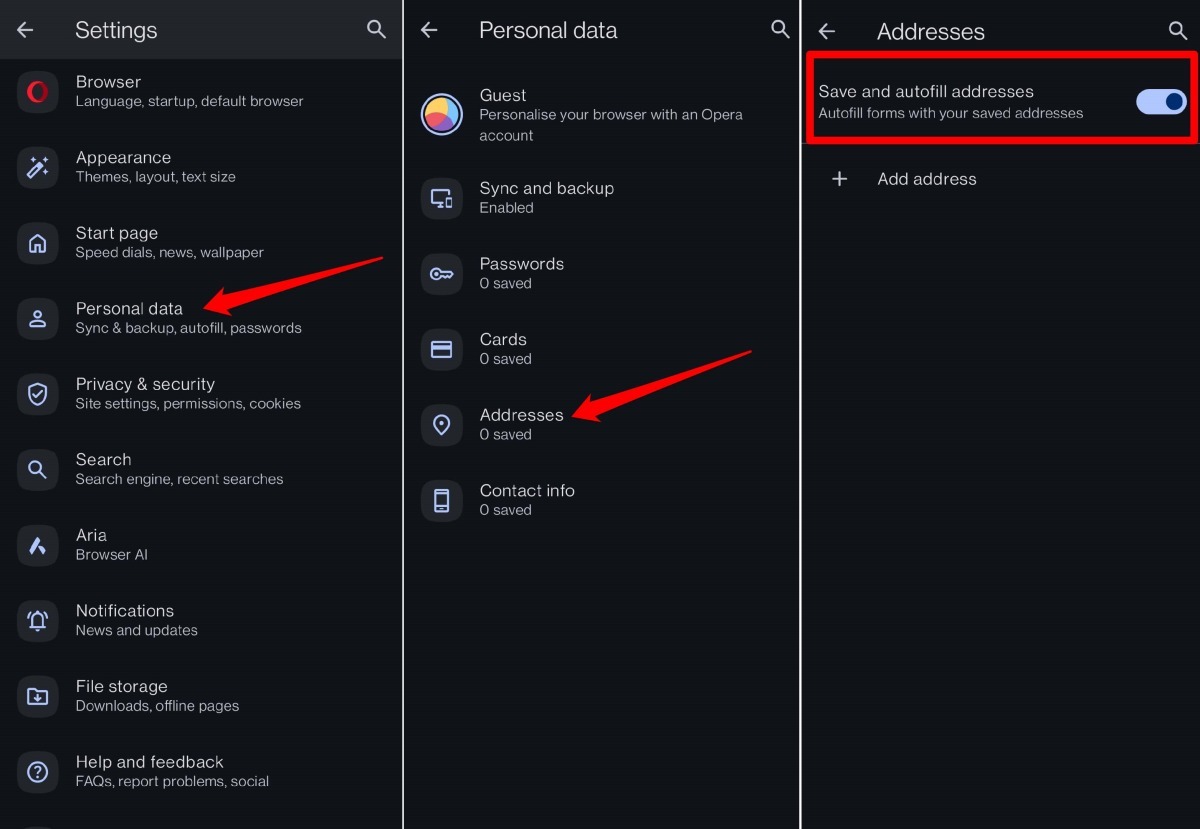
- Open Opera, tap your profile icon, then tap Settings.
- Select Personal Data.
- Tap Addresses.
- Turn on the toggle for Save and autofill addresses.
Edit a Saved Address in Opera browser
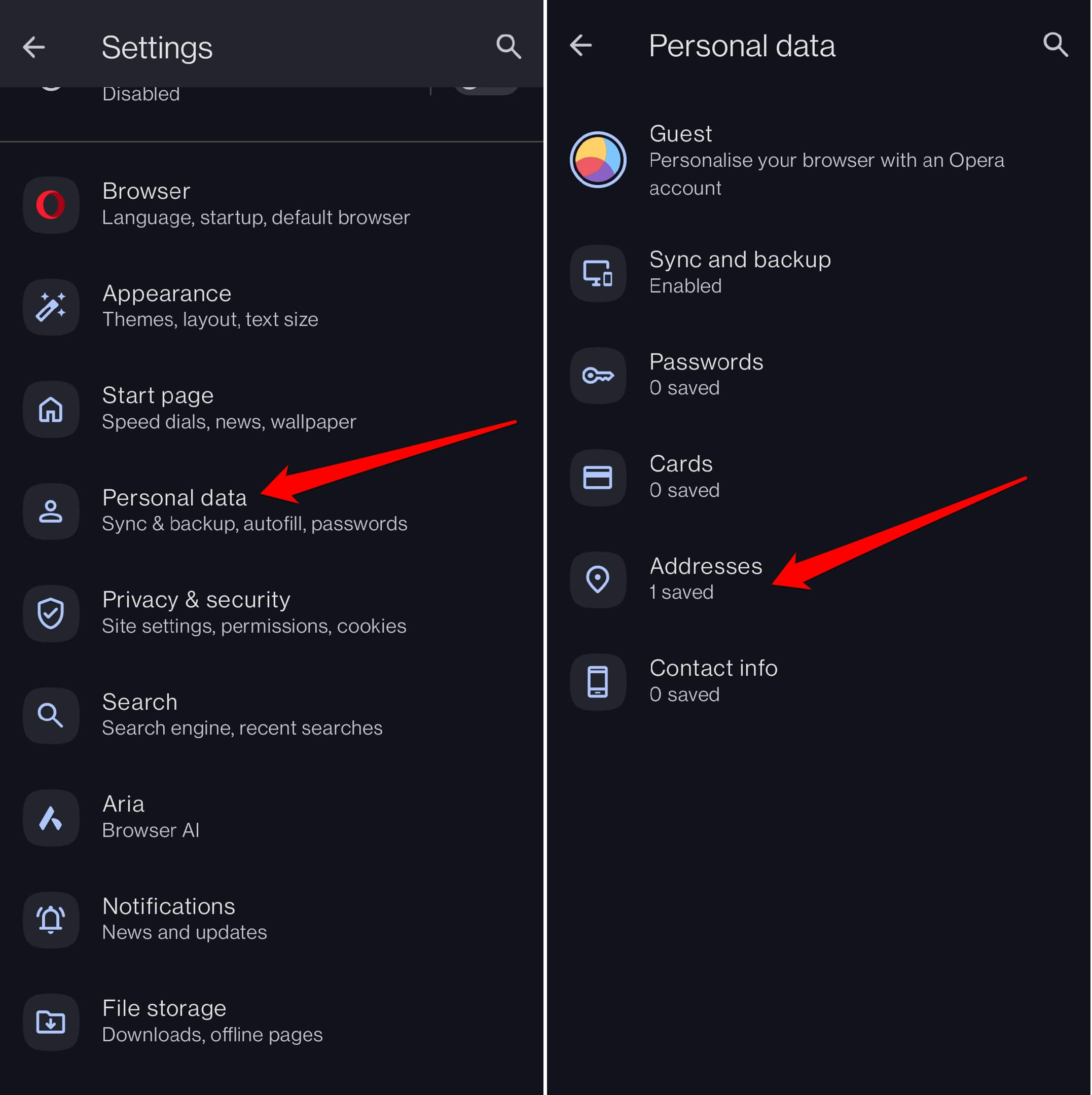
- Open Opera on your phone.
- Tap your profile icon, then Settings.
- Scroll and tap Personal Data.
- Tap Addresses.
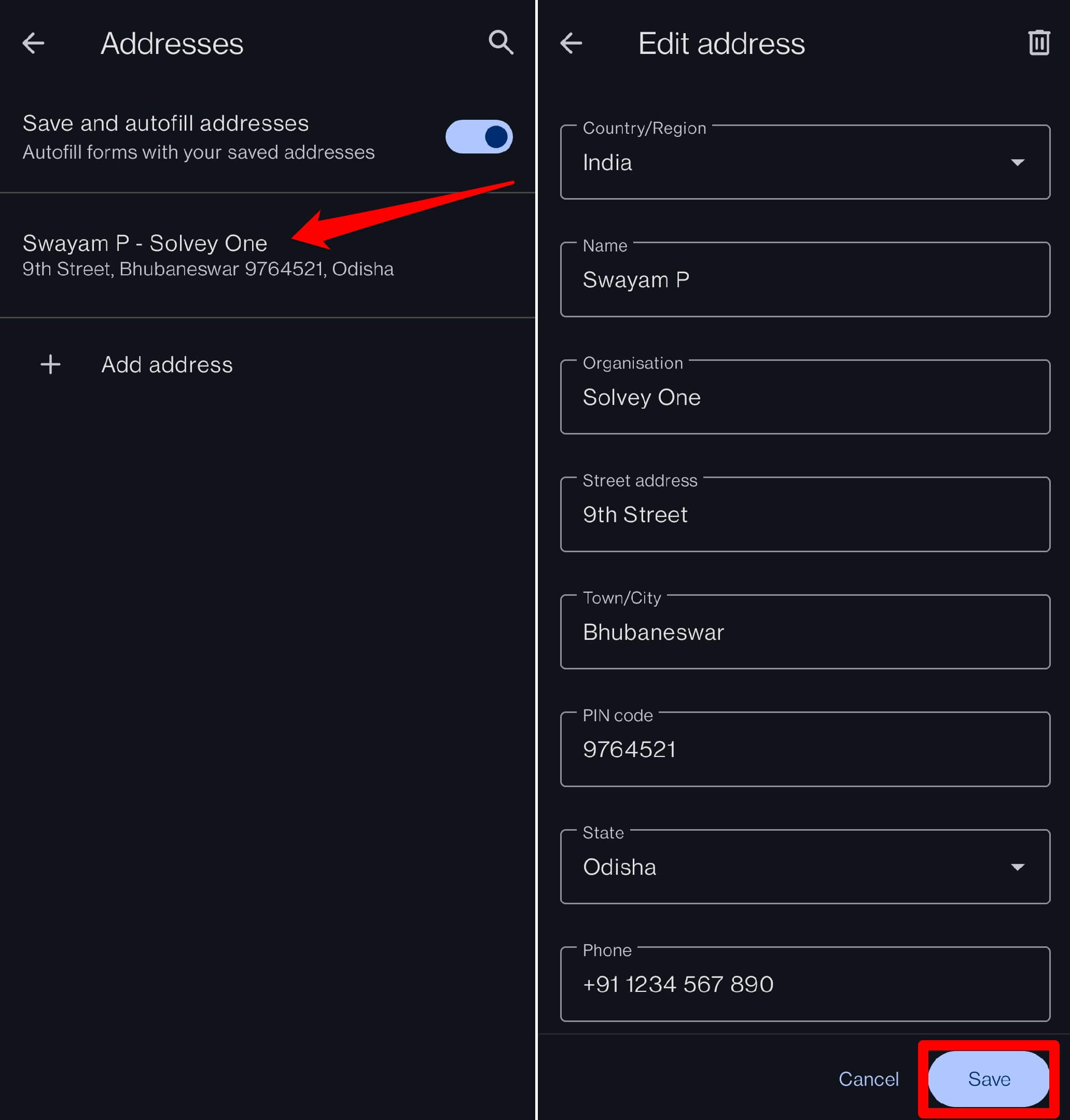
- Tap the address you want to edit.
- Update the fields, then tap button.
Delete a Saved Address in Opera
- Open Opera on your phone.
- Tap your profile icon, then Settings.
- Scroll and tap Personal Data.
- Tap Addresses.
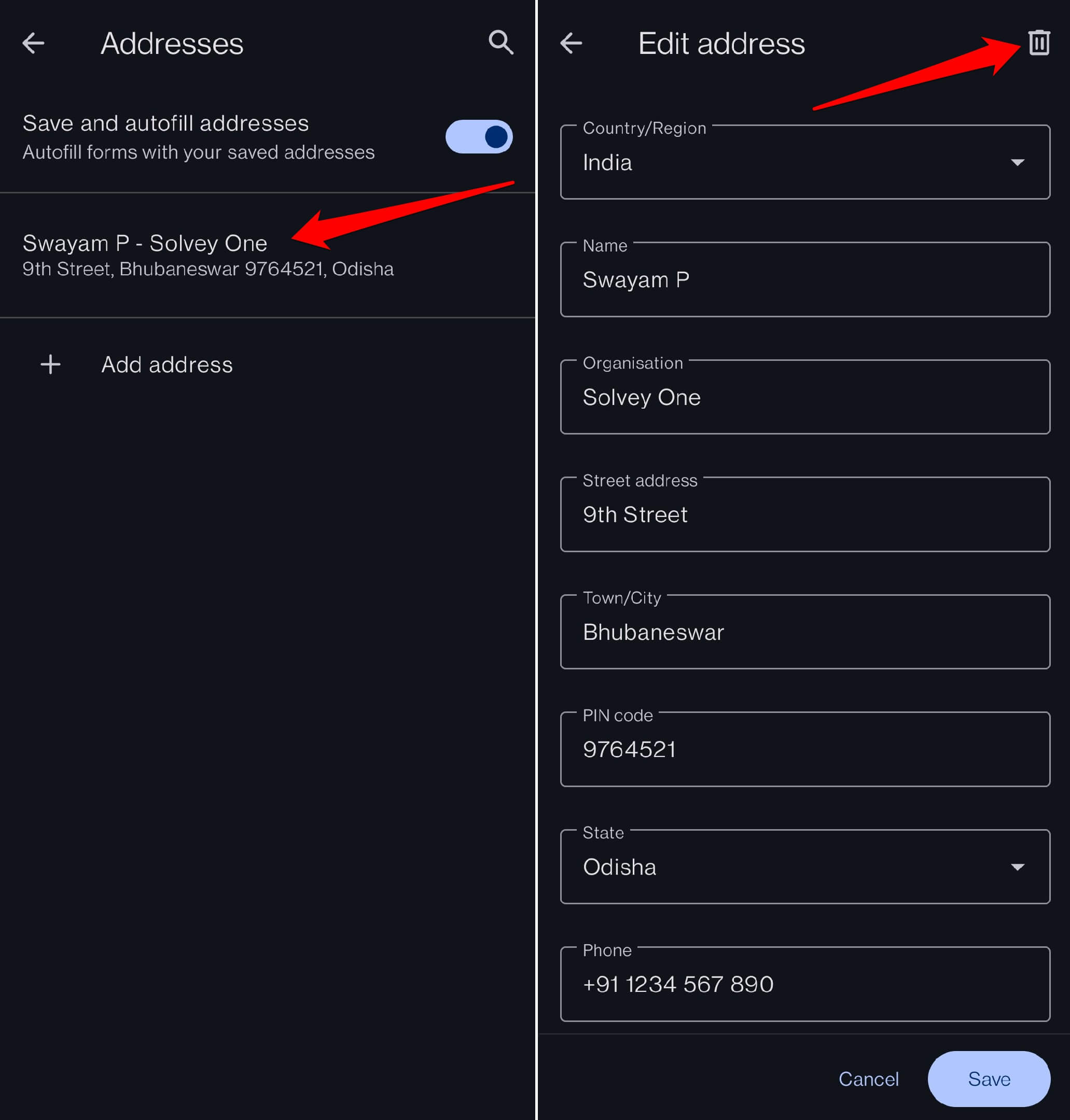
- Tap the address you want to delete.
- Tap the icon in the top right corner.
Bottom Line
You’ll know autofill is working when you tap an address field on a form and Opera suggests your saved address. No more typing out your full address and double-checking every line.