You want to get to your favorite websites without tapping through bookmarks. Opera for Android lets you add any page as a shortcut right on your home screen.
Pick automatic placement or drag the icon where you want it. From then on, one tap opens that site directly in Opera.
In this guide, I have covered:
Contents
Add a Website or Page to the Home Screen on Opera Android
- Launch the Opera Android app on your phone.
- Open any website.
- Tap the
 menu icon at the bottom right.
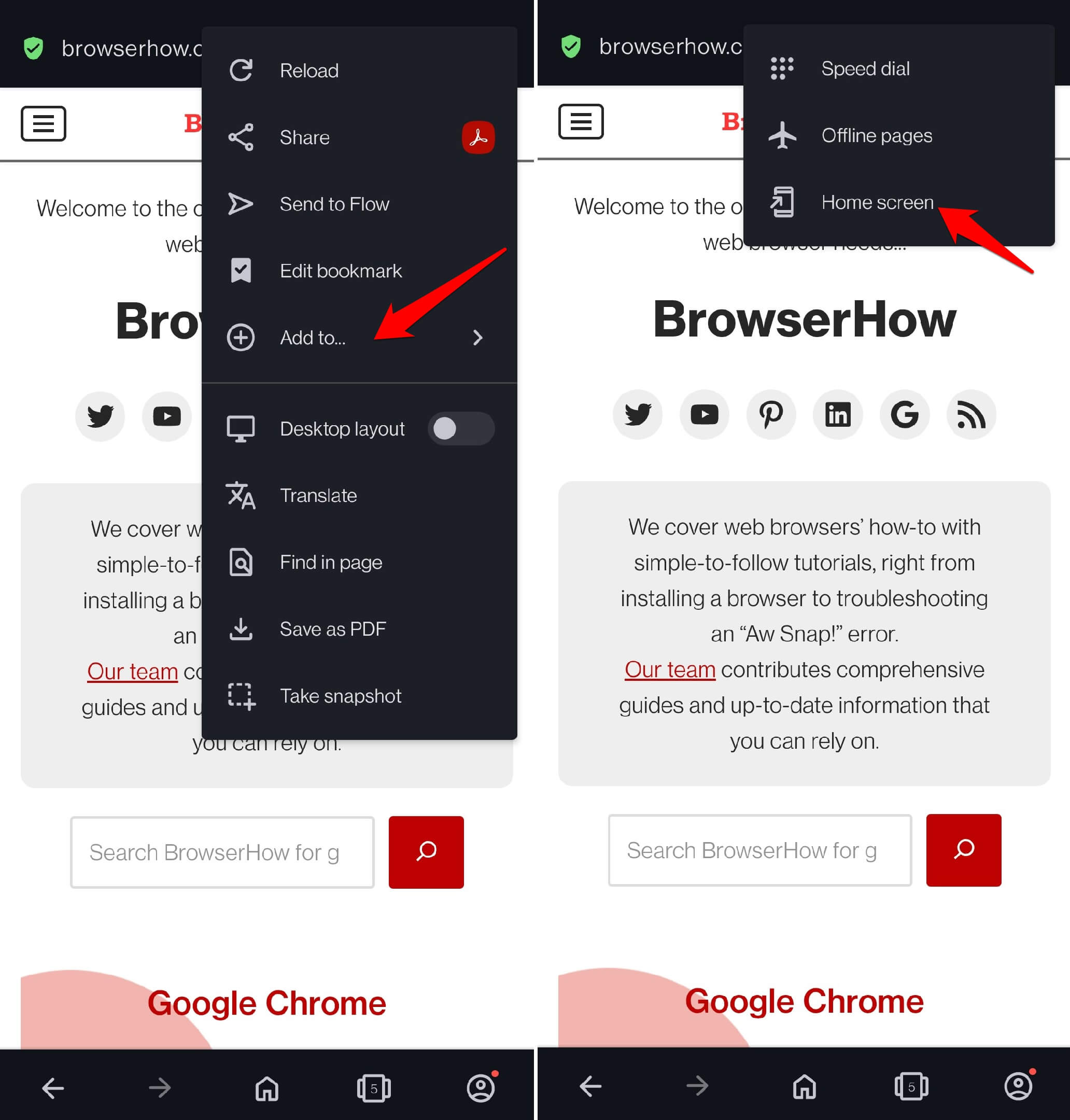
 - Select Add to > Home Screen.
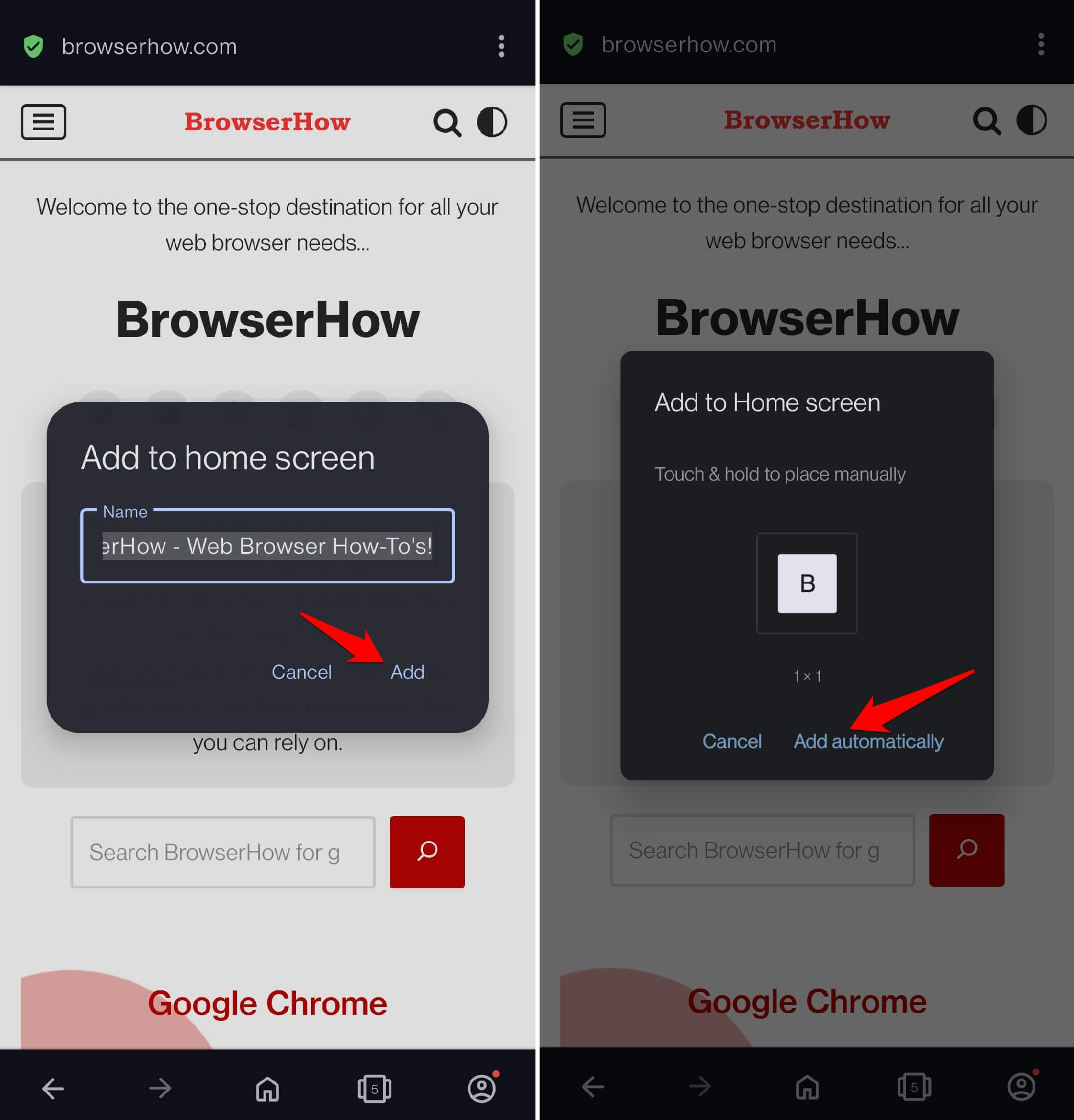
- On the Add to Home Screen tab, press Add.
- Tap Add Automatically to place the icon on your home screen.

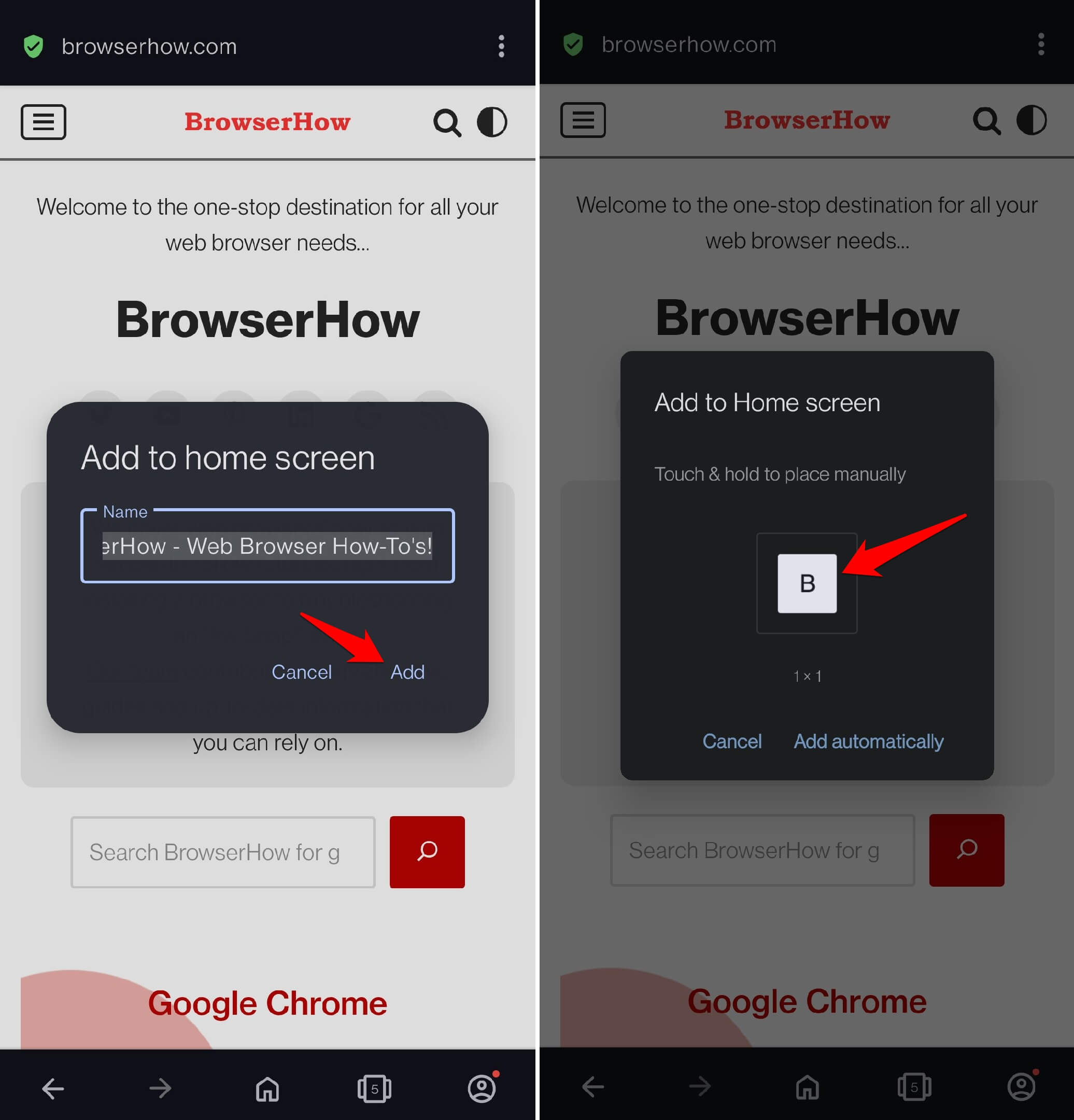
TIP: To manually place the page icon on the home screen, touch and hold on the icon and move it to a particular section of the home screen.
To open the site from your home screen, just tap the icon. Opera launches right to that page.
Bottom Line
You now have a one‑tap shortcut. Add as many pages as you like: each one opens directly in Opera from your home screen.