Opera for Android can translate foreign-language pages automatically. Turn the feature on once and the browser handles the rest.
A manual translate option lives right in the address bar menu for quick, on-demand translations. Opera uses its own engine first and falls back to Google Translate for languages it cannot identify.
In this guide, I have covered:
Contents
Enable Auto-Translation of Webpage in Opera
When a page loads in a language that doesn’t match your default, Opera normally shows a translate prompt at the bottom of the screen. Turning on auto-translate skips that prompt entirely. The page just appears in your preferred language.
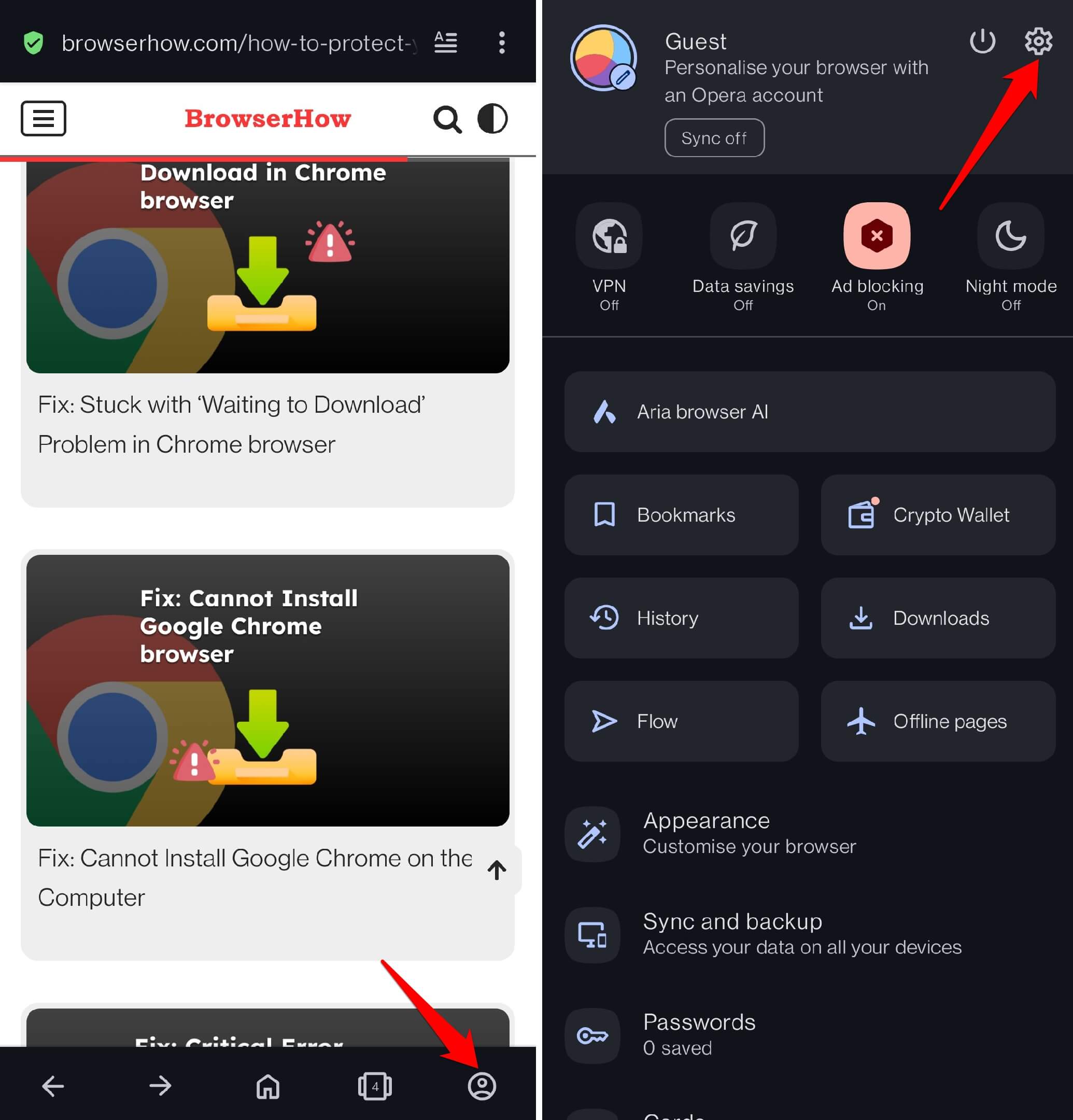
- Open the Opera browser app on your Android device.
- Tap the profile icon at the bottom.
- Tap the
 icon to open settings.
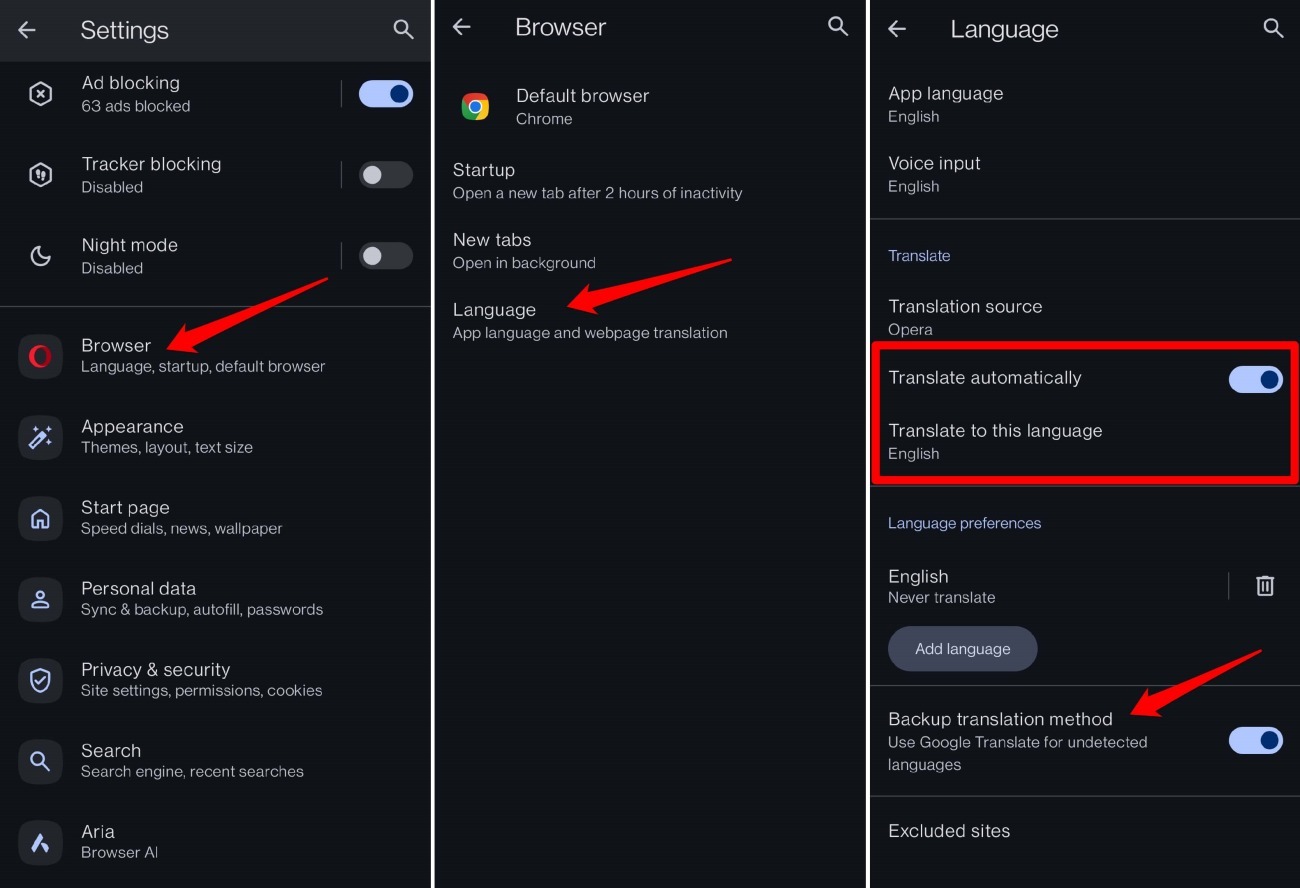
- Scroll to Browser and tap on it.
- Tap on Language.
- Under the Translate section, enable Translate Automatically by tapping the toggle switch next to it.
- Tap on Translate to this language and pick the language you want pages converted into.
- Enable the Backup Translation Method toggle. This covers languages Opera’s own engine cannot detect and hands the job to Google Translate.
You’ll know it worked when you visit a foreign-language site and the text switches over without any prompt appearing.
Manually Translate a Page on Opera
If you left auto-translate off, or you hit a page where the translation didn’t kick in, you can trigger it manually in two taps.
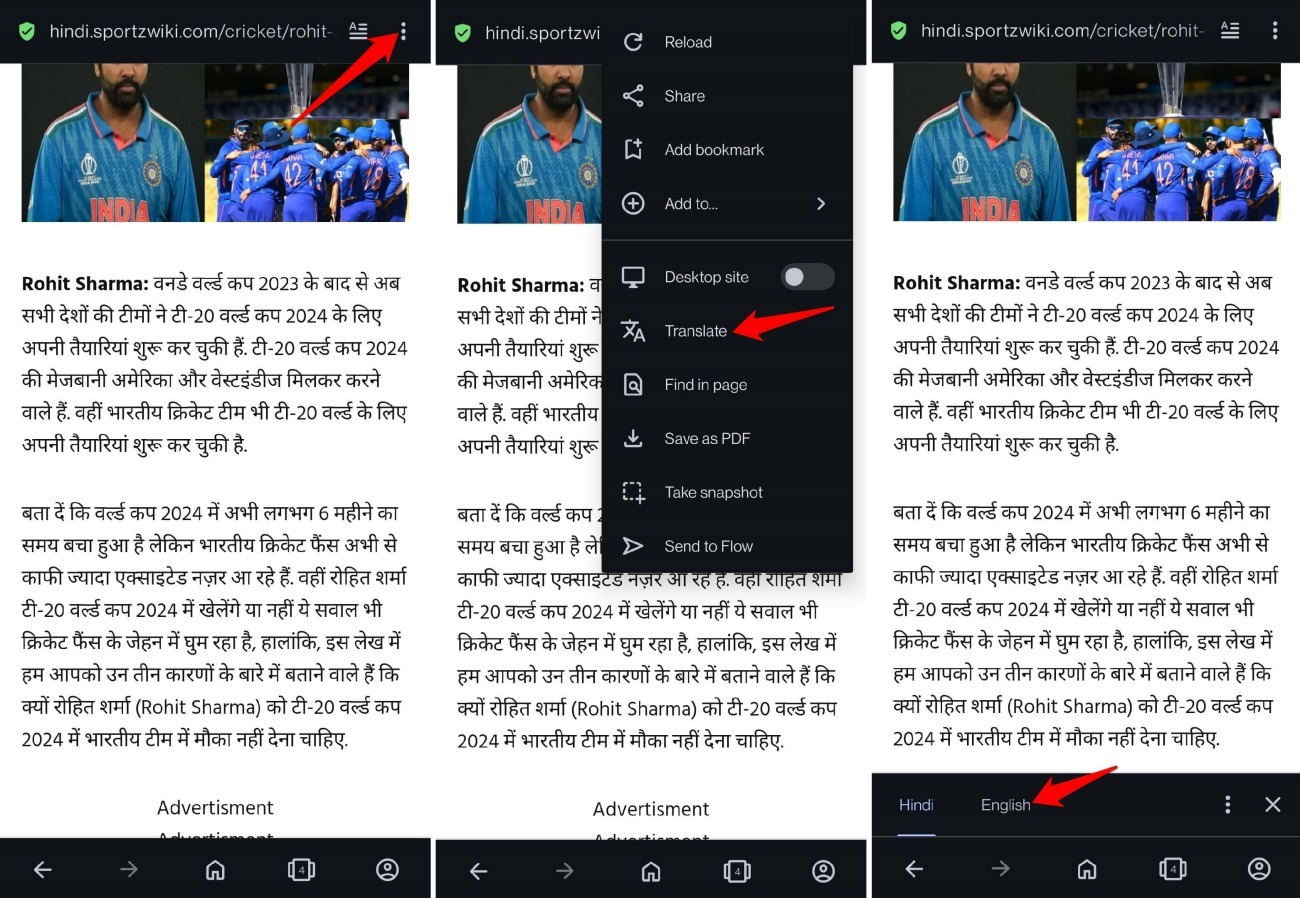
- Open any page on Opera that shows text in a language you cannot read.
- Tap the
 menu icon at the top.
 - Select Translate from the menu.
- At the bottom of the page, tap your preferred language to translate the content.

Make sure you set the target language first. Jump to step 7 in the section above before you trigger a manual translation.
Bottom Line
The translation feature turns Opera into a quick reading aid when you land on a foreign-language page. Enable auto-translate and let the browser do the work. You can always fall back on the manual option from the menu whenever you need it.