Cookies keep you signed in and remember carts and preferences, so blocking them can make a site look broken. Safari for Mac gives you one global switch plus a per-website choice.
Open Safari Settings and look in Advanced for the Block all cookies checkbox. If one site still fails, adjust its Website Settings, and clear old website data when a stored session refuses to reset.
In this guide, I have covered:
Contents
Block Cookies for Every Website in Safari
You want Safari to stop storing cookies for every site, or you need them back after a sign-in broke. The global switch applies one rule to all websites.
In current Safari for Mac, Block all cookies is in the Advanced tab. It is not in Privacy, and there is no separate confirmation button.
- Open Safari on your Mac.
- Click Safari in the macOS menu bar.
- Choose Settings… from the menu.
- Select the Advanced tab.
- Enable the Block all cookies checkbox.
- Close the Settings window.
- Reload the website you want to test.
You’ll know it worked when Block all cookies is still checked after you reopen Safari Settings. The rule applies to every site, so sign-in forms, shopping carts, and other cookie-dependent features may stop working.

On older macOS releases, the menu may say Preferences…, and the global cookie option may appear under Privacy. The checkbox is still named Block all cookies.
Allow Browser Cookies Again in Safari
If a global cookie block sent you back to the sign-in screen or emptied a shopping cart, clear the block and reload the affected site. This restores Safari’s normal cookie behavior without changing another privacy option.
- Open Safari on your Mac.
- Click Safari in the macOS menu bar.
- Choose Settings… from the menu.
- Select the Advanced tab.
- Clear the Block all cookies checkbox.
- Close the Settings window.
- Reload the site and try the sign-in, cart, or other feature again.
Turning the checkbox off lets websites set new cookies. It cannot restore an expired session, so sign in again if the site asks for your password.
You’ll know it worked when the site keeps you signed in after a reload, or your cart still has the items you added.
Allow or Block Cookies for One Website
Blocking every cookie is rarely necessary when only one site will not work. Safari can keep a website’s cookie choice separate from the global setting, which helps when that site needs a saved login.
- Open the website in Safari.
- Click the page menu button beside the address bar.
- Choose Website Settings….
- Set the site’s Cookies choice to Allow or Block.
- Reload the website.
You’ll know it worked when the site remembers your login or cart after a reload, and other sites keep their current cookie behavior. The permission applies only to that website and stays separate from Block all cookies.
If your Safari version does not show a Cookies choice in this panel, use the global setting in Advanced.
If your goal is to stop the site opening in Safari, block websites in Safari on Mac instead of changing only its cookie permission.
Safari’s Website Settings panel also handles other permissions. You can allow or stop site notifications in Safari on Mac from the same panel.

Clear Existing Safari Cookies and Website Data
If changing the cookie permission did not fix an old or broken session, remove the website data Safari has already stored. This clears cookies and cache for all sites rather than changing the global cookie rule.
- Launch the Safari app on your Mac computer.
- Click on the Safari menu from the menu bar, and select the Settings... sub-menu.
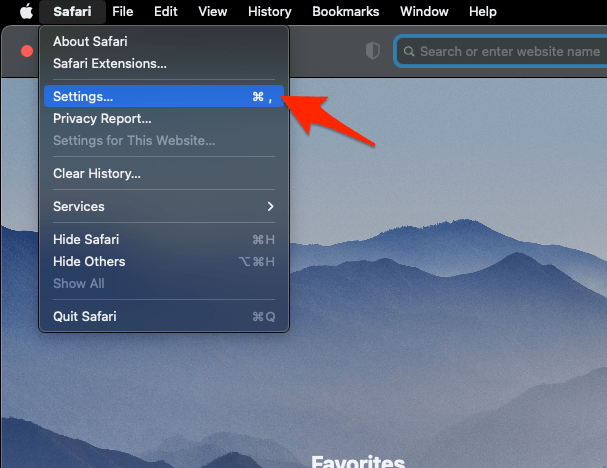 It will open the Safari Settings window.
- Switch to the Privacy tab, and click to open the button.
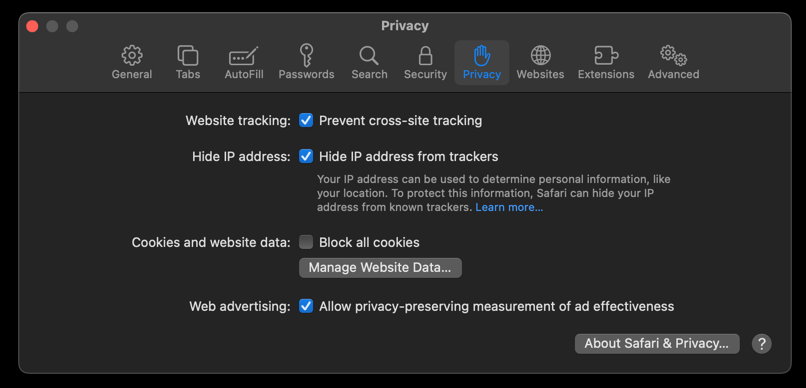 It will load the list of websites currently storing the cache and cookies in the browser.
- Hit on the command and then the button.
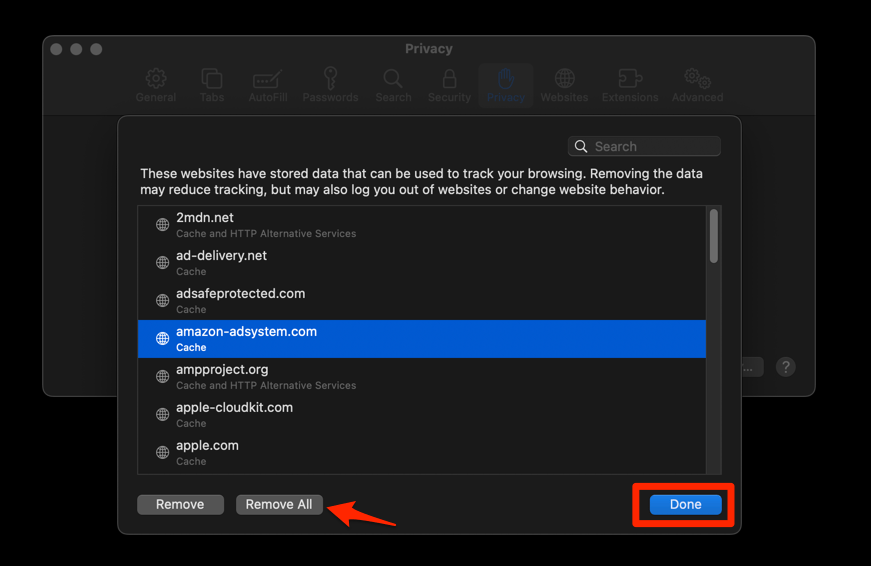 It will flush the cookies and cache for all sites in Safari.
You’ll know it worked when the affected site asks you to sign in again and then loads without the old error. Sign in once so the site can create a fresh cookie-based session.
Choose Between Global and Per-Site Cookie Settings
Use the global switch when you want one cookie rule for every website. Use a site’s Website Settings when only that site needs a different choice.
- Block all cookies: applies the strictest rule, but many sites may not sign you in or keep a cart.
- Allow cookies globally: restores normal sign-in and shopping behavior while Safari’s tracking-protection features can still limit some cross-site data.
- Allow or Block per site: limits the change to one website and is usually the better option when one service fails.
Cookies do more than track visits. They can store a sign-in session, cart contents, language, and other preferences, so a blanket block can make a site appear broken even when the page loads normally.
The global checkbox is all or nothing. Safari’s tracking-protection features are separate controls, so changing them does not turn Block all cookies on or off.
Frequently Asked Questions
Still stuck after a cookie change? These are the questions that come up most often.
Where is the Block all cookies option in Safari on Mac?
In current Safari, choose Safari > Settings…, open Advanced, and find Block all cookies. On older macOS versions, the menu may say Preferences…, so use that label if it appears on your Mac.
Why did blocking cookies break a website?
Many sites use cookies for sign-in sessions, carts, and saved preferences. A global block can prevent those functions, while a per-site allowance can limit the change to the site that needs it.
Can I block cookies for only one site in Safari?
Yes. Safari stores the choice in the site’s Website Settings, where the Cookies permission can be set to Block. This setting applies only to that website, while the global choice remains in Advanced.
How do I clear old cookies after changing the setting?
The stored data is listed under Safari > Settings… > Privacy > Manage Website Data. Removing it can sign you out of sites that depend on an existing cookie session.
Can I manage Safari cookies on iPhone and iPad as well?
Yes, but mobile Safari uses a different settings path. You can allow or block cookies in Safari on iPhone and iPad for those devices.
On a Mac, treat Block all cookies as the main switch and the per-site Cookies setting as the exception. That balance keeps everyday sites working without giving up control over the ones that misbehave.