Opera for Android bundles its privacy controls into one menu, but the toggles affect your browsing in very different ways. This guide steps through the Privacy & security panel and explains what each switch actually does on your device.
You will also learn how to manage site-specific permissions for location, camera, microphone, and external apps. Setting these to "Ask Every Time" or "Denied" stops sites from grabbing data without your say-so.
In this guide, I have covered:
Contents
Enable Privacy Settings
- Launch Opera on your mobile device.
- Go to Profile > Settings.
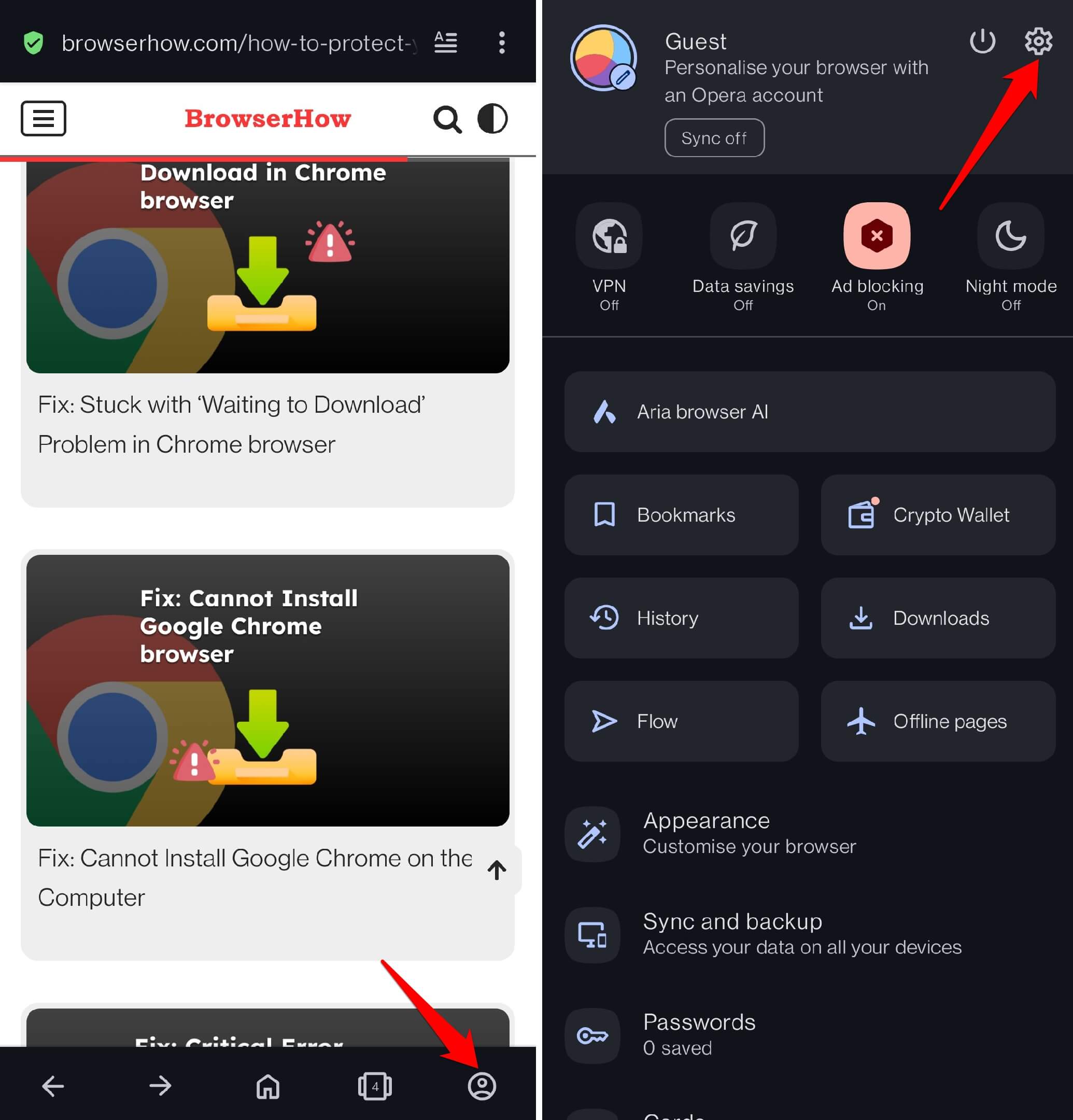
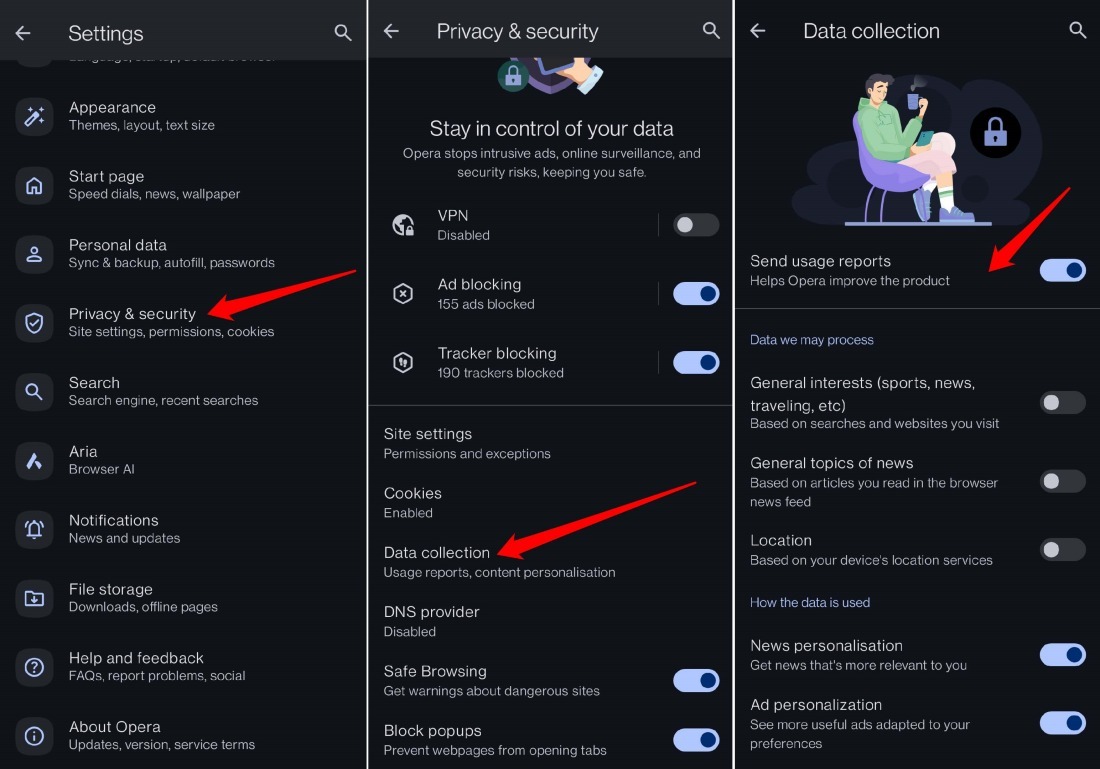
- Tap on Privacy & security.
- Switch on or turn off the VPN to hide your IP address and encrypt your connection.
- Next, press the toggle switch beside Ad Blocking and Tracker Blocking to restrict ads and site trackers.
- Scroll down and enable Safe Browsing and Block Popups.
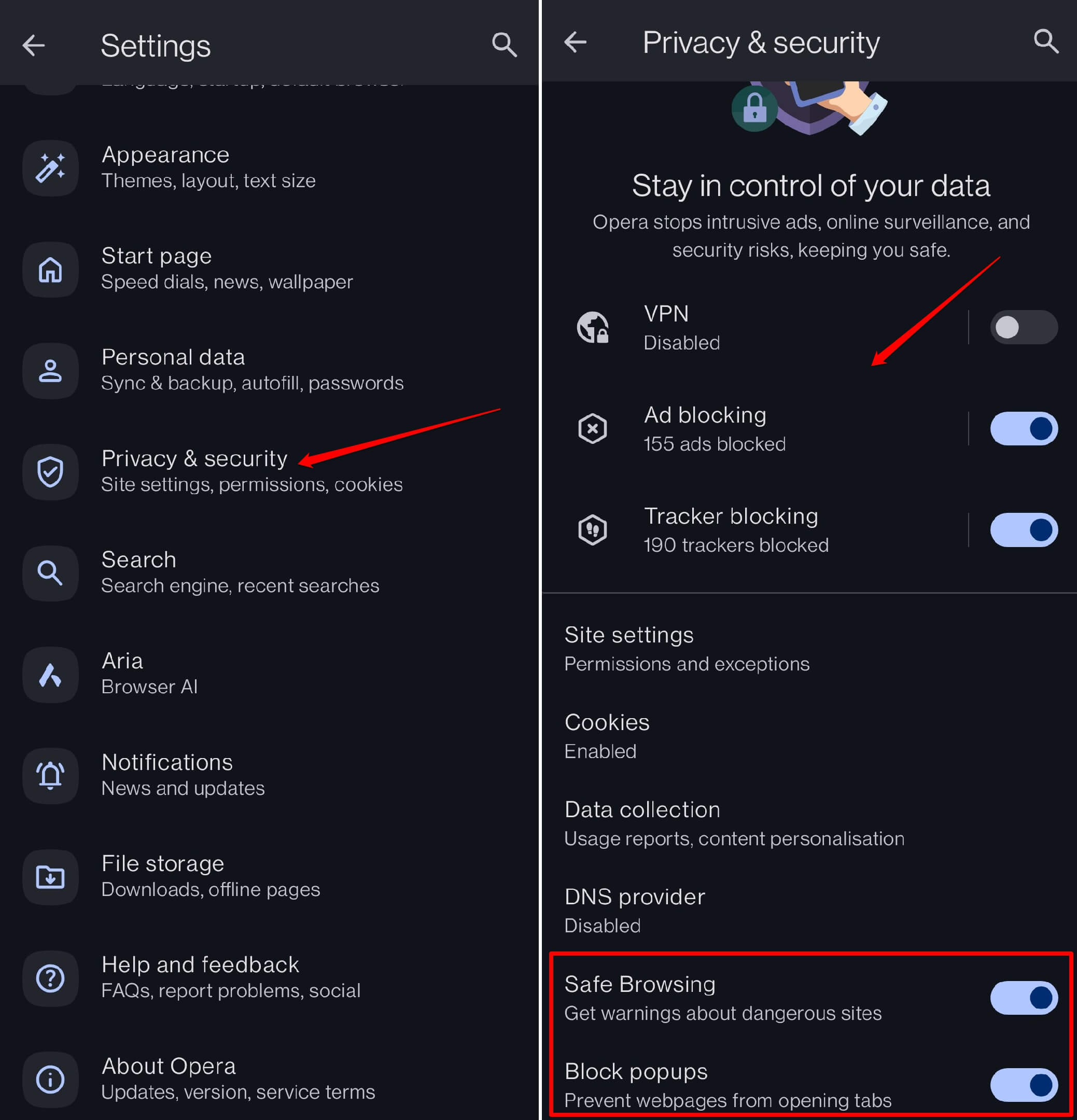
- Access the Data Collection and manage how Opera may process the usage reports.
Manage Site Settings
- Launch Opera on your mobile device.
- Go to Profile > Settings.
- Tap on Privacy & security.
- Access Site Settings.
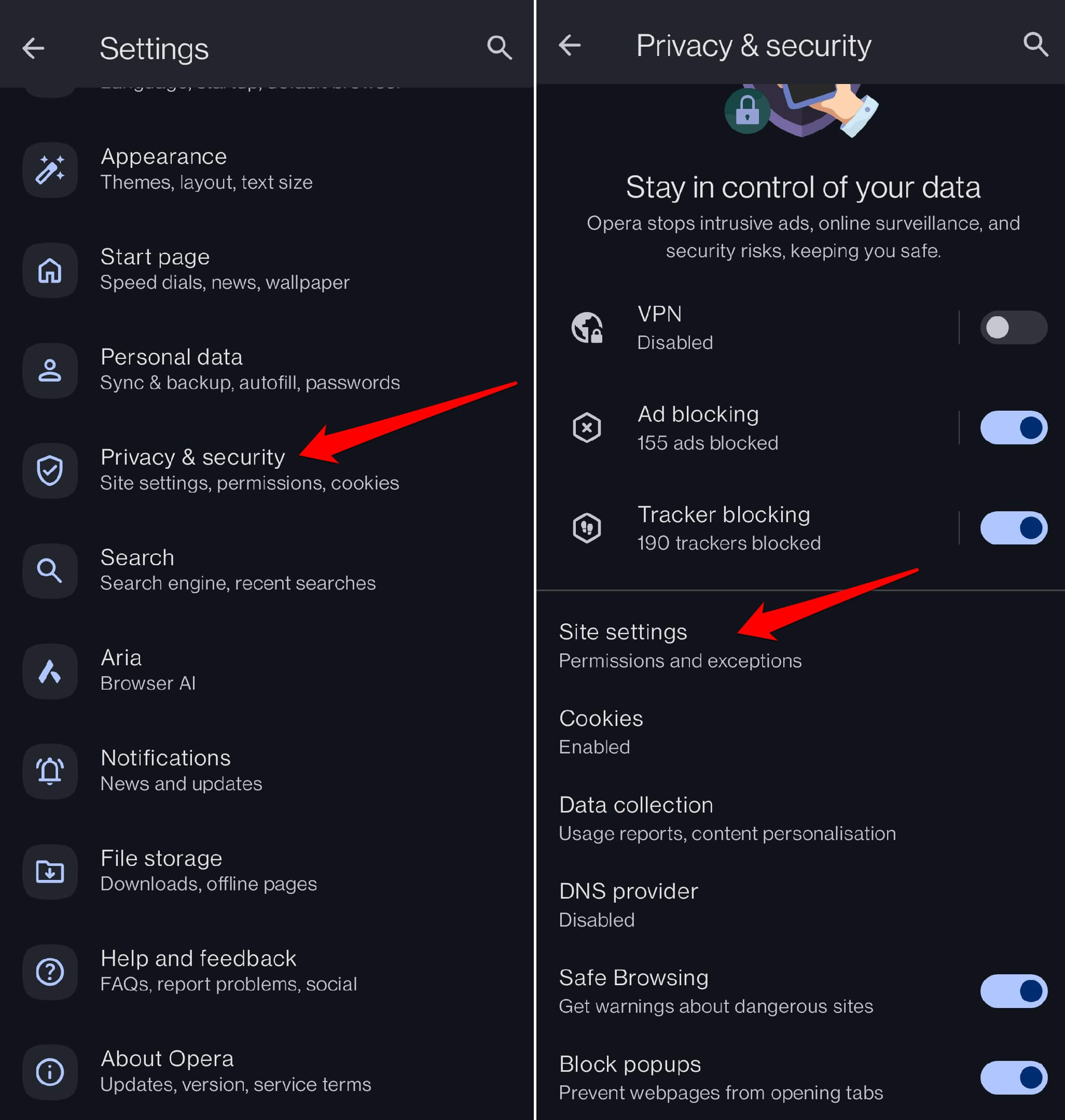
There are various elements under Site settings for which you can manage the access settings to safeguard your privacy during browsing. For instance,
- Under Site settings, tap on Location.
- Choose between Ask Every Time, Allowed, and Denied.
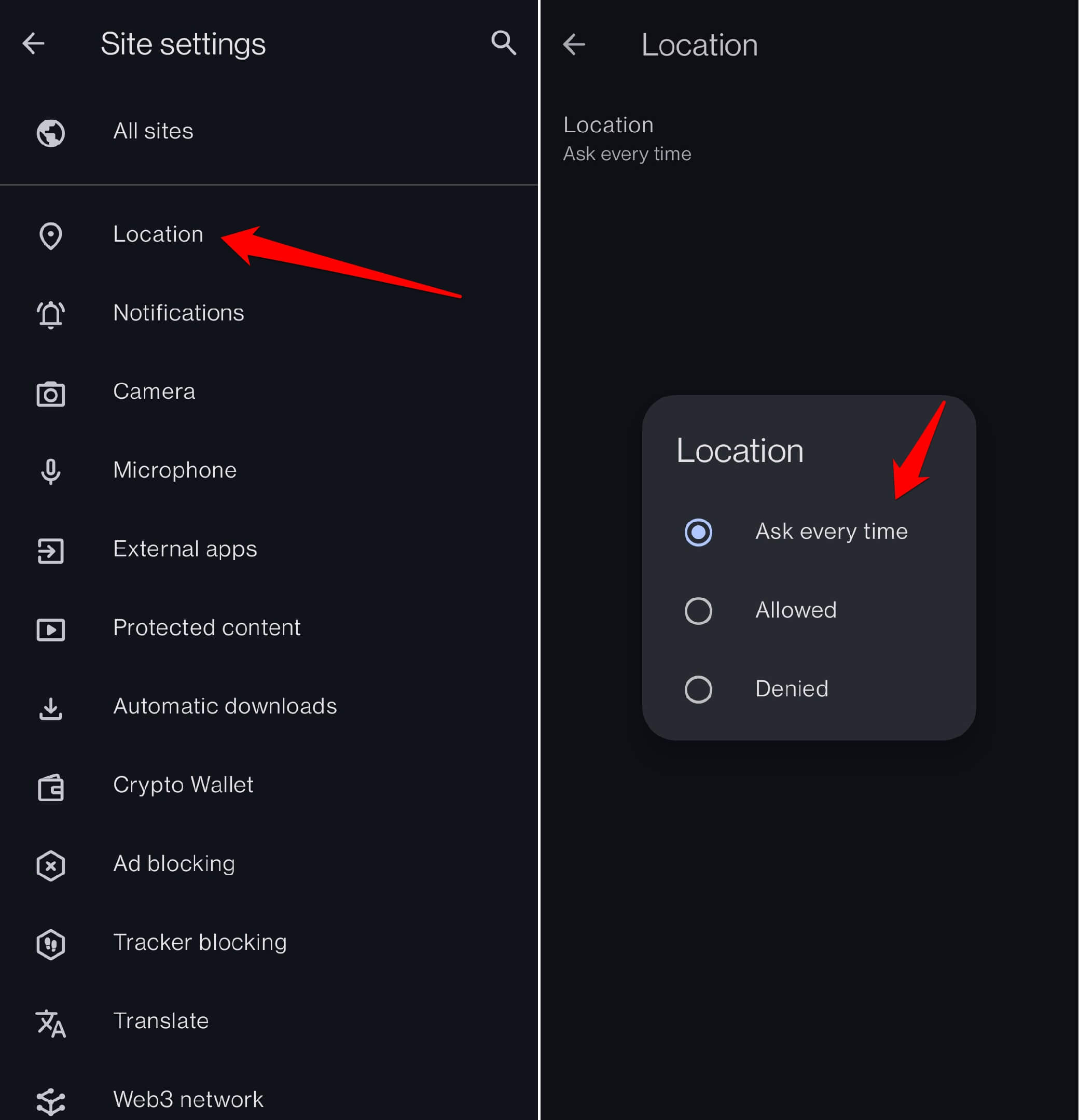
- If you are too concerned about not sharing your location data with sites you access on Opera, select Denied.
- Otherwise, you can set it to Ask Every Time. Each time you visit a site, Opera will ask you the permission to allow or deny location access to that site.
- Select Allowed to enable any site you launch on Opera to have your location info.

TIP: For other elements under Site Settings, such as Camera, Microphone, External apps, etc follow the same steps described above to change the access settings as per your privacy requirements.
Bottom Line
Privacy is indeed a myth once you are on the internet. However, with the Opera browser, you get sufficient control over what data you can share with websites and restrict the annoying ads or trackers on these sites.