Videos won't load, the player is stuck buffering, or YouTube is just a blank page in Safari. The cause is usually a corrupted cookie, a stuck DNS entry, or a conflicting extension rather than YouTube itself.
Work through the macOS fixes in order: clear cookies and cache, flush the DNS cache, then disable extensions to find the culprit. The same steps apply on iPhone and iPad if YouTube still will not load there.
In this guide, I have covered:
Contents
Why YouTube Stops Working in Safari
YouTube worked yesterday, and now Safari shows a blank white page, a spinner that never stops, or a black box where the video should be. Safari handles cookies, JavaScript, and cached data differently from Chrome and Firefox, so a small local glitch can break the player while other browsers keep working.
Most of the time the cause sits on your Mac, not on YouTube’s servers. The four usual suspects are corrupted cookies or cache, a stuck DNS entry, a Safari extension that conflicts with the player, and an outdated version of Safari that no longer matches what YouTube expects.
Check If YouTube Is Actually Down
You have reloaded the page, and YouTube still will not play. Before you change any Safari setting, rule out a YouTube-wide outage by trying the same video in another browser on the same Mac.
- Open a different browser on the same Mac.
- Go to youtube.com and try to play a video.
- If the same video fails everywhere, check a third-party status site for YouTube.
- If YouTube loads fine in the other browser, return to Safari and continue with the fixes below.
Clear Safari Cookies and Website Data
If YouTube opens but the video refuses to play, stale cookies and local storage are a likely cause. YouTube keeps sign-in state, playback preferences, and small scripts in that data. When it gets out of sync, the player stalls before the first frame.
- Launch the Safari app on your Mac computer.
- Click on the Safari menu from the menu bar, and select the Settings... sub-menu.
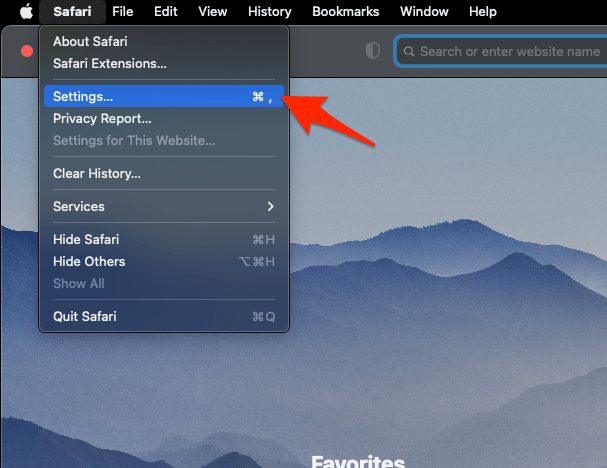 It will open the Safari Settings window.
 - Switch to the Privacy tab, and click to open the button.
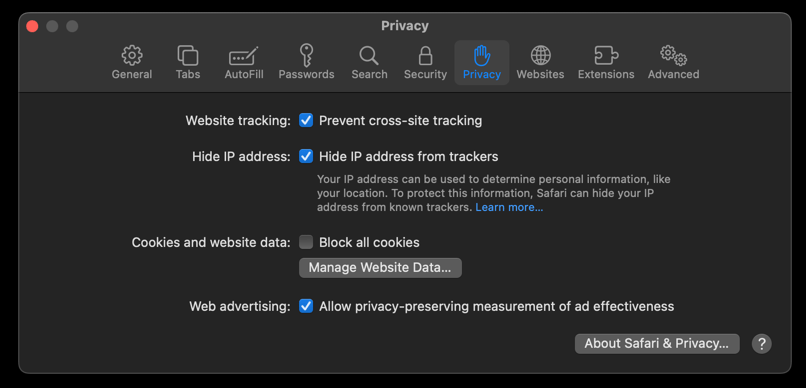 It will load the list of websites currently storing the cache and cookies in the browser.
 - Hit on the command and then the button.
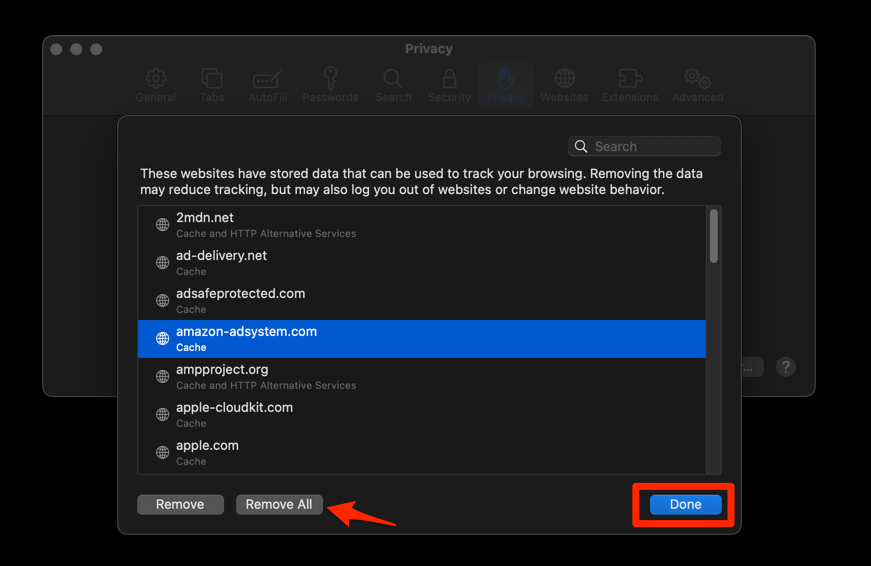 It will flush the cookies and cache for all sites in Safari.
After Safari reloads, sign back into YouTube and try a video. You’ll know it worked when the video plays without the spinner. If it still fails, corrupted data was not the only problem.
Flush the DNS Cache on Your Mac
YouTube stops loading right after a Wi-Fi change, a VPN toggle, or a macOS update. That pattern often points at a stale DNS entry on your Mac. Safari uses the system DNS cache to find YouTube’s servers, and an old address can send it to the wrong place. The fix is to clear DNS cache in the Apple Safari browser and force a fresh lookup.
- Open the Apple Safari app on your Mac, and select Safari > Settings... from the menu bar.It will open the Safari Settings window.
- Switch to the Advanced tab, and enable the checkbox for the Show Develop menu in the menu bar option.
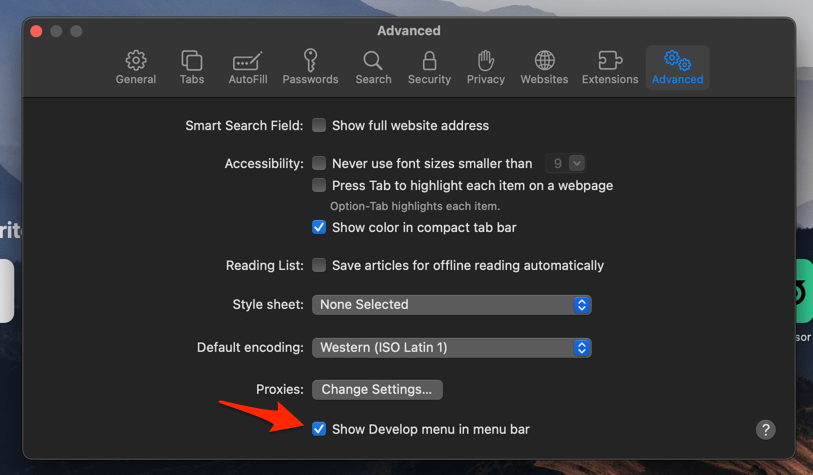 It will enable a new Develop menu in the Safari menu bar.
 - Click on the Develop menu and select the Empty Caches command.
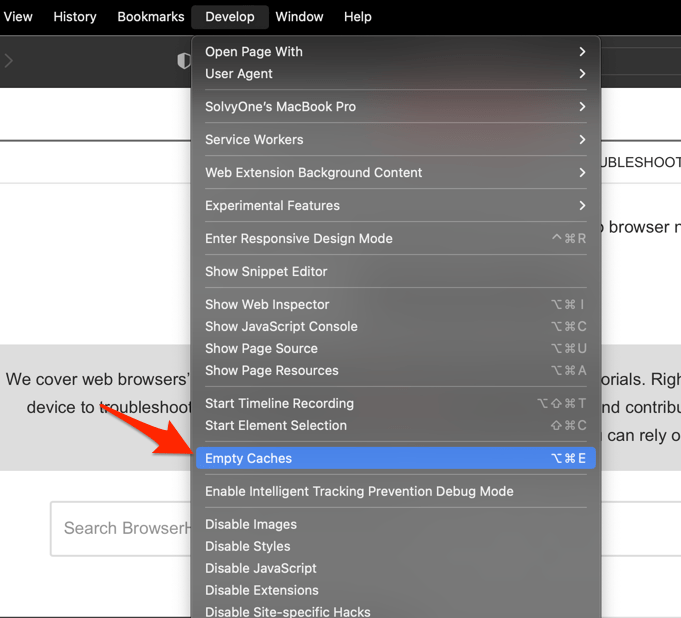 It will clear all cache, including the Safari DNS host cache.
Once the command finishes and Safari reloads, try YouTube again. DNS issues often surface after a Wi-Fi change, a VPN toggle, or a macOS update.
Disable Safari Extensions to Test
If the YouTube page opens but the player stays black or the video never starts, an extension may be interfering. Content blockers, ad blockers, and privacy extensions are the usual offenders. Some aggressive tracker blockers also hide the video element or block the scripts YouTube needs.
- Launch the Apple Safari app on your Mac computer.
- Click on the Safari menu from the menu bar at the top, and select Settings... sub-menu.It will open the Safari Settings window.
- Switch to the Extensions tab in the Settings window.
It will display the list of all the Safari extensions installed. - Uncheck the checkbox in the left side pane to Disable the extension.
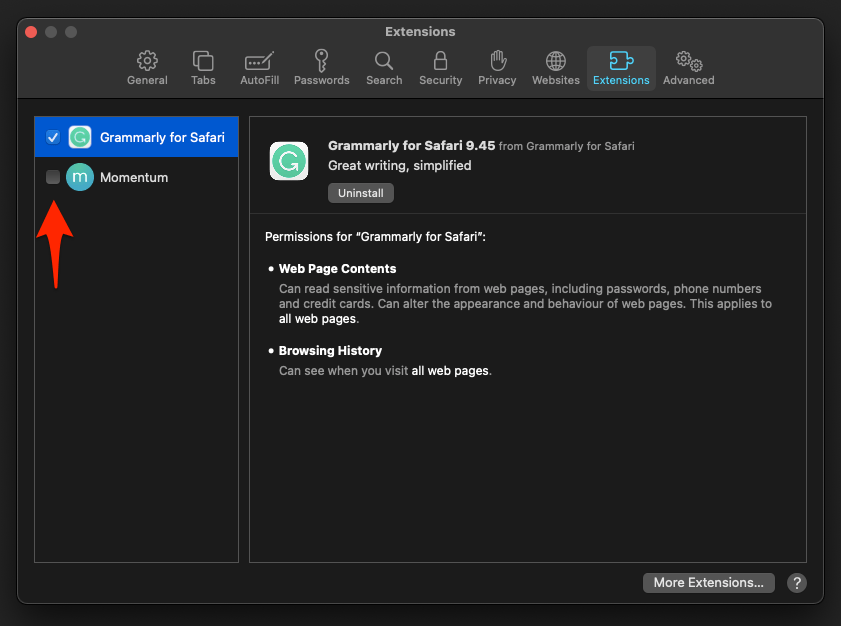
If YouTube works with extensions off, re-enable them one at a time and test after each one. The last extension you turned back on before the player breaks is the culprit. If you want a cleaner starting point, review the best extensions for Apple Safari and remove anything you do not recognize.
Update Safari to the Latest Version
If your Mac has skipped a few macOS updates, Safari itself may be too old for the player YouTube serves. Apple ships Safari updates with macOS, so the browser does not update on its own outside those releases.
- Click on the Apple
 menu from the menu bar and select the System Settings... sub-menu.
  It will open the System Settings window.
 - Select the General tab in the left sidebar, and choose the Software Update tab.
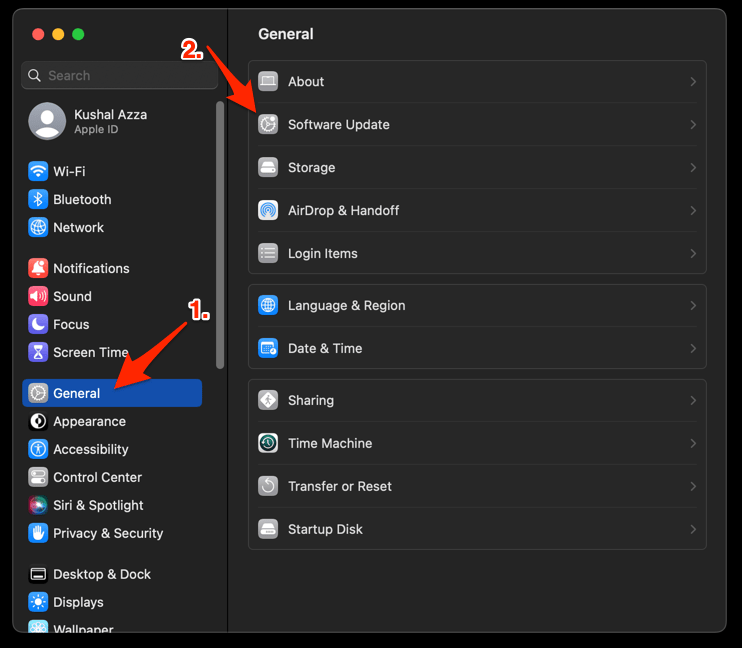 The macOS System will check for any available upgrades in the background.
 - Click on the More Info... tab and enable the checkbox for Safari updates (if any are available).
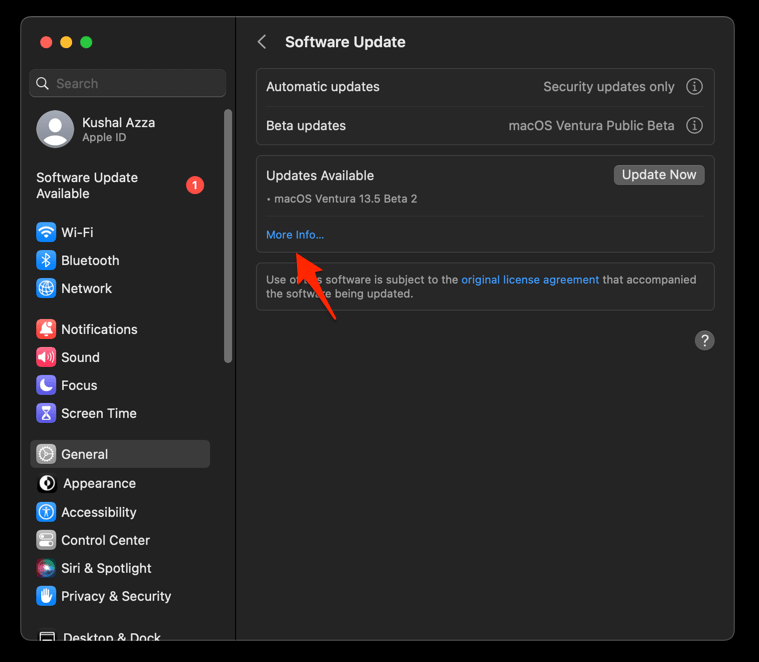
- Hit on the button.
It will update the Safari browser.
After updating, quit Safari fully: click Safari in the menu bar, then choose Quit Safari. Open it again and try YouTube. The App Store will also flag any macOS updates that include a Safari bump.
Try YouTube in a Private Window
You want a quick test to see whether your regular Safari profile is the problem. A private window uses no stored cookies, no cache, and ignores most extensions by default.
- In Safari, click File then New Private Window, or press ++.
- Go to youtube.com.
- Try to play a video without signing in.

TIP: If YouTube works in the private window, stop diagnosing the site. The problem lives in your main profile. Clear cookies and test your extensions.
Check That JavaScript Is Allowed
If every YouTube page loads as an empty shell with no player, check whether JavaScript is enabled in Safari. YouTube’s player is built almost entirely on JavaScript, and Safari ships with it on by default.
- Click the Safari menu in the menu bar and choose Settings.
- Open the Security tab.
- Tick the box next to Enable JavaScript if it is not already checked.
- Quit and reopen Safari for the change to take effect.
Reload youtube.com and try a video. If JavaScript was the issue, the player will appear immediately.
Restart Your Mac and Network Equipment
If Safari still stumbles on YouTube after the steps above, clear the slate on your Mac and network. A clean restart removes leftover Safari state, network sessions, and background processes that can hold things up.
- Quit Safari (press +).
- Click the Apple menu and choose Restart….
- After your Mac is back up, unplug your router and modem for 30 seconds, then plug them back in.
- Wait for the internet light on the modem to turn solid, then open Safari and try YouTube.
Reloading the network is what most people miss. The Mac may have an old connection to your router that a restart alone will not refresh.
Fixes for Safari on iPhone and iPad
YouTube will not play in Safari on your iPhone or iPad, and the controls are not where they are on a Mac. The fix path is close to the macOS one, but iOS keeps the settings inside the Settings app rather than in Safari.
- Launch the iPhone or iPad's Settings app.
- Select Safari in settings and scroll to the bottom to choose the Advanced option.
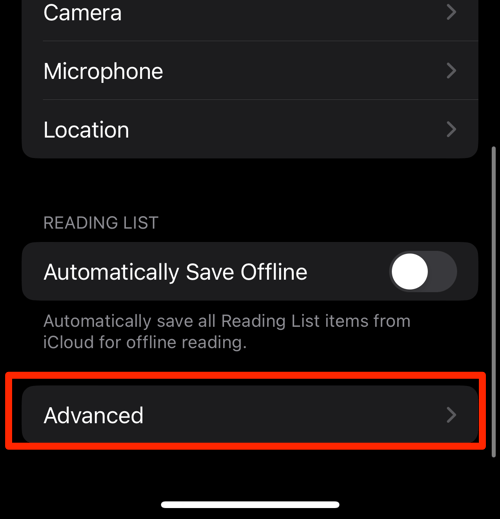
- Tap on the Website Data option.
It will display the list of all websites and corresponding data. - Tap on the command.
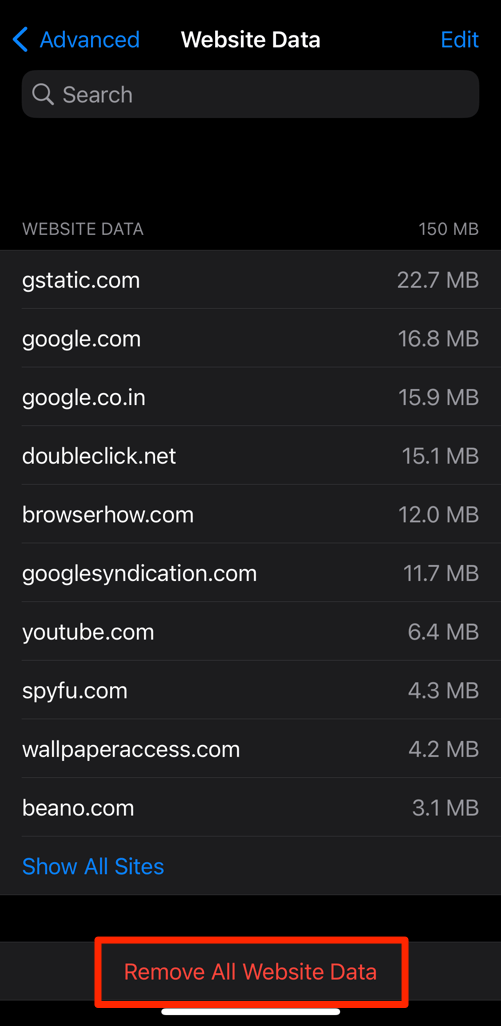 It will delete all the stored website data from the Safari browser.
After clearing, reopen Safari and try YouTube. If playback still will not start, you may also need to block or allow browser cookies in Safari on iPhone & iPad to confirm YouTube is not being denied.

On iPhone and iPad, Safari shares website data with other Apple system services. Clearing Safari data may also clear sign-in for some apps that use the same cookies.
Last-Resort: Reset Safari to Defaults
You have tried everything else, and YouTube still will not play in Safari. A full reset takes Safari back to a clean state without reinstalling macOS. It clears all website data, history, and permissions, then forces Safari to rebuild its profile on next launch.
- Click the Safari menu and choose Clear History.
- Set the dropdown to all history and click .
- Open Safari then Settings then Privacy, and click .
- Click , then .
- Open Safari then Settings then Extensions, and uncheck every extension.
- Quit Safari (press +) and reopen it.
This reset wipes your saved website logins for Safari only. Passwords stored in iCloud Keychain or a separate password manager are not affected. Bookmark folders and reading list items are kept.
Sign in to YouTube again and try a video. If the player is still broken at this point, the issue is almost certainly outside Safari, and switching to a different browser is the practical next step while you wait for a YouTube or macOS update.

Frequently Asked Questions
Why does YouTube work in Chrome but not in Safari?
Chrome and Safari handle cookies, JavaScript, and DNS independently. A corrupted cookie, a stuck DNS entry, or a Safari extension can break YouTube in Safari while leaving Chrome untouched. The fixes above target the Safari-specific causes.
How do I reset Safari without losing my bookmarks?
The last-resort steps above clear website data, history, and extension state while leaving bookmarks and reading list items intact. Saved website logins inside Safari will be removed, but anything in iCloud Keychain stays.
Why are YouTube videos showing a black screen in Safari?
A black box where the player should be usually means Safari is blocking the JavaScript that builds the player, or an extension is hiding the video element. Enable JavaScript in Safari Settings, then disable extensions to test. The full procedure is above.
Is YouTube dropping support for Safari?
YouTube still works in current versions of Safari on macOS and iOS. If your Safari is several major versions behind, an update is the most likely fix. The update steps above walk through updating Safari through the App Store.