Safari pages on iPhone can look larger than you expect, and tapping a text field can zoom the page in with no obvious way back to normal. Two different causes sit behind that, and each one has its own fix.
Start with Page Zoom in Settings if most pages look wrong, or use the aA menu for a single site. If the zoom only happens when you tap a search box or form field, the input-field workarounds are the ones you need.
In this guide, I have covered:
Contents
Why Safari Pages Automatically Zoom on iPhone
Two different things can make Safari pages on iPhone look zoomed in, and the fix depends on which one you are seeing.
The first is an ordinary user setting. When a page looks too large or too small, Safari’s Page Zoom scales it up or down. You can set it for every site, or for one site at a time, from the Settings app or from the page menu inside Safari.
The second is an iOS behavior, not a setting. Tap inside a text field, a search box, or a dropdown, and Safari zooms in to keep the field above the keyboard. The zoom usually stays after the keyboard closes, so the page looks stuck until you pinch out or reload.
Apple added that input zoom so small text stays readable. There is no switch to turn it off, which is why it keeps surprising people who never touched Page Zoom.
Set the Default Page Zoom in Settings
Reach for this when every page, or nearly every page, looks the wrong size. The default is 100 percent, and dropping to a smaller preset gives you a denser layout with more text on screen.
- Open the Settings app on your iPhone.
- Scroll down and tap Apps.
- Tap Safari in the list of apps.
- Scroll down and tap Page Zoom.
- Tap the percentage you want to use as the default, then tap the page to confirm.
Reload a page in Safari to confirm the new size sticks. Apple’s official Safari settings guide lists the available preset sizes. If one site is still off, adjust it from the aA menu instead.

If you do not see Safari under Apps right away, swipe down inside the Apps list to use the alphabetical search bar and type ‘Safari’.
Change Page Zoom for the Current Page Only
Use the page menu when a single site looks off and you would rather not change the global default. It is the fastest way to fine-tune one page, and the rest of your tabs stay exactly as they were.
- Open the page you want to adjust in Safari.
- Tap the aA page menu button on the left side of the address bar.
- Tap Page Zoom in the popover.
- Tap the small A to shrink the page or the large A to enlarge it. Each tap changes the size by one step.
The new size sticks for that site only. Tap the aA button again any time to readjust. The same popover also has a Request Desktop Website toggle, which can fix stubborn layouts on mobile sites that look broken at any zoom level.
Fix Safari Auto-Zoom on Input Fields (Search, Login, and Forms)
If Safari zooms in only when you tap a text field, and it never goes back to normal afterward, the cause is almost always the website rather than your phone.
iOS enlarges any input field whose text is smaller than 16 pixels, so the keyboard does not cover tiny type. That zoom often stays put after the keyboard closes. Page Zoom in Settings will not change it, because the rule is tied to the font size on the page itself.
These workarounds usually help.
- Pinch outward with two fingers on the page to force the zoom back to your preferred size.
- Tap the aA page menu button and turn on Request Desktop Website, then reload. The desktop version of a site usually uses larger text and skips the input zoom.
- Use Show Reader from the same aA menu when it is offered. Reader reformats the page in Safari’s own larger type, which is big enough to avoid the auto-zoom.
- Rotate the iPhone to landscape, type into the field, then rotate back. The wider view often prevents the auto-zoom from triggering in the first place.

TIP: Double-tapping with two fingers on a page in Safari zooms it back out, which is a faster reset than pinching when a page is stuck zoomed in.
For sites you use every day, the only true fix is for the site to use a 16-pixel or larger font on its input fields. Most major sites already do.
Other Fixes If Safari Pages Keep Zooming In
If neither Page Zoom nor the input-field workarounds solve the problem, run these checks in order. They cover the common behind-the-scenes causes, from stuck cached files to a content blocker messing with a page’s layout.
Clear Safari’s Cookies and Cache
Stale data from a previous visit can leave Safari rendering a page at the wrong size. Clearing cookies and cache forces a clean reload.
- Launch the iPhone or iPad's Settings app.
- Select Safari in settings and scroll to the bottom to choose the Advanced option.
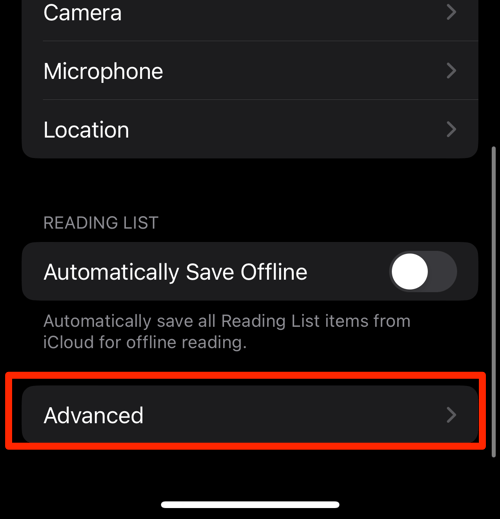
- Tap on the Website Data option.
It will display the list of all websites and corresponding data. - Tap on the command.
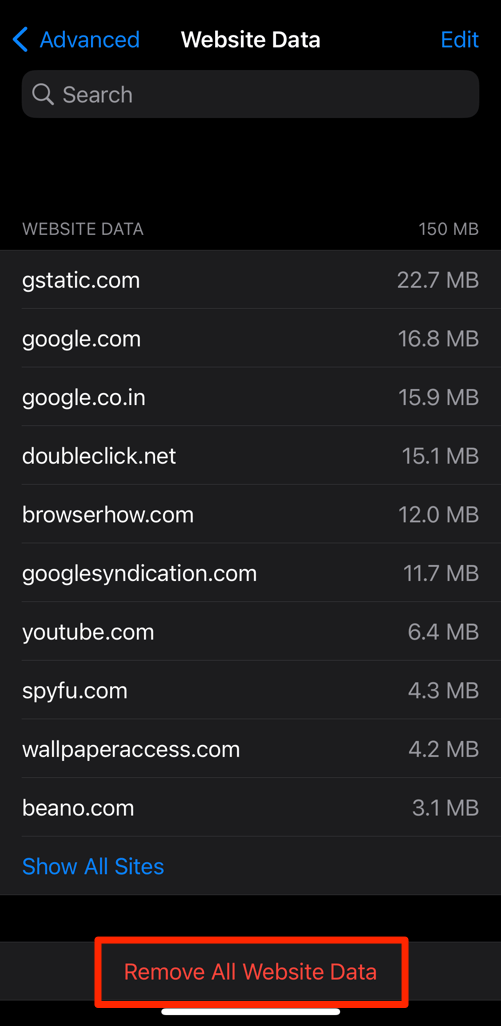 It will delete all the stored website data from the Safari browser.
You’ll know it worked when the page opens at the size you set, with no pinch and no second reload.
Sign back in to any sites you were logged into, then reopen the page. The zoom should match what you would see on a fresh visit. For a fuller walkthrough, see our guide to clearing Safari data on iPhone.
Disable Content Blockers and Test in a Private Tab
A content blocker, or a misbehaving extension, can hide or shrink parts of a page in a way that looks like a zoom glitch. Turning blockers off briefly tells you whether one of them is involved.
- Open Settings, tap Apps, then Safari.
- Tap Extensions and turn off every content blocker.
- Reopen the page in Safari. If it looks correct, turn the blockers back on one at a time to find the one causing the issue.
- Long-press the tabs button and choose Private to open the same page in a private tab.
If the page looks right in a private tab with blockers off, the cause is one of your extensions, not Safari itself. And if one particular site keeps misbehaving, blocking that website in Safari beats fixing its layout on every visit.
Check iOS Display Zoom (Not Safari’s Page Zoom)
Display Zoom is an iOS setting that enlarges the whole system, including Safari’s toolbar and address bar. It is separate from Safari’s Page Zoom, so rule it out before you keep adjusting page sizes.
- Open Settings, then Display & Brightness.
- Tap Display Zoom (under View).
- Switch from Zoomed to Standard if it is set to Zoomed.
Standard is the view app developers design for. If the change is dramatic, Safari and every other app will look noticeably smaller right away.

Frequently Asked Questions
Why does Safari zoom in when I tap a text box on iPhone?
iOS enlarges any input field whose text is smaller than 16 pixels so the keyboard does not cover it. That auto-zoom is built into iOS and is not controlled by Safari’s Page Zoom setting. Using Request Desktop Website or Show Reader usually avoids the trigger.
How do I make Safari pages smaller on my iPhone?
Open Settings, tap Apps, then Safari, then Page Zoom, and pick a smaller percentage. The new default applies to every site until you change it again, and you can override it per site from the aA page menu.
Does Page Zoom change every website in Safari?
The default you set in Settings applies to all sites. The size you pick from the aA page menu applies only to the current site and overrides the default there. Pick the same percentage in that site’s page menu again to send it back to the default.
Will updating iOS fix the auto-zoom?
Updates often include Safari rendering fixes, so it is worth keeping iOS current. The input-field auto-zoom itself is a long-standing iOS behavior that Apple has not tied to a single iOS version, so updating alone will not turn it off.
What is the difference between Page Zoom and iOS Display Zoom?
Safari’s Page Zoom only scales the content of web pages. iOS Display Zoom enlarges the whole system, including Safari’s address bar and tab bar. The two are controlled in different places and do not affect each other.