

Safari still looks bright at night, or the toolbar turns dark while the page stays white. Both come back to the same starting point: the appearance setting on your Mac, iPhone, or iPad.
Set that first, then use Reader view or a trusted extension for sites that never go dark. The steps below cover each device, plus the reason some websites ignore the setting entirely.
In this guide, I have covered:
Contents
Safari Dark Mode Comes From Your Device, Not the Browser
Safari looks bright and you want it dark. The switch you are hunting for is not inside Safari. The browser follows the appearance you choose for your Mac, iPhone, or iPad.
That explains most of the confusion. Setting Dark gives Safari dark toolbars, menus, and tab bars. It does not repaint websites that were built with a white background. Those pages need Reader view or an extension.

TIP: Safari has no dark mode toggle of its own. Change the device appearance and the browser follows.
Enable Dark Mode in Safari on Mac
Your Mac is on Light and Safari is blinding at night. The fix lives in System Settings. On current macOS versions, Appearance is a top-level pane in the sidebar, not an option inside General.
- Open the Apple menu.
- Choose System Settings.
- Select Appearance in the sidebar.
- Choose Dark.
Open or reload a Safari tab and look at the toolbar and menus. They should be dark now. To change your mind later, come back to the same pane and pick Light or Automatic.
Use Dark Reader View on Mac
Some articles stay white even when Safari itself is dark. Reader view can darken the one page you are reading without touching anything else.
- Open Safari.
- Load the page you want to read.
- Click the Page menu in the address bar.
- Turn on Show Reader.
- Click the Page menu again.
- Choose Dark.
The page should switch to reader view mode with a dark background. You’ll know it worked when the article turns dark and the rest of Safari looks exactly as before. That is expected: the change applies to the current article, not to every website.

Use a Safari Extension for Sites Without Dark Themes
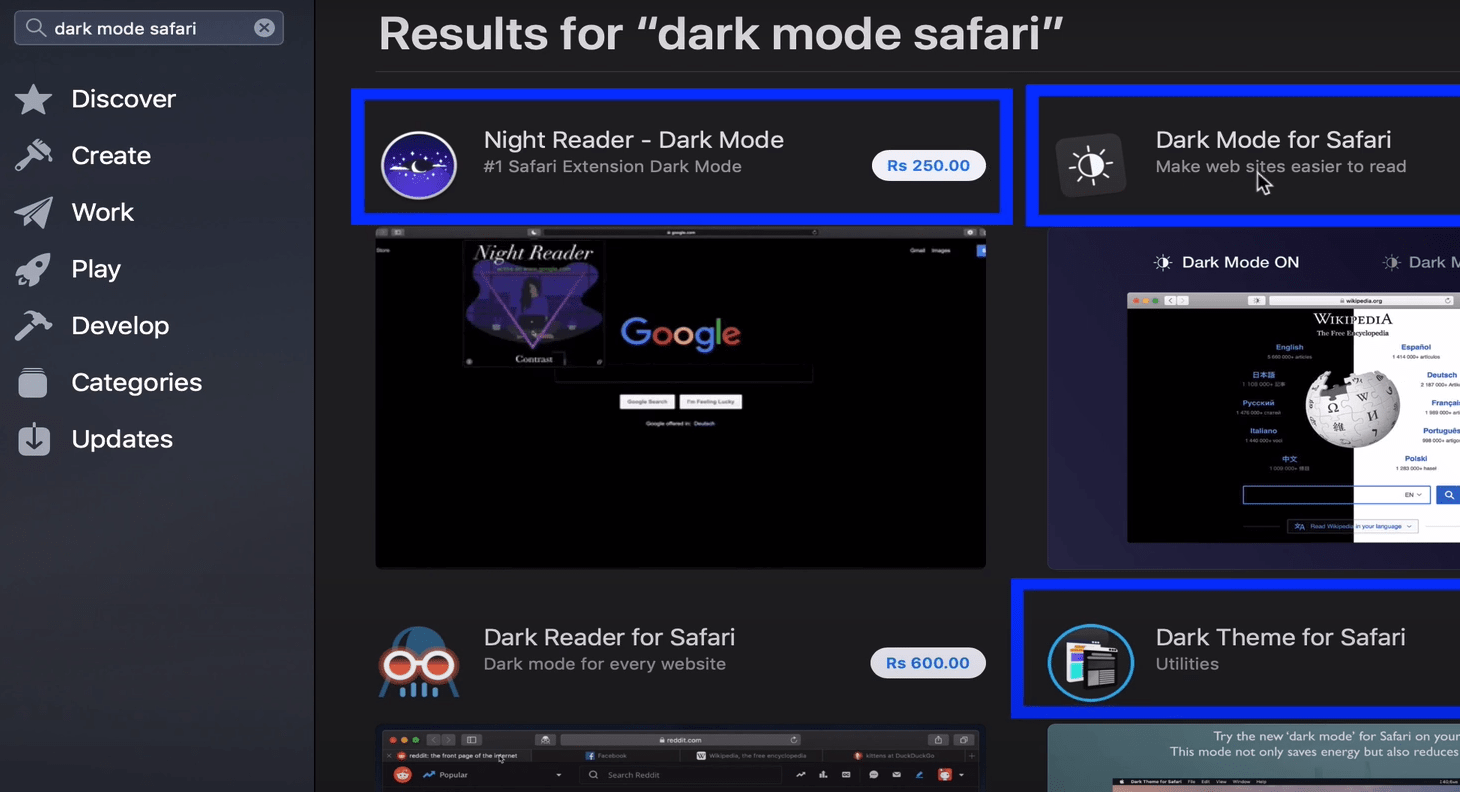
A lot of sites have no dark theme at all. A Safari extension can recolor them, which is a different job from Reader view.
- Open the Mac App Store.
- Search for Dark Reader.
- Install Dark Reader from the App Store.
- Open the Safari menu.
- Choose Settings….
- Open the Extensions tab.
- Turn on Dark Reader.
- Allow the extension on the websites where you want a dark page.
- Reload the page.
Dark Reader is free to install. Night Eye also has a free download, but some of its features require payment.

Extensions that can read page content see everything on the sites you allow. Grant access only to sites you trust, and review the list later in Safari settings.
Enable Dark Mode on iPhone and iPad
Your iPhone or iPad controls Safari’s menus, plus any webpage that follows the system appearance. Set the device to Dark and Safari comes along.
- Open Settings.
- Tap Display & Brightness.
- Scroll to Appearance.
- Tap Dark.
Go back to Safari and check the tab bar and page controls. If you would rather have the switch happen on its own, choose Automatic instead of Dark.

Use Dark Reader View on iPhone and iPad
A long article on a bright screen is the usual reason people go looking for this. Reader view darkens the article only, not the rest of the device.
- Open Safari.
- Load the article you want to read.
- Tap the Page menu at the left of the address bar.
- Turn on Show Reader.
- Tap the Page menu again.
- Select Dark.
The result is Reader mode in Safari on iPhone and iPad with a dark background. The effect ends as soon as you turn off Show Reader or leave the page.


Why a Safari Page May Still Look Bright
Here is the common complaint: the toolbar went dark, but the page is still white. First, work out which part is bright. If Safari’s menus and tab bar are dark, the system setting is doing its job.
If only the webpage stays white, the site probably has no dark theme, uses fixed colors, or ignores the system appearance. That is a decision made by the site, not a Safari bug.
Use Show Reader on a compatible article, or enable a dark-mode extension for that site. To undo any of it, turn off Show Reader, disable the extension, or switch the system appearance back to Light.
Frequently Asked Questions
Does Safari have a dark mode or night mode?
Yes. Safari follows the Dark appearance in macOS System Settings, or in Display & Brightness on iPhone and iPad. Reader view and extensions darken page content separately.
How do I enable dark mode in Safari on a Mac?
Open the Apple menu, choose System Settings, select Appearance in the sidebar, then choose Dark. Reload Safari if an open window does not change right away.
How do I turn on dark mode on iPhone and iPad?
Open Settings, tap Display & Brightness, scroll to Appearance, and select Dark. Safari and other apps that follow the device appearance update with it.
Why is a website still light when Safari is in dark mode?
The site may not offer a dark theme, or it may ignore the system appearance. Reader view handles compatible articles. An extension covers more pages.
Can I make every website dark in Safari?
No built-in switch forces every site to recolor itself. Use Reader view for the article in front of you, or a trusted extension when you want broader control.

Reader view doesn’t work for all websites and even then it’s not a true dark mode. Dark mode actually works for any web browser for Android. I don’t know Apple hasn’t figured it out for their own app.
Hi Frank, you are right! The safari reader mode is not available for all websites. It’s only supported on content-heavy sites like blogs, news sites, wiki pages, etc.
There is an option to enable dark mode under Settings/Preferences on iPhone and Mac computer, however, it is limited only to the application interface and not the content within the apps.
Doesn’t work for iOS 14.4.0 iPhone unless you plan to adjust settings each time a new page loads.
Cannot find how disable in Safari on High Sierra. You know how? Thanks
You can follow this post to disable Safari on Mac.
This doesn’t work on google for safari on iPhone iOS 14.4