When Twitch won't load, keeps buffering, or shows a black screen in Google Chrome, the problem usually sits on your machine, not on Twitch. Cookies, extensions, and graphics acceleration cause most of it.
We walk through the fixes in the order that solves them fastest, from a quick hard refresh to a full Chrome settings reset, so you can get back to watching without reinstalling the browser.
In this guide, I have covered:
Contents
Twitch not working in Chrome? Run these quick checks first
You open Twitch and the stream spins, stalls, or never starts, and you are not sure whether Chrome or Twitch is at fault. Rule out the network and Twitch itself before you touch a single setting, so you don’t spend time tweaking the wrong thing.
- Open Twitch in a different browser, or on another device on the same network. If it plays there, the problem is inside Chrome, not Twitch.
- Reload the tab with + (or ++ on macOS) to skip cached files.
- Test your connection at fast.com. Twitch needs steady upload and download for live streams.
- Check whether Twitch itself is down by visiting a status page or the official Twitch account on social media.
If twitch.tv won’t even load in Chrome, follow the Site can’t be reached fix for Chrome before continuing.
If Chrome blocks the page with a privacy warning, complete the Your Connection is Not Private fix in Chrome first.
Clear Chrome’s cookies and cache
If Twitch loads but the player spins forever, stale cookies are the most likely cause. Clearing them forces Twitch to fetch fresh login and player data.
- Open the Google Chrome on your computer.
- Click on the More
 for menu options, and hover on the More Tools menu.
 - Select the Clear Browsing Data... sub-menu from the list.
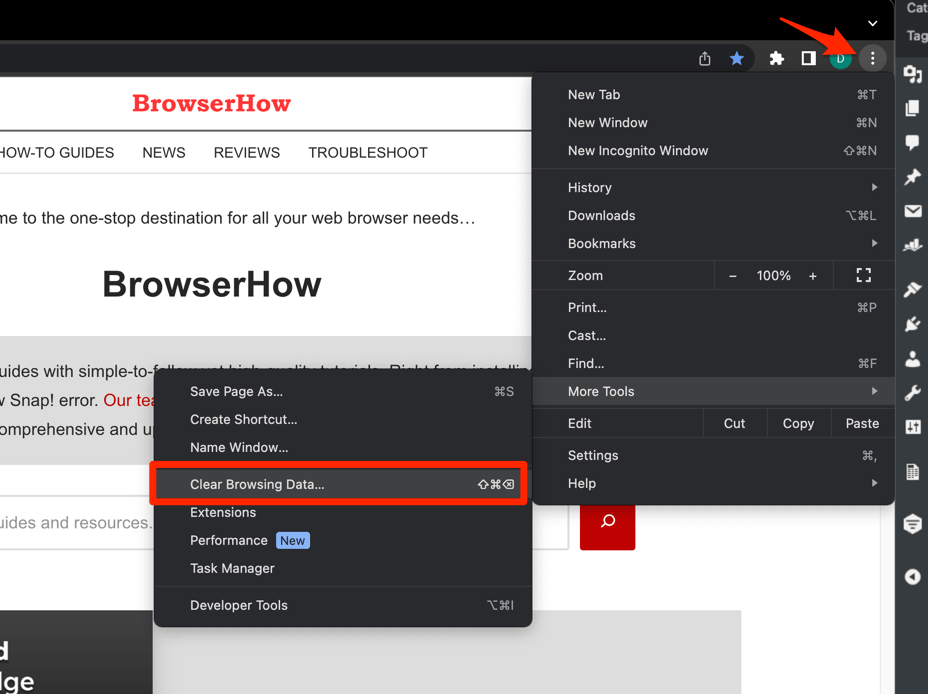 It will open the Clear browsing data settings window.
 - Choose the Time Range from the drop-down and select the checkboxes for the 'Cookies and other site data' and 'Cached images and files' options.
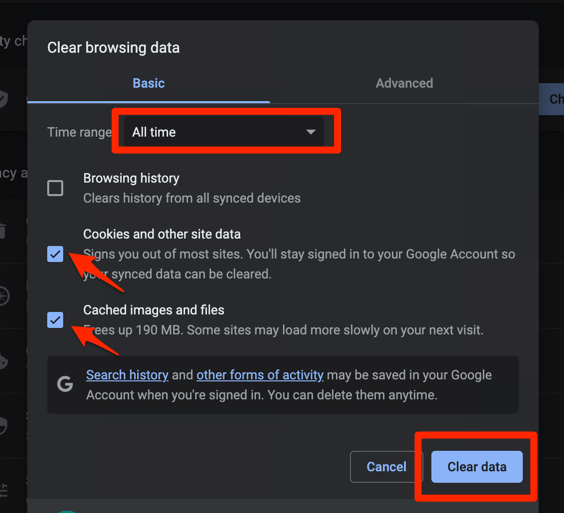
- Finally, hit the command button.
It will delete the stored cookies and cache data from your Chrome browser.
Reopen twitch.tv and reload a stream. You’ll know it worked when the player starts within a few seconds and chat connects normally. If you were signed out, sign in again and test playback.
Disable extensions that interfere with Twitch
If Twitch fails only while your extensions are running, one of them is blocking the player. Ad blockers, script blockers, and privacy add-ons are the usual offenders, and we usually recommend switching all of them off at once rather than guessing which one to blame.
- Launch the Google Chrome on your computer.
- Click on the More for the list menu.
- Hover on the More Tools menu and choose the Extensions sub-menu.
 It will open the Chrome Extensions Manager page with the list of installed extensions.
 - Toggle the switch to Disable the extension.

Reload the Twitch tab. You’ll know it worked when the stream plays with all extensions still off. If it does, turn them back on one at a time, reloading Twitch after each, until the player breaks again. The last one you enabled is the culprit.

Twitch runs its own ads, so most ad blockers can allowlist twitch.tv instead of being switched off entirely.
Toggle graphics (hardware) acceleration
A black screen with the audio still playing points at hardware acceleration. Chrome uses your GPU to decode video when the setting is on, and a bad driver or a GPU conflict can leave the Twitch player stuck on black.
Turning hardware acceleration off falls back to software decoding. Slower, but far more reliable.
- Open Chrome Settings.
- Click System in the left sidebar. (If your Chrome still groups it under an expandable Advanced section, the path is Settings > Advanced > System.)
- Toggle Use graphics acceleration when available on or off, then relaunch Chrome.
Restart Chrome after the toggle, then open a live stream. You’ll know it worked when video appears instead of a black rectangle. Once the video is back, either leave acceleration off or update your GPU driver and turn the setting on again.
Allow third-party cookies for Twitch
If Twitch keeps signing you out or the player never starts, blocked third-party cookies are often the reason. Twitch stores login tokens and player settings in cookies from related domains, and Chrome’s stricter rules can block those requests without any visible warning.
- Click at the top right of Chrome and choose Settings.
- Select Privacy and security in the left sidebar.
- Click Site settings.
- Click Third-party cookies.
- If the toggle is set to Block third-party cookies, switch it to Allow third-party cookies or Block third-party cookies in Incognito mode.
- Close the tab and reload reddit.com.
Restart Chrome and reload Twitch after you change the setting. Sign in again and open a live channel. If the stream starts and your login holds, the cookie rule was blocking it.
Update Chrome to the latest version
If your Chrome build is months behind, the Twitch player can fail on changes Twitch has already made. Streaming sites depend on the newest media APIs and codec fixes, so updating is a one-click way to rule out an old browser.
- Launch the Google Chrome on your computer.
- Click on More for the options list, and select the Settings menu.

- Switch to the About Chrome tab in the left sidebar pane.
 The browser should automatically start looking for the latest updates.
 - Hit on the button.
 It will complete the Chrome browser update process.
Restart Chrome once the update finishes, then reload Twitch and test a live channel. Most player bugs from older builds are gone in the current release.
Test Twitch in an Incognito window
When the fixes above don’t isolate the cause, Incognito gives you a clean test. It skips most extensions and starts with fresh cookies, so it’s the fastest way to tell whether your regular profile is broken or Chrome itself is the problem.
- Launch the Google Chrome on your computer.
- Click on the More menu for the list.
- Select the New Incognito Window option.
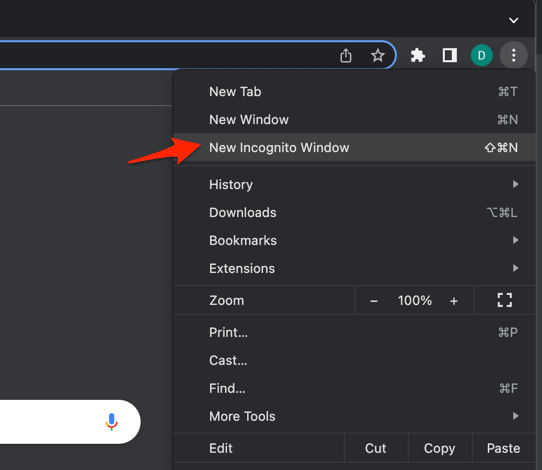 It will start a new incognito window in the browser.
If Twitch plays in Incognito, the cause sits in your normal profile: usually an extension, stale cookies, or a Chrome flag. Work back through the sections above to pin down which one.

TIP: Incognito still uses your system DNS and network, so a network problem will reproduce there too. If both modes fail, check your router or ISP next.
Reset Chrome settings as a last resort
If nothing above brought Twitch back, a settings reset is the last stop. It returns Chrome’s defaults for the search engine, startup pages, content settings, and most preferences.
Your bookmarks, history, and saved passwords are kept, so this is less destructive than it sounds.
- Launch the Chrome browser on the computer.
- Click on the More for menu list, and select the Settings menu.
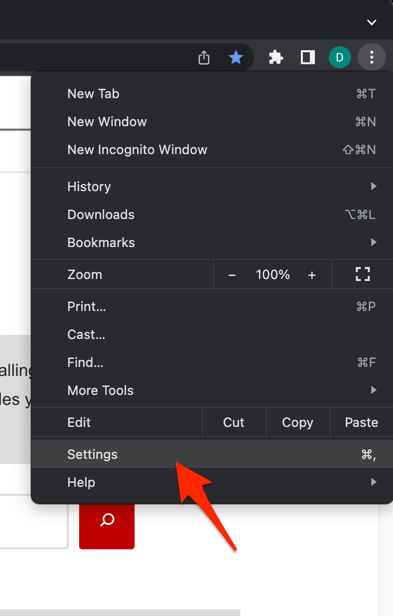 It will open the Chrome browser's Settings page.
 - Switch to the Reset settings tab in the left sidebar, and select Restore settings to their original defaults option.
- Finally, hit the command button.
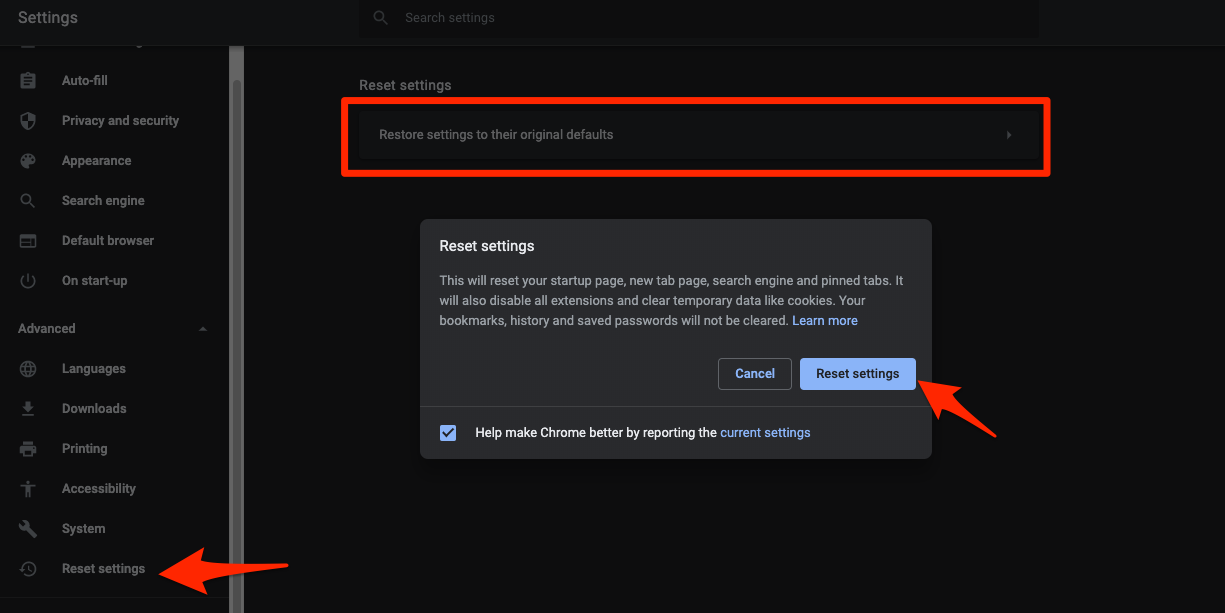 It will reset the Chrome browser settings, clear temporary data, and disable all extensions.
Open Twitch after the reset finishes and try a live stream. You’ll know it worked when playback returns on a stock profile. You will need to re-enable any extensions you want to keep.

Frequently Asked Questions
Why does Twitch show a black screen in Chrome but the audio still works?
That is almost always hardware acceleration. Turn graphics acceleration off in Chrome’s settings, restart the browser, and reload the stream. An out-of-date graphics driver is the other common cause.
Does Twitch need third-party cookies enabled?
Yes. Twitch’s login and video player rely on cookies from related domains. With third-party cookies blocked, the page may load but streams won’t start, or sign-in fails without an error.
Will disabling extensions break anything in my browser?
No. Disabling extensions only turns them off temporarily. Your saved data, bookmarks, and passwords stay in place. You can re-enable any extension later from the menu under Extensions.
Why does Twitch buffer forever but never actually play?
Endless buffering usually means a slow or unstable connection, not Chrome. Run a test at fast.com and try Twitch on another device. If only Chrome buffers, clear cookies and cache, then toggle graphics acceleration.
Should I reinstall Chrome to fix Twitch?
Reinstalling is a last step after every other fix has failed. Most Twitch problems come from extensions, cookies, or content settings, all of which the steps above address without reinstalling.
Twitch failing in Chrome is nearly always a local problem, and the fixes above run from least to most disruptive. Start with cookies and extensions, work down the list, and you will usually find the culprit long before a reinstall is worth considering.