Wikipedia may show a blank page, an old article, or a Safari server error. A bad cache, a website permission, an extension, privacy controls, or DNS can each interrupt the page.
Start with a cache-bypassing reload, then work through Safari's per-site settings, stored website data, and Private-window test. Separate steps cover Mac and iPhone.
In this guide, I have covered:
Contents
Work out which Wikipedia failure you have
Wikipedia opens to a blank page, half the images are missing, an old version of the article keeps appearing, or Safari throws an error saying it cannot find the server. Each of those symptoms points somewhere different.
The fault usually sits in one of five places: the page cache, a single website permission, an extension, Safari’s privacy controls, or the network itself. Sorting the symptom first saves you from clearing everything.
- Open wikipedia.org in Safari and note whether the page is blank, incomplete, slow, or showing an error.
- Open another website you normally use and check whether it loads.
- Repeat the Wikipedia test in another browser or on another device connected to the same network.
Use the comparison to narrow down the fault:
- If other websites work, the problem is likely with this Safari profile, one of its extensions, or Wikipedia’s stored data.
- If every website fails, investigate the network or DNS settings.
- If Wikipedia fails in every browser and on multiple networks, check Wikimedia’s service status and try again later.
Reload Wikipedia without its cache
One article looks out of date or loads without its images. A cache-bypassing reload is the quickest test, and it costs you nothing.
Wikipedia’s own cache-bypass guidance lists the Option+Command+R shortcut on a Mac. Start there because it is fast and it does not remove saved sign-ins.
- Bring the Wikipedia tab to the front.
- Hold + + to reload without reusing cached page resources.
- If that shortcut does not work, hold and click the reload
 button in the address bar.
- For one article that still looks wrong, add ?action=purge to the end of the affected article’s address.
- Load the edited address to request a fresh copy of that article.
You’ll know it worked when the normal layout, images, links, and article text all come back without you touching a single Safari setting.
Check Wikipedia’s per-site settings on Mac
The Wikipedia homepage loads but images or interactive parts do not. That pattern usually means a per-site setting rather than a network fault.
Wikipedia spreads content across several domains, so a content blocker has more than one place to interrupt it. Review the settings for the domain that is actually failing.
- Open Safari → Settings → Websites.
- Select wikipedia.org or the affected Wikimedia domain from the website list.
- Look through the permissions listed for that site.
- Change Content Blockers so it does not block Wikipedia during the test.
- Reload the affected Wikipedia page.
If no Wikipedia entry appears in the list, keep going with the extension and website-data checks. A missing entry does not rule out a permission inherited from Safari’s global privacy settings.
Turn Safari extensions off to test
Ad blockers, privacy tools, and other Safari extensions can break Wikipedia’s scripts or media while leaving your other sites untouched.
- Launch the Apple Safari app on your Mac computer.
- Click on the Safari menu from the menu bar at the top, and select Settings... sub-menu.
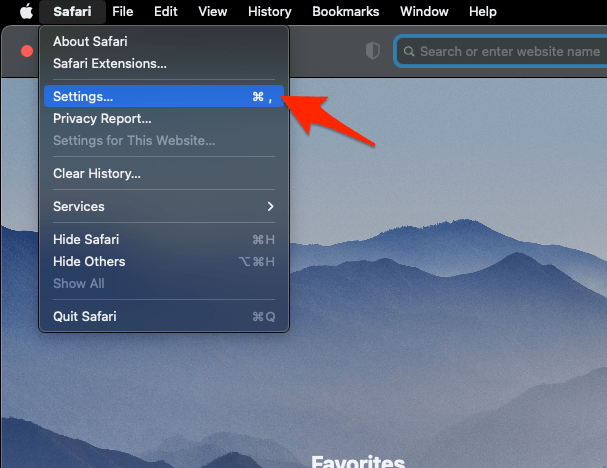 It will open the Safari Settings window.
- Switch to the Extensions tab in the Settings window.
It will display the list of all the Safari extensions installed. - Uncheck the checkbox in the left side pane to Disable the extension.
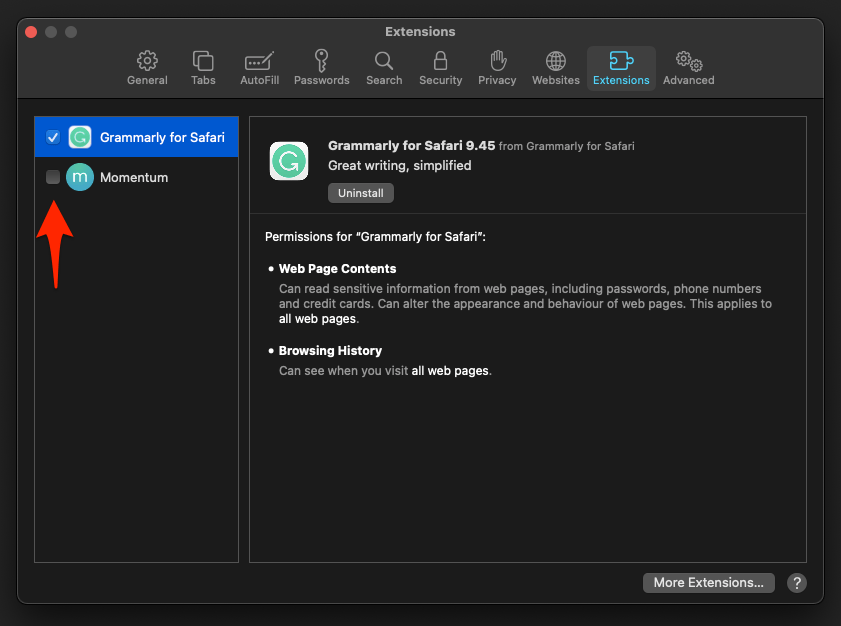
Reload Wikipedia after the change. You’ll know it worked when the article renders completely, with images and collapsible sections behaving normally.
If the site starts working, turn your extensions back on one at a time until the culprit shows itself.
Empty Safari’s cache without clearing cookies
The page keeps coming back stale even after a reload. Wikipedia recommends emptying Safari’s cache for exactly this case, and the method keeps your cookies and sign-ins.
- Open Safari → Settings → Advanced.
- Turn on Show features for web developers, or Show Develop menu in menu bar if that wording appears.
- Choose Develop → Empty Caches in the menu bar.
- Reload Wikipedia.
If Wikipedia now loads correctly, the stale cached resource was the problem. Leave the Develop menu enabled or switch it off again after the test.
Remove Wikipedia’s stored website data on Mac
Wikipedia’s own preferences, session, or stored site data can go bad. Removing just those entries is far more targeted than wiping data for every website you visit.
- Open Safari → Settings → Privacy.
- Choose Manage Website Data.
- Search for wikipedia.org in the website-data list.
- Select the Wikipedia and Wikimedia entries that match.
- Click and confirm the removal.
- Reload Wikipedia.
If the list is empty or blank, work through Fix Safari Manage Website Data Not Showing or Blank on Mac before you try the removal again.
Clear Safari’s cache and cookies on Mac
Nothing targeted has worked yet, so clearing Safari’s cached files and cookies is the next sensible move. This one resets stored data for every site, not just Wikipedia.
- Launch the Safari app on your Mac computer.
- Click on the Safari menu from the menu bar, and select the Settings... sub-menu. It will open the Safari Settings window.
- Switch to the Privacy tab, and click to open the button.
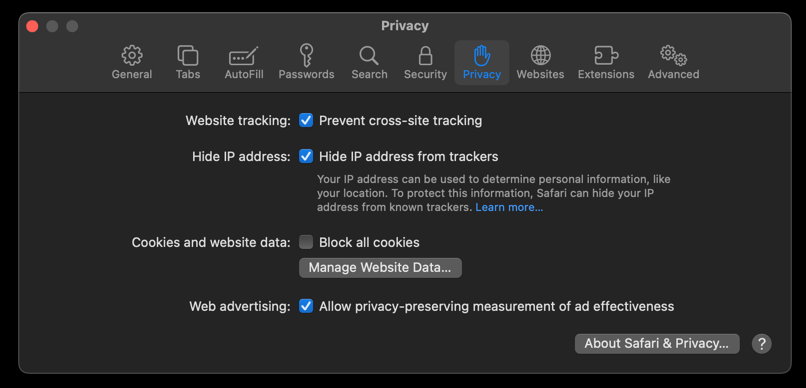 It will load the list of websites currently storing the cache and cookies in the browser.
- Hit on the command and then the button.
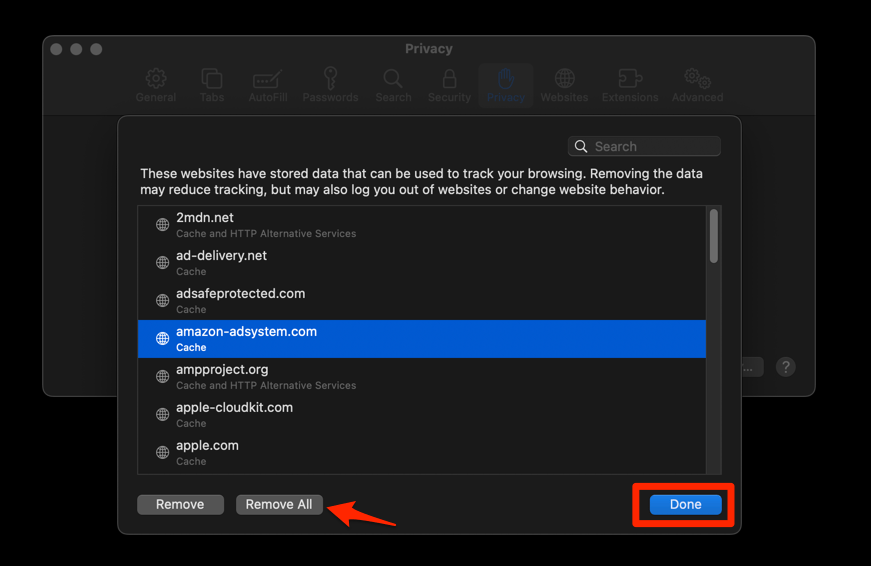 It will flush the cookies and cache for all sites in Safari.
Open Wikipedia again after the reset. If the site starts working, the problem was tied to Safari’s saved data rather than the network.

Clearing cookies can sign you out of Wikipedia and other sites. It does not remove your bookmarks.
Test Safari’s cross-site tracking protection
Wikipedia’s text appears but some images or interactive elements do not. That partial load is the case where cross-site tracking protection is worth testing, and it matters far less for a complete server error.
- Open Safari → Settings → Privacy.
- Turn off Prevent cross-site tracking.
- Reload the same Wikipedia page and compare the result.
If the page now loads, turn the setting back on and use the Private-window test below to check whether an extension is responsible. If the page is still incomplete, continue with the network checks.
Test Wikipedia in a Private window
You want a clean session without touching your real one. A Private window gives you exactly that, which makes it a fast way to spot bad stored data or a conflicting extension.
- Choose File → New Private Window.
- Open wikipedia.org in the new window.
- Check whether the page loads normally.
If Wikipedia works in the Private window, return to your normal window, remove Wikipedia’s site data, and test your extensions again.
For the full menu path, see How to Open Private Browsing Mode and New Tabs in Safari on Mac.

TIP: Use Private Browsing as a diagnostic, not as the permanent fix. It can help confirm that normal Safari data or an extension is interfering.
Clear Safari’s DNS cache on Mac
Safari says it cannot find the server, or sites that worked yesterday now fail. Stale DNS information is a strong suspect, so clear it before you touch your network settings.
- Open the Apple Safari app on your Mac, and select Safari > Settings... from the menu bar.It will open the Safari Settings window.
- Switch to the Advanced tab, and enable the checkbox for the Show Develop menu in the menu bar option.
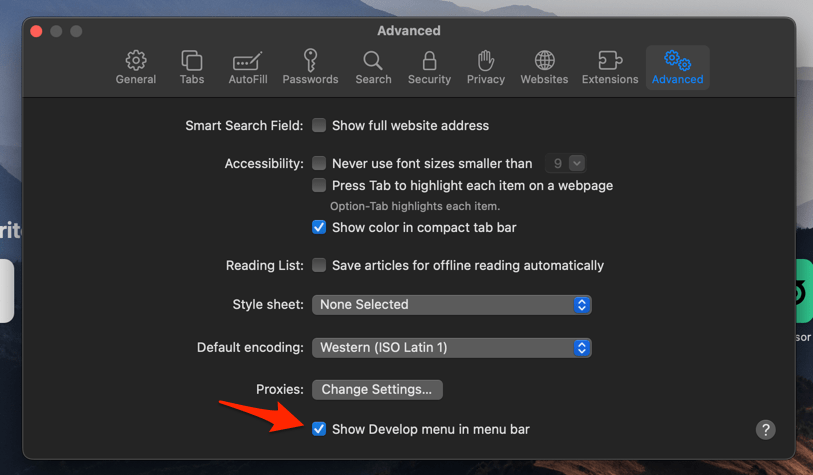 It will enable a new Develop menu in the Safari menu bar.
- Click on the Develop menu and select the Empty Caches command.
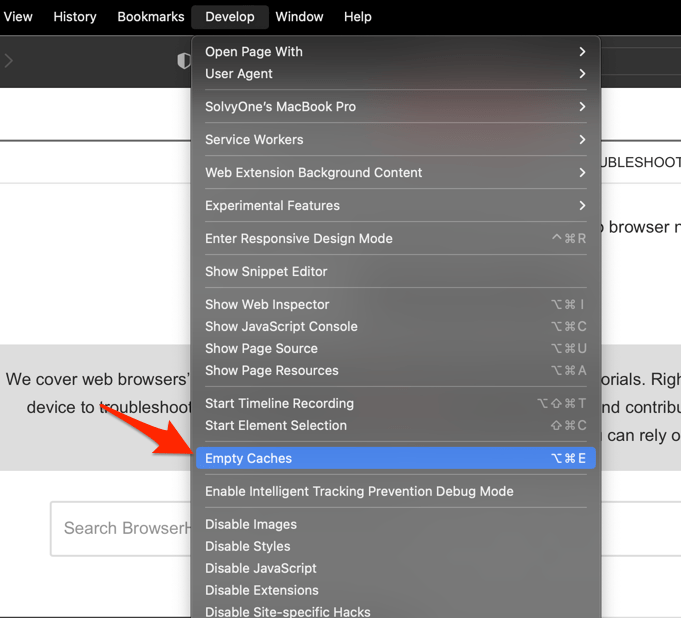 It will clear all cache, including the Safari DNS host cache.
Reopen Wikipedia after the reset. If it loads, stale DNS information was the cause. If every site still fails, move on to the DNS server check below. The Safari DNS cache reset walkthrough covers the same steps if you want them spelled out.
Change the DNS server on macOS
Safari cannot resolve any website at all, which points at the DNS server your Mac is using. Switching to another provider, such as 1.1.1.1, is a quick way to test that theory.
- Click on the Apple
 menu, and choose the System Settings... sub-menu.
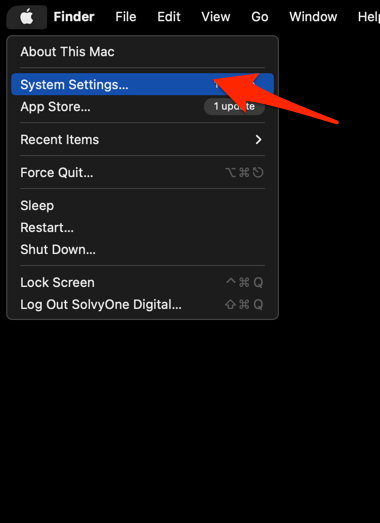 It will open the Apple Settings window.
- Switch to the Network settings tab in the left pane, and select the Network Adapter (say Wi-Fi) that's connected for internet access.
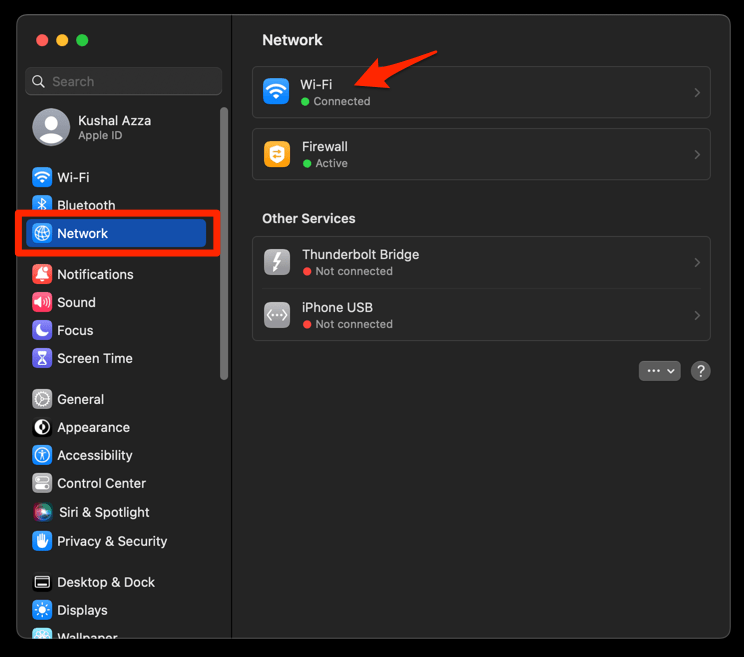
- Click the button to open the network configuration window.
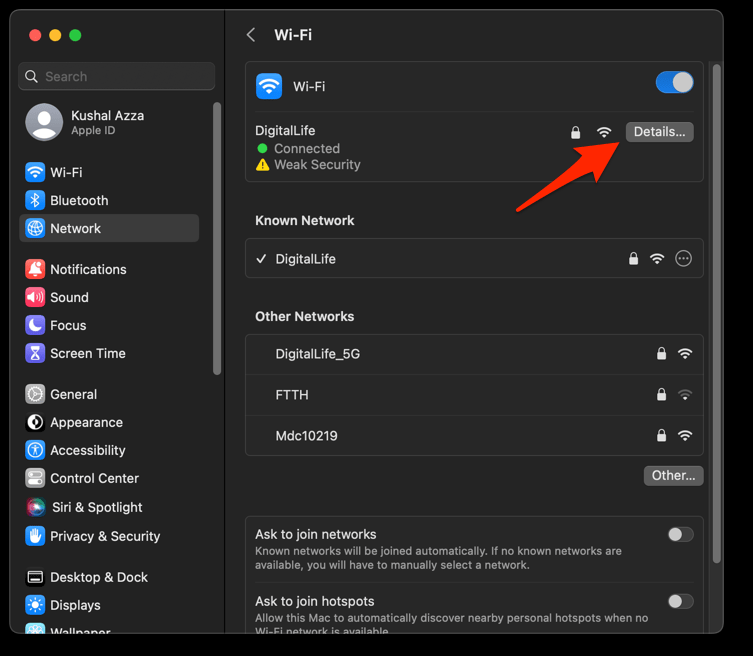
- Switch to the DNS tab in the left sidebar, and click the Plus
 button at the bottom of the DNS Servers list.
- Enter the Google DNS Server addresses: 8.8.8.8 and 8.8.4.4.
- Finally, hit the button to save DNS addresses.
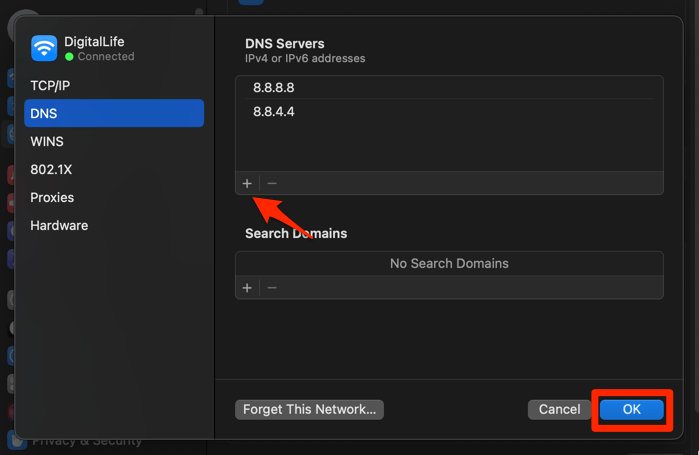 It will set the new DNS address to the selected network adapter on your Mac.
Reconnect to the network and open Wikipedia again. You’ll know it worked when Wikipedia and one other site both resolve and load.
Changing DNS affects your Mac’s network connection, not just Safari. Record the previous DNS settings before making the change.
Update Safari on macOS
Every local fix has failed, which leaves the browser version itself. Install any waiting Safari update and test the page again.
- Click on the Apple menu from the menu bar and select the System Settings... sub-menu. It will open the System Settings window.
- Select the General tab in the left sidebar, and choose the Software Update tab.
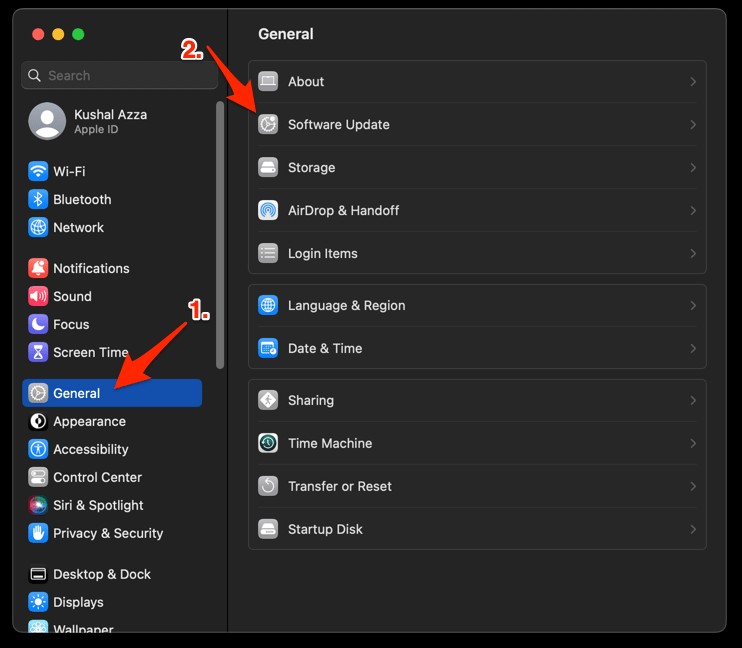 The macOS System will check for any available upgrades in the background.
- Click on the More Info... tab and enable the checkbox for Safari updates (if any are available).
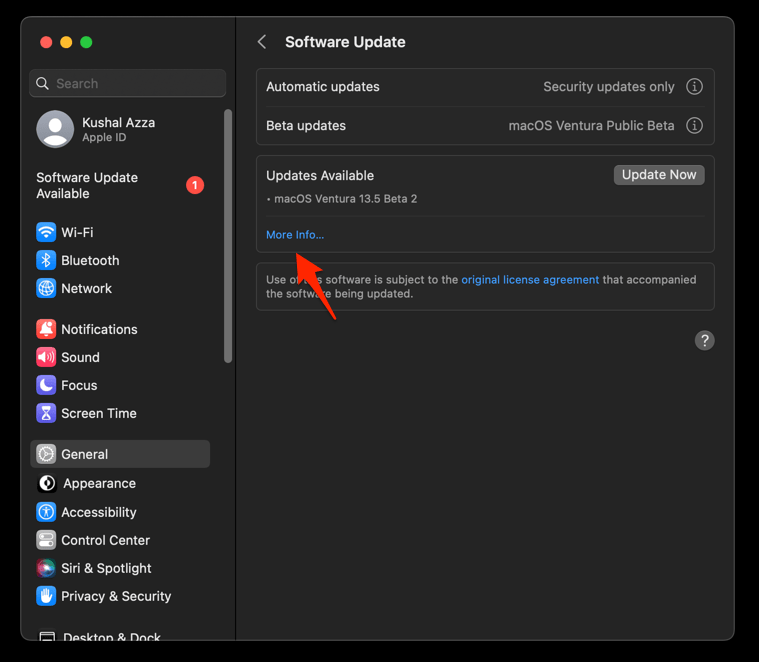
- Hit on the button.
It will update the Safari browser.
Quit and reopen Safari after the update, then revisit Wikipedia. A release that already fixed a known rendering or networking bug will show up right here, and the page will load without any further changes from you.
Clear Safari history and website data on iPhone or iPad
The same page fails on your iPhone or iPad. On recent iOS releases, use Clear History and Website Data under Settings → Apps → Safari, while older releases place Safari directly under Settings.
- Open the Settings app on your iPhone or iPad
- Scroll down and select Safari for settings.
- Within the Safari settings page, scroll down and tap on Clear History and Website Data option.
- Finally, hit on the command button.
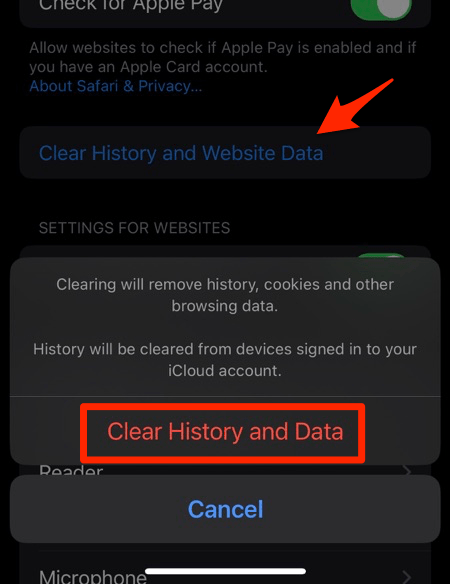 It will completely wipe out the Safari app's browsing history and website data.
Reopen Wikipedia after the reset. You’ll know it worked when the page loads normally in a fresh Safari session.
This iPhone or iPad reset can remove history and sign you out of websites. It does not remove bookmarks.
Turn off Safari extensions on iPhone or iPad
Wikipedia misbehaves on iOS and a content blocker is the usual suspect. On versions that include Safari extensions, open Settings → Apps → Safari → Extensions. If your version lists Safari directly under Settings, use that entry instead.
- Open Extensions in the Safari settings list.
- Turn off any ad blocker or privacy extension.
- Open Wikipedia in Safari and check the result.
If the page loads after the change, turn the extension back on one at a time until you find the conflicting tool.
Update Safari on iPhone or iPad
You have cleared data and switched extensions off with no change. Install any available Safari update, reopen the app, and test Wikipedia again.
- Open Settings on your phone, and head on to the General section.
- Select Software Update to open the screen.
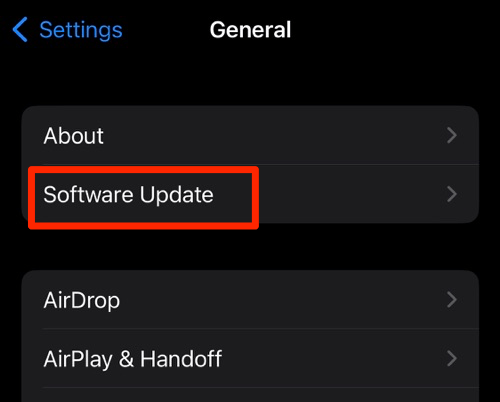 The device will automatically start looking for updates.
- Tap the button.
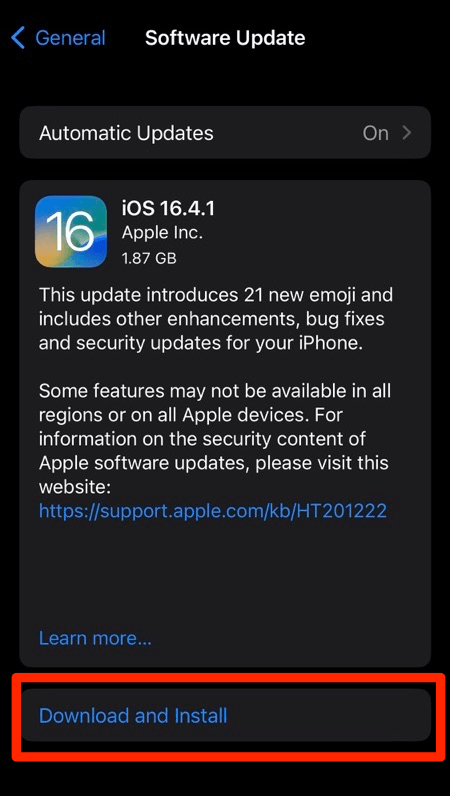 The update will download and install the latest Safari on your device, if available.
Close and reopen Safari after the update. If the problem started right after an update, keep checking extensions and website data rather than repeating the same reset.
Identify what remains broken
Wikipedia still misbehaves and you have worked through the obvious fixes. Match whatever is left to the cause behind it:
- If only one article is wrong, reload it with ?action=purge or remove that site’s stored data.
- If every Wikipedia page is blank in one browser, disable extensions and clear that browser’s site data.
- If several sites report that the server cannot be found, work through the DNS cache and DNS server checks.
- If Wikipedia fails in every browser and on multiple networks, check Wikimedia’s service status and try again later.

Frequently Asked Questions
Why is Wikipedia not working in Safari but working in another browser?
If another browser works on the same device, Safari’s cache, website permissions, privacy controls, or extensions are likely responsible. If every browser fails, investigate DNS, the network, or a temporary Wikimedia service problem instead.
Will clearing Safari data delete my Wikipedia bookmarks?
No. Cache, cookies, history, and website data are separate from bookmarks, although clearing cookies can sign you out of Wikipedia and other sites.
Why does Wikipedia work in Private Browsing on Mac?
A Private window indicates that normal Safari data or an extension is likely interfering. Return to your normal window, remove Wikipedia’s site data, and test your extensions one at a time.
What should I do if Safari says it cannot find Wikipedia’s server?
Test another website first. If several sites fail, clear Safari’s DNS cache and, if needed, change the DNS server on macOS.
How do I refresh a single Wikipedia article in Safari?
Use + + , or add ?action=purge to the article’s address. If other articles also fail, clear Safari’s cache or website data instead.