Twitch streams at 1440p or higher require Edge's hardware HEVC decoder on Windows. When that decoder fails in Edge Dev or Canary, Twitch shows a generic 'Decode Error' (Error 3000) and the stream never plays.
Updating Edge is the most direct fix because Microsoft's Edge team shipped a corrected build. If you cannot update yet, turn off hardware acceleration or test in InPrivate to restore playback until the new build reaches your channel.
In this guide, I have covered:
Contents
Why Edge Dev’s Hardware HEVC Decode Failure Triggers Error 3000 on Twitch
Seeing Error 3000 on a high-resolution Twitch stream in Edge? A hardware HEVC decode failure in Edge Dev triggers Error 3000 on Twitch when the player asks Windows for decoded frames and gets nothing back. Edge relies on the Windows hardware HEVC decoder.
When that decoder breaks inside Chromium’s playback stack, there is no working software fallback for HEVC. The player cannot show the next video chunk. Twitch labels that condition as a ‘Decode Error’ and displays Error 3000.
The same symptom appears in Edge Dev and Canary builds when a regression hits the hardware HEVC path. Microsoft Edge team members tracked the issue to Dev channel build (155.0.4268.0) and confirmed that a corrected version reached a later Beta build (155.0.4283.24). The cleanest fix is to get off the broken build. Update Edge before you change anything else.
For the original report and the Microsoft team’s reply, see the Hardware HEVC decode failure in Edge Dev triggers Error 3000 thread on Tech Community.
Quick Checks to Confirm Edge’s HEVC Decoder Is at Fault
Before you change any settings, run these quick tests. You want proof that Edge’s HEVC decode path is the problem, not your GPU, an extension, or Twitch itself.
- Quit other apps that may be holding the GPU (games, OBS, another browser playing video) and reload the Twitch tab.
- Open Twitch player settings and drop the stream quality to 1080p60 or Source (low). If 1080p plays but 1440p fails, you are hitting the HEVC hardware path specifically.
- Open the same Twitch channel in an InPrivate window. If it plays there, the difference is your extensions or stored site data, not the decoder.
- Visit edge://gpu and look for the Video Decode rows. If HEVC says ‘Hardware accelerated’ but Twitch still fails, your Edge build is the problem.
If the stream still fails at 1440p or higher after these checks, try the fixes below.
Update Edge to Get the Fixed HEVC Decoder
If you are seeing Error 3000, Twitch’s first recommended step is to update your browser. In this case that advice is correct: the Microsoft Edge team shipped a corrected HEVC path in a later channel build.
- Launch Microsoft Edge on your computer system.
- Click on the More
 for the menu list, and select the Settings menu.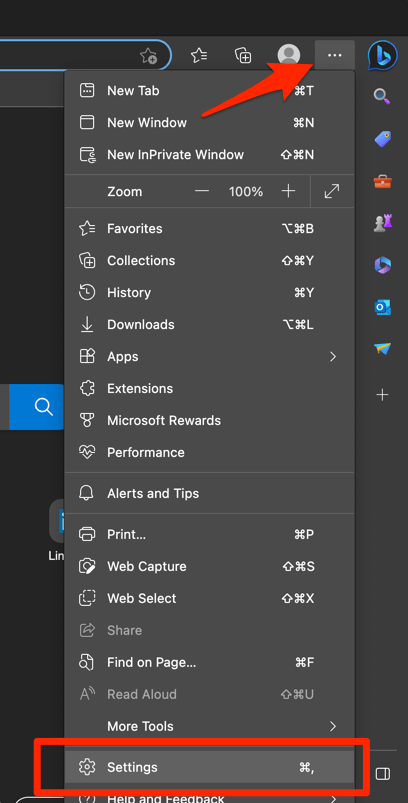
- Switch to the About Microsoft Edge tab from the left side pane.
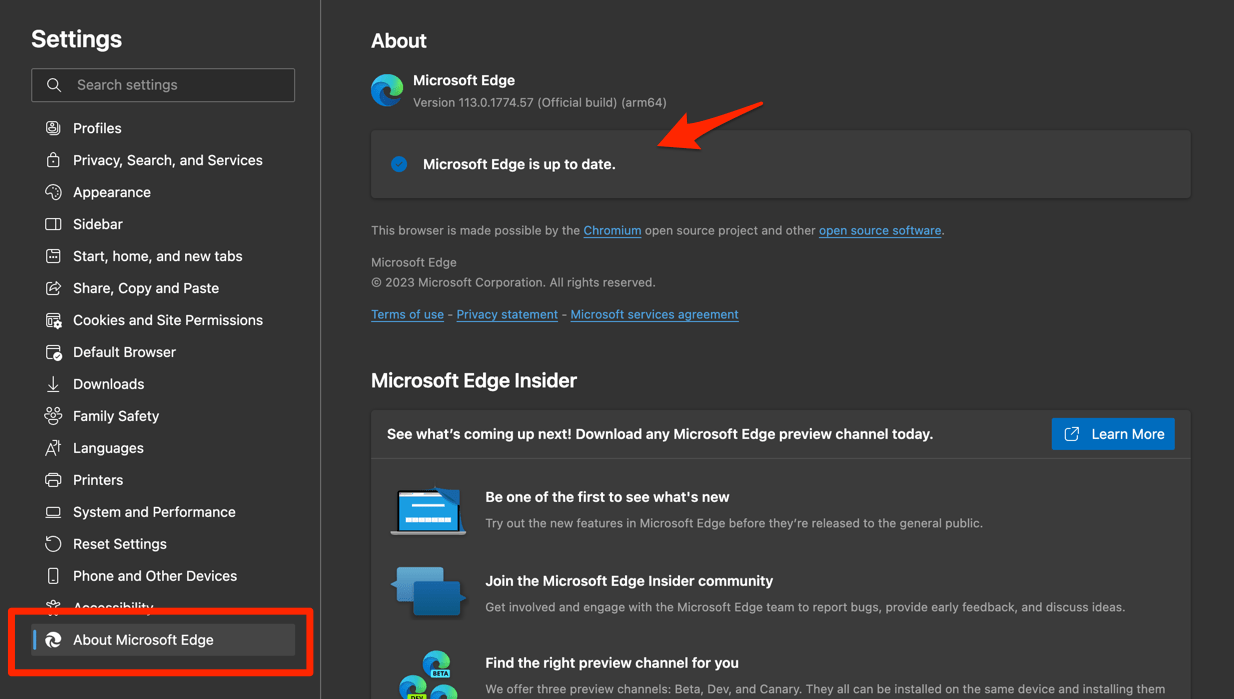 The Edge will automatically start checking for updates and installs, if any are available.
 - Finally, hit the button if available after the (major) update.
Edge browser will be updated to the latest version.
After Edge updates and relaunches, reload the Twitch stream at 1440p. If Error 3000 is gone, your previous build had the regression and your new build does not. If you are stuck on a channel where the fix has not yet shipped, switching to Edge Stable temporarily is a safe workaround.
Turn Off Hardware Acceleration to Force a Software Decode Path
If updating Edge did not fix the stream, force the browser to use a software decode path. Turn off the master switch, let Edge relaunch, and retest Twitch at 1440p.
- Open edge://settings/system in the address bar.
- Find Use hardware acceleration when available and switch it off.
- Click when Edge prompts you. Edge closes all tabs and reopens with the new setting.
- Open the same Twitch channel and bump quality to 1440p.

Disabling hardware acceleration forces Edge to use the CPU instead of your GPU. Streams at 1440p and above will use more battery and run hotter on laptops, so turn it back on once a fixed Edge build is installed.
If the stream plays now, your GPU’s HEVC block is not handling the codec correctly. You can leave hardware acceleration off until the fixed Edge build arrives, then turn it back on.
Disable Extensions to Rule Out Player Interference
If Error 3000 persists after the update and hardware acceleration tests, extensions are the next suspect. Some ad blockers, script blockers, and privacy extensions tamper with Twitch’s player URL or strip MediaSource fragments. That can break HEVC playback on top of an already fragile decoder path. Disable them all, then re-enable them one at a time to isolate the offender.
- Launch the Edge browser on your computer.
- Click on the More for the menu list, and select the Extensions menu.
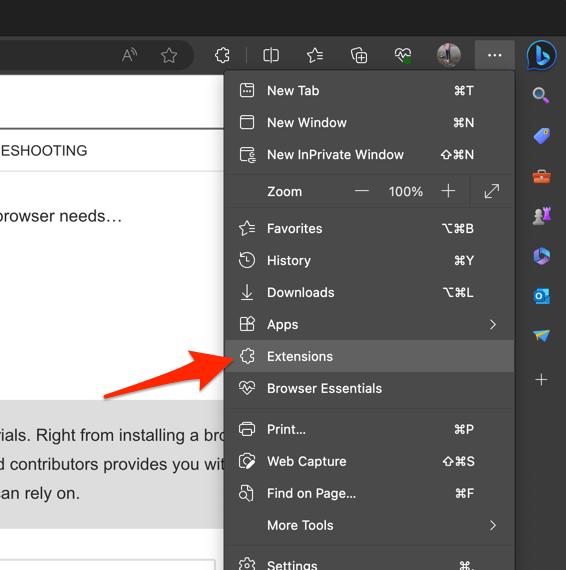 It will open the Edge browser's extensions manager page.
 - Toggle the switch to Turn Off the extension in Edge browser.
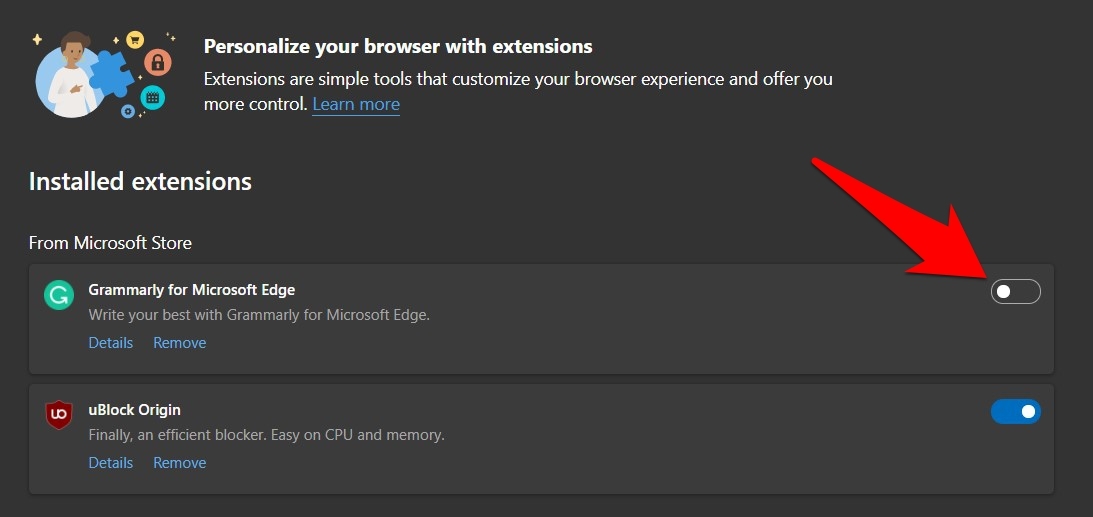
With extensions off, reload Twitch and switch to 1440p. If Error 3000 no longer fires, re-enable extensions one at a time, refreshing Twitch after each, until the failing extension shows up.
Reset Edge Settings When a Profile Setting Pins the Bad HEVC Path
If none of the above resolves the decode error, a corrupted profile setting may be pinning Edge to the bad HEVC path. Reset Edge to its defaults. Your bookmarks, history, and saved passwords stay.
- Launch the Microsoft Edge browser.
- Open edge://settings/resetProfileSettings in the address bar.
It will open the reset browser confirmation dialog box. - Hit the button to confirm the browser reset.
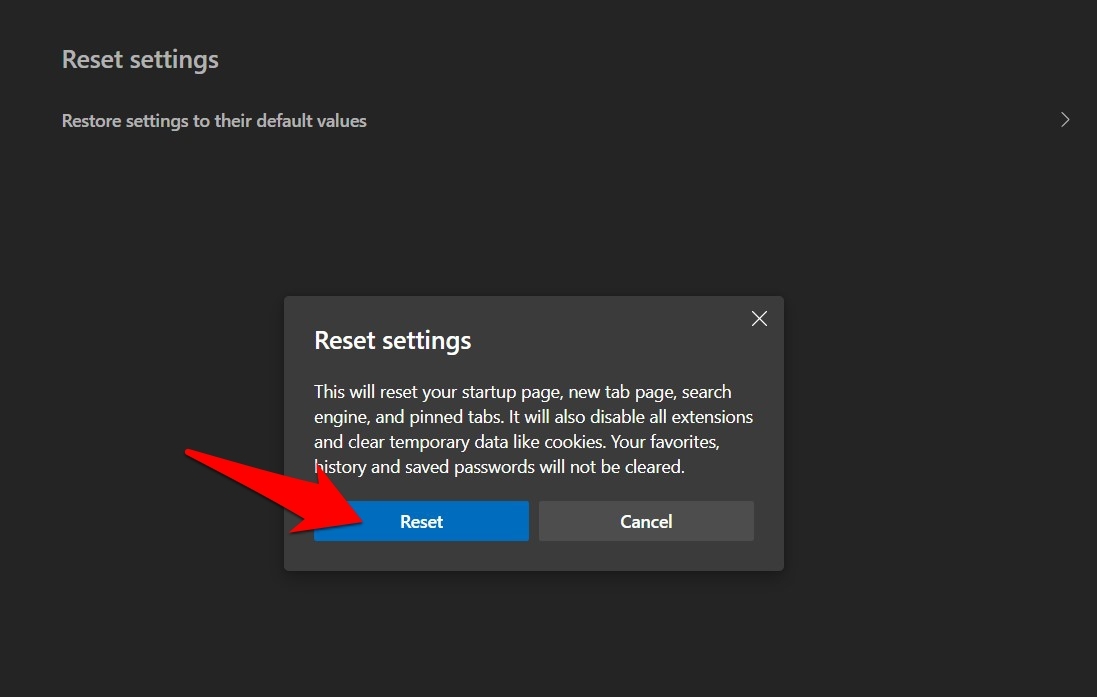 It will reset the Edge browser to the original default, clearing the temporary data and disabling all extensions.
After Edge restarts, retest the same Twitch stream at 1440p. If Error 3000 still appears on the latest available Edge build, the regression has not reached your channel yet. Install Edge Stable from Microsoft’s site in the meantime.
Test the Same Stream in Another Player to Isolate Edge
Still not sure whether Twitch or Edge is at fault? Load the same VOD or live channel in a different browser, such as Chrome or Firefox, or open it in the Twitch desktop app. The app uses its own player and bypasses Edge’s HEVC path entirely.
If the Twitch app plays the same 1440p stream that fails in Edge, Edge is the source of the problem and the fixes above apply. If every player fails on the same source, the issue is upstream. Your ISP, Twitch’s HEVC origin, or your network path is more likely at fault, and Edge is not the cause.

Frequently Asked Questions
What is Twitch Error 3000?
Twitch’s help center labels Error 3000 as a ‘Decode Error,’ meaning the player could not decode the video chunk it just received. In Edge specifically, it usually means the hardware HEVC decode failed and there is no software fallback for that codec.
Why does the bug only appear at higher stream qualities?
Twitch serves H.264 below roughly 1080p, then switches to HEVC for Enhanced Broadcasting and 1440p+ outputs. The H.264 path has its own software fallback in Chromium, while the HEVC path does not. That is why only the higher quality feed breaks with Error 3000.
Is there a flag to force a software HEVC decoder in Edge?
Edge exposes the standard Chromium HEVC flags under edge://flags, including Hardware-accelerated HEVC decode and software HEVC decode. On Windows there is no working software fallback for HEVC. Updating Edge or turning hardware acceleration off in edge://settings/system is the practical fix.
Will switching to the Stable channel fix it permanently?
Yes. Once the corrected HEVC path has shipped to Stable on your machine, future Edge updates keep the fix in place. If you keep using Dev or Canary, expect the same kind of regression to recur occasionally because those channels ship before full validation.
Can I just block HEVC on Twitch instead?
Twitch does not expose a setting to force H.264 only on the player side. Some third-party extensions try to force a non-HEVC source, but they break chat, Enhanced Broadcasting, and other player features. Updating Edge or temporarily disabling hardware acceleration in Edge is the supported fix.