Most of the time, clearing your Safari cache on Mac does more harm than good. Sites reload slower until they rebuild their caches, and the original problem usually was not the cache anyway.
Here is when clearing actually helps, the one-site method to try first, and what to check before you wipe everything.
In this guide, I have covered:
Contents
Should You Clear Safari Cache on Mac? What the Cache Actually Does
Safari saves a copy of every page you visit: images, logos, scripts, and the small files that make a page feel instant the second time around. That stored bundle is the cache.
It is why a site you open daily loads faster than one you have never seen, and why a form field sometimes remembers your name. The catch is that a cache is a snapshot, and snapshots go stale.
When Clearing Safari Cache Actually Helps
Most clear-your-cache advice you find online is generic. On a Mac, four situations are worth acting on.
- A specific site looks broken: missing images, an old layout, or an error that will not go away after a reload.
- You just installed a major macOS update and Safari is acting oddly across the board, not just on one page.
- Safari’s stored website data is genuinely out of control, not just getting a little full.
- A web app keeps glitching, like Gmail, a dashboard, or a banking site, and a refresh alone does not fix it.
When You Should Probably Skip It
Here is the honest part: most people clear their Safari cache because they read somewhere that it fixes everything. It usually does not, and clearing it has real costs.
- You do not actually have a problem. Clearing cache as routine maintenance can slow Safari down for a day or two while every site rebuilds from scratch.
- You just want to free a little space. The cache is small, a few hundred MB at most for normal users, and other files take up far more room.
- You think it will fix a slow Mac. A sluggish Mac usually has nothing to do with Safari’s cache. Check Activity Monitor first.
- Safari is crashing or freezing. Cache is rarely the cause. Updating Safari or removing a bad extension is a better first step.

If Safari is crashing on startup, restarting your Mac in safe mode (hold while clicking the Apple menu → Shut Down, then start up while still holding ) is a faster diagnostic than clearing cache.
How to Clear Safari Cache on Mac
If clearing is the right move, the procedure below wipes cookies and cached files together on Mac. Run it once, then check the site that was misbehaving.
- Launch the Safari app on your Mac computer.
- Click on the Safari menu from the menu bar, and select the Settings... sub-menu.
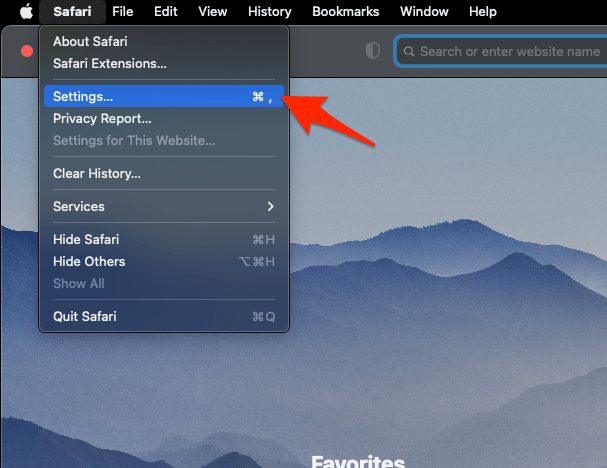 It will open the Safari Settings window.
 - Switch to the Privacy tab, and click to open the button.
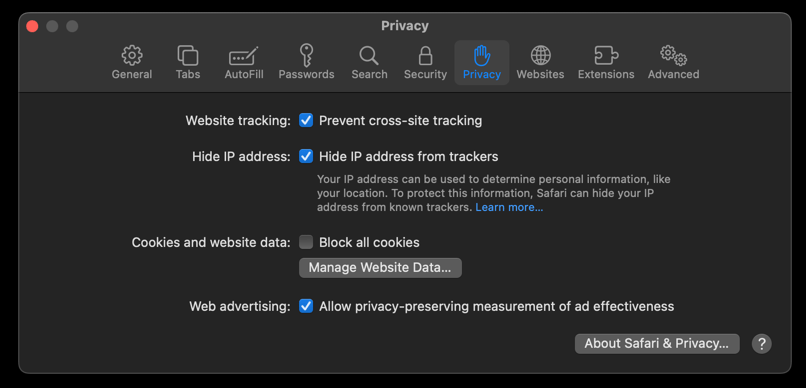 It will load the list of websites currently storing the cache and cookies in the browser.
 - Hit on the command and then the button.
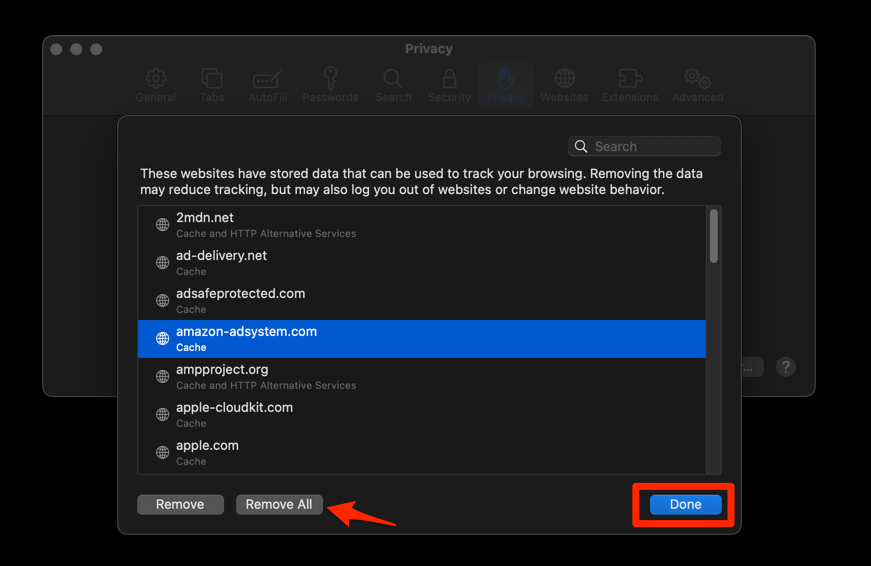 It will flush the cookies and cache for all sites in Safari.
You will be signed out of most sites afterward, so have your passwords ready or confirm iCloud Keychain has them saved. You will know it worked when familiar sites start asking you to sign in again.
For a full breakdown of what each Safari data type includes, see Clear Site and Browsing Data from Safari browser on Mac.
How to Clear Cache for a Single Site (Better Fix)
This is the move most people should try first. If one site is broken, there is no reason to throw away every other site’s saved data along with it.
Safari on Mac lets you remove stored data for one site at a time, with no developer menu required. The same idea works on iPhone and iPad, as covered in View Cache and Clear Site Storage in Safari on iPhone & iPad.
- Open Safari, then click Safari in the menu bar → Settings (or press +).
- Click the Privacy tab.
- Click .
- Use the search box to find the site that is acting up.
- Select the site, then click .
- Click .
Now reload the broken site. It pulls fresh data from the server, and every other site you use stays exactly as it was. You will know it worked when the page loads correctly and your logins everywhere else are untouched.

What to Try Before You Clear Anything
Work down this list before you reach for the cache nuke. Each item fixes the same problems with less fallout.
Reload the page the right way
A normal reload can still serve the cached copy. A hard refresh forces Safari to pull a brand new version of just that page.
- On the page that is broken, press ++.
- If the page now looks right, you fixed it without clearing a thing.
Test the site in a private window
Private windows do not touch your stored cache or cookies, which makes them a free diagnostic. If a site works in a private window but not in your regular one, the cached data for that site is the problem, and the Manage Website Data method above fixes it cleanly.
Update Safari
If Safari misbehaves everywhere, an outdated build is more often the culprit than your cache.
- Click on the Apple
 menu from the menu bar and select the System Settings... sub-menu.
  It will open the System Settings window.
 - Select the General tab in the left sidebar, and choose the Software Update tab.
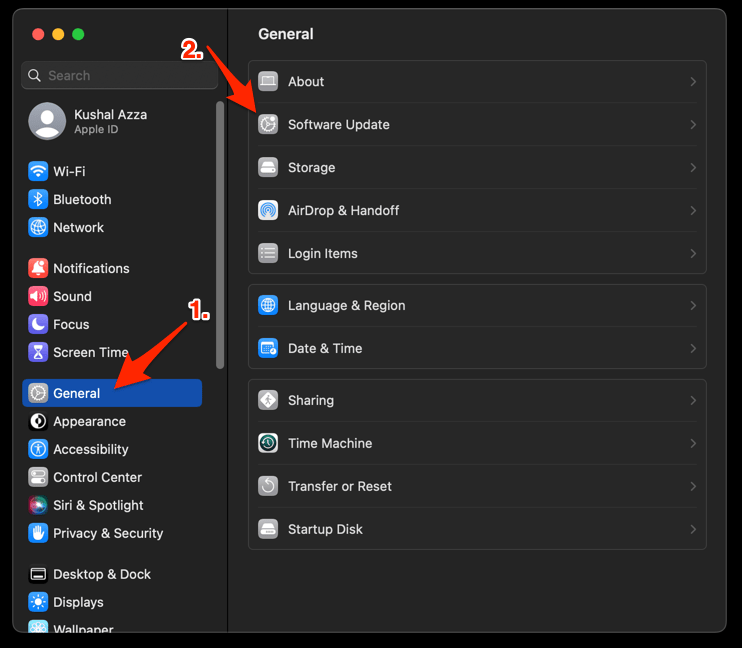 The macOS System will check for any available upgrades in the background.
 - Click on the More Info... tab and enable the checkbox for Safari updates (if any are available).
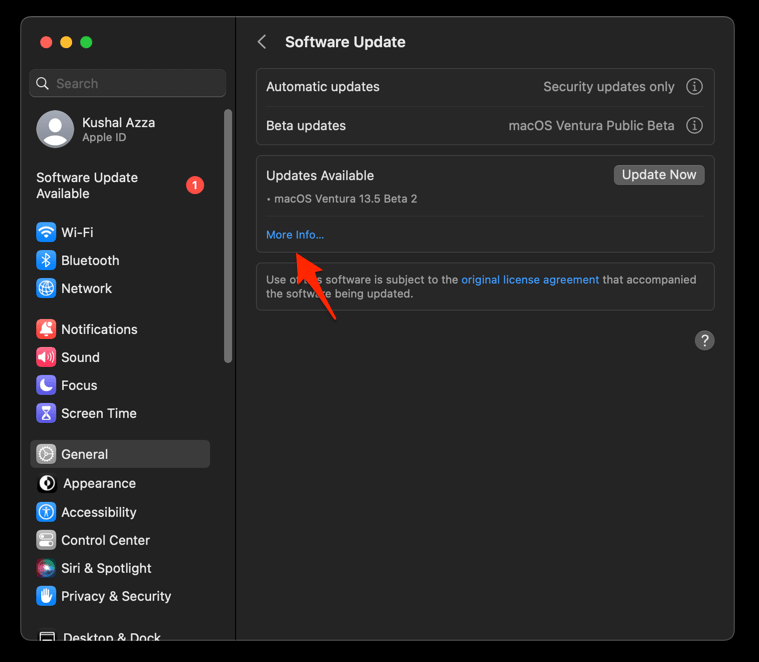
- Hit on the button.
It will update the Safari browser.
Safari updates through the App Store also carry the latest security fixes. Once the update installs, retest the page that was giving you trouble.
Disable Safari extensions
A stale or badly built extension can break specific sites in ways that look exactly like a cache problem.
- Launch the Apple Safari app on your Mac computer.
- Click on the Safari menu from the menu bar at the top, and select Settings... sub-menu.It will open the Safari Settings window.
- Switch to the Extensions tab in the Settings window.
It will display the list of all the Safari extensions installed. - Uncheck the checkbox in the left side pane to Disable the extension.
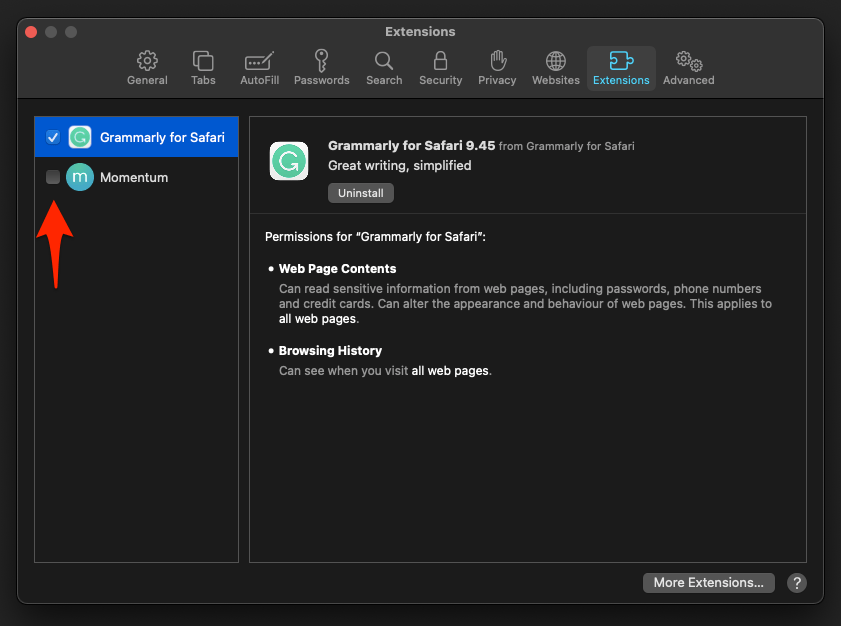
If the site behaves correctly with extensions off, turn them back on one at a time to find the culprit.
Clearing all Safari data on Mac also removes cookies, which signs you out of every website. If you want to keep your logins, clear data for one site at a time using Manage Website Data instead.
Frequently Asked Questions
Does clearing Safari cache delete saved passwords?
No. Saved passwords live in Keychain, separate from browsing data. Clearing cache and cookies signs you out of sites, but the passwords stay put and Safari will offer to fill them in next time you visit.
Will clearing Safari cache make my Mac faster?
Usually not noticeably, and sometimes the opposite for a day or two while sites rebuild their caches. If your Mac is genuinely slow, open Activity Monitor and find the real resource hog before you clear anything.
How often should I clear Safari cache?
There is no useful routine schedule. Clear it when something is actually wrong, and prefer removing data for just the affected site through Manage Website Data over a full wipe.
What is the difference between clearing history and clearing cache on Mac?
Clear History, under the History menu, only removes the list of pages you visited. Cache and cookies are handled separately in Safari → Settings → Privacy → Manage Website Data, and you can clear them for one site or for all sites at once. Safari on Mac does not bundle history and website data behind a single button the way Safari on iPhone does.
Will clearing Safari cache free up a lot of storage?
For most users, no. The cache is usually a few hundred MB. To free real space on a Mac, look at Downloads, Desktop files, and the Applications folder before you go after Safari’s cache.
Short version: treat clearing cache as a fix for a specific problem, not a monthly chore. If one site is acting up, clear that site’s data and leave the rest of Safari alone.