Edge on Android sometimes turns every sync category back on after you switch it off. You set your choices, sign in, and the switches flip back on their own. That hurts when you were deliberately keeping history or payment data off the phone.
Set the sync categories from the account screen, turn off local payment autofill, and sign out to reset. Reopen the panel after each change. If the switches still revert, note which ones moved and report it.
In this guide, I have covered:
Contents
Edge on Android keeps turning your sync choices back on
You turned off a few sync categories, signed in, and Edge switched them all back on. There is no single master switch for that. Edge on Android has no one control for synced data under Privacy and security; each category lives under Sync settings, and you set them one at a time from the account screen.
- Tap the
 menu and select Settings.
- Tap your profile image to open the Microsoft account screen.
- Select Sync settings.
- Tap Sync under Data items.
- Turn off each category that Edge should not synchronize.
- Tap .
Close and reopen sync settings. Every category you disabled should still be off when you come back to the screen. If it is, that part is done.

Turn off payment info on the device
Payment details have their own switch, and it is not the same thing as the sync category. Turning it off stops Edge from saving and filling card details on this phone, even when payment information still appears in your account settings.
- Tap the menu and select Settings.
- Open Saved info.
- Select Payment info.
- Turn off Save and fill payment info.
Reopen payment info and confirm that Save and fill payment info stays off. This switch controls autofill on the device. The payment row in sync settings controls whether that category travels to your Microsoft account.
Want to tighten the rest of the browser while you are here? Our walkthrough on privacy and security settings in Edge on Android covers the other controls.
Sign out and set sync again
When Edge rewrites the categories during account setup, disconnect the account and make the choices again. Treat this as a reset attempt, not a confirmed fix.
- Tap the menu and select Settings.
- Tap your profile image.
- Select Sign out and turn off sync.
- Open Sync settings again.
- Turn off every sync category you do not want and tap .
- Reopen Sync settings and verify that the categories are still disabled.
Sign in again later and recheck the list. A selection that holds before sign-in and flips after it is exactly what a bug report needs.
Sync settings and stored data are two different things. If you also want to wipe local history and cache from the phone, clearing browsing data in Edge on Android is a separate job that has nothing to do with which categories sync.

Microsoft has no documented fix for this exact sync-reset behavior in the research behind this guide. You can still change the affected selection, but do not count the problem as resolved until the category stays disabled after sign-in and an app update.
Update Edge on Android
A newer build may correct the change in the sync setup flow. Install the current Edge release before you decide the problem is permanent.
- Open the Google Play Store on your Android device.
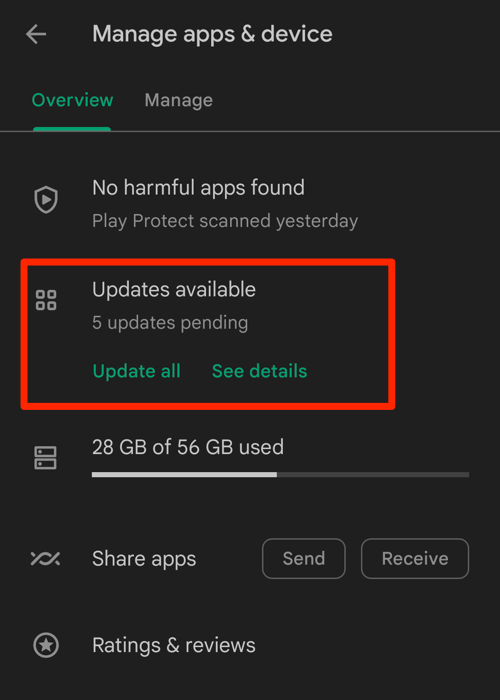
- Tap the Profile icon from the top right corner, and select the Manage apps & device menu.
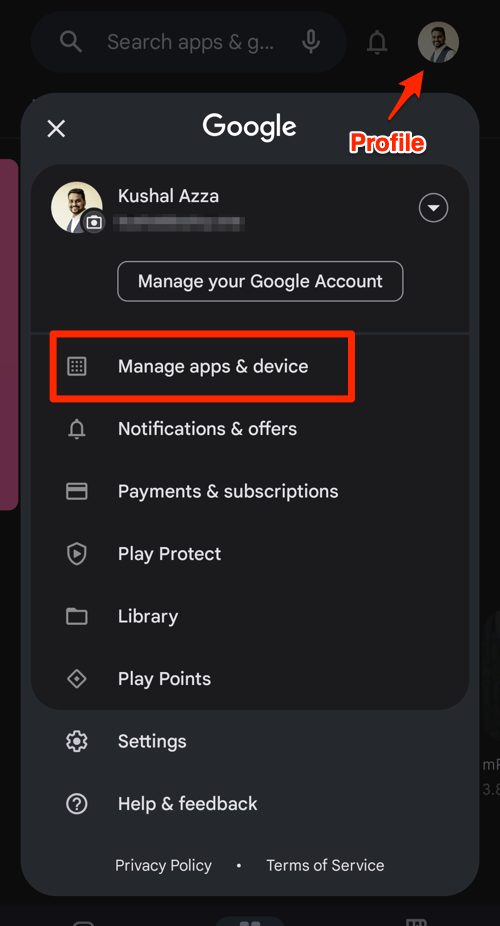
- Tap on the See details command under the Updates available menu.
- If Edge is on the list of apps within the available updates, tap on the command next to it.
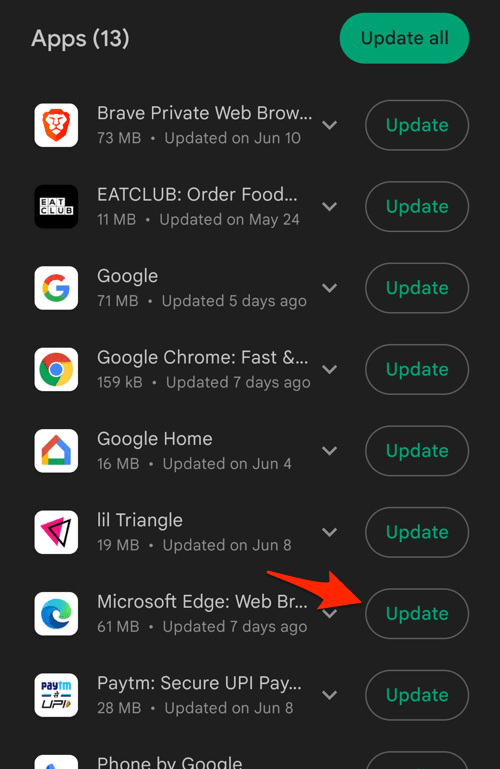 It will display the update progress for the Edge browser.
Then run the category check again. You’ll know the update worked when the unwanted categories stay off after you reopen the screen and sign back in. If they switch themselves on again, this build did not fix it on your device.
Check the sync result and report it
Looking at the first-run screen is not enough. The categories also have to stay unchanged when you come back to sync settings later.
- Open Sync settings after signing in.
- Compare each enabled category with the choices you made.
- Write down which categories came back on.
- Open edge://sync-internals in the address bar to review the sync information Edge exposes.
- Use Microsoft’s Microsoft Edge app help page to find the right support or feedback option.
Say whether the problem shows up during first-run setup, after signing into an existing account, or only when you change categories later. Mention that the same selection comes back on both the sync settings screen and the account’s sync summary.
Frequently Asked Questions
Where are Edge Android sync settings?
Open the menu, tap Settings, tap your profile image, then choose Sync settings. The category switches sit under Data items.
Why does Edge turn all sync categories back on?
Reports of this behavior during account setup are out there, but the research here does not pin down a cause or a published Microsoft fix. Resetting the categories and reporting the behavior are the practical next steps.
Does turning off sync delete data from my Microsoft account?
Turning off a category stops Edge from syncing it. The available guidance does not confirm that it deletes what is already stored in your account. If you also need to remove stored data, review your account controls and Edge’s data settings separately.
How do I stop Edge from saving payment details on Android?
Open Settings > Saved info > Payment info and turn off Save and fill payment info. Check the payment row in sync settings separately.
Will updating Edge fix the sync settings problem?
An update may correct the setup flow, but no confirmed fix is documented. Reopen sync settings after signing in and see whether the unwanted categories stay off.