

Safari on a Mac can block cross-site tracking, warn you about fraudulent sites, and lock tabs behind Touch ID, but those controls sit in three different panels of the current Settings window.
Open Safari's Settings, confirm the switches under Privacy and Security, then check per-site permissions and remove extensions or stored website data you no longer need.
In this guide, I have covered:
Contents
Where Safari Keeps Its Privacy and Security Controls
You went looking for the privacy switches in Safari and the old Preferences window is nowhere in sight. Apple moved them. Everything now sits in Settings…, split across Privacy, Security, and Advanced.
Open the Safari app first. That menu only appears when Safari is the active app on your Mac.
- Open the Safari app on your Mac.
- Select Safari in the macOS menu bar.
- Choose Settings… from the menu.
- Select Privacy in the left sidebar to begin with the privacy controls.
The Safari Settings window should open with Privacy selected, and Privacy, Security, and Advanced listed in the sidebar.
Turn On Cross-Site Tracking Protection
Ads for something you looked at once keep following you onto unrelated sites. That is cross-site tracking, and Safari has a switch for it. Prevent cross-site tracking limits how trackers carry your activity from one site to the next. It is on by default, but confirming it takes a few seconds.
- Open the Safari app.
- Choose Settings… from the Safari menu.
- Select Privacy in the sidebar.
- Confirm Prevent cross-site tracking is turned on.
- Turn on Hide IP address from trackers if your Privacy panel includes the option.
After these changes, Prevent cross-site tracking should be enabled, and Hide IP address from trackers should be on wherever your Privacy panel offers it.

TIP: Private browsing keeps a session out of your normal history. It does not replace the tracking switches above.

Protect Locked Tabs and Advanced Tracking
You step away from the Mac and want the tabs you left open to stay shut to anyone else. Safari can require Touch ID before a locked tab opens. Fingerprinting protection lives in the same panel, so review both in one pass.
- Open the Safari app.
- Choose Settings… from the Safari menu.
- Select Privacy in the sidebar.
- Turn on Require Touch ID to view locked tabs if it appears in the Privacy panel.
- Open Advanced Settings in the Privacy panel.
- Confirm Advanced Tracking and Fingerprinting Protection is enabled.
You’ll see locked-tab protection turned on, and Advanced Tracking and Fingerprinting Protection enabled under Advanced Settings.
Configure Fraudulent Site Warnings
A link in an email looks slightly off and you want Safari to speak up before the page loads. That warning lives in Security, not Privacy. Turn it on once and it covers every site you visit.
- Open the Safari app.
- Choose Settings… from the Safari menu.
- Select Security in the sidebar.
- Turn on Fraudulent sites. If your version uses the longer label, enable Warn when visiting a fraudulent website instead.
- Turn on Warn before connecting to unencrypted websites if the option is listed.
The Security panel should now show the fraudulent-site warning enabled.
Apple’s Safari User Guide is the official reference for these Mac security settings and their labels.
Check JavaScript in the Advanced Section
A site misbehaves and you suspect JavaScript is switched off. Check that before you touch the security warnings. The switch sits under Advanced, not Security.
- Open the Safari app.
- Choose Settings… from the Safari menu.
- Select Advanced in the sidebar.
- Confirm Enable JavaScript is turned on for normal browsing.
Leave Enable JavaScript on for everyday browsing. Turn it off only for a short test, because plenty of sites stop working without it.

Menus, forms, and video players often depend on JavaScript. Switching it off is a troubleshooting step, not a permanent privacy setting.
Keep Safari Updated on macOS
Safari’s protections change between macOS releases, so an older Mac quietly gets weaker coverage. Updating Safari means updating macOS. There is no separate Safari update to chase down.
- Click on the Apple
 menu from the menu bar and select the System Settings... sub-menu.
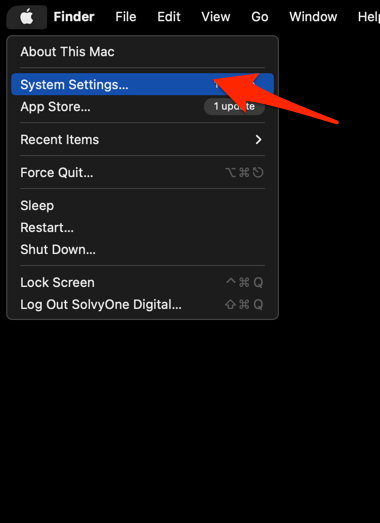 It will open the System Settings window.
- Select the General tab in the left sidebar, and choose the Software Update tab.
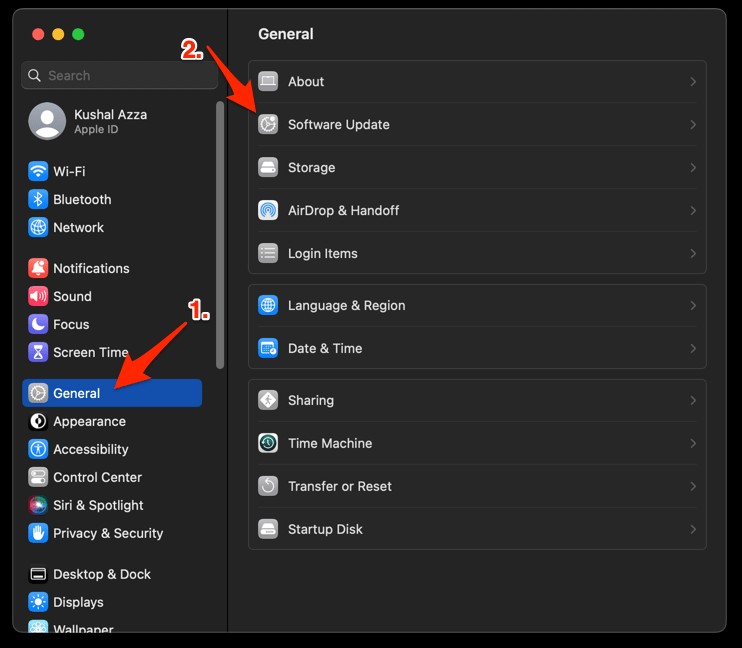 The macOS System will check for any available upgrades in the background.
- Click on the More Info... tab and enable the checkbox for Safari updates (if any are available).
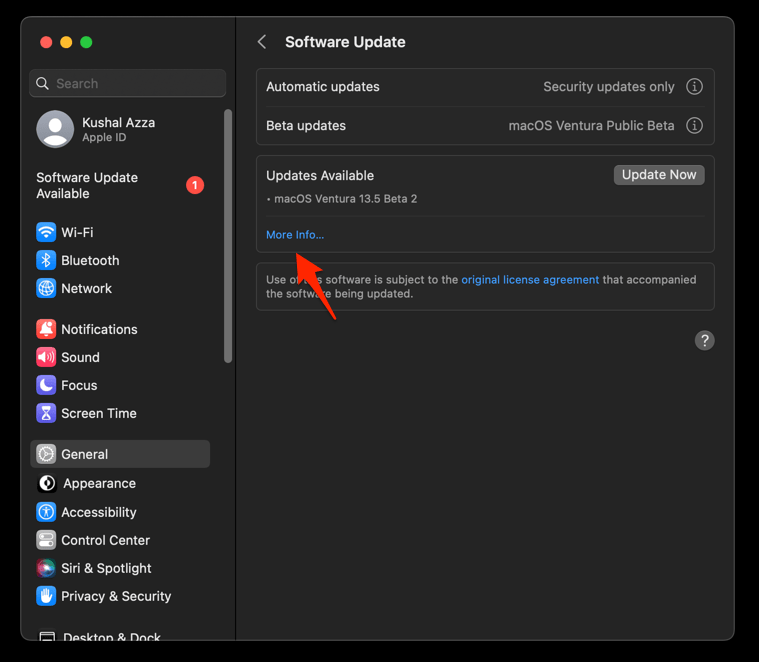
- Hit on the button.
It will update the Safari browser.
You’ll know it worked when Safari reopens and the Privacy and Security panels still show the controls you expect.
Control Location Services for Safari on macOS
Safari asks for your location when a site requests it, but the permission behind that prompt belongs to macOS. If you want Safari out of Location Services entirely, change it at the system level.
- Click on the Apple menu list.
- Select System Preferences/Settings from the menu.
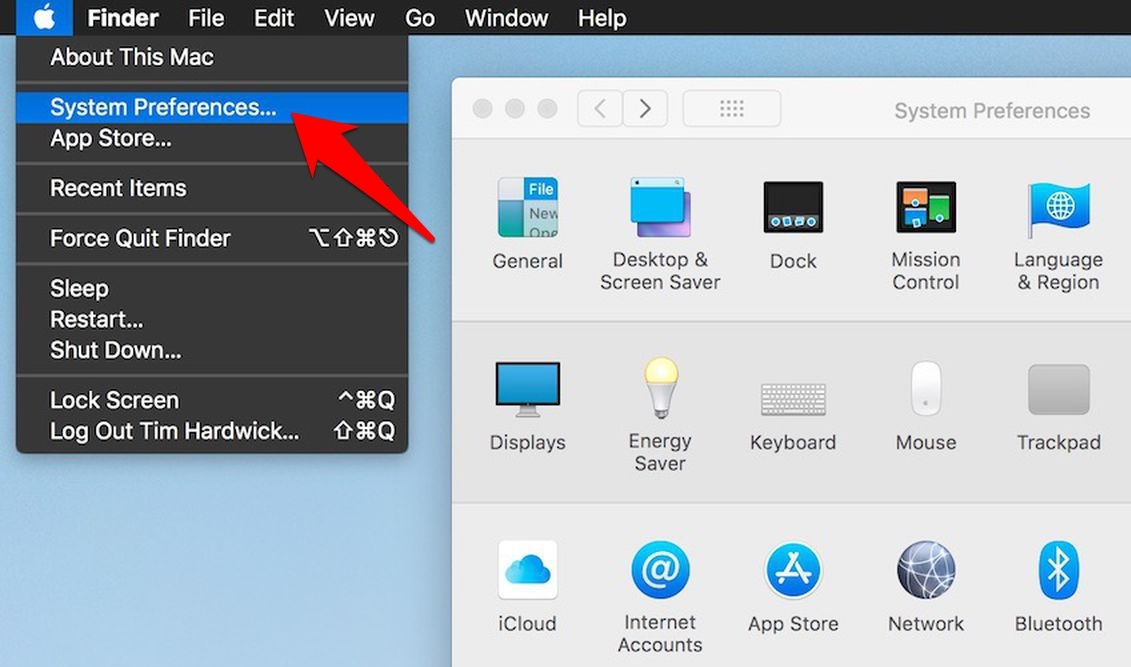 It will open the System Preferences window.
- Click to open the Security & Privacy preferences.
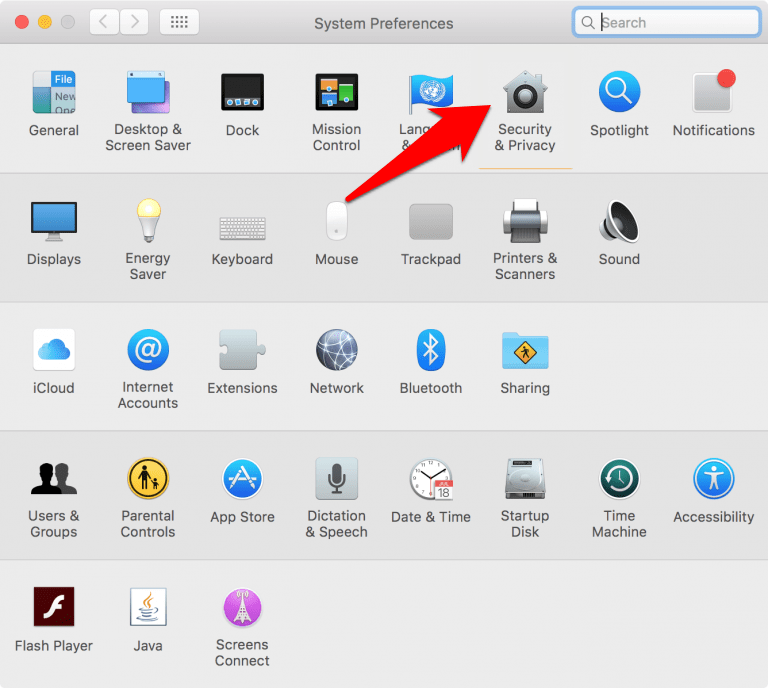
- Switch to the Privacy tab, and click on the Padlock
 at the bottom.
It will request to enter the User account credential to make changes. - Confirm the password and hit .
- Select Location Services from the left menu pane.
- Enable the checkbox for the Enable Location Service option.
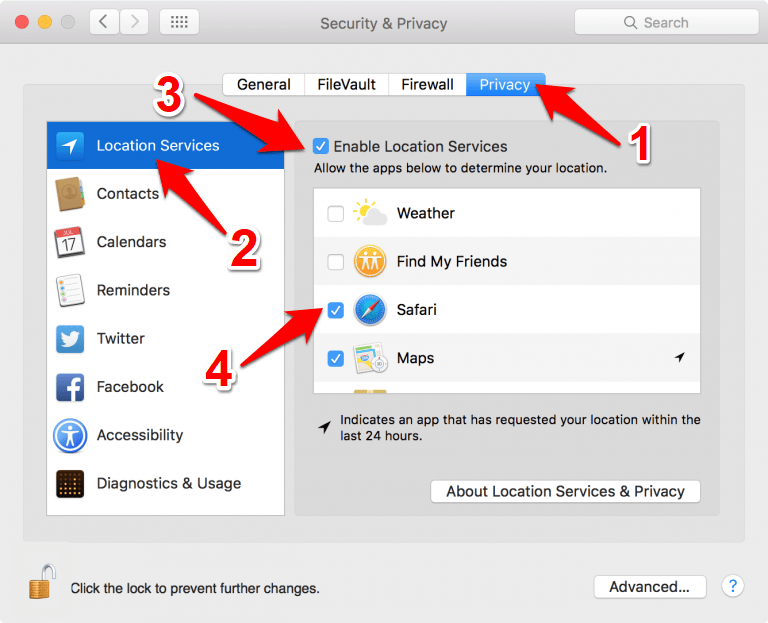
- Scroll to the Safari app under the Location Service box, and Enable/Disable checkbox per need.
- Click on the Padlock to prevent further changes.
You’ll know it worked when the Safari entry in Location Services matches the access you chose.
Disable Safari Extensions You Do Not Need
An extension you installed months ago still has access to every page you open. If you no longer use it, switch it off rather than leaving it running out of habit. Extensions can add permissions and change how pages behave.
- Launch the Apple Safari app on your Mac computer.
- Click on the Safari menu from the menu bar at the top, and select Settings... sub-menu.
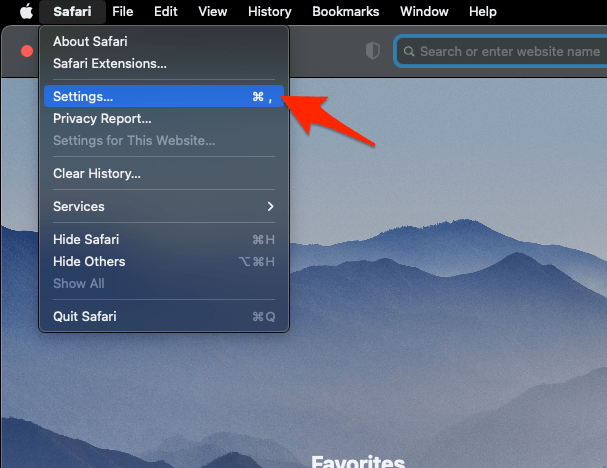 It will open the Safari Settings window.
- Switch to the Extensions tab in the Settings window.
It will display the list of all the Safari extensions installed. - Uncheck the checkbox in the left side pane to Disable the extension.
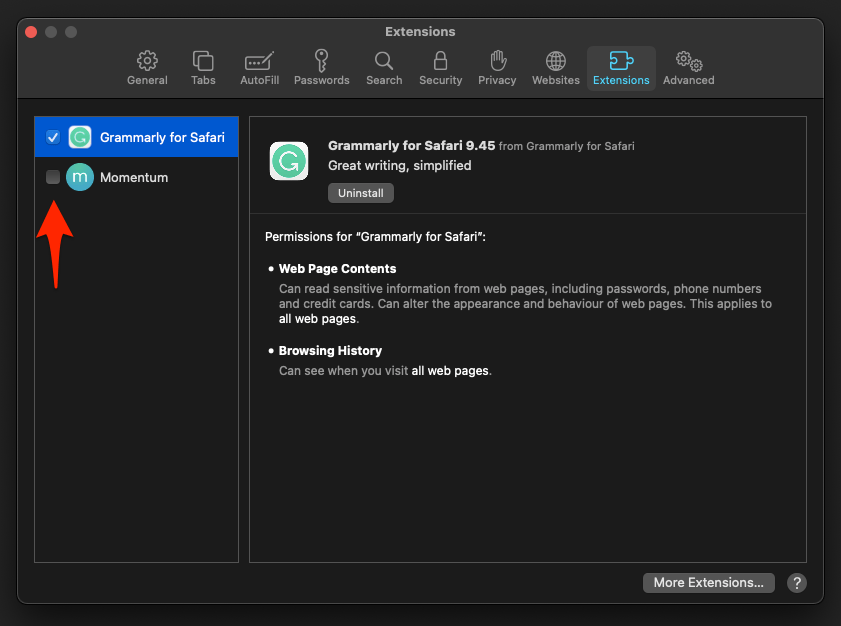
You’ll know it worked when the extension shows unchecked in Safari’s Extensions panel.
Clear Cookies and Cached Website Data
You want a clean slate: no stored cookies, no cached files from sites you barely visit. Safari’s website data manager clears all of it in one pass.
- Launch the Safari app on your Mac computer.
- Click on the Safari menu from the menu bar, and select the Settings... sub-menu. It will open the Safari Settings window.
- Switch to the Privacy tab, and click to open the button.
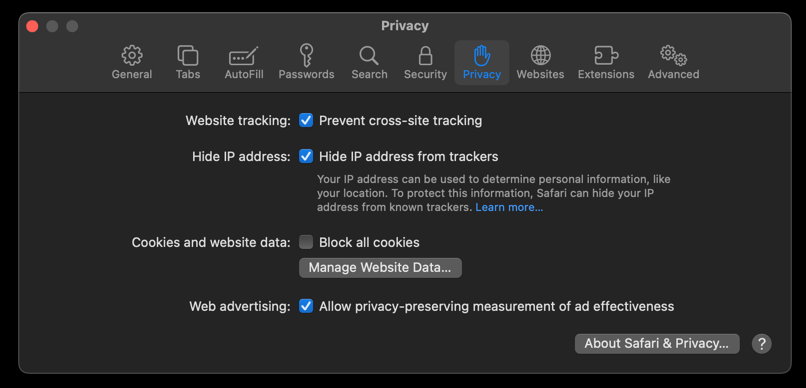 It will load the list of websites currently storing the cache and cookies in the browser.
- Hit on the command and then the button.
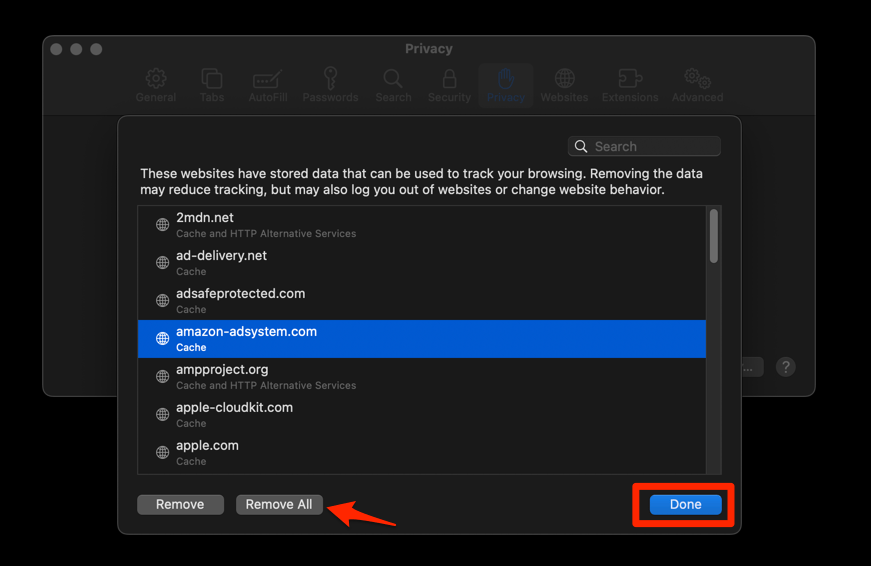 It will flush the cookies and cache for all sites in Safari.
You’ll know it worked when the website data list comes back empty.
Clearing this data signs you out of most sites. Expect to log in again on the ones you use.
Review Permissions for Individual Sites
One site keeps asking for your camera, or it already has microphone access you never meant to grant. Global settings will not fix that. Access is granted per site, so you have to review it per site.
How to view site information and permissions in Safari on Mac walks through the panel for any open page, including camera, microphone, location, and notifications.
Compare Safari Privacy Settings on iPhone and iPad
You have tightened Safari on the Mac, and now you wonder whether your iPhone and iPad need the same treatment. They do. The same switches exist there, reached a different way, and our guide to privacy and security settings in Safari on iPhone and iPad covers each one.
Frequently Asked Questions
Where are Safari privacy and security settings on a Mac?
Under Settings… in the Safari menu bar, with Privacy, Security, and Advanced in the sidebar. The menu says Settings, not Preferences.
Is Prevent cross-site tracking enabled by default in Safari?
Yes. Current Safari turns Prevent cross-site tracking on by default, so open Privacy to confirm it is still on.
How do I enable warnings for fraudulent websites?
The warning lives in Safari’s Security section. Turn on Fraudulent sites, or Warn when visiting a fraudulent website on versions that use the longer label.
Should I disable JavaScript in Safari on Mac?
Usually no. It sits under Advanced, and switching it off breaks features and whole parts of sites.
Does clearing Safari cookies and cache improve privacy?
It removes cookies and cached files for all sites, including tracking data stored inside cookies. It also signs you out, so expect to log in again.
Work through the panels in this order: Privacy, then Security, then Advanced. Reopen Settings… after each macOS update and confirm nothing flipped. That check takes a minute and keeps the protections you just set.

Those instructions do not match the System Preferences in the current Safari on Mac. There is no “Privacy” tab in Safari > System Preferences. Also, the current section “Security and Privacy” does not contain the checkbox you recommended.
Hi Ken, we are in the process of upgrading this article with the latest screengrabs.
a cancel button appears on my safari web browser when trying to enter certain sites
Hi Erica, on which steps you are getting the cancel button?