Your downloads keep landing in a folder you never chose, or you want a say in where each file goes. Both problems have the same fix, and it sits one page deep in Edge Settings.
Open the Downloads page in Edge Settings to set a new default folder, switch on the per-file save prompt, and confirm the change with a small test download.
In this guide, I have covered:
Contents
Open the download settings in Edge on a computer
You want Edge to stop dropping every file into the same folder, or you want a say in where each one goes. The controls are all on one page, and you can reach it in three clicks.
- Open the
 menu in the upper-right corner.
- Select Settings.
- Select Downloads in the left sidebar.
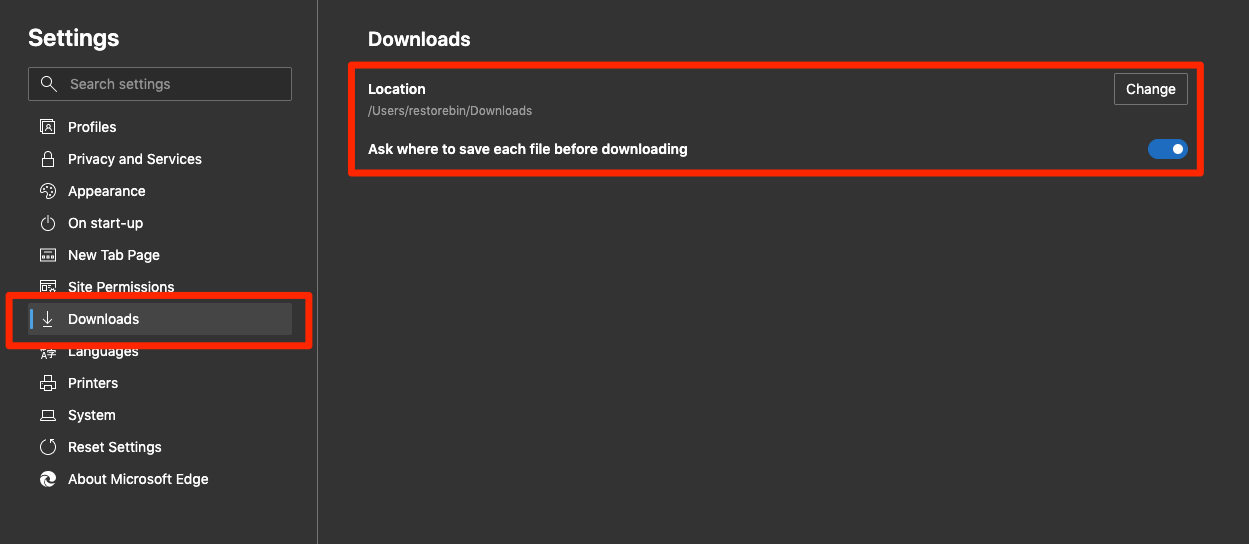
You’ll know it worked when the Downloads page opens with the Location row at the top. That row holds the default folder. The toggle below it decides whether Edge asks before saving a file.

This guide covers Edge on a computer. Edge on Android uses a separate settings layout, so the desktop path does not apply on a phone.
Change the default download location
Downloads piling up in one crowded folder? Set a default that matches how you already organize files. The new location applies to future downloads only. Files you already saved stay exactly where they are.
- Find Location on the Downloads settings page.
- Select beside the current folder.
- Select the folder you want Edge to use for future downloads.
- Confirm the folder selection in the folder picker.
You’ll know it worked when the Location row shows the folder you picked. Run a small test download and watch where it lands.
A download already in progress may still finish in the folder that was selected when it started, even after you change the default.
Ask where to save each file
No single folder fits every file you download. Keep your default and turn on the per-download prompt instead, so you can choose a destination for one file without resetting everything else.
- Open the Downloads page in Edge Settings.
- Turn on Ask me what to do with each download. If your Edge build still uses the older label, select Ask where to save each file before downloading instead.
You’ll know it worked when the next download opens a save dialog before Edge places the file. Turn the prompt off when you want automatic saving again.
Review Edge’s other download settings
An Office document opens inside Edge instead of downloading? One setting decides that, and it lives on the same Downloads page, below the location controls.
- Open the Downloads section in Edge Settings.
- Find Open Office files in the browser.
- Turn the toggle off when you want Office documents downloaded as files.
Switching it off restores the usual download behavior for those documents. Office file types are the ones this toggle governs.
Download location and site permissions control different parts of Edge. If a link opens on the page instead of downloading, the guide to viewing site info and permission settings in Edge on a computer shows where to inspect that per-site behavior.

Check where Edge saved a file
A file is not where you expected it. Before you search the whole drive, look at Edge’s own downloads list, which keeps recent entries and their status.
- Open the menu in the upper-right corner.
- Select Downloads.
- Select the entry for the file you want to check.
- If the entry offers a command for its folder, use it to open the file’s location.

TIP: On Windows or Linux, + opens the same panel. On macOS, use +.
Removing an entry from that panel does not delete the file itself. Clear out unwanted files from the actual download folder when you need the disk space back.
Frequently Asked Questions
How do I open Edge’s download settings?
The download controls live on the Downloads page in the Settings sidebar. The Location row sets the default folder, while the toggle beside it controls whether Edge asks where to save each file.
How do I make Edge ask where to save each file?
Turn on Ask me what to do with each download in the Downloads settings. Some Edge builds show the older label Ask where to save each file before downloading instead.
Does changing the download location move existing files?
No. Files already saved in the old folder stay there, and the new location applies only to future downloads. A download already in progress may also finish in its original destination.
Why is my Edge download not in the selected folder?
Check the file’s status in the Downloads list first. If it opened in Edge, review the Open Office files in the browser setting. If it is still running, wait for it to finish before checking the folder again.
Can I change Edge’s download location on Android the same way?
The procedure on this page is for Edge on a computer. Edge on Android has a separate settings interface, so its download options are not controlled by the desktop Downloads page.