If a fullscreen web video in Edge on Android keeps a black border in landscape, or refuses to fill the screen, start with orientation, site permissions, and cached data.
Update Edge or test the same video in another browser to see whether the fault is the site player or the browser.
In this guide, I have covered:
Contents
When fullscreen web video looks wrong in Edge on Android
If a web video will not expand properly in Microsoft Edge on Android, rotate your phone to landscape and check the result. A black strip that stays along the side where the status bar appeared is a rendering problem, not a problem with the video itself.
The same checks help when a video stays in portrait, the controls vanish, or the picture never fills the screen. Try the steps below before you clear site data or reinstall Edge.
Check the video in landscape
If the video will not expand, rotate the phone before you change any setting. Some sites use a different playback layout in portrait and landscape, so the test tells you whether the player or Edge is at fault.
- Open the affected video in Microsoft Edge on Android.
- Rotate the phone to landscape.
- Tap the video once to show the playback controls.
- Tap the fullscreen control in the player.
Watch the video for a few seconds after it goes fullscreen. If the black strip remains, move on to the site and browser checks.
Reset the page and check the site settings
If the border stays after a reload, the next place to look is the site’s permission list. A blocked pop-up or media permission can keep a player from opening fullscreen correctly.
- Open the
 menu in Edge.
- Select Reload page.
- Open the menu again.
- Select Settings.
- Select Site permissions.
- Review the permissions listed for the affected site, especially any blocked pop-ups or media permissions.
If a permission needed by the player is blocked, set it to Allow, reload the page, and try fullscreen again. The guide to viewing site information and settings in Edge on Android shows the same panel if you need a closer look.
Try the desktop version of the site
If the mobile page still misplaces the video after a rotation, try the desktop layout. It uses a different player, which makes it a useful comparison.
- Open the menu in Edge.
- Select Settings.
- Select Site permissions.
- Find the affected site and open its site information.
- Turn on the option to request the desktop site.
- Reload the page and enter landscape fullscreen again.
If the desktop version fills the screen correctly, leave the desktop-site option on for that site. If the border remains, close the player, reload the page, and repeat the test. The steps to view the desktop site in Edge on Android cover the same toggle if you cannot find it.
Clear Edge cache and site data
If the same black strip returns after a rotation, stale cached page data can stop the player from recalculating its size. Clearing Edge’s cached data is a reversible troubleshooting step, although it may sign you out of some sites.
- Open the Microsoft Edge app on your Android phone.
- Tap
 in the bottom toolbar and choose Settings.
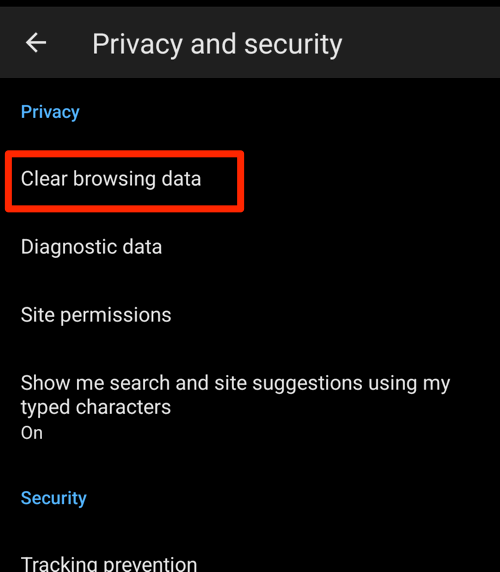
- Tap Privacy and Security, then open Clear browsing data.
- Select a Time range, then check Cookies and other site data and Cached images and files.
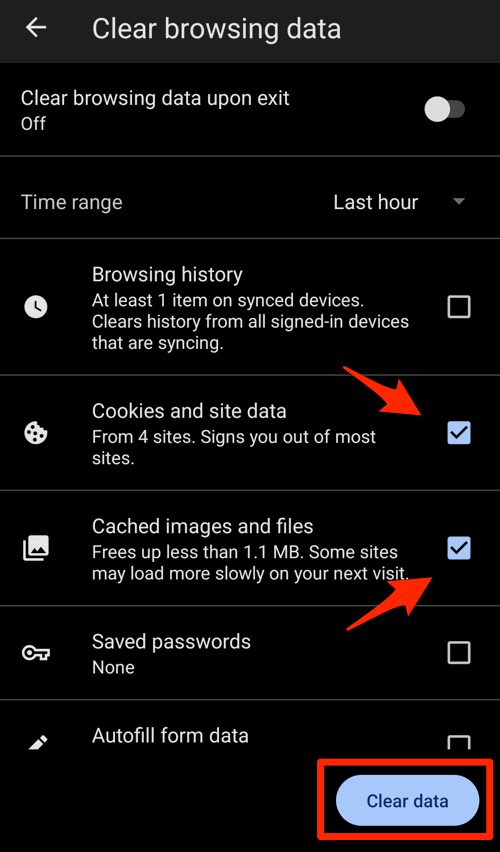
- Tap .
Edge deletes cookies and cache for the selected time range.
You’ll know it worked when the video fills the screen in landscape after you reopen Edge. If the border comes back later, repeat this cleanup before you change display settings.
Update Edge and restart Android
If the border showed up after an Android or Edge update, a rendering change may affect how fullscreen video handles the system bars. Updating the browser and restarting the phone clears temporary app state and can apply the latest fixes.
- Open the Play Store on the Android device.
- Search for Microsoft Edge.
- Tap if an update is available.
- Open Settings in Android.
- Select Apps.
- Select Microsoft Edge.
- Select .
- Open Edge again and test the video in landscape fullscreen.
If Edge is already current, restart the phone once and test again. That helps after an Android system update, or when the black border also shows up in other fullscreen apps.
Check whether the problem is Edge-specific
If you need to know whether Edge is causing the black border, open the same video in Chrome or Firefox with the same orientation and fullscreen steps. This comparison can separate a site problem from an Edge rendering problem.
If another browser works, use it for fullscreen video while keeping Edge for normal browsing. If every browser shows the same black border, look at rotation lock, display layout, or the site player. Microsoft’s Edge autoplay guidance explains how media autoplay is handled in Edge if you want to compare playback settings.

Frequently Asked Questions
Why does Edge Android show a black border around a fullscreen video?
A persistent black strip in landscape often means the video player is not recalculating its size after the phone rotates. Reload the page, try the desktop site, clear Edge data, and update the browser first.
How do I make a video fill the screen in Edge on Android?
Rotate the phone to landscape, tap the video to show its controls, and select the player’s fullscreen button. If the image does not expand, reload the page and try the desktop-site option for that site.
Does Edge for Android have a media autoplay setting?
Media autoplay controls described in Microsoft’s Edge guidance are part of the desktop browser settings. On Android, check the site’s permissions and the video player’s own controls instead of looking for the desktop autoplay menu.
Will clearing Edge data remove my saved passwords?
Clearing cookies and cached browsing data can sign you out of websites and remove site data. It is not a password cleanup tool, so confirm what the cleanup screen will delete before you proceed.
What if the black border appears in every fullscreen app?
The issue is probably not limited to Edge. Restart the phone, check that rotation lock is off, and test another fullscreen app before changing browser settings further. If the border appears there too, the display layout or system bars are the next place to look.