Opera for Android lets you set a custom homepage URL that loads whenever you tap the Home button. You can configure it from the browser Settings under the Homepage option.
Alternatively, you can add frequently visited websites to the Speed Dial section of the start page, or simply keep the tab open in the background, for quick access.
In this guide, I have covered:
Contents
Set Homepage URL in Opera on Android
If you’re tired of seeing the default start page when you tap Home, you can point the button to any website. Opera has a built-in setting for that. Here’s how to set it up.
- Launch Opera on your Android phone.
- Tap the Opera menu (red “O” icon) at the bottom-right corner.
- Scroll down and tap Settings (
 icon).
 - Tap Homepage.
- Enable the Custom Homepage toggle.
- Type your preferred website address in the URL field.
- Tap the back arrow or anywhere outside the field to save the setting.
Alternative Method to Load Your Favorite Site on Opera
Not everyone wants to override the homepage. Speed Dial and background tabs let you reach a favorite site with a single tap too. Both methods work without touching the Homepage setting.
Using Speed Dial:
- Launch Opera on your Android device.
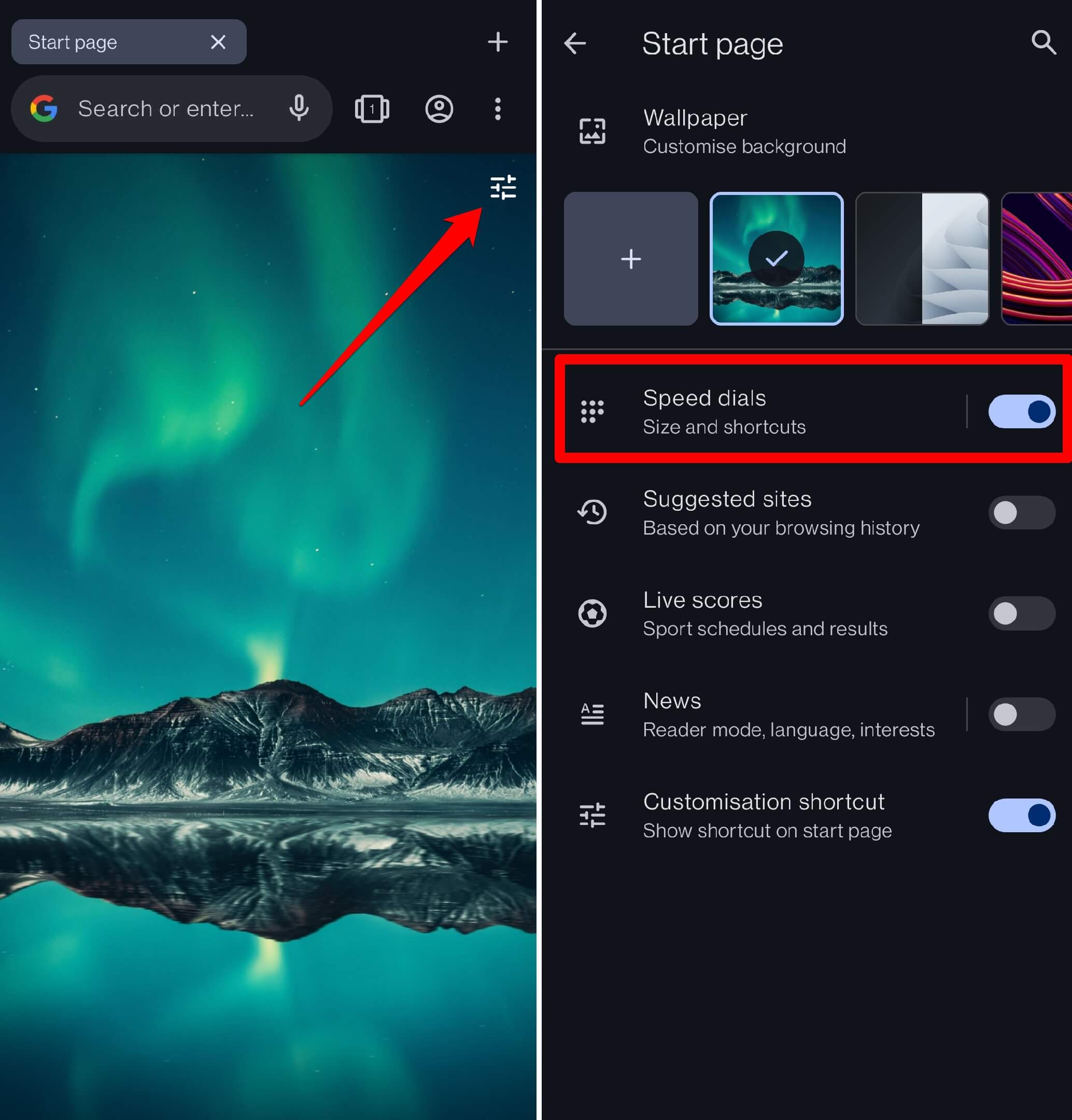
- Tap the Start Page settings icon on the home screen of Opera.
- Press the toggle switch beside Enable Speed Dials to view it on the start page.
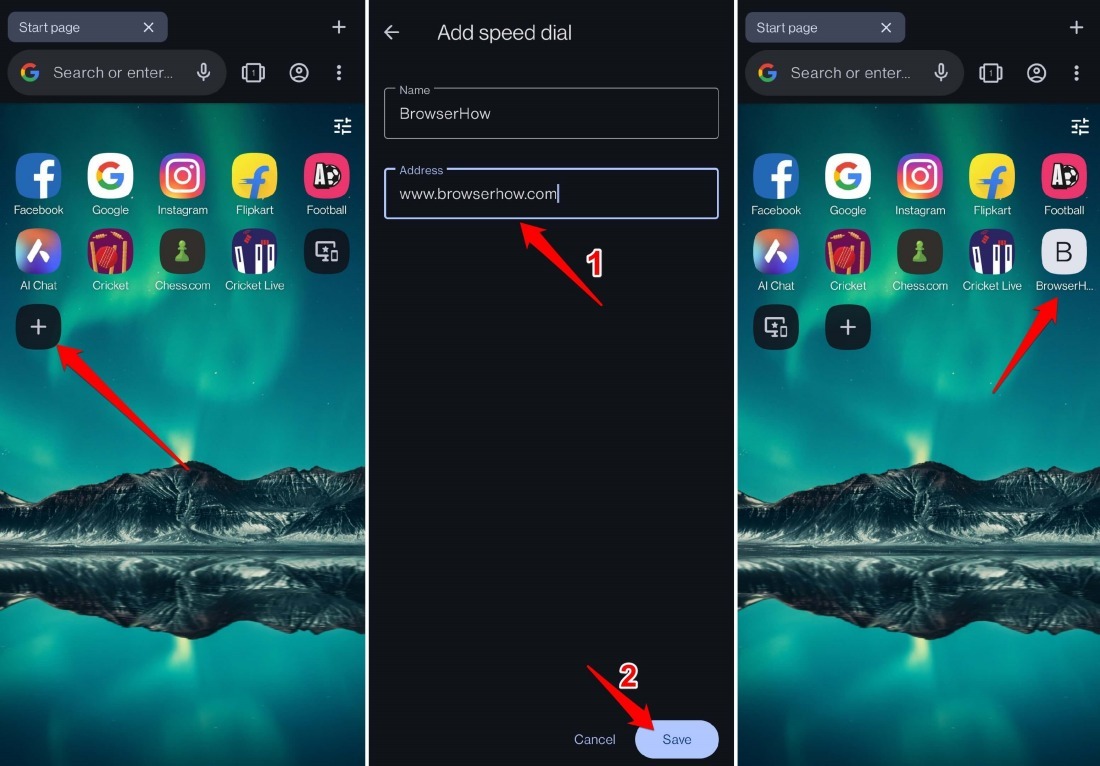
- Go back to the start page.
- Tap the + button.
- Enter the website name and specify the website address.
- Press the button.
Using Background Tabs:
- Open your favorite site in Opera.
- Leave that tab open. Do not close it.
- Whenever you launch the browser, switch to that tab from the tab switcher instead of typing the URL again.
Bottom Line
To load a specific site on Opera browser, set it as the custom Homepage under Settings, or pin it to the Speed Dial on the start page for one-tap access. Leaving the tab open in the background is another easy fallback.