Twitter (X) often stops loading, scrolling, or signing in inside Google Chrome. Stale cookies, a conflicting extension, a Chrome setting, or an outdated browser are the usual causes. This guide runs through the fastest checks first, then deeper fixes that bring the timeline back.
Open X in an Incognito window, clear Chrome's cookies and cache, disable extensions, and update Chrome. Those four steps resolve most Twitter problems without losing bookmarks or passwords.
In this guide, I have covered:
Contents
Why Twitter/X Stops Working in Chrome
When Twitter (now X) starts misbehaving in Google Chrome, the cause is usually one of four things: a stale cookie or cached file, a conflicting extension (most often an ad-blocker or privacy tool), a Chrome permission or setting that blocks part of the X site, or a Chrome build that is out of date.
X’s own help pages point users at browser cache and cookies as the first thing to try. That matches what most Chrome users find works. The fixes below follow that order, starting with the fastest, lowest-risk steps and finishing with deeper resets.

Quick Checks Before You Change Settings
Before clearing data or disabling extensions, run a few one-minute tests. You want to know whether Chrome is really the problem.
Open x.com (or twitter.com) in a private window using + + . If X loads normally there, the issue lives in your main profile: cookies, extensions, or saved site data. It is not Chrome itself or X’s servers.
Next, check that X is up for everyone. Visit the X Help Center from another device or a different network. If you cannot reach the help site either, your internet connection is the problem.
Finally, make sure your computer’s date and time are correct. An incorrect clock can break HTTPS handshakes and make Twitter look down even though only your PC is confused.
Clear Cookies and Cache for Chrome
Stale cookies and cached files are the single most common reason Twitter stops loading, scrolling, or showing images in Chrome. Clearing them forces Chrome to download fresh site data the next time you open X.
- Open the Google Chrome on your computer.
- Click on the More
 for menu options, and hover on the More Tools menu.
 - Select the Clear Browsing Data... sub-menu from the list.
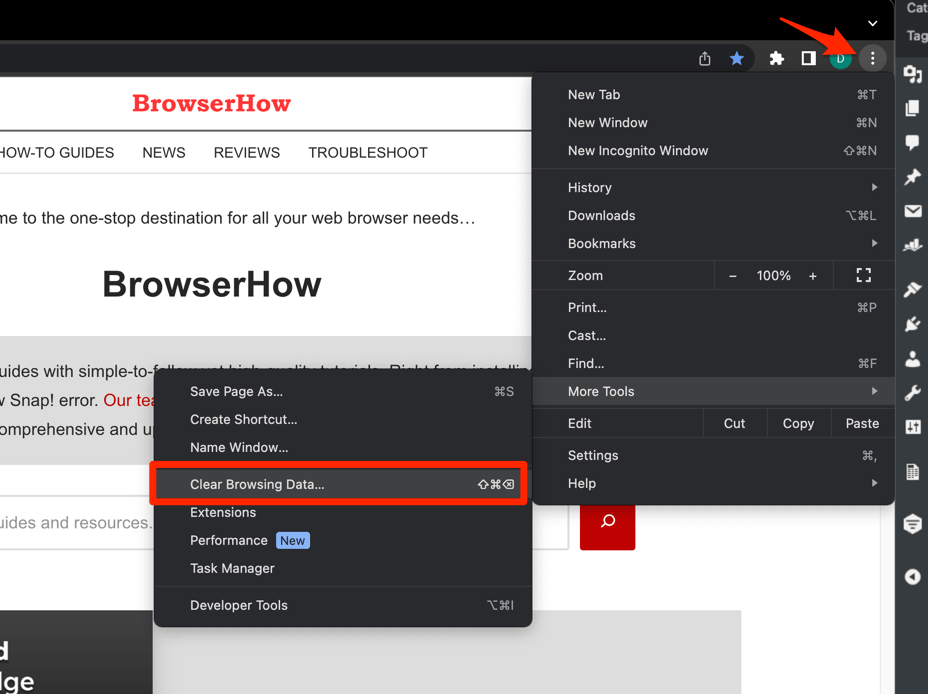 It will open the Clear browsing data settings window.
 - Choose the Time Range from the drop-down and select the checkboxes for the 'Cookies and other site data' and 'Cached images and files' options.
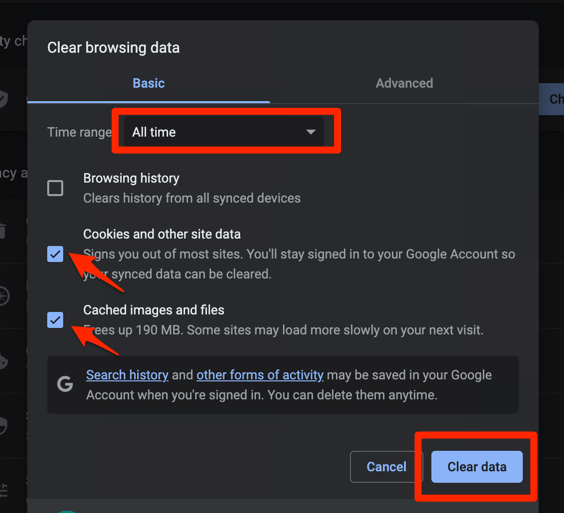
- Finally, hit the command button.
It will delete the stored cookies and cache data from your Chrome browser.
After Chrome finishes clearing the data, close and reopen the browser, sign in to X again, and check whether the issue is gone. You’ll know it worked when the timeline loads without the same error or blank screen.

Twitter/X uses two domains. Clearing cookies in Chrome removes data for both x.com and twitter.com, so you will need to log in again afterwards.
Clear Cookies Only for X / Twitter
If you do not want to log out of every other site, clear cookies just for X. This is the safer option if Twitter is the only site misbehaving.
Open x.com in Chrome. Click the padlock (or “View site information”) icon to the left of the address bar, then choose Cookies and site data and click Manage on-device site data. In the panel that opens, select the x.com entries and any twitter.com entries, then choose Delete or Delete all shown.
Reload the tab. If X still misbehaves, move on to extensions.
Disable Extensions That Interfere With X
Ad-blockers, tracker blockers, X enhancement extensions, and even some grammar tools are notorious for breaking parts of Twitter. Disabling them is the fastest way to confirm whether an extension is the culprit.
- Launch the Google Chrome on your computer.
- Click on the More for the list menu.
- Hover on the More Tools menu and choose the Extensions sub-menu.
 It will open the Chrome Extensions Manager page with the list of installed extensions.
 - Toggle the switch to Disable the extension.

With every extension off, reload X. If the problem disappears, re-enable extensions one at a time until the breakage returns. Whichever extension you just turned on is the cause. Update or remove it and you are done.

TIP: The most common offenders are uBlock Origin, AdBlock Plus, Privacy Badger, and any extension that rewrites links or modifies the X layout. “Social Fixer” style add-ons are an even bigger red flag.
Check Chrome’s Third-Party Cookie and Site Settings
X uses embedded media, third-party login widgets, and analytics that rely on third-party cookies. If those are blocked, parts of the timeline (images, videos, Sign in with Google) can silently fail.
Open Chrome’s three-dot menu and choose Settings. In the left sidebar click Privacy and security, then click Third-party cookies. Check that this is not set to Block third-party cookies. Either Allow third-party cookies or Block third-party cookies in Incognito (the default in regular mode) is fine.
While you are on x.com, click the padlock in the address bar and confirm that Cookies and JavaScript are allowed for the site. If either is blocked, X will not load properly. The same setting lives in Chrome on Android. See how to view site settings for the mobile version.
Chrome reverted its plan to fully block third-party cookies in 2025. The Third-party cookies page still exists and is user-controllable. You are not fighting a hidden policy here.
Update Google Chrome
A buggy Chrome build can break just one site. If you are several versions behind, Twitter may fail in ways that have already been fixed in a later release.
- Launch the Google Chrome on your computer.
- Click on More for the options list, and select the Settings menu.

- Switch to the About Chrome tab in the left sidebar pane.
 The browser should automatically start looking for the latest updates.
 - Hit on the button.
 It will complete the Chrome browser update process.
After Chrome relaunches, the About Chrome page should show “Chrome is up to date.” Open X in a new tab and retest.
Toggle Hardware Acceleration Off
If X loads but the timeline stutters, scrolls in jumps, or videos flicker, hardware acceleration can be the cause. This is especially true on older GPUs or dual-GPU laptops.
- Open Chrome Settings.
- Click System in the left sidebar. (If your Chrome still groups it under an expandable Advanced section, the path is Settings > Advanced > System.)
- Toggle Use graphics acceleration when available on or off, then relaunch Chrome.
Restart Chrome and revisit X. Scroll a video-heavy timeline. If it now feels smooth, leave the setting off or update your GPU driver.
Flush Chrome’s DNS Cache
If X simply will not load at all (blank page, “this site cannot be reached”), Chrome’s internal DNS cache may be pointing at an old X server address.
- Launch Google Chrome on your Computer.
- Type in chrome://net-internals/#dns in the address bar, and hit key.
It will open the Chrome DNS network page. - Hit the command button.
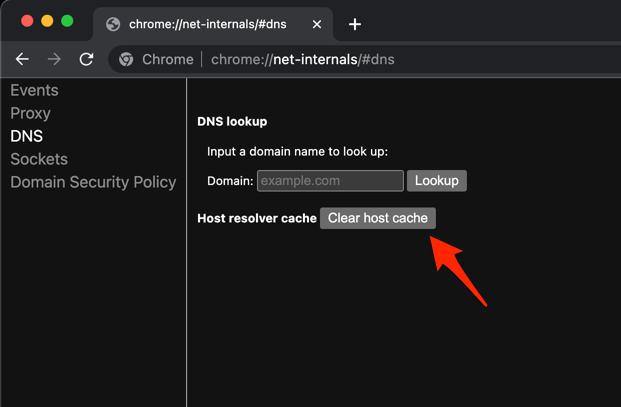
- Relaunch the Chrome browser.
It will clear the Chrome DNS host cache.
After the flush, restart Chrome and try x.com again.
Reset Chrome Settings (Last Resort)
If nothing above helped, Chrome’s reset restores the browser to its defaults without deleting your bookmarks, history, or saved passwords. It clears startup tabs, the homepage, the search engine, pinned tabs, and any site data or theme you have changed.
- Launch the Chrome browser on the computer.
- Click on the More for menu list, and select the Settings menu.
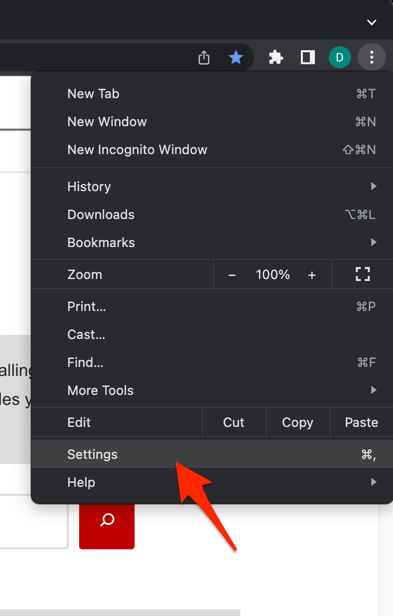 It will open the Chrome browser's Settings page.
 - Switch to the Reset settings tab in the left sidebar, and select Restore settings to their original defaults option.
- Finally, hit the command button.
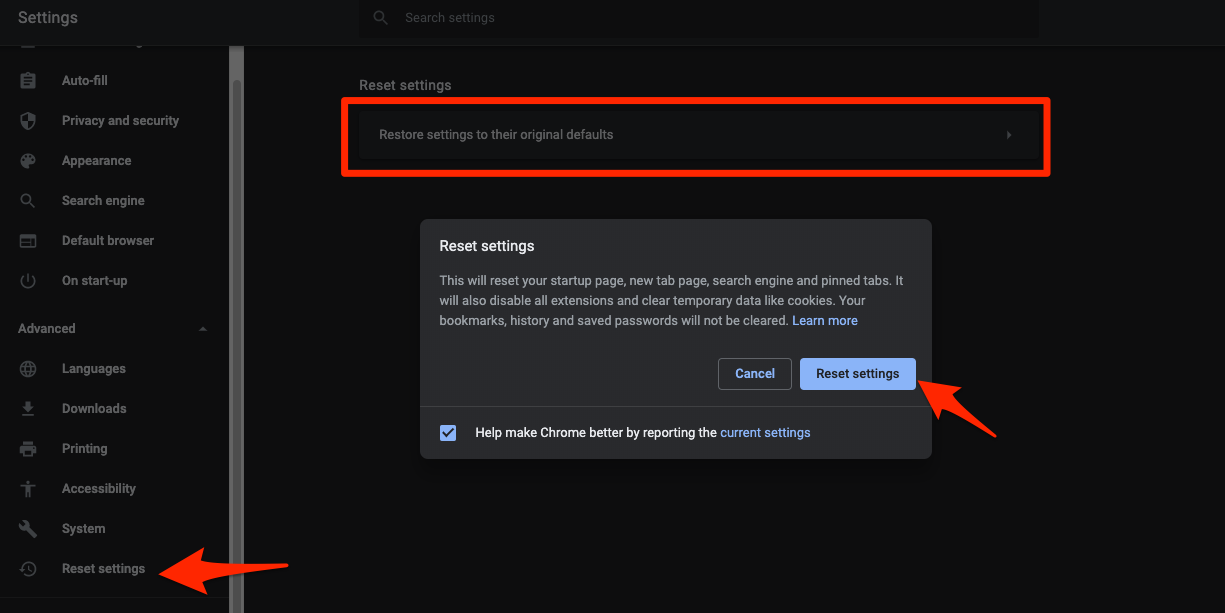 It will reset the Chrome browser settings, clear temporary data, and disable all extensions.
Once Chrome restarts, open X and sign in. If Twitter now works, re-enable extensions one by one to find the original culprit.

ALERT: Resetting Chrome disables every extension and removes all site permissions. You will need to re-allow access (camera, microphone, notifications, pop-ups) on every site you use, not just X.
When the Problem Is X Itself
Sometimes Chrome is fine and X is having a bad day. If every other site loads normally but Twitter is broken across multiple devices on your network, the problem is on X’s side.
For a fast sanity check, load X in Chrome on your phone over mobile data after clearing the app’s browsing and site data in Chrome Android. If X works there, the issue is your computer’s Chrome, not X or your network.
You can also try the older twitter.com URL directly. Chrome usually auto-redirects, but the redirect itself sometimes hangs. If only the X mobile app works, the issue is on X’s side and will clear up on its own.
Frequently Asked Questions
Why is Twitter/X not loading in Chrome but works in other browsers?
If X works in Edge, Firefox, or Safari but not Chrome, the cause is almost always something Chrome-specific: cookies for the site, an extension, hardware acceleration, or a corrupted profile. Work through this guide from the top. The most common fix is clearing Chrome’s cookies and cache.
Will clearing Chrome cookies log me out of Twitter?
Yes. Chrome stores the session cookie that keeps you signed in to X, and clearing cookies removes it. After the clear, you will see the X login screen and need to enter your username and password again. Two-factor authentication still works the same way.
How do I open an Incognito window in Chrome to test Twitter?
Press + + on Windows or + + on macOS, or use the three-dot menu and choose New Incognito window. Incognito uses no saved cookies or extensions, so it is a clean test.
Can a Chrome extension break Twitter even when it is disabled?
No. A disabled extension is not loaded by Chrome, so it cannot modify any page. If Twitter still breaks with every extension off, the extension was not the cause. Move on to cookies, third-party cookie settings, or a Chrome update.
Does resetting Chrome delete my bookmarks and passwords?
No. Chrome’s reset only restores the browser’s settings (startup page, search engine, pinned tabs, site permissions, extensions, theme) to their defaults. Bookmarks, history, and saved passwords are kept, and they sync back from your Google account if anything is missing.