

Chrome on Android gives you several ways to navigate forward and backward between pages, including the Android system back gesture and the in-browser back and forward arrows in the three-dot menu.
As of Chrome 150, both arrows now sit together at the top of the overflow menu, so you no longer have to dig through settings just to step forward. Pick the method that matches how you hold your phone.
In this guide, I have covered:
Contents
Watch the Video Guide
Navigate Forward to the Next Page in Chrome on Android
The forward arrow only works while you have somewhere to go forward to. Once you reach the end of your forward history in the current tab, the arrow greys out and stops responding to taps.
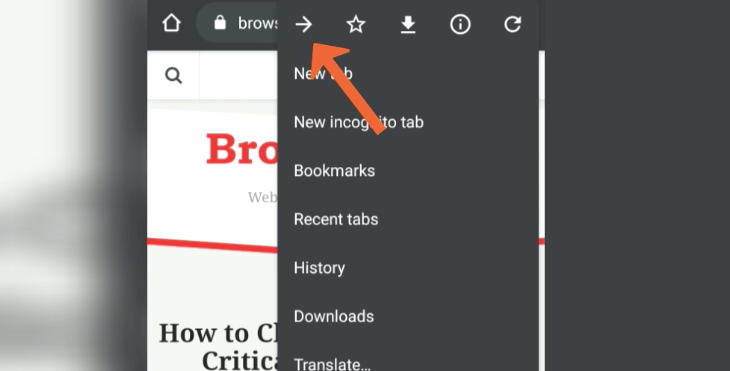
Since the Chrome 150 update rolled out in mid-2026, Chrome for Android shows a dedicated → forward arrow at the top of the three-dot menu. Tap More  in the top-right corner, then tap the right-facing arrow in that top row to step forward through the tab’s history.
When you see the arrow look slightly faded, you are on the last page in your session and Chrome has nowhere left to take you forward.
Navigate Backward to a Previous Page in Chrome on Android
Chrome on Android now gives you three ways to step back: the new in-menu back arrow, the bottom toolbar back button (if you moved Chrome’s address bar to the bottom), and the Android system back button or edge swipe. The in-menu arrow is the most reliable method across every Android version.
Here’s how to use it:
- Open the Chrome app and load any website.
- Tap More in the top-right corner.
- At the top of the menu, tap the left-facing ← arrow to go back one page.
Keep tapping ← to keep moving back through your session until you reach the first page of the tab. Chrome stops at the start of the tab’s history.
Use the Android System Back Button or Gesture
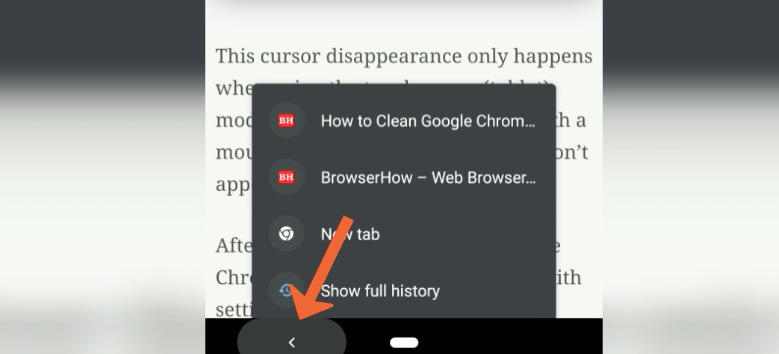
If your phone uses the classic three-button navigation bar, tap the ◁ back button on that bar to move Chrome one page back. If you use gesture navigation, swipe in from the left or right edge of the screen.
Either action tells Chrome to load the previous URL in the tab, the same result as tapping the in-menu arrow. The system back is usually faster because you don’t have to reach for the top of the screen.

Note: Long-pressing the Android system back button used to open a per-tab history list in older Chrome versions, but Google has disabled that gesture in current Chrome on Android. Use the three-dot menu’s ← arrow or open History from the same menu instead.
Jump Further Back Through Chrome History
The back arrow only walks you back one page at a time. If you need to jump several pages back in the same session, or reopen a page you closed earlier, use Chrome’s History page.
- Open the Chrome app on your Android phone.
- Tap the More menu in the top-right corner.
- Select History from the list.
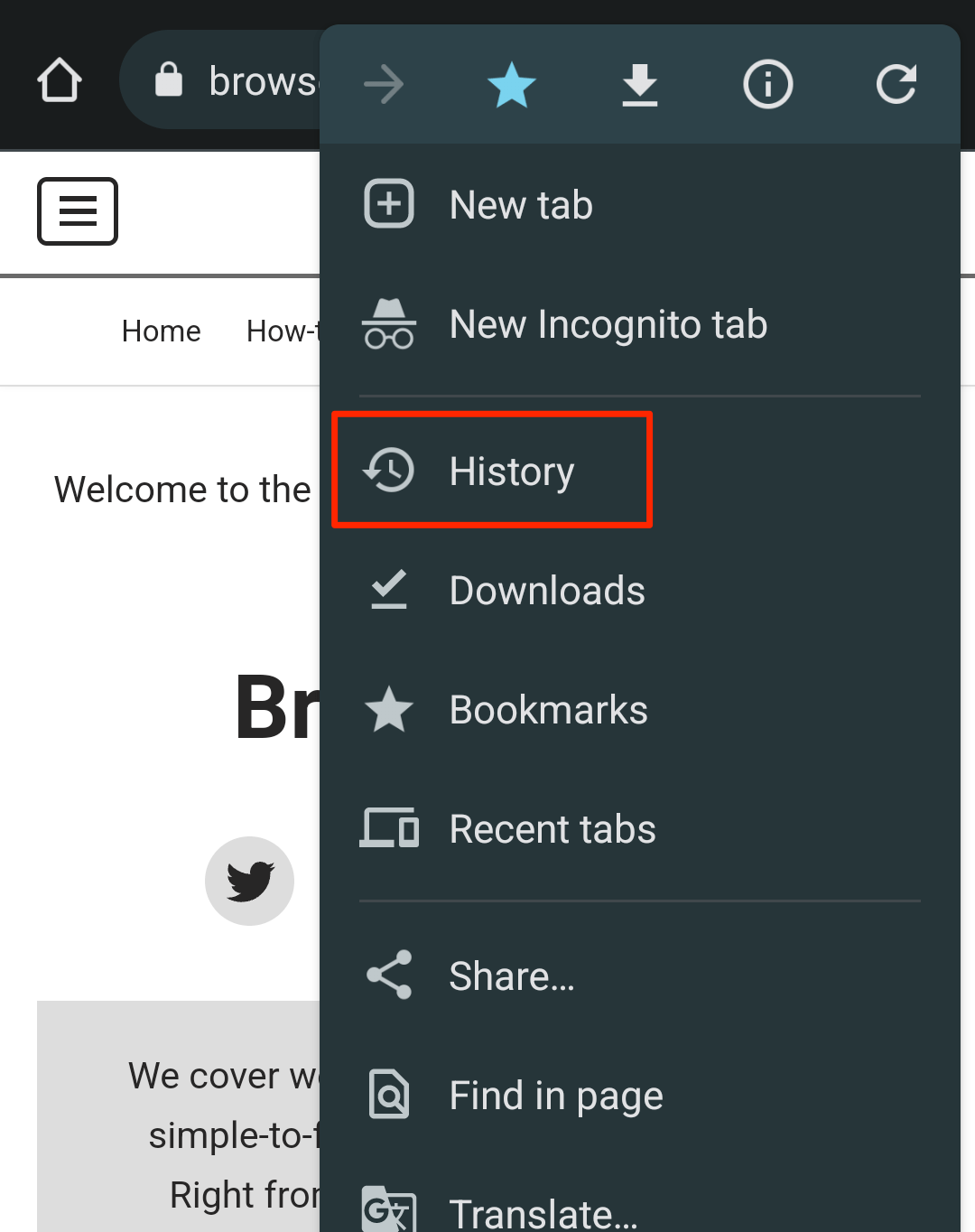 Chrome opens your browsing history.
 - Tap the page or URL you want to reopen.
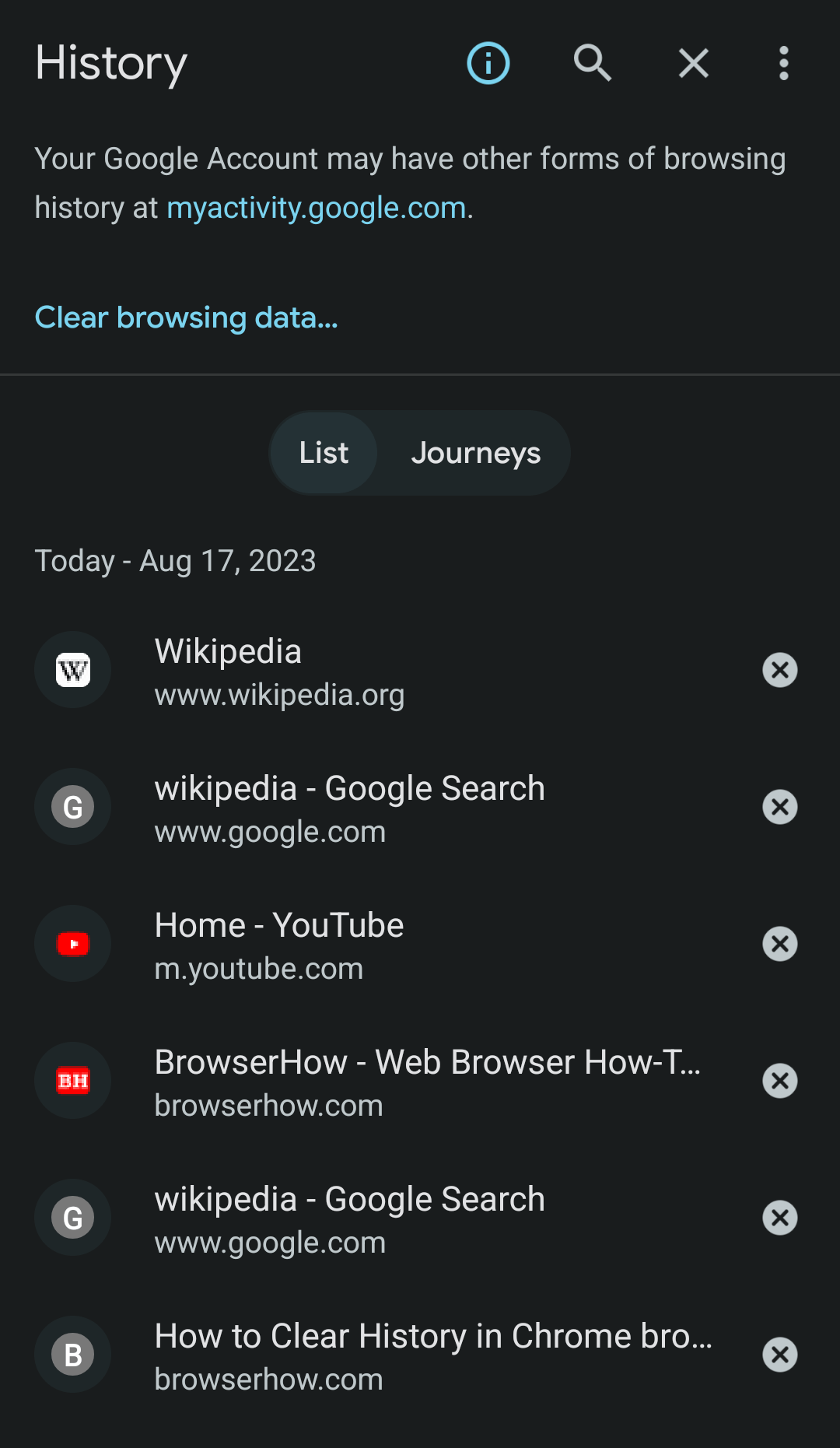 The page opens in a new tab.
You can reopen any tab you accidentally closed from Recent tabs or the History page, both found under More . For a deeper walkthrough, see our guide on reopening recently closed tabs in Chrome on Android.
Where the Back and Forward Arrows Live
In Chrome 150 and later, the top row of the three-dot menu shows four icons in this order: back arrow (←), forward arrow (→), bookmark star, and download icon. On older Chrome versions you may still see only the forward arrow in that row, with no back arrow at all.
If you have moved Chrome’s address bar to the bottom of the screen (long-press the address bar, then choose Move address bar to bottom), the in-Chrome back arrow also sits at the bottom-left of the screen, just left of the address bar. The three-dot menu stays on the bottom-right.
Bottom Line
Chrome on Android has more ways to navigate forward and backward between pages than it used to. The new in-menu back arrow in the three-dot menu top row makes one-step back navigation obvious, the forward arrow covers the return trip, and the Android system back button or edge swipe still work the moment you want to step back without lifting your thumb to the top of the screen.
For users who want to keep things simple, just remember: More > ← for back, More > → for forward. Everything else (gestures, system buttons, History page) is there for when you want a faster path or need to jump further back than one page at a time.
If you also want to open an incognito tab in Chrome on Android or share a website link, both live a few taps deeper in the same three-dot menu. For the equivalent back and forward controls on desktop Chrome, see our navigate forward and backward in Chrome on the Computer guide.

Frequently Asked Questions
Why is the forward arrow greyed out in Chrome on Android?
The forward arrow is greyed out because you have reached the end of the tab’s forward history. There is no page ahead of the one you are currently viewing, so Chrome has nowhere to send you.
Where is the back button in Chrome on Android?
Since Chrome 150, the back arrow sits at the top of the three-dot menu in the top-right corner of Chrome, right next to the forward arrow. If you have moved Chrome’s address bar to the bottom of the screen, the back arrow also appears just to the left of the address bar.
Can I use the Android system back button to go back in Chrome?
Yes. With three-button navigation, tap the ◁ back button on Android’s navigation bar. With gesture navigation, swipe in from the left or right edge of the screen. Either action tells Chrome to load the previous page in the current tab.
How do I reopen a page I accidentally closed in Chrome on Android?
Tap More and choose Recent tabs or History. Both screens list pages you have visited recently, and tapping any entry reopens it in a new tab.
Does long-pressing the back button still show a history list in Chrome on Android?
No. Older Chrome versions briefly surfaced a per-tab history list when you long-pressed the Android system back button, but Google has since disabled that gesture in current Chrome on Android. Use the in-menu back arrow or open History from the three-dot menu instead.



I was having trouble going back a page in my Motorola edge and found a solution different. I went to some experimental features on Google chrome under chrome://flags and enabled “swipe to move cursor.” I can swipe left and right on my chrome browser now. I hope this helps!
From what I can see, there is no way to go back and forward with a web browser in Android 10. There are no forward and back buttons in the browser and swiping left and right does nothing. I guess they figured making web browsing impossible would make a better user experience.
Ditto here. Forward is always greyed out. No back button where the post author says it should be. Desperately needed.
There is no built-in back button in chrome android. We have to use our phone navigation button that we generally use.
Example: Samsung Galaxy allows swipe navigation to move the previous and next page. Similarly, the Pixel phone has the same feature for navigation.
Once we navigate to the previous page, then the forward button will be active. I wish the chrome android add both navigation buttons to avoid such confusion.
Going along with everybody who wants the back and forward button this is a bunch of crap and makes things far harder to navigate
its shit rather have a back and forwards button visable
What a sack of horse manure mobile chrome is. Users need forward and refresh buttons
Same. No back button on mine. I’m using the pixel 4a.
My screen doesn’t look like that, there is no back arrow at the bottom of my screen. Help!!!
Thank you for this tip regarding moving forward through the browser history. Searched long and hard to finally find a tip that worked.
I want back and forward button on Chrome..