Stop retyping your passwords. Opera on Android can save them and fill them in for you. After you save a login, you can edit, copy, or remove it anytime from the browser's settings.
Turn on Automatic Sign-in and Opera will sign you into sites the moment they load, so you never have to type again.
In this guide, I have covered:
Contents
Save Passwords in Opera on Android
- Open Opera on your Android phone.
- Go to the website you want to log into.
- Enter your login details and sign in.
- When Opera’s password save prompt appears, tap Save.
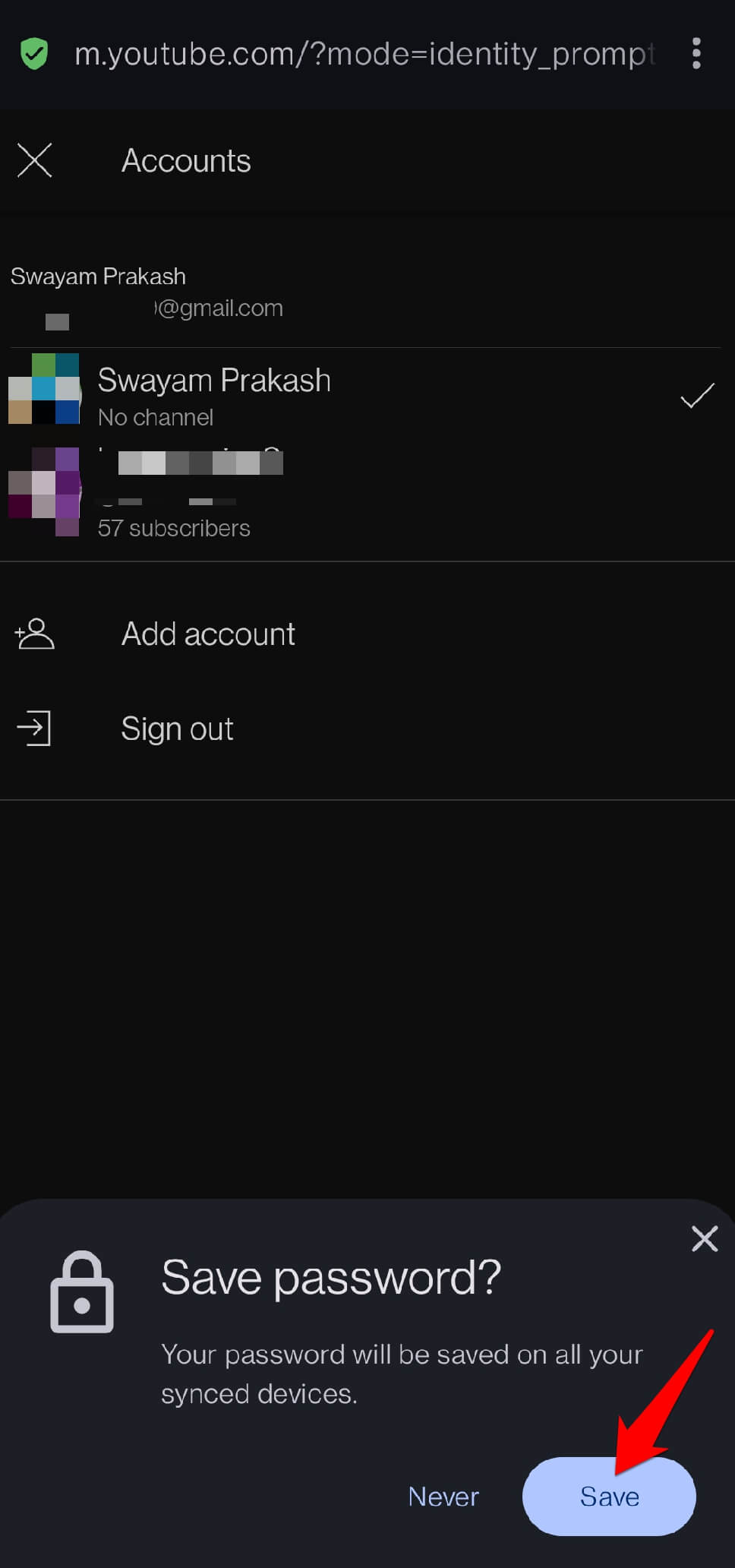

If you’d rather not save, tap Never on that prompt instead.
Manage Passwords in Opera on Android
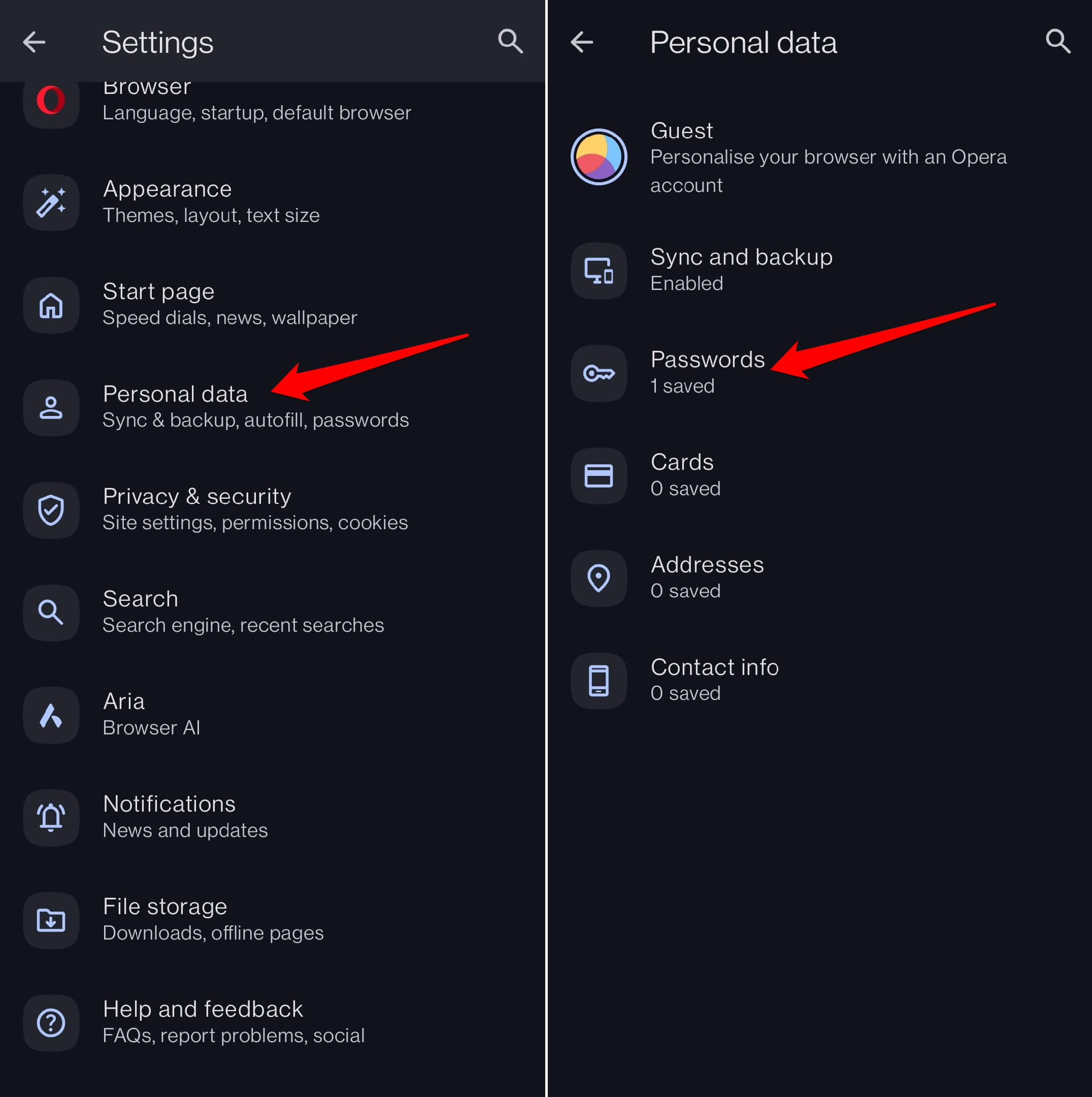
- Open Opera.
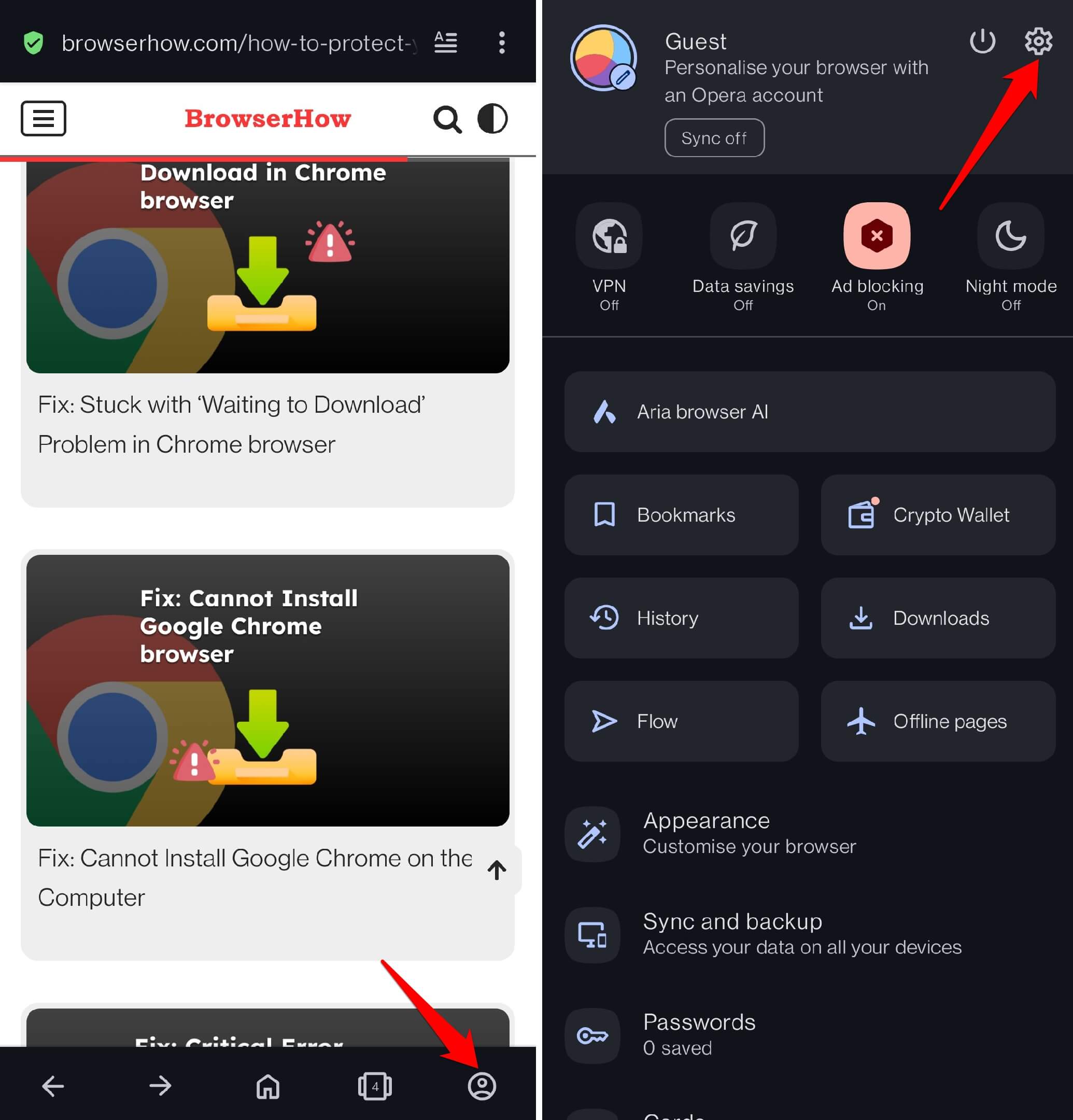
- Tap your profile icon at the bottom.
- Tap the settings gear at the top.
- Select Personal Data.
- Tap Passwords.
- Tap any saved entry. Use the search to find it quickly.
- To copy the username or password, tap Copy.
- Tap the eye icon to reveal the saved password.
- If you’ve changed the password on the website, tap Edit to update it.
- To remove a saved login, tap Delete.
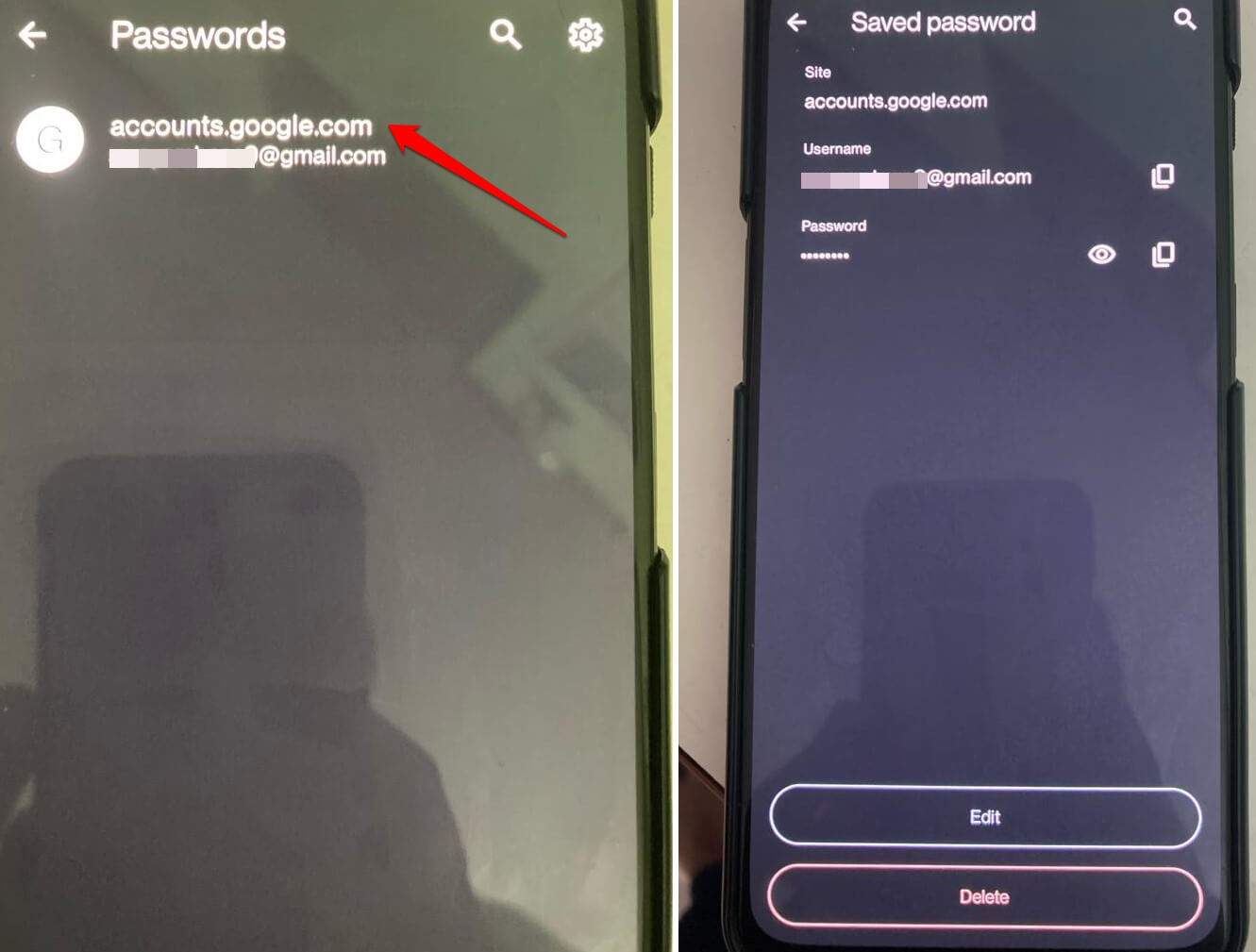
You’ll need to verify with your phone’s lock screen before you can see or manage any saved passwords.
How to Enable Automatic Sign-in on Opera Android
- Open Opera.
- Tap your profile icon, then the settings gear.
- Select Personal Data.
- Tap Passwords.
- Tap the cogwheel icon.
- Toggle on Automatic Sign-in.
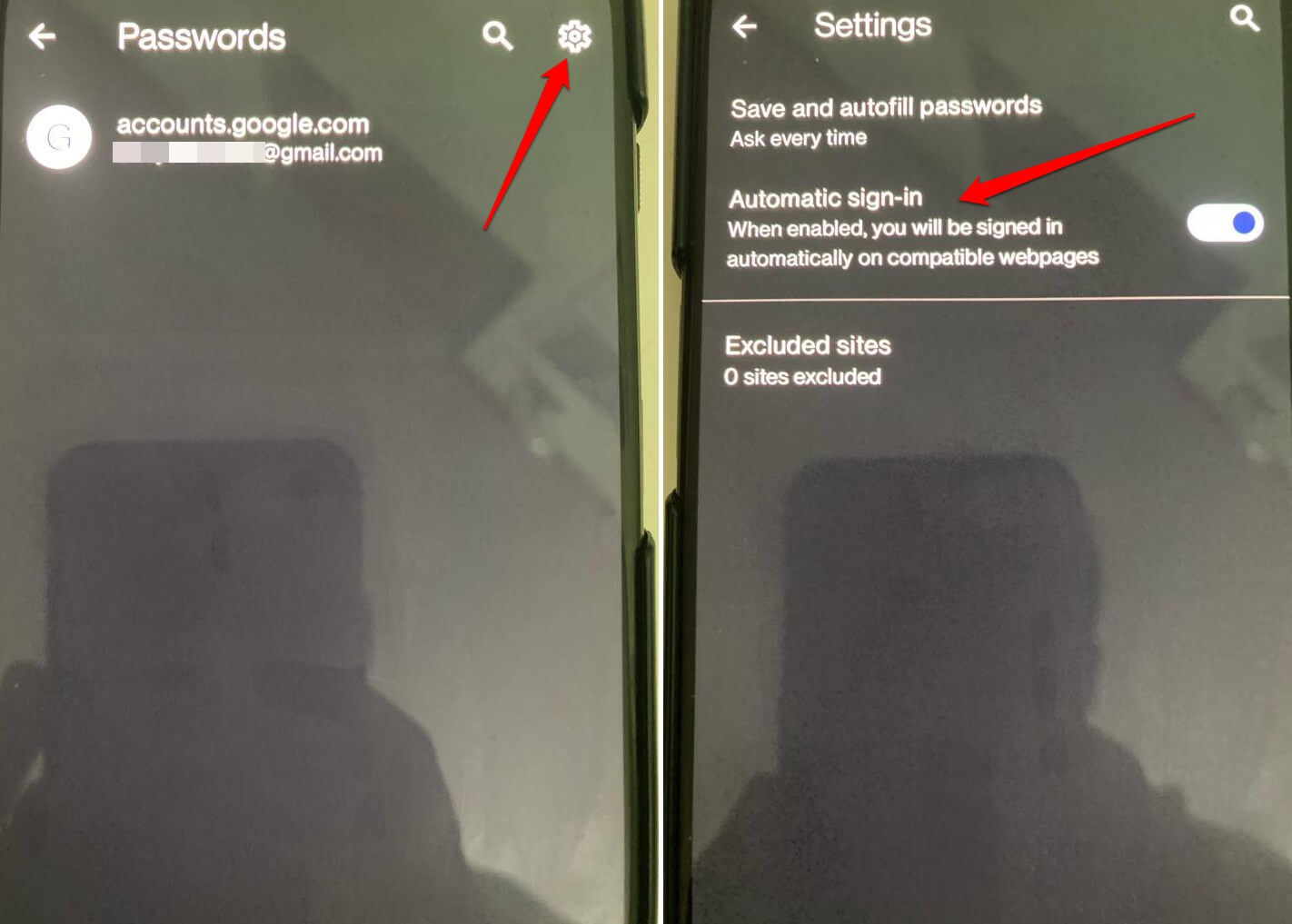

TIP: In the password settings, toggle Save and autofill passwords on to let Opera save credentials without asking each time. When it’s off, Opera will prompt you to save whenever you log in.
Bottom Line
Once Opera has your passwords and automatic sign-in is enabled, logging in becomes effortless. You’ll just open the site and you’re already signed in. If you ever need to check or update a password, the settings are right there under Personal Data.