Safari jumps to a different part of the page while you're typing into a form field. Your cursor is still where you left it. The viewport just moved, and now you're scrolling back to find your place.
The cause is usually a Safari setting, not the site. Start with Tab key highlighting in Advanced settings, then check page zoom, extensions, and macOS accessibility toggles in that order.
In this guide, I have covered:
Contents
Why Safari’s Screen Jumps While You Are Editing
You’re typing into a text field on a webpage, and the page suddenly scrolls or snaps to a different spot. The cursor stays where you left it. The viewport doesn’t, so you lose your place and have to scroll back.
That jump usually comes from one of four places: how Safari handles the Tab key, the site’s zoom level, accessibility helpers that highlight the focused field, or the way macOS scrolls to keep the active field in view. Extensions and JavaScript-heavy pages can make it worse.
Most of these are switches you can flip in Safari’s own settings, and a couple live in macOS. The order below starts with the most likely cause.
Turn Off “Press Tab to Highlight Each Item”
Does the page only jump when your finger hits Tab? Then this is almost certainly your culprit. Safari can make Tab step through every link, button, and field on a page, the way it does in regular macOS apps. Inside a form, that sends focus, and the viewport with it, to the next element.
Turn the option off and Tab goes back to behaving like a normal text indent inside the field.
- Open Safari, click Safari in the menu bar, and choose Settings…. The shortcut is +.
- Click Advanced at the top of the Settings window.
- Find Press Tab to highlight each item on a webpage and clear the checkbox.
- Close Settings. The change takes effect right away, no relaunch needed.
Go back to the field you were editing and type. Tab should now insert a tab character, or simply move the caret inside the field, and the page should hold still.

This is the single most common cause. If the page only jumps when you press Tab, stop here. Nothing else needs changing.
Reset Page Zoom for the Site
Safari remembers zoom per site. If the page you’re editing sits at 150% or 200%, the layout reflows with every keystroke, and Safari’s scroll-to-active-field behavior can land you somewhere unexpected on a long form. Resetting to 100% is the quickest test.
- In Safari, click the page menu button at the left end of the Smart Search field (the one that looks like two small text-size icons).
- Choose Page Zoom.
- Pick 100% to reset zoom for the current site.
The keyboard works too: press + with the page focused. If a different size is easier on your eyes, test a level that keeps the layout steady while you type. Want one zoom level applied everywhere? Set a default page zoom level in Safari and stop adjusting each site by hand.
Disable Safari Extensions
Form fillers, grammar checkers, ad blockers, and accessibility helpers all touch page content. Some of them fight with Safari’s scroll-to-focused-field logic, and the page jumps mid-keystroke. Turning them off for a few minutes costs you nothing and rules out a whole category of causes.
- Launch the Apple Safari app on your Mac computer.
- Click on the Safari menu from the menu bar at the top, and select Settings... sub-menu.
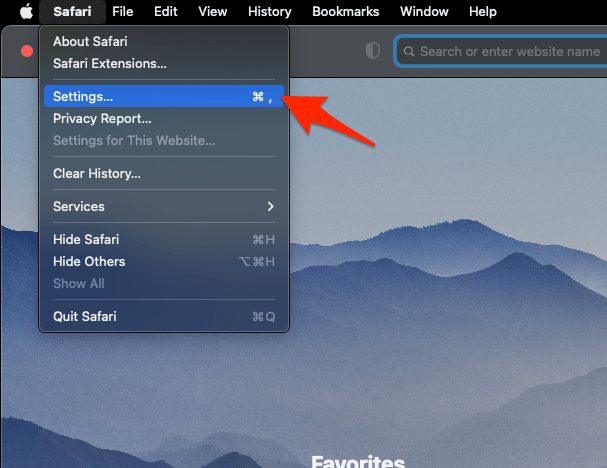 It will open the Safari Settings window.
 - Switch to the Extensions tab in the Settings window.
It will display the list of all the Safari extensions installed. - Uncheck the checkbox in the left side pane to Disable the extension.
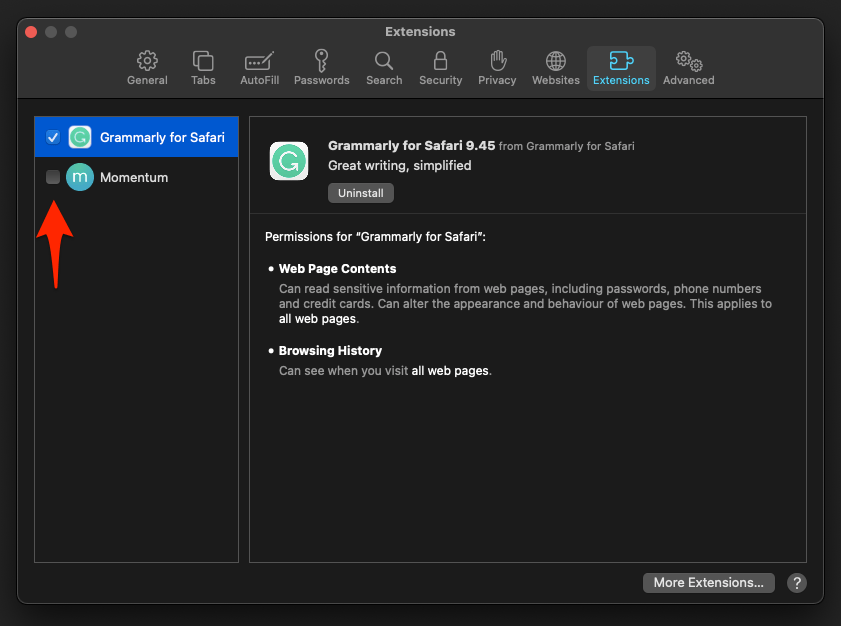
Reload the page and try editing again. If the jumping stops, enable extensions one at a time until it comes back. Then check that extension for an update, or look for a setting on its own page that turns off in-form behavior.
Adjust macOS Accessibility Settings
A few macOS accessibility features can influence how the active field is highlighted, and their animations interact with Safari’s “scroll caret into view” code. Two settings are worth checking first.
- Open System Settings from the Apple menu.
- Click Accessibility in the sidebar.
- Click Pointer Control (or Mouse & Trackpad on older versions) and turn off Shake mouse pointer to locate.
- Go back to Accessibility, then click Display.
- Turn off Shake to find cursor if it’s on.
Test the same field again. On many Macs the viewport settles as soon as those shake animations are gone.

TIP:
If you use a Magic Mouse or trackpad, also open System Settings → Trackpad → Scroll & Zoom and lower the scroll speed. Aggressive inertial scrolling makes small caret jumps feel much worse.
Test in a Private Window
Private windows run with most extensions off and no stored site data. That makes them the fastest diagnostic you have: same page, same field, clean slate.
- Click File in the menu bar and choose New Private Window (or press ++).
- Open the same site and try editing the same field.
If the page holds still in the private window, an extension, a cookie, or stored site data is your cause. If it still jumps, work through the settings above or assume the page itself is at fault.
Clear Cookies, Cache, and Site Data
Stale service workers, bloated local storage, and a corrupted cache can make a page re-layout repeatedly while you type, and Safari dutifully scrolls along with it. Clearing the site’s data forces a fresh load.
- In Safari, click Safari in the menu bar and choose Settings.
- Click Privacy, then click Manage Website Data….
- Search for the site that is misbehaving, select it, and click .
- Confirm the removal, close Settings, reload the page, and try editing again.
For a full reset of everything, use Clear History in the History tab instead. That one signs you out of every site you’re logged into, so use it only when the narrower fix above doesn’t stick.

Update Safari and macOS
Safari ships with macOS, so its updates arrive through Software Update. Apple has fixed several page-jump regressions around form fields and PDFs in recent releases. Being current is the cheapest baseline before deeper troubleshooting.
- Click the Apple menu and choose System Settings (or System Preferences on older versions).
- Click Software Update.
- Install any macOS or Safari update it offers, then restart your Mac if asked.
After the restart, edit the same field again. If a recent update introduced the bug, the next supplemental often carries the fix.
What to Do If Nothing Helps
Still jumping? Then the page is probably at fault: a JavaScript-driven rich text editor, a virtualized list that re-renders on every keystroke, or a component nobody tested in Safari. Four last-resort moves are worth the time.
- Open the same URL in Chrome or Firefox. If it jumps there too, the page is the problem and no Safari setting will fix it.
- Switch to Reader mode: click the page menu button in the Smart Search field and choose Show Reader. The stripped-down layout usually removes the reflow that triggers the scroll jump.
- Empty Safari’s cached resources. In Safari → Settings → Advanced, check Show features for web developers, then choose Develop → Empty Caches from the menu bar.
- Restart your Mac. A stuck layout service or a stalled scroll animation can survive quitting Safari, and only a full restart clears it.
If the same page misbehaves on a second Mac, report it to the site owner. Nothing on your end will change the behavior.
Frequently Asked Questions
Why does Safari scroll to the top of the page when I press Tab in a form field?
That is the “Press Tab to highlight each item on a webpage” option in Safari’s Advanced settings. Safari treats Tab as a focus-navigation key, and the page scrolls to bring the next focusable element into view. Turn the option off and Tab behaves normally inside text fields.
Can page zoom cause the screen to jump while I am typing?
Yes. Zoomed layouts reflow as you type, and Safari’s “scroll active field into view” can send the page to a different area, especially on long forms. Reset the site’s zoom to 100% with the page menu button in the Smart Search field, or with +, and retest.
Will disabling extensions fix the jumping problem?
Often, yes. Content-modifying extensions (form fillers, grammar checkers, ad blockers) can interfere with how Safari scrolls to the focused field. Disable them temporarily via Safari → Settings → Extensions. If the jumping stops, re-enable them one at a time to find the cause.
Does a private window help diagnose Safari screen-jumping?
It does. A private window disables most extensions and starts with no site storage, so it is the fastest way to tell whether the jumping comes from Safari’s settings, an extension, or the page itself. If a private window is steady, the next step is clearing the site’s data in Privacy settings.
Could macOS accessibility features cause Safari to jump while editing?
Yes. The “Shake to find cursor” and “Shake mouse pointer to locate” options in System Settings → Accessibility can interact with Safari’s scroll-to-focused-field code. Turning both off, and lowering trackpad scroll speed, often settles the viewport while you type.