Safari popping up requests for export keys or system access with no obvious trigger is almost always a sign of malware, a rogue extension, or a configuration profile.
Work through the fixes in order: block pop-ups, disable suspicious extensions, remove configuration profiles, clear out adware, and tighten Safari's safety settings so the prompts stop coming back.
In this guide, I have covered:
Contents
Why Safari Asks for Export Keys or System Access Out of Nowhere
Legitimate Safari pop-ups usually come from a site you visited or an extension you installed. When a dialog asks for an export key, Keychain access, or another privileged action while you are doing nothing of the sort, something else is driving it. On macOS, malware, browser hijackers, and configuration profiles can all inject prompts like that.
One known offender is a background process called SafariSearchUploadWorker, which has been reported pushing system access prompts with no clear user action behind them. Apple’s own guide to blocking pop-ups in Safari on Mac makes a related point: if you block pop-ups on a site and they keep coming anyway, you may have unwanted software on your Mac.
- Adware or “Potentially Unwanted Programs” (PUPs) installed through bundled software downloads.
- A Safari extension you did not knowingly install.
- A configuration profile pushed by remote management tools or by suspicious software.
- A website abusing JavaScript dialogs to ask for elevated permissions.
The fixes below run from the simplest (shut pop-ups off at the browser boundary) to the deepest (clear out adware and configuration profiles). Work through them in order and the prompts should stop. Seeing the same Safari export key pop-up on an iPhone or iPad? The steps to allow or block pop-ups in Safari on iPhone and iPad are different.
Block Pop-ups From Unwanted Sites in Safari Settings
Safari can block JavaScript pop-ups globally and per site. Tighten that boundary first: even if a malicious script fires a dialog, Safari swallows it before you see it.
- Open Safari and choose Safari → Settings from the menu bar.
- Click Websites in the settings toolbar.
- Scroll down the left sidebar and click Pop-up Windows (Apple’s docs note: “If you don’t see Pop-up Windows, be sure to scroll to the bottom of the list”).
- Set the pop-up menu labeled When visiting other websites to Block.
- For any site already listed, click the site’s name and choose Block from the pop-up menu on the right.
- Close the settings window. Safari saves the changes automatically.
If Safari blocks a pop-up you actually wanted on a specific page, click the Show button that appears in the Smart Search field. That lets the dialog through once, on that page only.
Disable or Remove Suspicious Safari Extensions
An extension you do not remember installing, or one that has gone bad, can trigger access prompts. Disable anything unfamiliar first, then remove it.
- Launch the Apple Safari app on your Mac computer.
- Click on the Safari menu from the menu bar at the top, and select Settings... sub-menu.
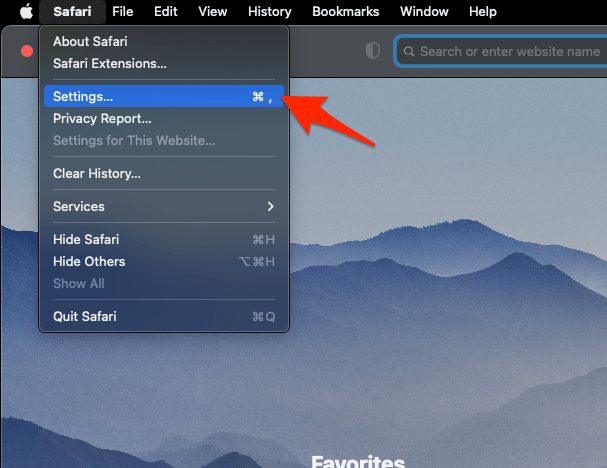 It will open the Safari Settings window.
 - Switch to the Extensions tab in the Settings window.
It will display the list of all the Safari extensions installed. - Uncheck the checkbox in the left side pane to Disable the extension.
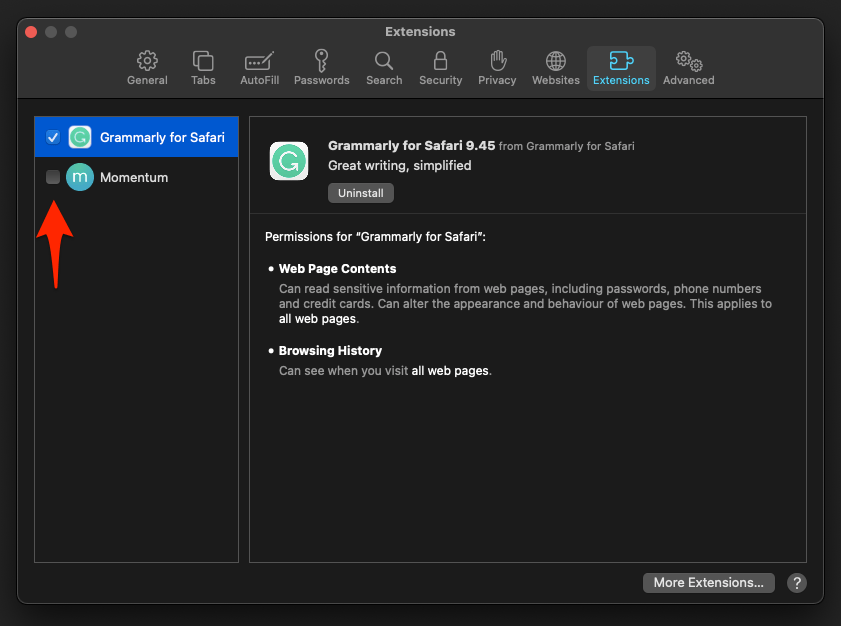
Once Safari reopens, check the Extensions pane again. If a known extension still causes prompts, click it and choose . Restart Safari when you are done.
You’ll know it worked when the Extensions list shows only names you recognize and no prompt appears after a restart.

Apple’s Mac App Store and Safari extensions are signed and sandboxed, but third-party extensions downloaded outside the App Store have wider system access. Anything not from a developer you recognize should be removed.
Review and Remove Configuration Profiles
Configuration profiles can change Safari behavior, install certificates, and grant elevated permissions without you noticing. Anything you did not install yourself, or anything pushed by an employer, school, or a piece of software, belongs on this list to review.
- Quit Safari.
- Click the Apple menu and choose System Settings.
- Click General in the sidebar, then click Device Management. (On macOS 12 or earlier, choose Profiles inside System Preferences instead.)
- Select any profile you do not recognize and click the button (or the minus button below the list). Confirm with .
- Repeat for every unfamiliar profile, then close System Settings.

ALERT: If a profile is managed by your employer, school, or another administrator, removing it may lock you out of that organization’s resources or be detected. Confirm before removing profiles you are unsure about.
Look for and Remove Unwanted Software
Apple builds a malware tool into macOS that catches the most common adware. If the prompts survive the steps above, check your Applications folder and login items by hand.
- Open System Settings → General → Login Items (or Users & Groups → Login Items on older macOS).
- Select anything suspicious in the list and click the minus button below it.
- Open Finder → Applications. Look for app icons you do not recognize, especially “cleanup,” “search,” or “media” tools.
- Drag any unfamiliar app to the trash, then right-click the trash icon in the Dock and choose Empty Trash.
- Open Finder → Go → Go to Folder (or press ++) and check ~/Library/LaunchAgents and /Library/LaunchAgents for suspicious .plist files. Delete anything tied to the apps you just removed.

TIP: Apple’s built-in XProtect and MRT (Malware Removal Tool) update silently in the background. Restart your Mac after removing suspicious software so they can run a clean scan.
Clear Safari Cache, Cookies, and Website Data
Cached files and stored website data can bring the same prompts back after you think you’ve dealt with them. Wipe Safari’s local state so the offending scripts have nothing to reload from.
Restart Safari once the clearing finishes. Reopen only sites you trust, and re-block the known offender under Settings → Websites → Pop-up Windows. If the same site nags you on iPhone or iPad too, block that website in Safari on iPhone and iPad as well.
Turn On Safari’s Fraudulent Website Warning
Safari’s safe-browsing check warns you before it loads a known phishing or malware page. Turn it on and Safari can stop the source page from loading at all, which kills the prompt before it fires.
- In Safari, choose Safari → Settings from the menu bar.
- Click Security in the toolbar.
- Check the box next to Warn when visiting a fraudulent website.
- Close the settings window.
Update Safari and macOS
Safari updates arrive through macOS updates, and so do Apple’s malware definitions. An out-of-date Mac is easier to hit with these prompts.
- Click the Apple menu and choose System Settings (or System Preferences on macOS 12 and earlier).
- Click General → Software Update.
- Install any available updates, including Safari and security updates.
- Restart the Mac when prompted.

Frequently Asked Questions
What is SafariSearchUploadWorker and why is it asking for an export key?
SafariSearchUploadWorker is a background process that has been reported pushing system access prompts without a clear user action. If you see it, treat it as suspicious: quit Safari, run the steps above to remove extensions, configuration profiles, and unknown apps, then update macOS.
Will blocking all pop-ups break normal websites?
Most modern websites no longer rely on JavaScript pop-ups. The few that do, like sign-in flows or payment confirmations, will show a Show button in the Smart Search field that lets the blocked dialog through one time on that page.
Should I click “Always Allow” on a keychain or export prompt I did not trigger?
No. A dialog you did not start should never be approved. Click (or ), then work through the steps above to find what triggered it.
How do I tell if a Safari extension is malicious?
Open Safari → Settings → Extensions and look for any extension you do not remember installing, especially ones with broad “All Websites” or “Read and change all your data” permissions. Disable or uninstall anything you do not recognize.
Can a website alone trigger a system-level export key prompt?
Legitimate websites cannot directly request an operating-system key without an installed helper app or extension. If you see such a prompt with no helper app involved, it most likely comes from malware, an extension, or a configuration profile, not the website itself.