Microsoft 365 sign-in loops, blank Outlook pages, and repeated "session expired" errors in Chrome usually come from blocked third-party cookies, damaged site data, or a misbehaving extension. Most fixes take a few minutes and do not require reinstalling Chrome.
You can get Microsoft 365 working again by updating Chrome, allowing Microsoft domains to use third-party cookies, clearing cookies and cache, disabling extensions, testing Incognito, and resetting Chrome as a last resort.
In this guide, I have covered:
Contents
Why Microsoft 365 Is Not Working in Chrome
If Microsoft 365 (formerly Office 365) is suddenly looping, blanking, or signing you out in Chrome, the break is usually not the service itself. It sits in the chain of Microsoft domains that handle login and then load Outlook, OneDrive, SharePoint, and the Office web apps.
You will typically see one of these symptoms:
- Sign-in loops back to the login screen or shows “Sorry, but we’re having trouble signing you in.”
- Outlook on the web shows a blank page or fails to load messages.
- SharePoint or Word, Excel, or PowerPoint for the web keeps asking you to sign in again.
- “Session expired” or “Access denied” errors appear right after you signed in.
The usual causes are third-party cookie restrictions, an outdated Chrome build, corrupted cookies and cached site data, or an extension breaking the sign-in flow. None of these fixes require reinstalling Chrome.
Update Google Chrome to the Latest Version
An outdated Chrome build can make Microsoft 365 fail in ways that have already been fixed. Microsoft lists the current version of Chrome as a supported baseline, and recent builds include the latest cookie behavior and security patches.
- Launch the Google Chrome on your computer.
- Click on More
 for the options list, and select the Settings menu.
- Switch to the About Chrome tab in the left sidebar pane.
 The browser should automatically start looking for the latest updates.
 - Hit on the button.
 It will complete the Chrome browser update process.
You’ll know Chrome is current when the About Chrome page says “Chrome is up to date.” Restart Chrome and try signing in to Microsoft 365 before you move to cookie settings.
Allow Third-Party Cookies for Microsoft 365 Domains
The single most common fix we see for Microsoft 365 sign-in problems is blocked third-party cookies. Microsoft 365 uses third-party cookies to keep you signed in as you move between login.microsoftonline.com, outlook.office.com, and sharepoint.com.
If Chrome blocks those cookies, the login page accepts your password, but the app cannot read the session. That is when you get stuck in a redirect loop. Chrome still allows third-party cookies by default, but extensions, old privacy choices, or a tracking-protection experiment can block them.
The targeted fix is to allow the Microsoft domains. For a broader look at Chrome’s cookie controls, see our guide to blocking or allowing cookies in Chrome.
- Click the three-dot menu at the top right of Chrome and choose Settings.
- Click Privacy and security in the left sidebar.
- Click Third-party cookies.
- Click See all site data and permissions.
- Use the search box at the top to find microsoft.com, then repeat for outlook.com, office.com, sharepoint.com, and live.com.
- Click the trash icon on the right of each Microsoft entry and confirm Delete.
- Close Settings, reopen Chrome, and sign in to Microsoft 365 fresh.
Sign-in should finish in one pass. Outlook on the web should load without bouncing you back to the login screen.

On a company or school-managed device, the Third-party cookies page may be locked and you won’t be able to add sites. Contact your IT admin and ask them to allow the Microsoft 365 domains.
Clear Cookies and Cache in Chrome
If allowing the domains did not help, or if Microsoft 365 loads but shows missing folders, broken layout, or stale data, clear Chrome’s cookies and cache. Our guide to clearing cookies and cache in Chrome covers every option in the dialog.
- Open the Google Chrome on your computer.
- Click on the More for menu options, and hover on the More Tools menu.
- Select the Clear Browsing Data... sub-menu from the list.
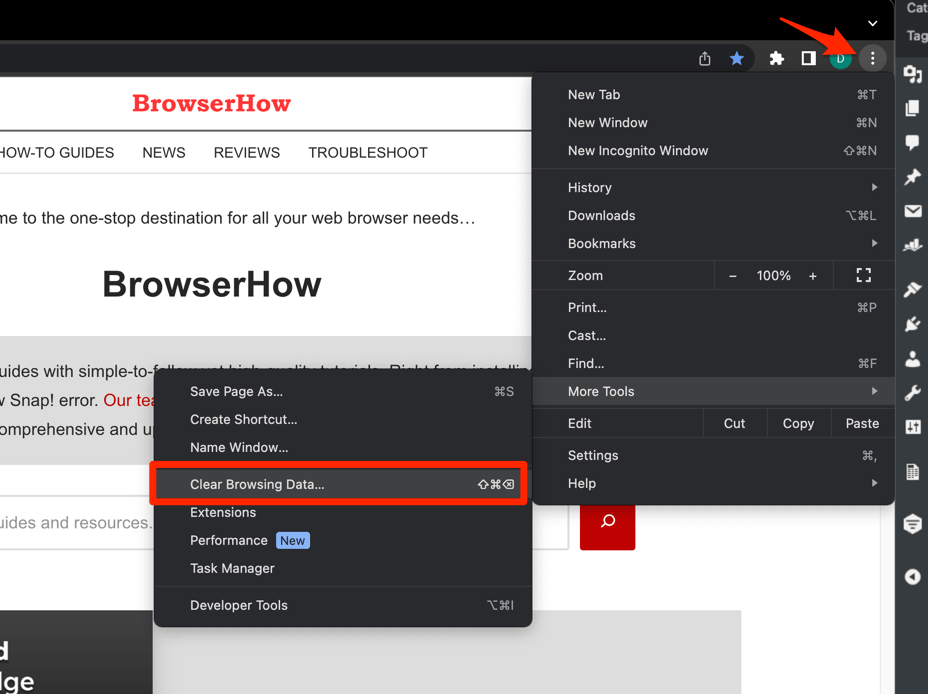 It will open the Clear browsing data settings window.
 - Choose the Time Range from the drop-down and select the checkboxes for the 'Cookies and other site data' and 'Cached images and files' options.
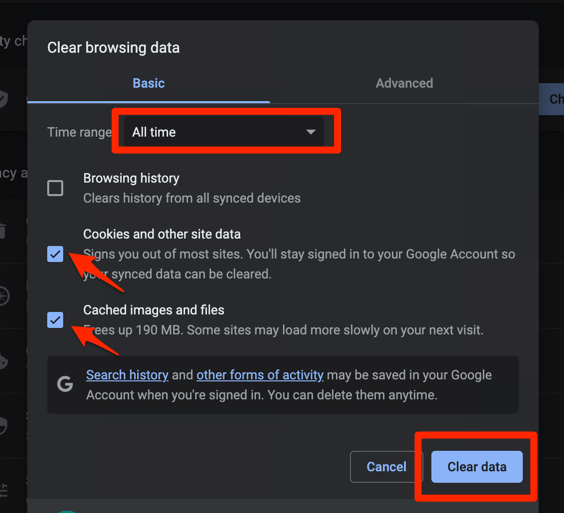
- Finally, hit the command button.
It will delete the stored cookies and cache data from your Chrome browser.
After Chrome reloads, sign back in and open Outlook, OneDrive, and SharePoint. If pages still stall, flush Chrome’s DNS cache too. See our guide to clearing Chrome’s DNS cache.
Clear Site Data Only for Microsoft 365
Clearing everything signs you out of every site. If you want to keep other logins intact and reset only the Microsoft domains, target them directly. If you prefer a broader cleanup, use our Chrome browsing history guide.
- Click the three-dot menu at the top right of Chrome and choose Settings.
- Click Privacy and security in the left sidebar.
- Click Third-party cookies.
- Click See all site data and permissions.
- Use the search box at the top to find microsoft.com, then repeat for outlook.com, office.com, sharepoint.com, and live.com.
- Click the trash icon on the right of each Microsoft entry and confirm Delete.
- Close Settings, reopen Chrome, and sign in to Microsoft 365 fresh.
If Outlook now opens normally, the problem was stale cookies that no longer matched your Microsoft account.
Disable Chrome Extensions
Ad blockers, script blockers, and privacy tools such as uBlock Origin, Privacy Badger, or NoScript are a common reason Microsoft 365 breaks in Chrome. It often happens right after a Chrome update changes how scripts run on login pages.
- Launch the Google Chrome on your computer.
- Click on the More for the list menu.
- Hover on the More Tools menu and choose the Extensions sub-menu.
 It will open the Chrome Extensions Manager page with the list of installed extensions.
 - Toggle the switch to Disable the extension.

If Microsoft 365 starts working with extensions off, turn them back on one at a time. The extension that brings the problem back is the one blocking the Microsoft sign-in chain. Add an exception for the Microsoft 365 domains in that extension’s settings, or leave it disabled while you work.
Test Microsoft 365 in an Incognito Window
Incognito opens Chrome without extensions and with default cookie behavior. That makes it the fastest way to see whether the problem is your Chrome profile, your extensions, or your Microsoft account itself.
- Launch the Google Chrome on your computer.
- Click on the More menu for the list.
- Select the New Incognito Window option.
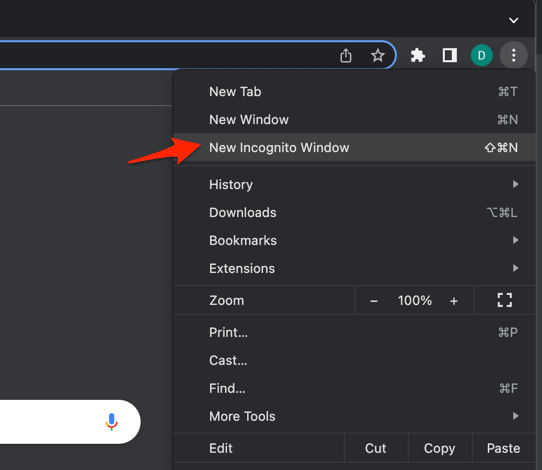 It will start a new incognito window in the browser.
You’ll know it worked when Microsoft 365 loads normally in Incognito. That means the issue lives in your regular profile. Work back through the cookie and extension steps above in your normal Chrome window.
Reset Chrome Settings
If you have worked through every fix and Microsoft 365 still will not open, reset Chrome’s settings. Reset turns off extensions, resets your startup and homepage choices, and clears temporary site data and cookies.
It does not touch bookmarks, saved passwords, or browsing history. For a deeper look at how Chrome handles cookies after a reset, see our guide to managing browser cookies in Chrome.
- Launch the Chrome browser on the computer.
- Click on the More for menu list, and select the Settings menu.
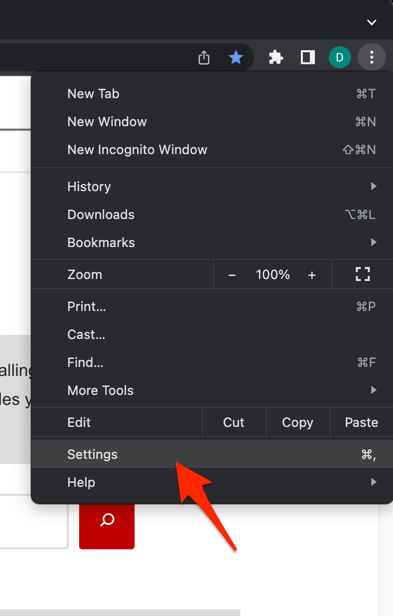 It will open the Chrome browser's Settings page.
 - Switch to the Reset settings tab in the left sidebar, and select Restore settings to their original defaults option.
- Finally, hit the command button.
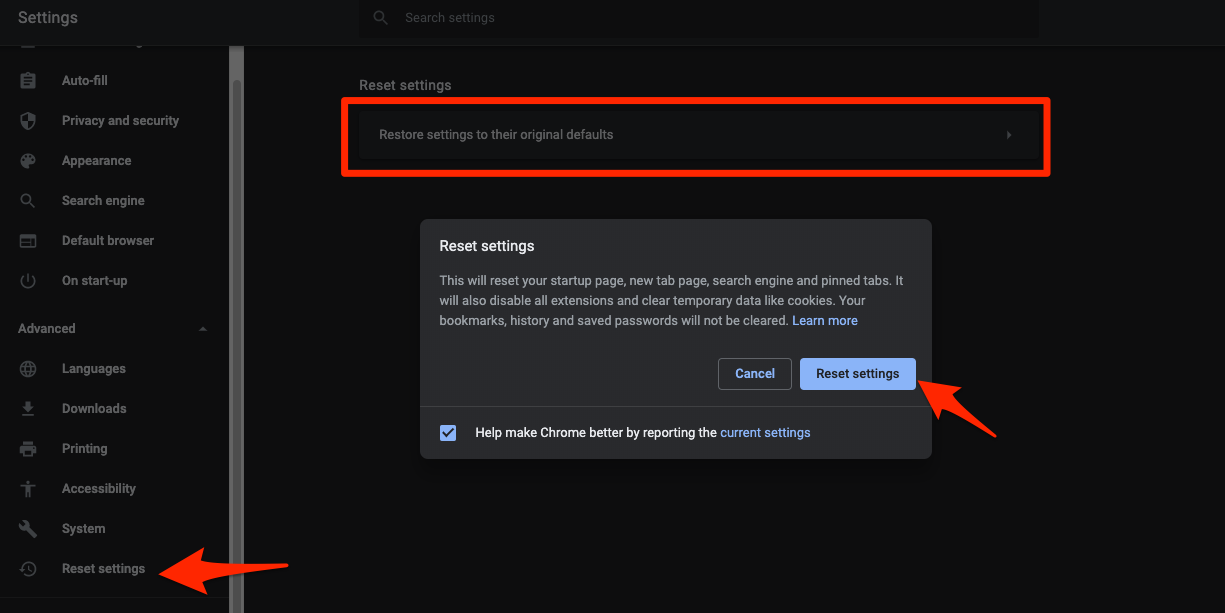 It will reset the Chrome browser settings, clear temporary data, and disable all extensions.
After Chrome restarts, sign in to Microsoft 365 and open Outlook, SharePoint, OneDrive, and the Office web apps. If they load normally, you can turn extensions back on one at a time.

Frequently Asked Questions
Why does Microsoft 365 keep signing me out in Chrome?
Microsoft 365 shares your sign-in session across login.microsoftonline.com, outlook.office.com, and sharepoint.com using third-party cookies. When those cookies are blocked or expired, each subdomain treats you as logged out. Allow the Microsoft domains under Chrome’s Third-party cookies settings to fix it.
Does Microsoft 365 work in Chrome’s Incognito mode?
Yes. Incognito uses Chrome’s default cookie behavior and runs without extensions, so Microsoft 365 normally works there. If it works in Incognito but not in your regular profile, the cause is your cookie settings or extensions.
Will clearing Chrome’s cache delete my OneDrive or Outlook files?
No. Chrome’s cache stores local browser files like images, scripts, and cookies. Your OneDrive files, Outlook mailbox, and SharePoint content live in the cloud and are not affected by clearing Chrome’s cache.
Is Chrome phasing out third-party cookies for Microsoft 365?
Third-party cookies are still enabled in Chrome today. Google reversed its earlier plan to phase them out in 2024 and confirmed the reversal in 2025. The Microsoft 365 sign-in problems people see are usually from extensions or earlier privacy choices, not from Chrome itself disabling cookies.
Should I switch to Microsoft Edge for Microsoft 365?
Edge is the most tightly integrated browser for Microsoft 365 on Windows and often works without extra settings. Chrome also handles it well once the third-party cookie exceptions are in place and Chrome is up to date.