Amazon not loading in Chrome is almost always a local browser issue, not an Amazon outage. Stale cookies, browser extensions, and an outdated Chrome version are the usual reasons behind broken pages, frozen carts, and login errors.
Work through the fixes in order: update Chrome, clear Amazon's cookies, disable interfering extensions, check site permissions, and reset Chrome if nothing else works.
In this guide, I have covered:
Contents
Why Amazon Is Not Working in Chrome
When Amazon won’t load, won’t add items to your cart, or refuses to let you sign in, Chrome is usually the problem, not Amazon. Outdated browser versions, corrupted cookies, and aggressive extensions are the three most common triggers.
Amazon’s storefront relies heavily on JavaScript for product images, checkout, 1-Click ordering, and live order tracking. If Chrome blocks scripts or cookies on amazon.com, or runs a stale cached version of a page, parts of the store can stop working. Coupon finders and privacy extensions can silently break Amazon features.
First: Check Whether Amazon Itself Is Down
Before you change anything in Chrome, confirm that Amazon is actually up. Open Amazon in Safari, Firefox, or on your phone. If Amazon loads fine there, Chrome is the problem and the fixes below apply.
If Safari on a Mac is your test browser and it also struggles, clear Safari’s site data before you blame your connection.
- Launch the Google Chrome on your computer.
- Click on the More
 menu for the list.
 - Select the New Incognito Window option.
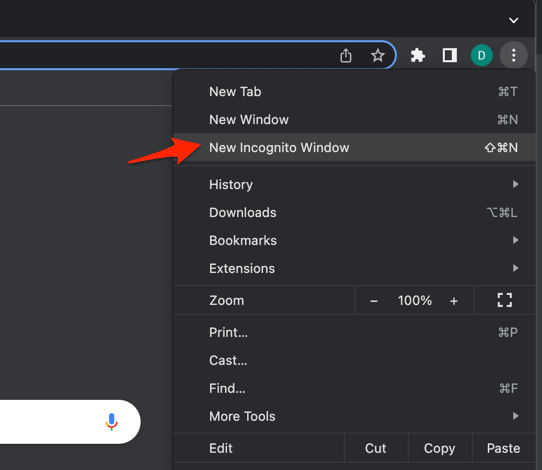 It will start a new incognito window in the browser.

TIP: For a fast test before clearing data, open Amazon in a regular Incognito window ( + + on Windows, + + on Mac). If Amazon works there but not in your normal Chrome profile, an extension or a stale cookie is almost always the cause.
If Incognito mode loads Amazon without issue, move through the steps below in order.
Update Chrome to the Latest Version
Amazon regularly updates its site to use new Chrome features. Running an old Chrome version is one of the easiest causes of strange Amazon glitches, and updating is a one-click fix.
- Launch the Google Chrome on your computer.
- Click on More for the options list, and select the Settings menu.

- Switch to the About Chrome tab in the left sidebar pane.
 The browser should automatically start looking for the latest updates.
 - Hit on the button.
 It will complete the Chrome browser update process.
After Chrome relaunches, load Amazon. If the page or button that failed now behaves normally, the update fixed it. Only move to the next fix if the issue is still there.
Clear Amazon’s Cookies and Cached Data
Stale cookies from a previous sign-in, a password change, or a recent Amazon layout update are the most common reason Amazon misbehaves in Chrome. Clear just Amazon’s data before you touch anything else.
- Open the Google Chrome on your computer.
- Click on the More for menu options, and hover on the More Tools menu.
- Select the Clear Browsing Data... sub-menu from the list.
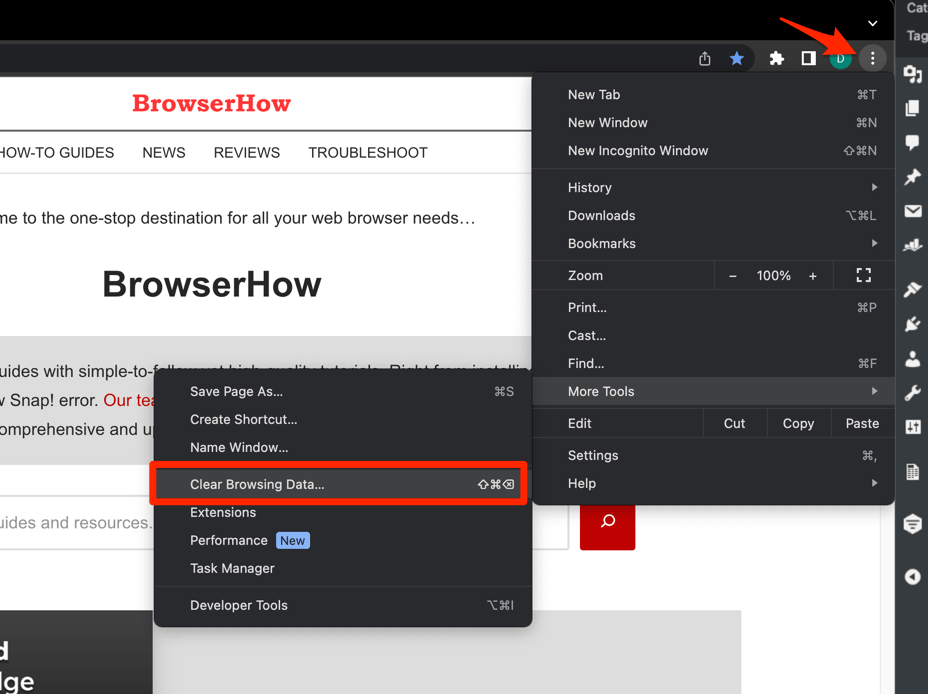 It will open the Clear browsing data settings window.
 - Choose the Time Range from the drop-down and select the checkboxes for the 'Cookies and other site data' and 'Cached images and files' options.
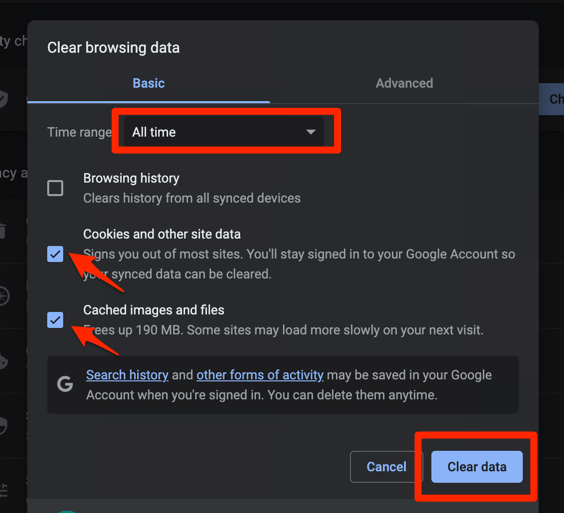
- Finally, hit the command button.
It will delete the stored cookies and cache data from your Chrome browser.
After Chrome finishes clearing, restart the browser and load Amazon again. You’ll know it worked when the page loads normally and your cart appears where it should.
Allow Cookies and JavaScript Just for Amazon
Sometimes the issue is not Amazon’s data, but Chrome’s per-site permissions for amazon.com. You can check these through the lock icon next to the URL.
Open amazon.com in Chrome, then click the small lock or tuner icon to the left of the URL in the address bar. Choose Site settings, then confirm Cookies, JavaScript, and Pop-ups and redirects are all set to Allow. If any says Block, change it to Allow and reload the page.
On Android, the same permissions live in Chrome’s site settings. If Amazon’s mobile layout looks broken, switch to the desktop site in Chrome on Android to rule out a mobile page issue.

Your stored Amazon cart lives inside a site cookie. Setting cookies to Block while signed in can look like Amazon itself is broken, so re-allow cookies before you test again.
Disable Extensions That Interfere with Amazon
Ad blockers, coupon finders like Honey, Capital One Shopping, and Rakuten, privacy extensions such as uBlock Origin and Privacy Badger, and some antivirus browser shields routinely block parts of Amazon’s scripts. Use this fix when Amazon fails in your normal profile but works in Incognito.
- Launch the Google Chrome on your computer.
- Click on the More for the list menu.
- Hover on the More Tools menu and choose the Extensions sub-menu.
 It will open the Chrome Extensions Manager page with the list of installed extensions.
 - Toggle the switch to Disable the extension.

After you disable them, reload Amazon. When the broken button, image, or login prompt starts behaving again, re-enable extensions one at a time to identify the culprit.
Clear All Chrome Browsing Data
If clearing Amazon’s cookies alone did not help, a full Chrome cleanup should be next. This wipes every site cookie, every cached page, and saved form data that could be interfering with Amazon.
- Go to chrome://history/clearBrowserData in the address bar.
- Select the Time range from the drop-down.
- Enable the checkboxes for Browsing history, Cookies and other site data, and Cached images and files.
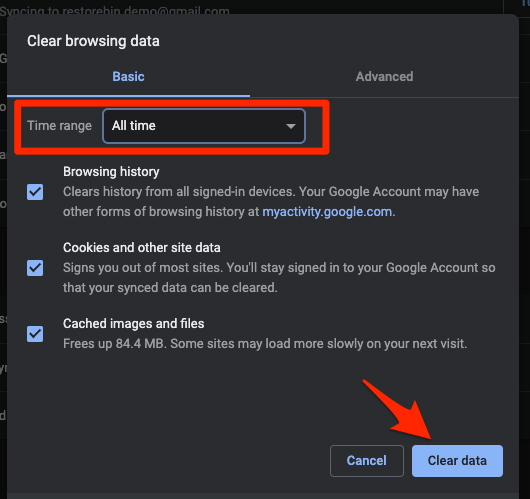
- Hit the Clear data button.
A full cleanup signs you out of every site. Keep your Amazon password and any two-factor code ready before you start.
After Chrome finishes, close and reopen the browser, then load Amazon again. Amazon loading normally and accepting your sign-in means the cleanup did its job. If you are on Android, use Clear Browsing and Site Data in Chrome on Android instead.
Turn Off Hardware Acceleration (If Amazon Freezes or Crashes)
Some users see Amazon product pages freeze, video clips stutter, or the browser crash mid-checkout. That usually points to Chrome’s hardware acceleration setting rather than Amazon’s servers.
- Open Chrome Settings.
- Click System in the left sidebar. (If your Chrome still groups it under an expandable Advanced section, the path is Settings > Advanced > System.)
- Toggle Use graphics acceleration when available on or off, then relaunch Chrome.
After Chrome relaunches, play an Amazon product video or open a 360-degree gallery. If neither freezes, hardware acceleration was the cause. If Amazon now works but other sites look choppier, keep acceleration off if Amazon is your main concern.
Reset Chrome Settings to Default (Last Resort)
If nothing else has worked, a Chrome reset clears broken site data, bad permissions, and odd startup behavior without touching your bookmarks or saved passwords. Use this before you blame your network or reinstall Chrome.
- Launch the Chrome browser on the computer.
- Click on the More for menu list, and select the Settings menu.
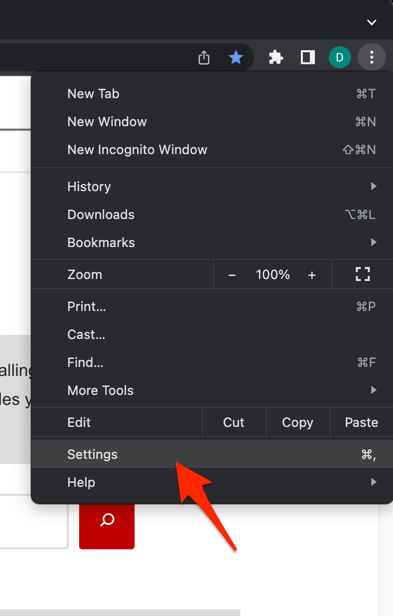 It will open the Chrome browser's Settings page.
 - Switch to the Reset settings tab in the left sidebar, and select Restore settings to their original defaults option.
- Finally, hit the command button.
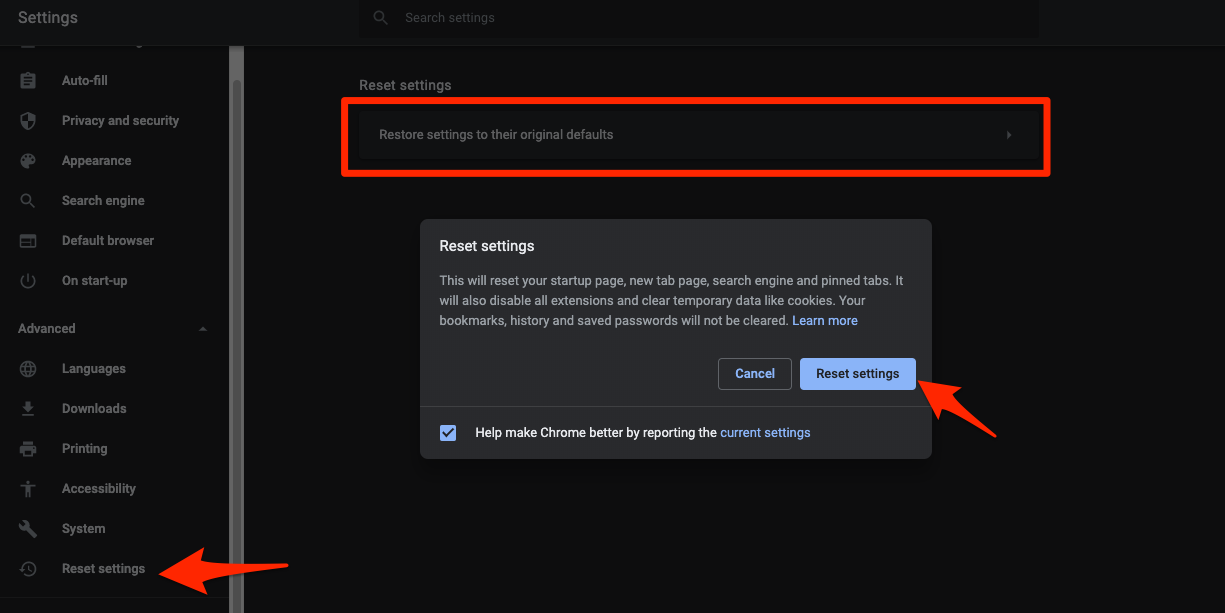 It will reset the Chrome browser settings, clear temporary data, and disable all extensions.
After the reset, sign back into Amazon and walk through checkout once. The page that failed before should now load normally.
Check Your Computer: Clock, Network, and DNS
Some ‘Amazon is broken’ reports trace back to the computer, not Chrome. Amazon’s sign-in system rejects requests when the system clock is wrong, and stale DNS entries can stop Amazon from loading at all.
First, confirm the date and time are set to automatic. On Windows, right-click the clock in the taskbar, open Date and time settings, and turn on Set time automatically. On macOS, open System Settings, choose General, then Date & Time, and enable Set date and time automatically.
A wrong clock locks you out of Amazon with error messages that look like Chrome failures. If Amazon still will not load, flush Chrome’s DNS cache using our guide to clearing Chrome’s DNS cache, then restart your router. A full power-cycle of the modem and router clears most lingering connectivity issues.
After that, Amazon should load normally in Chrome. If it does, the problem was local all along.

Frequently Asked Questions
Why does Amazon say “Something went wrong” only in Chrome?
This message typically points to a blocked Amazon cookie or a broken JavaScript call. Allowing cookies and JavaScript for amazon.com, or clearing Amazon’s site data, almost always clears the error.
Can an extension really stop Amazon from loading?
Yes. Coupon extensions, ad blockers, and antivirus browser shields regularly block Amazon’s tracking or shopping scripts. Disabling them, or testing in Incognito, is the fastest way to confirm.
Will clearing cookies sign me out of Amazon?
Yes. Wiping browsing data or just Amazon’s cookies ends your current sign-in. You will need your password plus any two-factor code to sign back in.
Why does Amazon only freeze on certain product pages?
Hardware acceleration in Chrome occasionally collides with Amazon’s product video and 360-degree image scripts. Turning off hardware acceleration in Chrome’s settings resolves most freezing without affecting other sites.
Is it safer to just use a different browser?
You can use Firefox or Safari for Amazon, but the fixes above resolve the issue in Chrome in most cases. Resetting Chrome clears the root cause without losing bookmarks or saved passwords.