A Twitch stream freezes, the player stays black, or error 2000 appears in Safari on Mac while every other site loads fine.
That pattern points at the browser rather than your connection. Update Safari, switch off extensions, check the twitch.tv site controls, clear cache and cookies, then restart Safari. Compare a normal window with a private one as you go.
In this guide, I have covered:
Contents
What “Twitch not working” looks like in Safari
You open a Twitch channel in Safari and nothing happens, or the player stays black, or error #2000 appears halfway through a stream. Three different symptoms, usually one short list of Safari settings behind them.
Work through the checks below in order. Each one takes a minute or two, and each one narrows the next step.

This guide covers Safari on Mac. In the current Mac interface, Preferences is now Settings…, and Extensions has its own pane. iPhone and iPad use a different layout, so the walkthrough for viewing cache and clearing site storage in Safari on iPhone & iPad is the right starting point there.
Update Safari first
Twitch’s own playback guidance starts with the newest browser version. Take that seriously: an outdated Safari can fail on video long before anything else is wrong.
- Click on the Apple
 menu from the menu bar and select the System Settings... sub-menu.
  It will open the System Settings window.
 - Select the General tab in the left sidebar, and choose the Software Update tab.
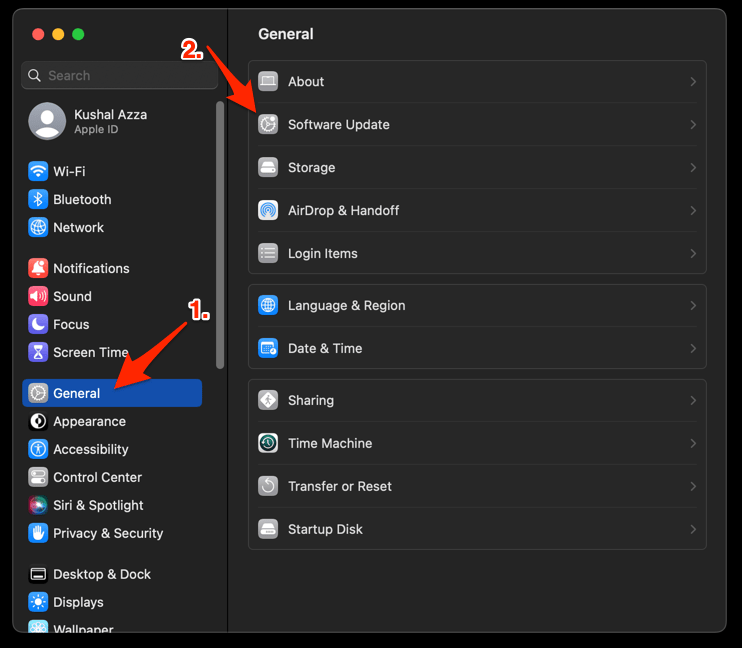 The macOS System will check for any available upgrades in the background.
 - Click on the More Info... tab and enable the checkbox for Safari updates (if any are available).
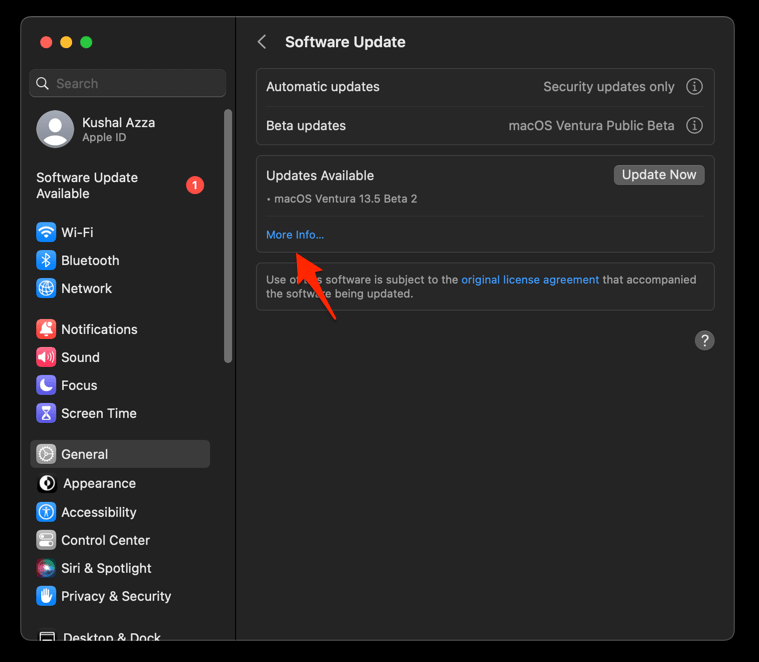
- Hit on the button.
It will update the Safari browser.
You’ll know it worked when the same channel loads and starts playing. If nothing changes, move on to the private-window comparison.
Compare a normal and a private window
You want to know whether extensions or saved site data are in the way, and a private window answers that in about a minute.
- Click Safari’s address bar.
- Type the address of a Twitch channel that is failing.
- Press .
- Choose File.
- Choose New Private Window.
- Open the same Twitch channel in the private window.
- Compare whether the page, player, and video work in each window.
If the channel plays only in the private window, extensions or stored site data are the difference. If it fails in both, keep going with Safari’s website controls and browsing data.
Disable Safari extensions temporarily
The player loads but the video never starts, or it stalls a few seconds in. Ad blockers, privacy tools, and content blockers are the usual suspects.
- Launch the Apple Safari app on your Mac computer.
- Click on the Safari menu from the menu bar at the top, and select Settings... sub-menu.
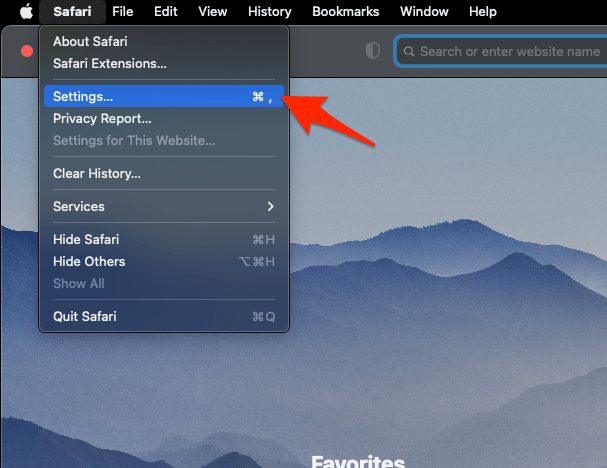 It will open the Safari Settings window.
 - Switch to the Extensions tab in the Settings window.
It will display the list of all the Safari extensions installed. - Uncheck the checkbox in the left side pane to Disable the extension.
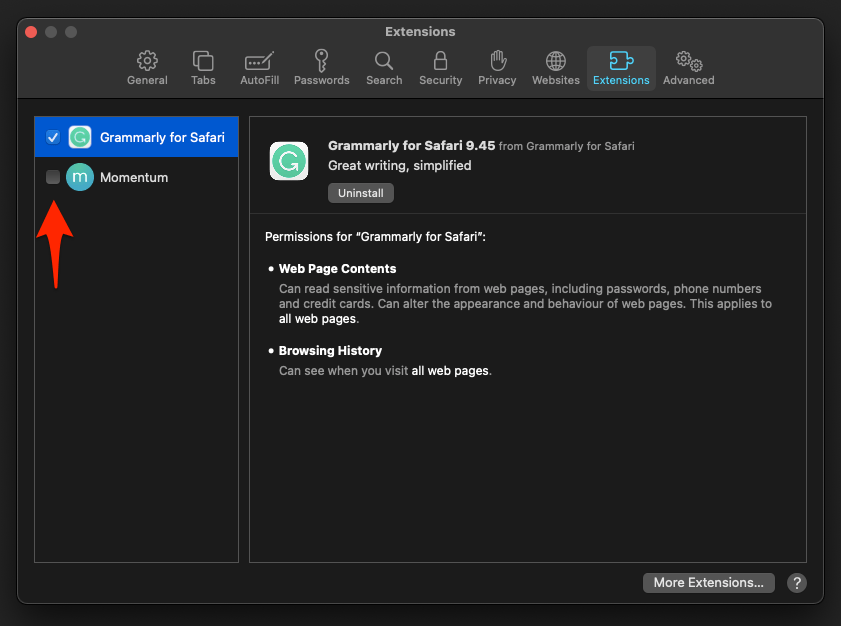
You’ll know it worked when Twitch plays with extensions off. After that, re-enable them one at a time and retest the same channel each round. The one that breaks playback again is the extension to leave disabled.
Check the Twitch site controls
Safari keeps per-site settings that can block Twitch media even after every extension is off. Check what the twitch.tv entry actually allows.
- Return to the ordinary Safari window.
- Load twitch.tv if it is not already open.
- Choose Safari from the macOS menu bar.
- Choose Settings….
- Open the Websites tab.
- Select twitch.tv in the site list.
- Turn off Content Blockers.
- Set Auto-Play to Allow All if media stops before it starts.
Reload the channel. You’ll know it worked when the player starts on its own. If twitch.tv never shows up in the site list, leave unrelated sites alone and go to the cache and cookies check.
Clear Safari cache and cookies
Twitch sits on a loading screen or a player error, and none of the checks above changed anything. Stale cache files, cookies, and website data are the next thing to clear.
Open Twitch and test the same channel. You’ll know it worked when the stream starts without the spinner. If a menu label looks different on your Mac, clearing site and browsing data from Safari on Mac walks through the same cleanup.
This cleanup is not limited to Twitch. Expect to sign in again on other websites, and on Twitch too.
Restart Safari before deeper testing
Twitch recommends a browser restart after extension and cache checks. Do it properly: quitting Safari clears state that simply closing a window leaves behind.
- Choose Safari.
- Choose Quit Safari.
- Open Safari from the Dock.
- Open the same Twitch channel.
- Confirm that the video starts and advances.
If playback is back, you fixed it without touching unrelated websites. If it is still broken, the next step depends on which half fails: the page loading, or only the player.
Clear the DNS cache when Twitch will not load at all
Every other website opens but twitch.tv itself will not, which points at a stale network lookup rather than the player.
- Open the Apple Safari app on your Mac, and select Safari > Settings... from the menu bar.It will open the Safari Settings window.
- Switch to the Advanced tab, and enable the checkbox for the Show Develop menu in the menu bar option.
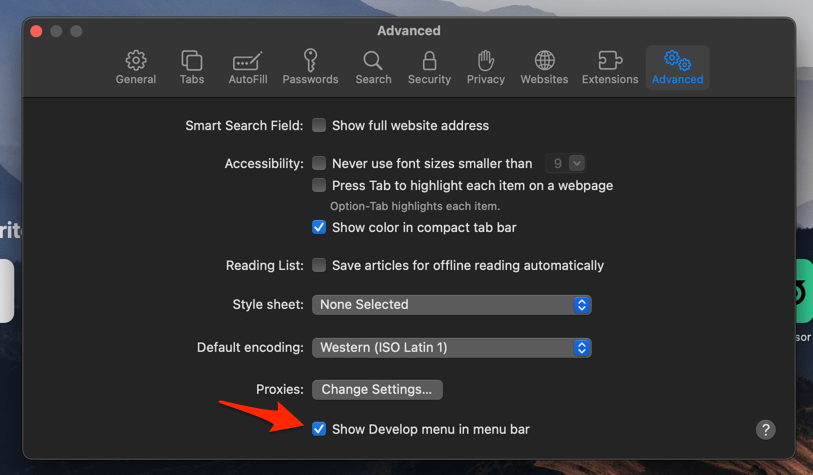 It will enable a new Develop menu in the Safari menu bar.
 - Click on the Develop menu and select the Empty Caches command.
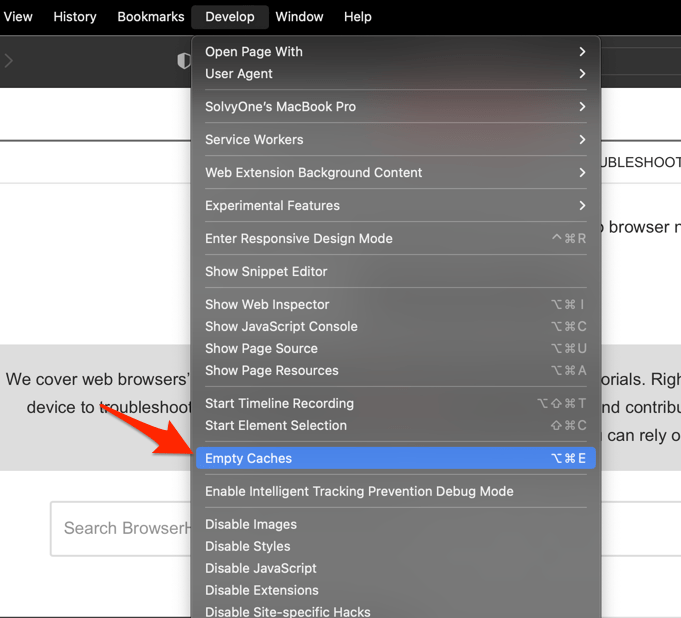 It will clear all cache, including the Safari DNS host cache.
You’ll know it worked when twitch.tv opens and the same video advances. If the site loads but playback still fails, go back to the content blocker and extension checks.
Check whether the problem is outside Safari
Twitch still fails after all of that, so confirm the browser is not the problem before changing anything else.
- Open the same Twitch channel in another browser on the Mac.
- Try the stream in that browser.
- Connect another device to the same network.
- Open the same Twitch channel on that device.
- Compare page loading and playback across the tests.
If Twitch works elsewhere but not in Safari, revisit three settings:
- Content Blockers for twitch.tv.
- Auto-Play for twitch.tv.
- The Safari extension list.
If it fails in every test, the problem sits outside Safari. Check the network connection or Twitch’s service status before retrying.

Frequently Asked Questions
Why is Twitch Error #2000 still happening in Safari?
Error #2000 is a reported symptom of Twitch on Safari on Mac, not proof of one specific cause. The fixes above cover updates, extensions, site controls, browsing data, and a browser restart, so work through them in order.
Do I need to leave my Safari extensions disabled permanently?
No. Treat the extension check as temporary. Only the extension that repeatedly breaks playback needs to stay off.
Where is the Twitch content blocker setting in current Safari?
It lives under Safari > Settings… > Websites > twitch.tv. The same site pane holds Content Blockers and Auto-Play.
Will clearing Safari cache and cookies sign me out of Twitch?
You may need to sign in to Twitch and other websites again after the cleanup. A login prompt does not mean the playback fix failed.
Can I turn off hardware acceleration in Safari to fix Twitch?
Twitch’s general troubleshooting advice mentions hardware acceleration, but Safari has no confirmed user-facing switch for it in the settings covered here. Do not follow Chrome or Firefox acceleration instructions in Safari.