Safari can stay open after you choose Quit, even when the page you were on loaded fine. That points to app shutdown work, not a slow website.
Start with a normal quit, then disable extensions and clear Safari data in stages. Check whether Quit Safari closes promptly after each change so you know what caused the delay.
In this guide, I have covered:
Contents
Safari is slow to quit on Mac: what to check first
You choose Quit Safari and the app sits there. The page may have loaded fine. The wait happens at shutdown. That is the problem worth isolating.
Several parts can hold up a quit: extensions, stored website data, and snapshots saved for open webpages. Apple warns that some extensions slow browsing, and clearing history removes snapshots tied to open pages.
Start with reversible checks before clearing broad stores of browsing data. Test one area at a time so you can see what changes without deleting more data each time Safari hangs.

TIP: If the delay follows one site, note its tabs and website data. If it shows up in every session, start with the extension and Private Browsing checks.
Run a normal shutdown test
You need a baseline before changing any Safari setting. Quit the app the ordinary way first.
- Save any work you do not want to lose.
- Choose Safari → Quit Safari.
- Reopen Safari.
- Press + and note whether the app closes promptly.
If the second quit is also prompt, Safari closed normally that time. If the delay returns, test extensions before clearing data.
Disable all Safari extensions temporarily
If an add-on is the cause, turning extensions off is the cleanest first test, and it is reversible. Apple warns that some extensions slow browsing, which is why this comes before deleting website data.
- Launch the Apple Safari app on your Mac computer.
- Click on the Safari menu from the menu bar at the top, and select Settings... sub-menu.
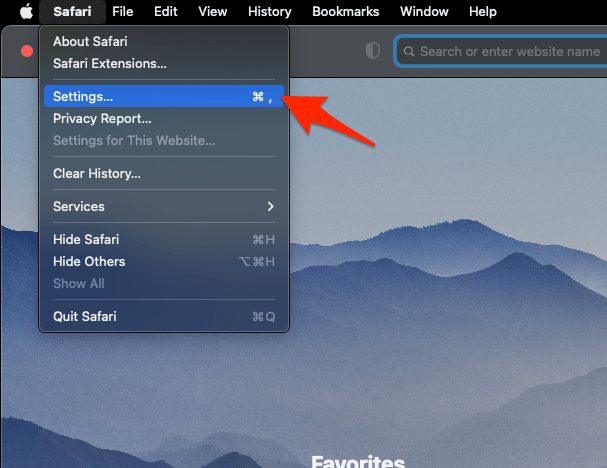 It will open the Safari Settings window.
 - Switch to the Extensions tab in the Settings window.
It will display the list of all the Safari extensions installed. - Uncheck the checkbox in the left side pane to Disable the extension.
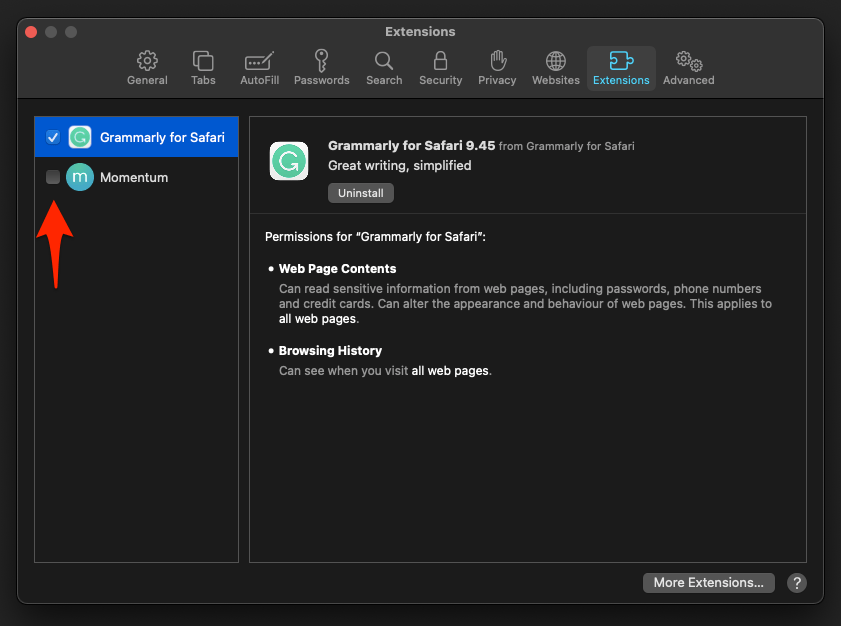
You’ll know it worked when Safari quits promptly after + with extensions off. That points to an extension as the likely cause. If nothing changes, keep extensions disabled through the remaining checks.
Compare a Private Browsing session
If you want a clean comparison, open a Private Browsing window while extensions are still off. The window has no normal tabs from your usual session. If the menu path is unfamiliar, opening Private Browsing mode and new tabs in Safari on Mac walks through it.
- Open Safari if it is closed.
- Close each normal Safari window.
- Choose File → New Private Window.
- Open a page similar to one that usually triggers the delay.
- Press + and note whether Safari closes promptly.
If Safari closes promptly here but hangs with normal tabs, focus on those tabs and their data. If it is slow in both sessions, keep going because website data and history are not cleared yet.
Clear Safari cache and cookies
If extensions are off and Safari still hangs on quit, clear cache and cookies. It is a broader test than disabling extensions. The walkthrough for clearing cookies and cache from the Safari app spells out the menu steps.
A faster shutdown after this cleanup means stored website data was contributing. If the delay remains, move to history snapshots instead of repeating the same cleanup.

Removing cookies and website data can sign you out of sites, change website behavior, and change or remove matching data in other apps.
Clear Safari history and open-page snapshots
If the cache cleanup changes nothing, clear all Safari history. On Mac, this also removes snapshots saved for open webpages.
- Open the Safari app on your Mac.
- Click on the History and select Clear History from the menubar.
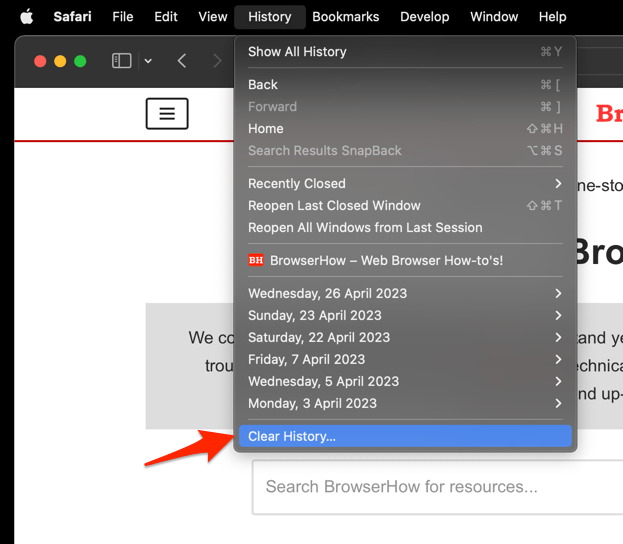 It will open the clear history pop-up window.
 - Select the Time Range from the drop-down and hit on the command button.
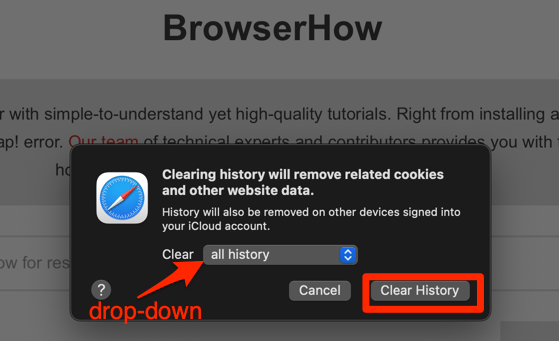 That's it, the browsing history will be removed from the selected range.
You’ll know history state was involved when Safari quits promptly after this step. Reopen Safari and run one normal quit before changing anything else. If the slow close remains, restore extensions one at a time next.
On Mac, the menu item is Clear History, not Clear History and Website Data. If iCloud Safari is set up, history is removed from all your devices.
Clearing history also removes these browser items:
- The back and forward list, frequently visited sites, recent searches, and webpage icons
- Snapshots saved for open webpages
- Quick Website Search sites and sites listed for location or notification permissions
- Download-list entries, while downloaded files remain
Restore extensions one at a time
Once shutdown is prompt with extensions off, turn them back on gradually. This confirms the fix holds and catches any extension that still adds delay.
- Open Safari.
- Choose Safari → Settings.
- Choose Extensions.
- Turn on one extension.
- Press +.
- Note whether the quit was prompt.
- Repeat the test with one remaining extension at a time.
Leave off the first extension that brings the slow close back. Finish the remaining checks with that extension disabled.
Force Quit Safari if it remains stuck
If Safari is still stuck after those checks, end the process once so you can get back to work. This is recovery, not a diagnosis or a permanent fix.
- Press ++.
- Select Safari in the window.
- Click .
- Open Safari again.
If the next ordinary quit is prompt, keep watching for the trigger. If it hangs again, the problem is recurring, and Force Quit should stay a fallback.
Force Quit can discard unsaved text or unfinished browser activity. Save important work before using it.
Restart Mac when the slowdown is system-wide
Restart the Mac only when quitting or launching other apps is also slow. If Safari is the only app affected, return to the extension and website-data checks first.
- Save your open documents and other work.
- Choose the Apple menu, then Restart.
- Confirm with .
- Open Safari.
- Choose Safari → Quit Safari.
If the delay returns after the restart, repeat the extension and website-data checks under the same conditions that first exposed it.
Confirm the slow-close problem is fixed
You’re done when quitting Safari no longer feels like a wait. Three checks tell you the fix is real:
- Safari quits promptly after +.
- Reopening and quitting again does not reproduce the delay.
- You no longer need Force Quit or a Mac restart for routine shutdowns.
The result is strongest when it holds under the same tab and site pattern that triggered the issue. One troublesome extension or site should not bring the delay back after its extension is disabled or its website data is cleared.
If any check fails, go back to the matching section above. Do not keep clearing more data just to see what happens.

Frequently Asked Questions
These are the questions that tend to come up after a slow-quit fix.
Does clearing Safari history delete downloaded files?
No. Safari removes entries from its download list, but the downloaded files themselves remain.
Why is Safari still slow to quit after I clear cookies and cache?
The remaining delay may involve an extension or snapshots associated with open webpages. Those components are the next ones to compare after the website-data cleanup.
Will clearing Safari history remove history on my iPhone or iPad?
If iCloud Safari is set up, clearing history removes it from all your devices.
Is Force Quit safe when Safari will not close?
Use it as a recovery step after saving important work. It can discard unsaved text or unfinished browser activity, and repeated use means Safari is still hanging.
What should I check first when Safari is slow to close?
A normal quit followed by a full extension check is the least destructive starting point. It can identify an extension problem before any browsing data is removed.