Your Mac joined a different Wi-Fi network and Safari stopped loading pages, even though the menu bar still shows a full signal. The failure may hit only Safari or every app, and that difference decides which fix to try first.
Compare Safari with another browser, then reconnect Wi-Fi, renew the DHCP lease, reset the network location, and check DNS or iCloud Private Relay. Retest the page after each change to see which one worked.
In this guide, I have covered:
Contents
Safari quit loading pages after you switched Wi-Fi networks
Your Mac shows a full Wi-Fi signal and other apps work, but Safari sits on a blank page. Safari can keep DNS and connection details from the network you just left. A quick comparison tells you whether to repair the browser first or the macOS connection.
- Open the failing address in Safari and note whether it times out or shows an error.
- Open the same address in another browser and compare the result.
- Choose Quit Safari from the Safari menu if the other browser loads the page.
- Open Safari again.
- Enter the failing address in the address field.
If every app fails on the new Wi-Fi, work through the network steps below. If only Safari fails, jump ahead to the Private Browsing test.
Test a Private Browsing window
A Private Browsing window uses the same network but a clean session, so it separates a Safari problem from a network problem. If normal Safari fails while another browser loads the page, run this test next. For the shortcut and window basics, see Open Private Browsing Mode and New Tabs in Safari on Mac.
- Press ++ to open a Private Browsing window.
- Enter the failing address in the Private Browsing window.
If the page loads here, go on to the extension test. If it fails in both windows, keep working through the DNS and network checks.
Disable Safari extensions for a clean test
A page that loads in Private Browsing but fails in a normal window usually points at an extension. Turning them all off once tells you whether that is the cause.
- Launch the Apple Safari app on your Mac computer.
- Click on the Safari menu from the menu bar at the top, and select Settings... sub-menu.
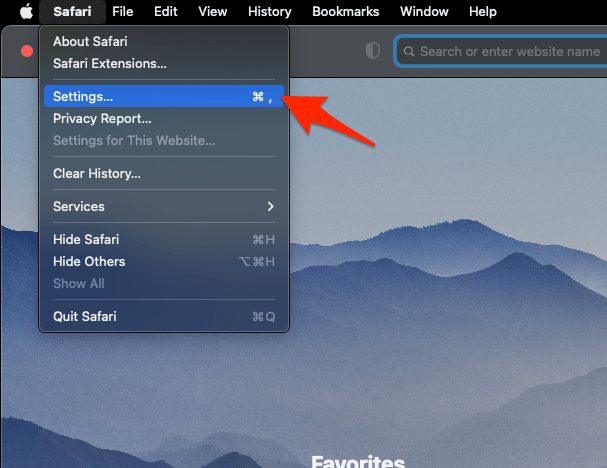 It will open the Safari Settings window.
 - Switch to the Extensions tab in the Settings window.
It will display the list of all the Safari extensions installed. - Uncheck the checkbox in the left side pane to Disable the extension.
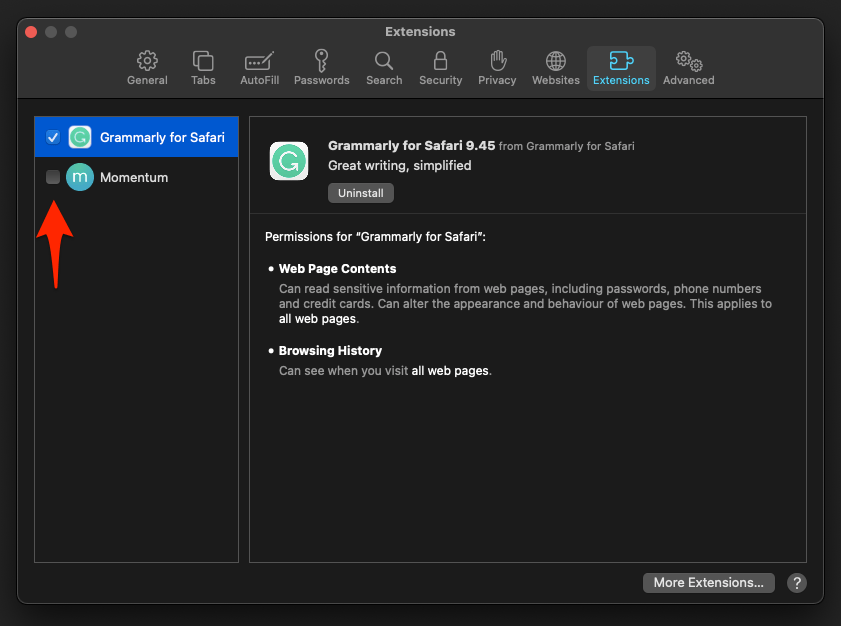
Reload the failed page in a normal Safari window. You’ll know it worked when the page loads with every extension off. If it does, switch the extensions back on one at a time and reload after each.
Clear Safari’s DNS cache
Another browser opens the site, but Safari still cannot resolve the address. The Mac is online, so Safari is the one holding an old DNS entry. Clearing the cache is worth trying before you touch any network settings.
- Open the Apple Safari app on your Mac, and select Safari > Settings... from the menu bar.It will open the Safari Settings window.
- Switch to the Advanced tab, and enable the checkbox for the Show Develop menu in the menu bar option.
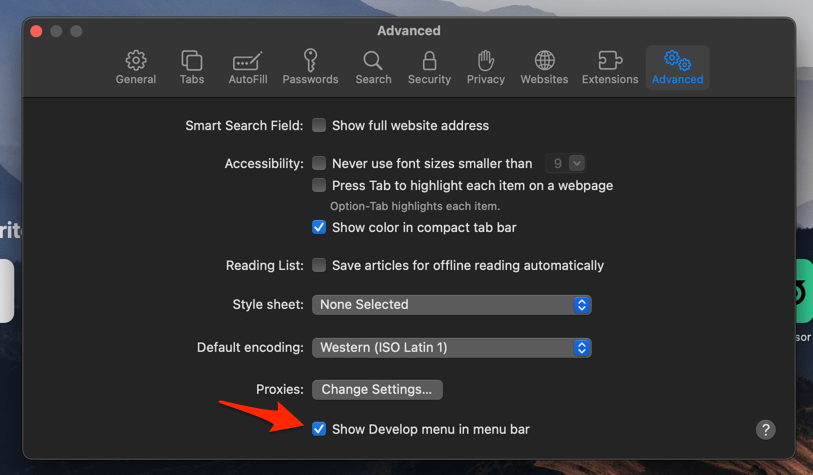 It will enable a new Develop menu in the Safari menu bar.
 - Click on the Develop menu and select the Empty Caches command.
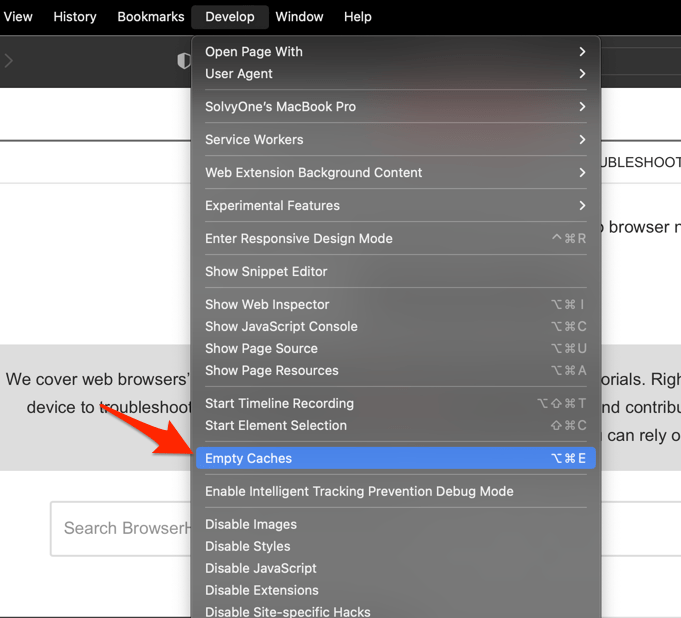 It will clear all cache, including the Safari DNS host cache.
Enter the failing address again. You’ll know it worked when the page loads without any other change. If it still fails, move on to the network checks.
Reconnect the Mac to Wi-Fi
Other apps fail as well here, or the page fails in both Safari windows. A short off-and-on cycle resets the Wi-Fi connection without forgetting the saved network.
- Open System Settings.
- Select Wi-Fi.
- Turn Wi-Fi off.
- Wait a few seconds, then turn Wi-Fi on.
- Select the current network if the Mac does not reconnect automatically.
- Switch to Safari.
- Press + to reload the failing page.
If the page loads after this cycle, the Wi-Fi connection was stuck. If it does not, renew the DHCP lease next.
Renew the Wi-Fi DHCP lease
The Mac says it is connected, but it may still be using the address it got from the previous network. Renewing the lease forces it to request a current one. Apple notes that renewing the address can resolve some connection issues.
- Open the Apple menu.
- Choose System Settings….
- Select Network in the sidebar.
- Select Wi-Fi in the service list.
- Click next to the connected network.
- Select TCP/IP.
- Click .
- Click .
- Switch to Safari.
- Press + to reload the failing page.

Renew DHCP Lease is available when the Mac receives its IP address through DHCP. If it is missing, skip this step and continue with the network location test.
If Safari loads the page after renewing the lease, the Mac had kept an outdated network address. If not, keep going, but do not change the Wi-Fi password or forget the network yet.
Reset the active network with a location
The steps so far have not helped, and you want a reversible reset of the active network settings. Apple’s network locations support guide recommends adding another location, which leaves the settings you already use in place.
- Open System Settings.
- Select Network in the sidebar.
- Open the
 menu below the service list.
 - Choose Locations.
- Choose Edit Locations.
- Click the add
 button.
 - Type a name for the new location, such as Test Network.
- Click .
- Choose Quit System Settings from the System Settings menu.
- Open the Apple menu.
- Choose Location.
- Choose the new location from the submenu.
- Switch to Safari.
- Enter the failing address.
- If the page still fails, choose the original location from the submenu.
The Location submenu appears only when more than one location exists. Quit System Settings after clicking Done, because quitting commits the new location.
You’ll know it worked when the failing page loads with the new location active. If it does not, the last step puts you back on the previous location so you can keep troubleshooting.
Replace stale DNS settings
Manual DNS values from an old router or a previous network often survive a Wi-Fi switch. Replace them before you test more Safari-specific settings.
- Click on the Apple
 menu, and choose the System Settings... sub-menu.
 It will open the Apple Settings window.
 - Switch to the Network settings tab in the left pane, and select the Network Adapter (say Wi-Fi) that's connected for internet access.
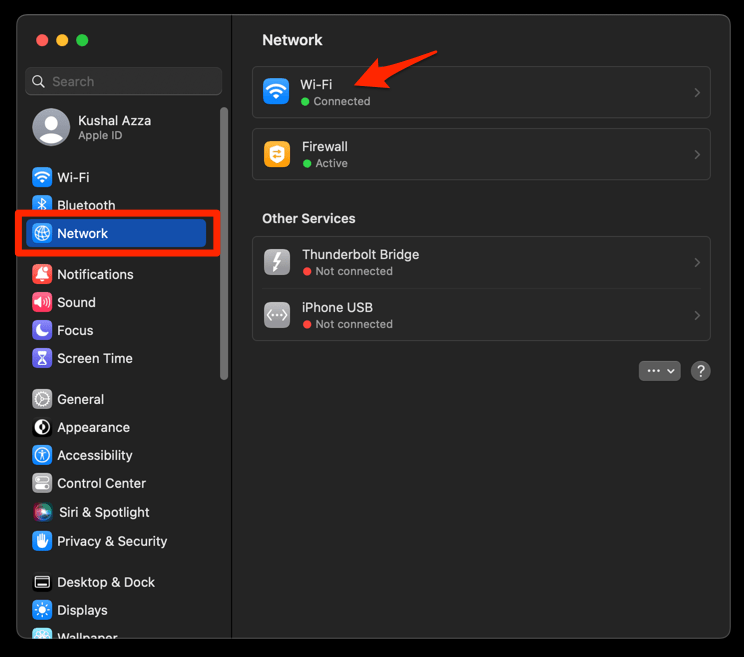
- Click the button to open the network configuration window.
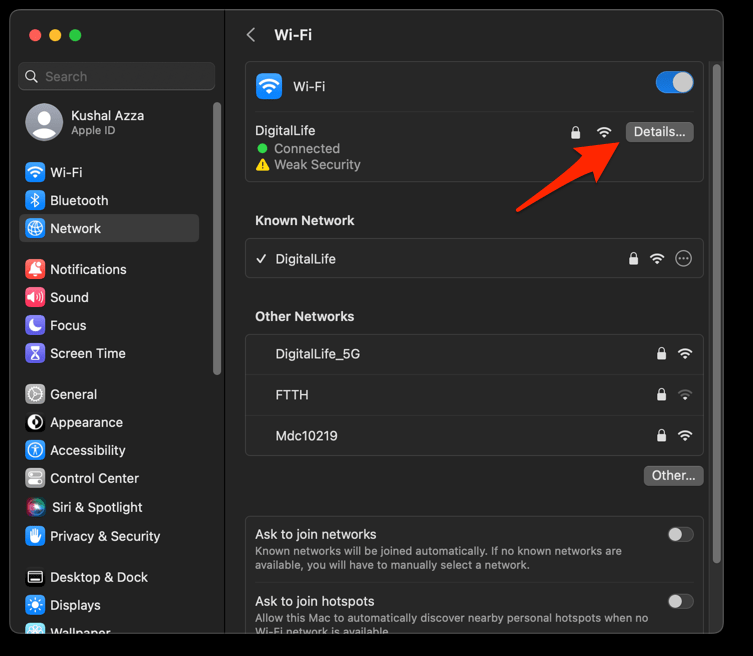
- Switch to the DNS tab in the left sidebar, and click the Plus button at the bottom of the DNS Servers list.
- Enter the Google DNS Server addresses: 8.8.8.8 and 8.8.4.4.
- Finally, hit the button to save DNS addresses.
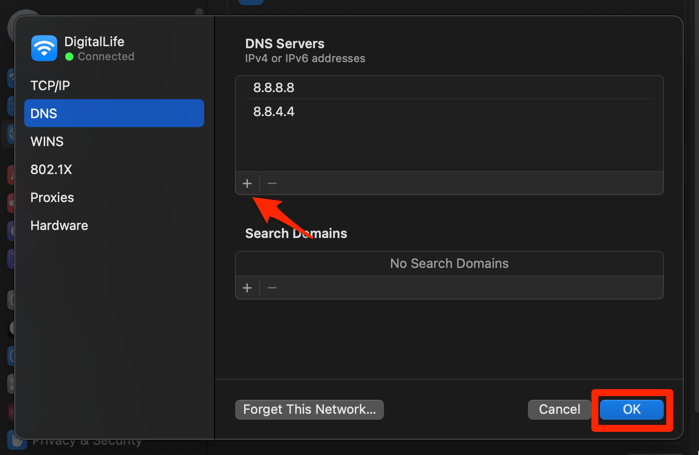 It will set the new DNS address to the selected network adapter on your Mac.
Return to Safari and try the same address. You’ll know it worked when the page loads after the DNS change alone. If it does, the old DNS servers were responsible.
If a school, employer, VPN, or network administrator requires specific DNS servers, keep those values. Replacing required DNS settings can break network access.
Test iCloud Private Relay on the current Wi-Fi
Private Relay can behave differently from one Wi-Fi network to another. The per-network tracking control is the quickest way to test it without touching your Apple Account.
- Open System Settings.
- Select Network in the sidebar.
- Select Wi-Fi.
- Click next to the connected network.
- Turn off Limit IP address tracking.
- Switch to Safari.
- Press + to reload the failing page.
- Open System Settings again.
- Select Network in the sidebar.
- Select Wi-Fi in the service list.
- Click Details… next to the connected network.
- Turn Limit IP address tracking back on.
If the page loads during the test, Private Relay is involved on that network. If nothing changes, the setting is already restored, so move on.
Run an account-wide Private Relay test
The per-network control was already off, so the account setting is the next place to look. Use its temporary option, then restore it.
- Open System Settings.
- Select your name in the sidebar.
- Select iCloud.
- Select Private Relay.
- Choose Turn Off Until Tomorrow.
- Switch to Safari.
- Press + to reload the failing page.
If the page loads, Private Relay is contributing to the problem. If nothing changes, move on and leave the account-wide privacy feature enabled.
Use this only as a temporary test. Turn Off Until Tomorrow resumes Private Relay automatically, and you can enable it sooner if the page remains fixed.
Disconnect Wi-Fi and restart the Mac
None of the saved network changes have taken effect yet. Save your work, then disconnect the network and restart the Mac.
- Turn Wi-Fi off (or unplug the Ethernet cable) before you reopen Chrome.
- Restart your computer. This clears anything still trying to phone home from memory.
- Stay offline until you have finished the rest of the cleanup steps below.
Reconnect to Wi-Fi, open Safari, and try the address again. You’ll know it worked when the page loads right after the restart, before you change anything else.
Update Safari if every network check passes
Safari alone still fails after all the connection checks. Update it before you go deeper into browser troubleshooting.
- Click on the Apple menu from the menu bar and select the System Settings... sub-menu. It will open the System Settings window.
- Select the General tab in the left sidebar, and choose the Software Update tab.
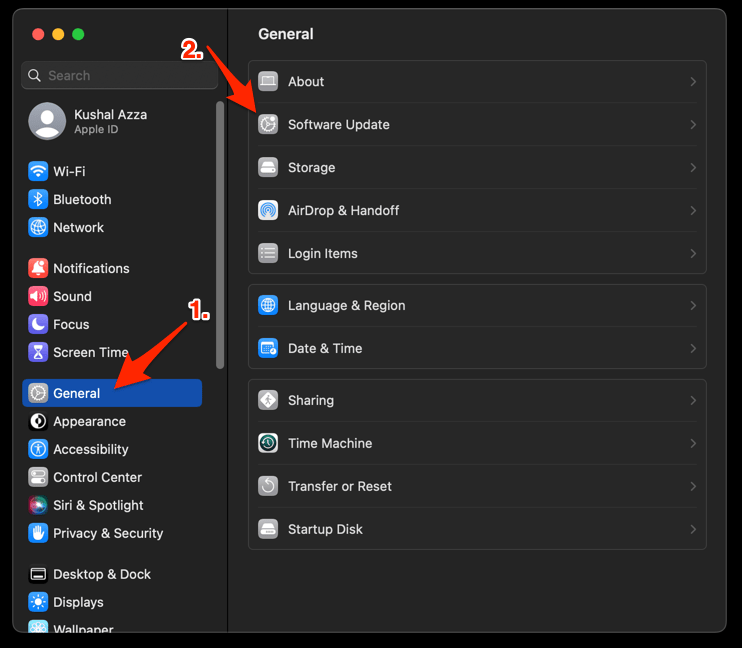 The macOS System will check for any available upgrades in the background.
 - Click on the More Info... tab and enable the checkbox for Safari updates (if any are available).
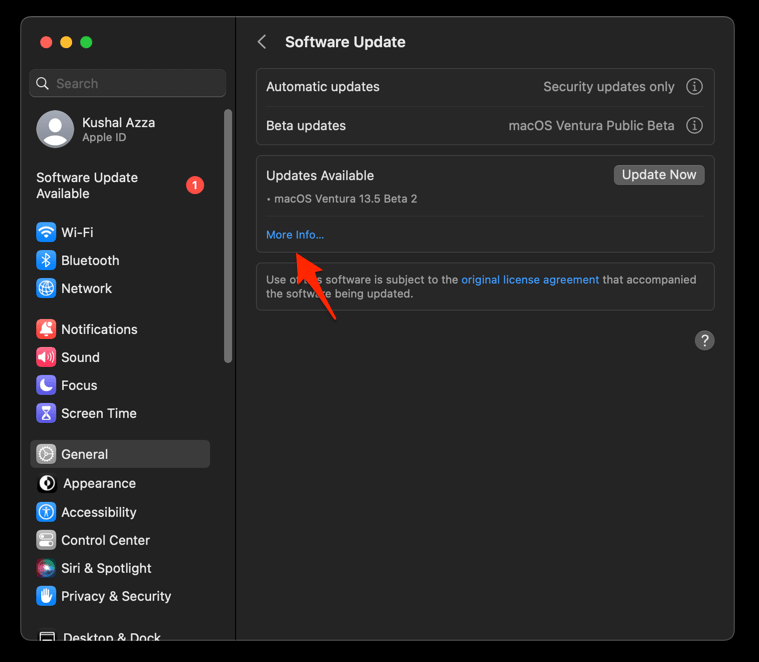
- Hit on the button.
It will update the Safari browser.
Open Safari and try the page in a normal window. You’ll know it worked when the update finishes and the page loads with nothing else changed. If every browser and app fails on every network, treat it as a network problem rather than a Safari one.
Verify the fix and identify the pattern
The page loads again, and now you want to be sure it stays that way. Confirm it in a normal window on the affected Wi-Fi network, then check that it survives one more network cycle:
- Load the failed address in a normal Safari window.
- Open a second website in a new tab.
- Repeat one Wi-Fi off-and-on cycle and confirm that the page still loads.
- If every app fails on the same Wi-Fi, treat it as a network problem.
- If only Safari fails everywhere, revisit extensions, DNS, Private Relay, and the Safari update.
Leave your Safari website data alone at this stage. Deleting it can sign you out of sites and rarely repairs a network configuration problem.
If Safari loads the page but throws a certificate or privacy warning instead, that is a separate symptom with its own fix. The guide below walks through it.

Frequently Asked Questions
Why does Safari stop loading pages after I switch Wi-Fi?
The Mac may be connected, but Safari or macOS can still hold DNS or connection information from the previous network. If all apps fail, start with Wi-Fi. If only Safari fails, start with the browser checks.
Other browsers load the page. What should I fix first?
Test Private Browsing, then temporarily disable extensions and clear Safari’s DNS cache. If those checks pass, the evidence points to Safari state rather than Wi-Fi availability.
All browsers and apps fail after the network switch. What now?
Turn Wi-Fi off and on, renew the DHCP lease, then test a new network location. These steps target the Mac’s connection configuration while preserving your existing network settings.
Why is Renew DHCP Lease missing?
The control is available when the Mac receives its IP address through DHCP. If it is missing, skip it and continue with the Network Locations and DNS checks.
Does turning off iCloud Private Relay permanently fix it?
Use it as a diagnostic. If pages return when Limit IP address tracking is off, or when the account setting uses Turn Off Until Tomorrow, Private Relay is involved. Restore the privacy setting after you confirm the result.