Facebook sitting blank in Safari is usually a local problem: damaged site data, a tracking or pop-up control, a content blocker, or a browser that needs updating.
Start with the Private window test, then remove Facebook's website data before you change any privacy or extension setting.
In this guide, I have covered:
Contents
Facebook not working in Safari? Start with the cause
Your Facebook tab sits there blank, the feed never finishes loading, or the sign-in screen never appears. In Safari that usually comes down to stale website data, cross-site tracking controls, an extension or content blocker, disabled JavaScript, a DNS problem, or an outdated browser.
Start with the narrowest test that matches what you see. If Facebook works in another browser or in a Private window, the fault sits in Safari’s regular profile, not in your connection or your Facebook account.
Work out whether the problem is limited to Facebook
Before you change a single setting, find out how wide the problem is. These checks take about two minutes.
- Open facebook.com in a normal Safari tab and note whether the page is blank, stuck loading, or missing the feed.
- Open another site you use every day and confirm that it loads.
- Open Facebook in a different browser on the same device and network.
- Choose File from the macOS menu bar.
- Select New Private Window.
- Open Facebook in that Private window.
If Facebook loads in another browser or in the Private window, keep going with site data, privacy controls, and extensions. If it fails everywhere, the network or the account is the better suspect.
Check your internet connection
Facebook failing while other sites work doesn’t clear your connection. Run a speed test first to separate a network problem from a browser problem.
- Launch the web browser on your device.
- Open the https://fast.com in the address bar.
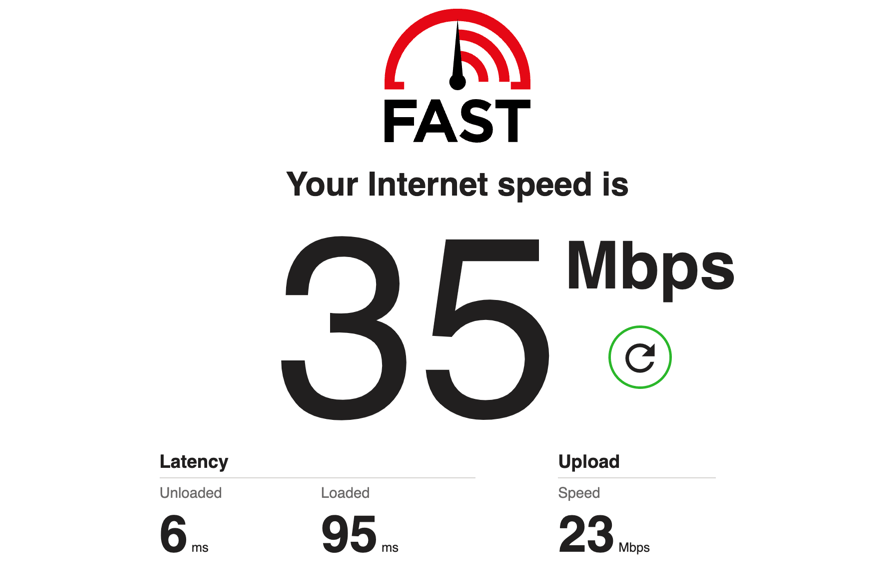
The internet speed test will begin and display the results after completion of the test.
You’ll know the connection is fine when the test returns a normal result. That means carry on with Safari. A failed test points at your local network, so fix that before testing Facebook again.
Remove Facebook’s website data
A targeted reset fixes a damaged Facebook cookie or website-data record without touching your data on every other site. Try it before any full clear.
- Open the Safari menu.
- Choose Settings.
- Select the Privacy section.
- Select Manage Website Data.
- Search for facebook.com in the website-data list.
- Select the Facebook entry.
- Click .
- Open Facebook again in a normal Safari tab.
You’ll know it worked when facebook.com opens to its normal feed or a clean sign-in screen. If facebook.com never shows up in the list, jump to the full Safari reset below.
Reset all Safari cookies and cached data
If the targeted removal didn’t change anything, clear Safari’s cookies and cached data and test Facebook again.
- Launch the Safari app on your Mac computer.
- Click on the Safari menu from the menu bar, and select the Settings... sub-menu.
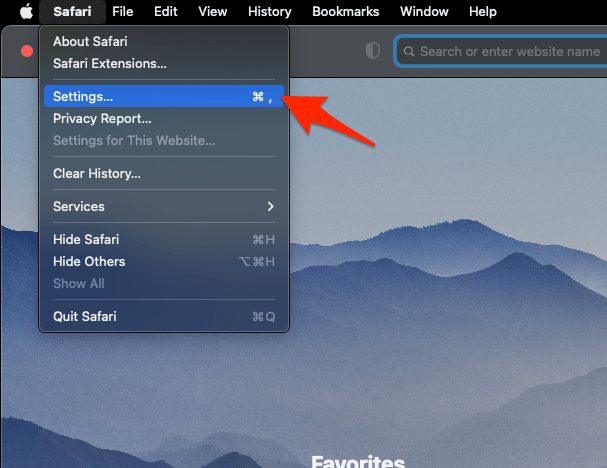 It will open the Safari Settings window.
 - Switch to the Privacy tab, and click to open the button.
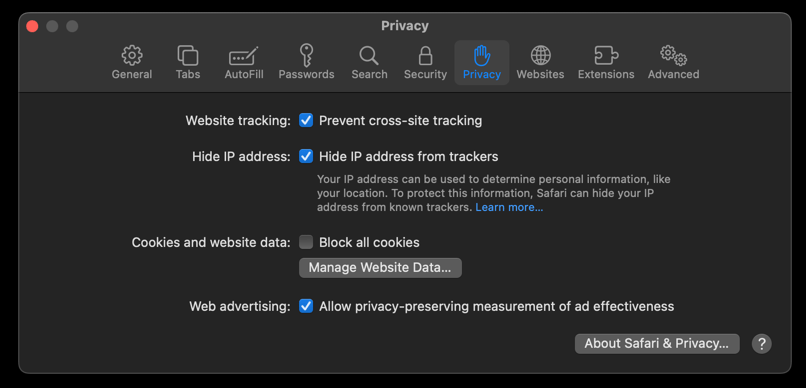 It will load the list of websites currently storing the cache and cookies in the browser.
 - Hit on the command and then the button.
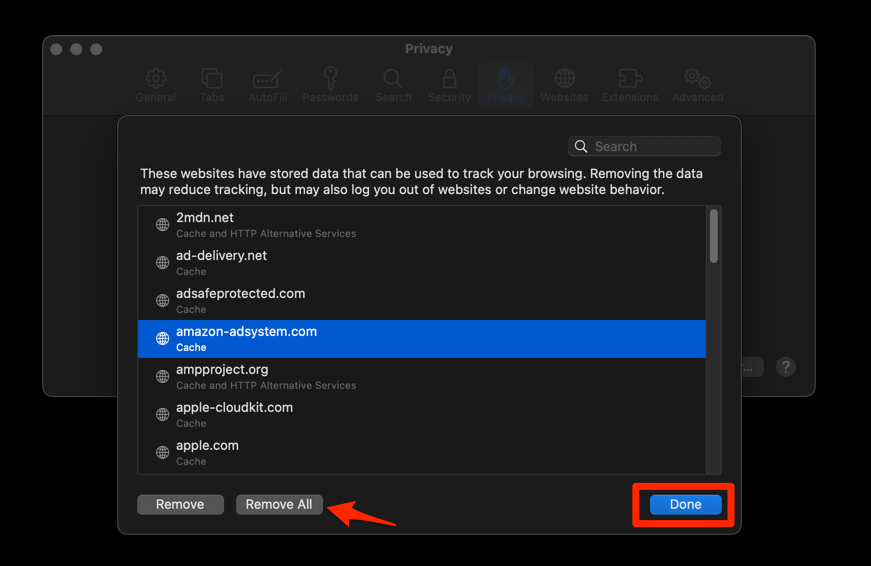 It will flush the cookies and cache for all sites in Safari.
Reopen Facebook and sign in if you’re asked. When the site loads this time, stale site data was the cause.

A full reset affects every website in Safari, so other sites may sign you out.
Check cross-site tracking and pop-up controls
If the login window never appears or the feed stays empty, a privacy control may be blocking something Facebook needs. The Safari cookie controls on Mac cover the settings around them if you want the full picture before changing anything.
- Open the Safari menu.
- Choose Settings.
- Select the Privacy section.
- Turn off Prevent cross-site tracking.
- Turn off Block pop-ups and other websites from tracking.
- Click the reload
 icon to load Facebook again.
If Facebook loads with both controls off, switch them back on one at a time to find the one that matters.
- Turn Prevent cross-site tracking back on.
- Reload Facebook.
- Turn Block pop-ups and other websites from tracking back on.
- Reload Facebook.
You’ll know you’re done when Facebook loads with the fewest controls switched off. Leave the rest on.
Cross-site tracking protection is a privacy control. Treat this as a temporary test and restore any setting Facebook doesn’t actually need.
Disable Safari extensions and content blockers
An ad blocker, a privacy tool, or a Facebook-specific blocker can swallow scripts and sign-in elements. Switch them all off long enough to load the page once.
- Launch the Apple Safari app on your Mac computer.
- Click on the Safari menu from the menu bar at the top, and select Settings... sub-menu.It will open the Safari Settings window.
- Switch to the Extensions tab in the Settings window.
It will display the list of all the Safari extensions installed. - Uncheck the checkbox in the left side pane to Disable the extension.
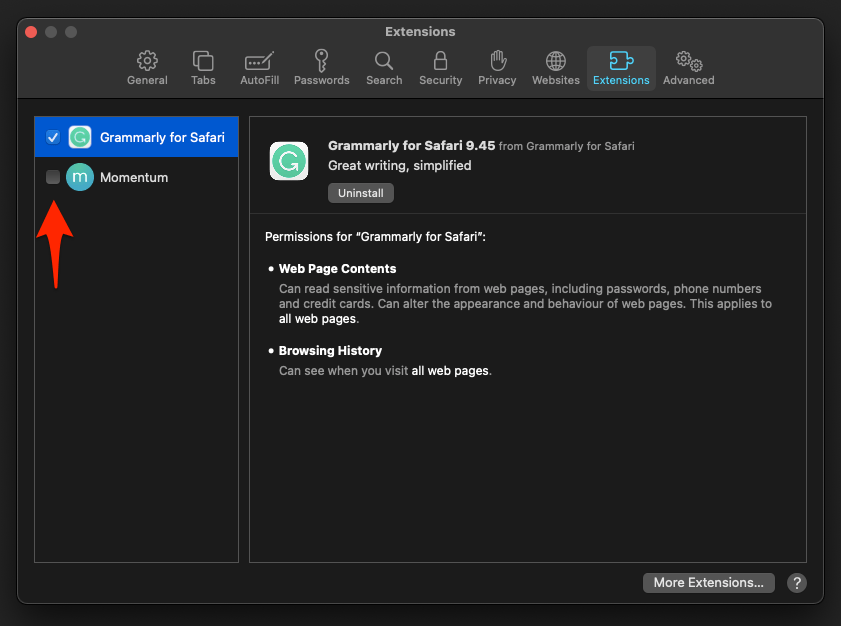
Facebook should load with the extensions off. If it does, one of them is the culprit, and the next steps find it.
Find the extension that interferes with Facebook
Turn them back on one at a time and reload Facebook after each one.
- Open the Safari menu.
- Choose Settings.
- Select Extensions.
- Turn on one extension at a time.
- Reload Facebook after each change.
The extension you switched on just before the page broke is the one to remove or replace.
Make sure JavaScript is enabled
A blank Facebook page or a feed that never finishes loading often means Safari isn’t running scripts at all. Check the global setting.
- Open the Safari menu.
- Choose Settings.
- Select Advanced.
- Turn on Show features for web developers.
- Open the Develop menu on the macOS menu bar.
- Confirm Disable JavaScript is not selected.
- Click the reload icon to load Facebook again.
You’ll know it worked when the feed or the sign-in screen appears. If it does, JavaScript had been off, or another script-blocking setting was doing the same job.
Reset Safari’s DNS cache
A “Safari can’t open the page” or “server not found” message points at address lookups rather than at the page itself. Reset the DNS cache after you’ve confirmed the connection works.
- Open the Apple Safari app on your Mac, and select Safari > Settings... from the menu bar.It will open the Safari Settings window.
- Switch to the Advanced tab, and enable the checkbox for the Show Develop menu in the menu bar option.
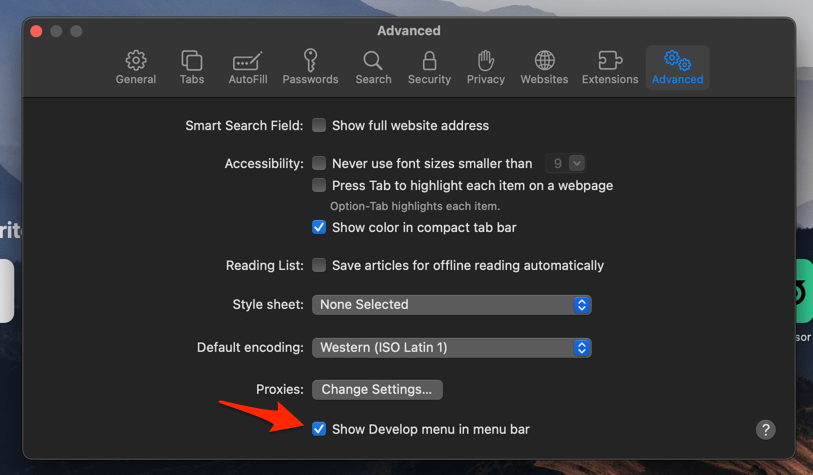 It will enable a new Develop menu in the Safari menu bar.
 - Click on the Develop menu and select the Empty Caches command.
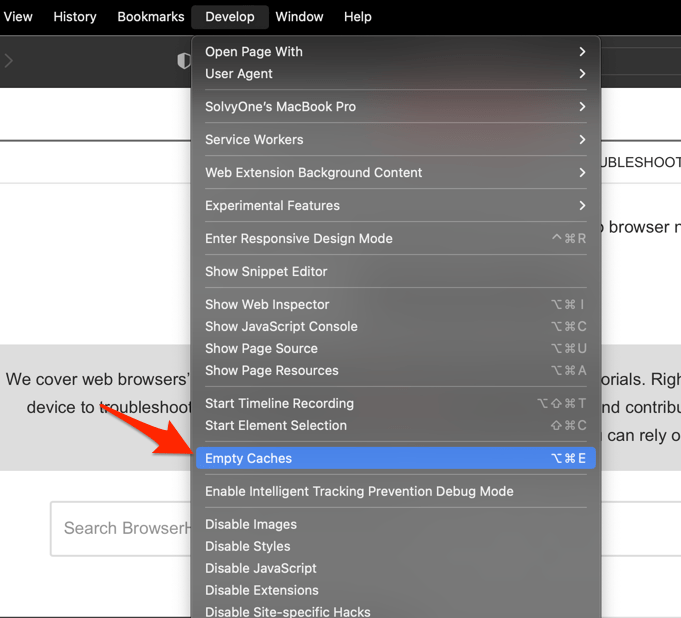 It will clear all cache, including the Safari DNS host cache.
Open Facebook again. If the connection error survives, do the Safari update next and compare the result with another browser.
Update Safari on macOS
An older Safari can break on sites that ship new code, and Facebook changes constantly. Install any Safari or macOS update on offer once the settings checks are done.
- Click on the Apple
 menu from the menu bar and select the System Settings... sub-menu.
  It will open the System Settings window.
 - Select the General tab in the left sidebar, and choose the Software Update tab.
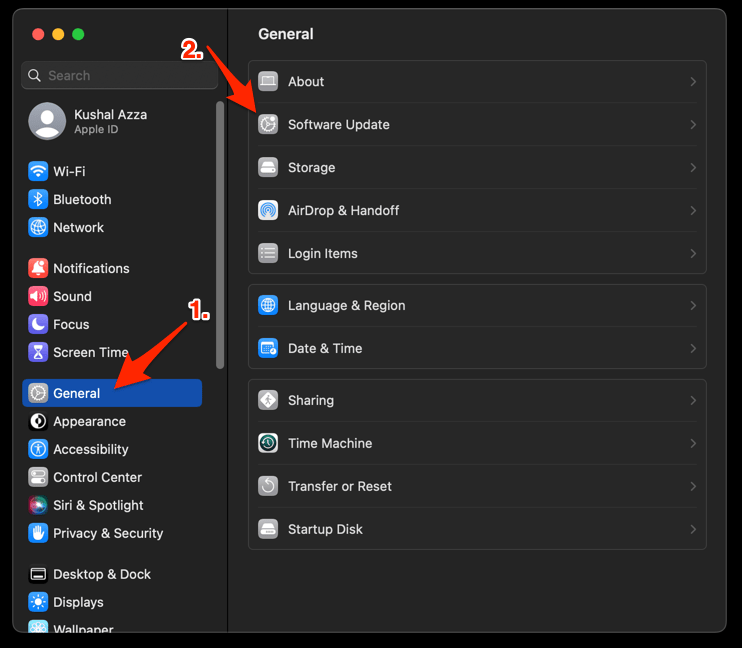 The macOS System will check for any available upgrades in the background.
 - Click on the More Info... tab and enable the checkbox for Safari updates (if any are available).
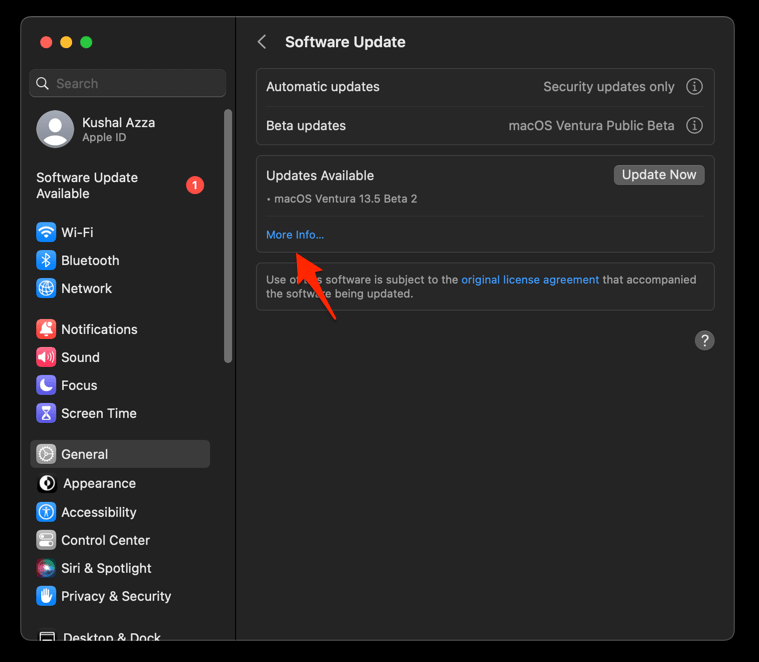
- Hit on the button.
It will update the Safari browser.
Reopen Facebook and test the feed and the sign-in page separately before you call it fixed.
Clear Safari data on iPhone or iPad
On current iPhone and iPad versions, Safari lives under Apps in Settings. If your device lists Safari on the main Settings screen instead, open it there. Either way, the path runs through Advanced to Website Data, as Apple’s Safari website data guide confirms.
- Launch the iPhone or iPad's Settings app.
- Select Safari in settings and scroll to the bottom to choose the Advanced option.
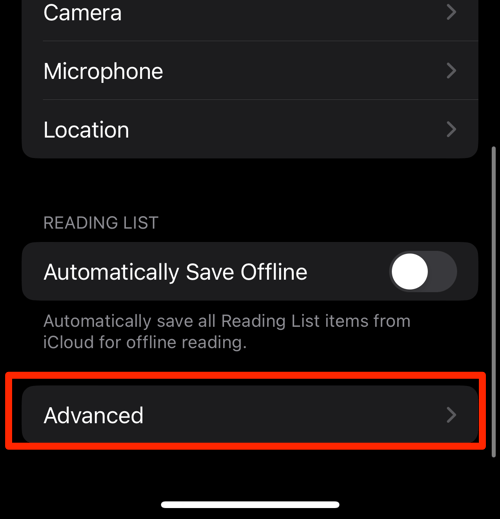
- Tap on the Website Data option.
It will display the list of all websites and corresponding data. - Tap on the command.
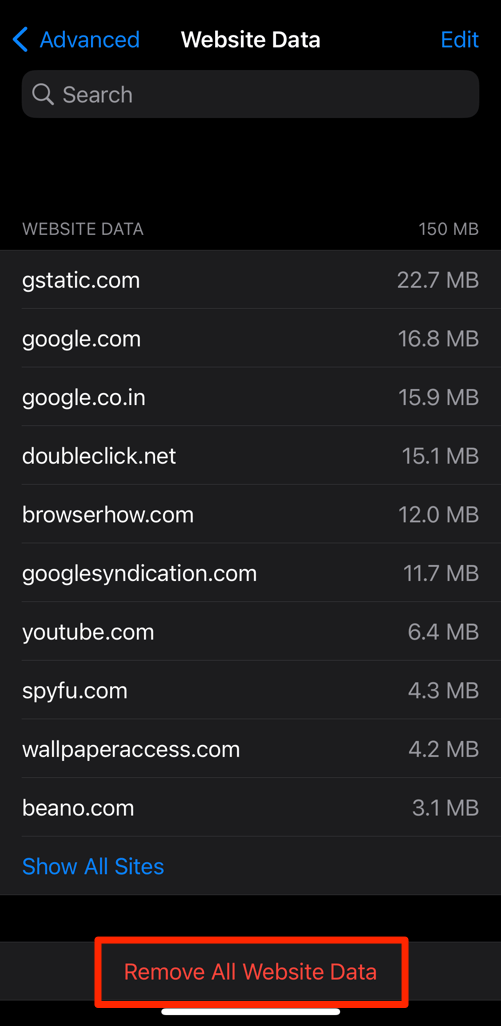 It will delete all the stored website data from the Safari browser.
Open Facebook in Safari and sign in again. If the site loads, the reset did its job.
Removing website data affects every website in Safari and can sign you out of other accounts.
Update Safari on iPhone or iPad
Facebook still failing after the mobile website-data reset? Check for a Safari update.
- Open Settings on your phone, and head on to the General section.
- Select Software Update to open the screen.
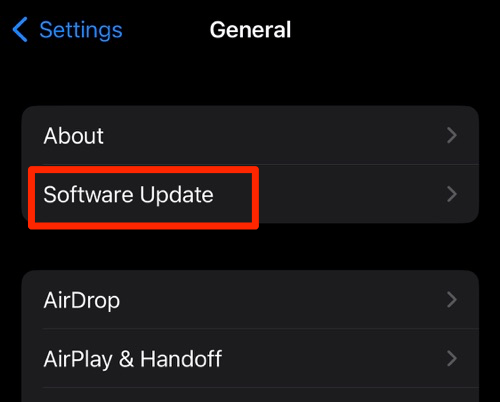 The device will automatically start looking for updates.
 - Tap the button.
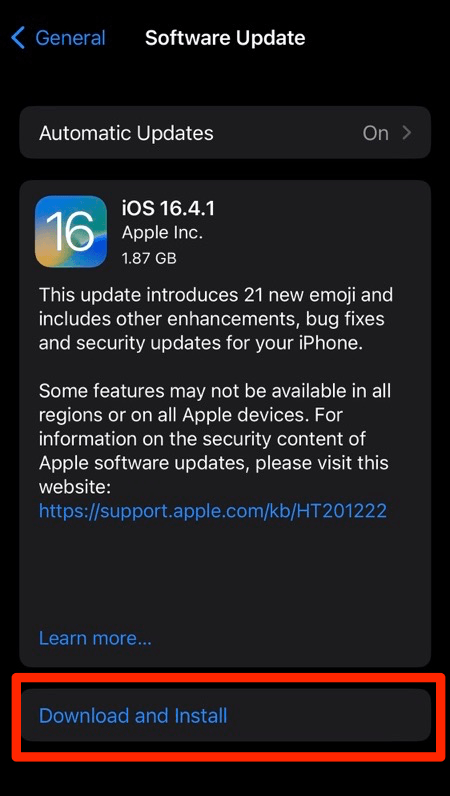 The update will download and install the latest Safari on your device, if available.
Open Facebook again and test the feed and the sign-in screen separately, because one can fail while the other works.
Check Facebook cookie controls on iPhone or iPad
A Facebook login popup that never opens, or an embedded screen that hangs, points at Safari’s privacy controls on iOS. The Safari cookie controls on iPhone and iPad explain what each one does before you turn it off.
- Open Settings.
- Select Apps.
- Select Safari.
- Scroll to Advanced.
- Turn off Prevent Cross-Site Tracking.
- Turn off Block Pop-ups and other websites from tracking.
- Open Facebook in Safari and test the login flow.
Restore the controls one at a time to find the one that matters.
- Turn Prevent Cross-Site Tracking back on.
- Test Facebook again.
- Turn Block Pop-ups and other websites from tracking back on.
- Test Facebook again.
Facebook should load with the smallest setting change that does the job.
Use the test results to choose the next step
Not sure which fix to keep? Match what you saw to the list below.
- Works in another browser but not in Safari: stay with Safari’s website data, privacy controls, JavaScript, and extensions.
- Works in a Private window but not a normal window: reset the normal window’s website data.
- Fails in every browser on the same network: look at the connection or the account, not Safari.
- Only one Facebook account fails: sign into that account in another browser to separate an account or session problem from a browser problem.

Frequently Asked Questions
Why is Facebook not loading in Safari?
Most often it’s stale Facebook website data, a privacy control, a content blocker, disabled JavaScript, a DNS cache problem, or an outdated Safari. The checks above narrow it down to one of those.
Should I turn off Prevent Cross-Site Tracking permanently?
No. Use it as a short test and turn it back on. If Facebook only works with the protection off, decide whether that trade is worth it before you make a permanent change.
Will clearing Safari data delete my Facebook account?
No. It removes browser cookies and website data, which can sign you out of Facebook and other services. Your account stays where it is.
Why does Facebook work in Private Browsing but not a normal Safari window?
The normal window is carrying cookies or website data that the Private window never sees. Remove Facebook’s website data first, then do a full Safari reset if the problem remains.
Does clearing the DNS cache remove my Facebook login?
No. It resets local address lookups. Cookies, website data, and your account are untouched.