An attachment that refuses to download is usually not a Safari bug. Mail may be handling the file itself, the download folder may be one Safari cannot write to, or the webmail session behind a temporary link may have expired.
Check where the message is open first, confirm the download folder in Safari Settings, retry the attachment, then use the download list to prove the file arrived. Clear Safari data only if those steps fail.
In this guide, I have covered:
Contents
First, work out what is actually handling the attachment
Your attachment will not download, and the fix depends on one detail: which app is supposed to save the file. Mail attachments and webmail attachments opened in Safari take completely different paths.
So look at where the message is open before you change any setting. If it is sitting in Mail, Safari’s download folder has nothing to do with it. If it is Gmail or another webmail service in a Safari tab, the file may open in a preview page first or start as a normal Safari download.
Save an attachment directly from Mail
If the message is open in the Mail app on your Mac, you can skip Safari entirely. Mail saves attachments with its own controls, and none of Safari’s download settings apply here.
- Move the pointer over the message header to reveal the attachment controls.
- Click the Attach button to display the message’s attachments.
- Click the attachment name to open it, or select it and click .
- Choose a destination folder and click .
You can also select the message and choose File → Save Attachments from the menu bar. With several files attached, that route is usually faster than saving them one at a time.
Check Safari’s file download location
Nothing lands in the folder you expected, even though the download seemed to finish. Safari is probably writing somewhere else, or the folder it points to is not available right now.
- Open Safari → Settings.
- Select General.
- Open the File download location pop-up menu.
- Select an available folder, or choose the option that asks where you want to save downloads.
- Close Safari Settings and download the attachment again.
If you pick the ask-each-time option, Safari shows a Finder window the moment the download starts. Choose a folder you can write to and click .

If the folder lives in iCloud Drive or another synced location, confirm the sync service is running. A destination Safari cannot write to will stop a download dead.
Check Safari’s download list
Safari says the file downloaded, but you cannot find it anywhere. The download list shows whether the file arrived and where it went, which is the fastest way to tell a failed download from one saved in an unexpected folder.
- Return to the Safari window containing the failed attachment.
- Click the download
 button at the top-right of the Safari window.
 - Look for the attachment in the download list.
- Double-click the item to reveal it in Finder.
Safari clears download list entries after one day by default. A successful download from last week may be missing from the list even though the file is still in your download folder.
Retry the attachment from Safari
You are working in webmail and the attachment stalls or vanishes. Try it again in a normal Safari window, which keeps the browser download separate from any Mail session and makes a blocked pop-up or a sign-in prompt much easier to spot.
- Return to the webmail tab and select the attachment again.
- If a preview page opens, select its download control.
- Choose the download destination if Safari asks for one.
- Open the download list and confirm that the attachment appears.
If the webmail service asks you to sign in again, finish that prompt before you click the attachment. Temporary attachment links stop working once the mail session expires.

TIP: Try a regular Safari window before you touch system-wide privacy settings. It keeps the troubleshooting narrow and often shows that the problem is limited to one session or another app.
Clear Safari data if the download still fails
The attachment opens fine in another app, then fails again in Safari. That pattern points at the browser’s own stored data, and clearing it is the next step.
- Launch the Safari app on your Mac computer.
- Click on the Safari menu from the menu bar, and select the Settings... sub-menu.
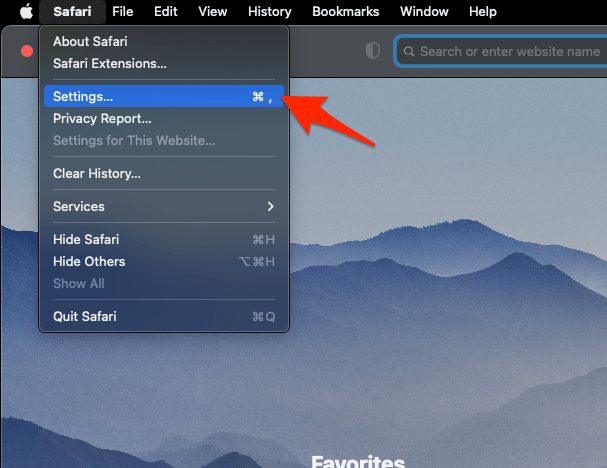 It will open the Safari Settings window.
 - Switch to the Privacy tab, and click to open the button.
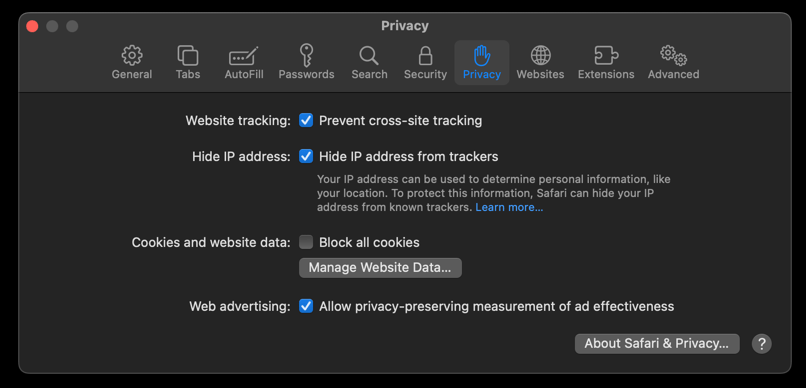 It will load the list of websites currently storing the cache and cookies in the browser.
 - Hit on the command and then the button.
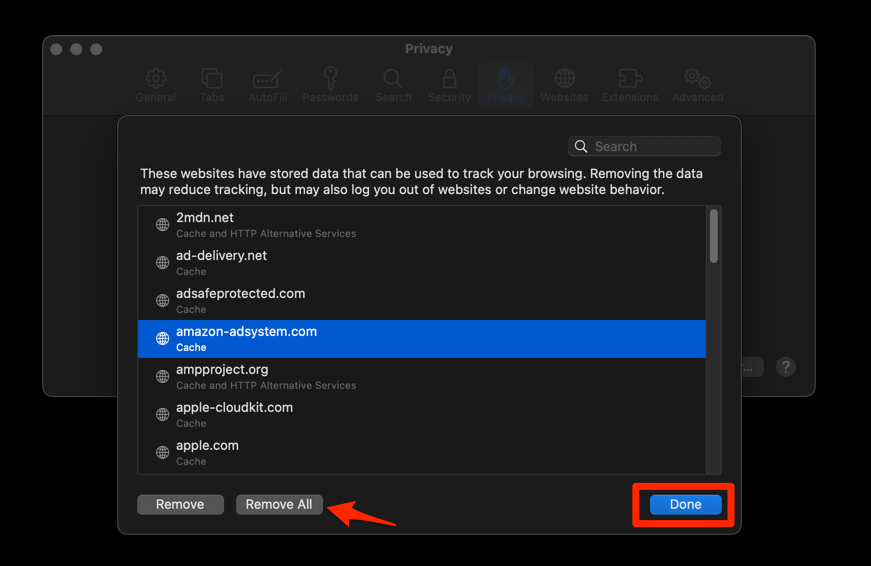 It will flush the cookies and cache for all sites in Safari.
Safari should behave normally once it restarts. You’ll know it worked when the same attachment downloads without stalling. Because clearing cookies signs you out of websites, sign back into the webmail service before you try again.
Update Safari and macOS
The download still fails after the reset, and you have not updated in a while. Older browser and system builds can lose download controls or handle a webmail service badly, so rule that out next.
- Open Apple menu → System Settings.
- Select General → Software Update.
- Install any available macOS update.
- Open Apple menu → App Store.
- Open Updates and install any available Safari update.
If you need to verify which Safari build is installed before updating, see Check the Current Installed Version of the Safari app. After updating, open the email again and retry the attachment.
Still not downloading?
You have worked through every step and the file still will not save. Before you reinstall anything, shrink the problem: does it affect every attachment, or only this one message?
Send yourself a small, harmless file from another account, then try the same attachment in a different browser. If the file opens elsewhere but never in Safari, repeat the data reset and update steps. If nothing downloads in any program, the email service or the file itself is likely the problem, not a Safari setting.

Frequently Asked Questions
Why does Safari not download my email attachments?
The attachment may be handled by the Mail app rather than Safari, or Safari may be unable to write to its configured download location. An expired webmail session can also block a temporary attachment link.
Where can I find an attachment that Safari says it downloaded?
Click the download button at the top-right of the Safari window and double-click the attachment to reveal it in Finder. You can also check the folder selected in Safari’s File download location setting.
How do I make Safari ask where to save each download?
Open Safari Settings, select General, and open the File download location pop-up. Choose the option that asks where to save downloads.
Will clearing Safari data delete my email attachments?
No. Clearing Safari’s cookies and cached data does not remove files already saved to your Mac. It can sign you out of websites, so sign in to your webmail service before retrying the attachment.