A Fandom wiki goes blank in Safari, images never load, and signing in loops you back to the form. The cause is usually on the browser side, not the wiki.
Here is what actually fixes it on Mac, iPhone, and iPad: updating Safari, allowing Fandom content and pop-ups, switching off blocking extensions, and clearing the site's stored cookies and data.
In this guide, I have covered:
Contents
Fandom Not Working in Safari? Start Here
A wiki page hangs on a blank screen. Images and videos never appear. You sign in and get bounced straight back to the log-in form. Those are the three shapes this problem usually takes.
Fandom is a network of separate community wikis, not one big site. A fault can hit a single wiki while the rest of the platform loads fine, which is why the problem often looks random.
Most of the time the cause sits inside the browser, not on Fandom’s servers. Content blockers, pop-up rules, tracking protection, stale cookies, cached scripts, and blocking extensions can each break part of a wiki page while the rest of the web works normally.
- The wiki stays blank or spins on a loading symbol
- Images, videos, or interactive maps never render
- Signing in loops back to the sign-in page
- Ad overlays or empty boxes cover the article text
- One Fandom wiki fails while other websites work
Work through the checks below in order. Each one is quick, and each one rules out a whole group of causes.
Run a Few Quick Checks First
Before you change any settings, work out whether the fault belongs to Fandom, your connection, or Safari. These four checks take under a minute and point you at the right fix.
- Reload the Fandom tab with the reload
 icon in the Safari toolbar.
 - Open the same wiki in a Private Browsing window to test it without saved cookies or extensions.
- Open a different site, such as a news site, to confirm your internet connection is working.
- Try the same wiki in another browser or on another device to see whether Fandom itself is having trouble.
If the wiki loads in Private Browsing, the cause is stored data or a blocking extension. If it fails everywhere, suspect your network or a Fandom outage.

TIP: Use a Private window as the quickest split test. On a Mac, choose File → New Private Window. On iPhone and iPad, tap the tabs  icon in the bottom bar and switch to Private.
Update Safari on Mac
If the trouble started right after a macOS update, an outdated Safari build is the first suspect. Old builds can throw JavaScript errors on sites that have already changed their scripts.
- Click on the Apple
 menu from the menu bar and select the System Settings... sub-menu.
  It will open the System Settings window.
 - Select the General tab in the left sidebar, and choose the Software Update tab.
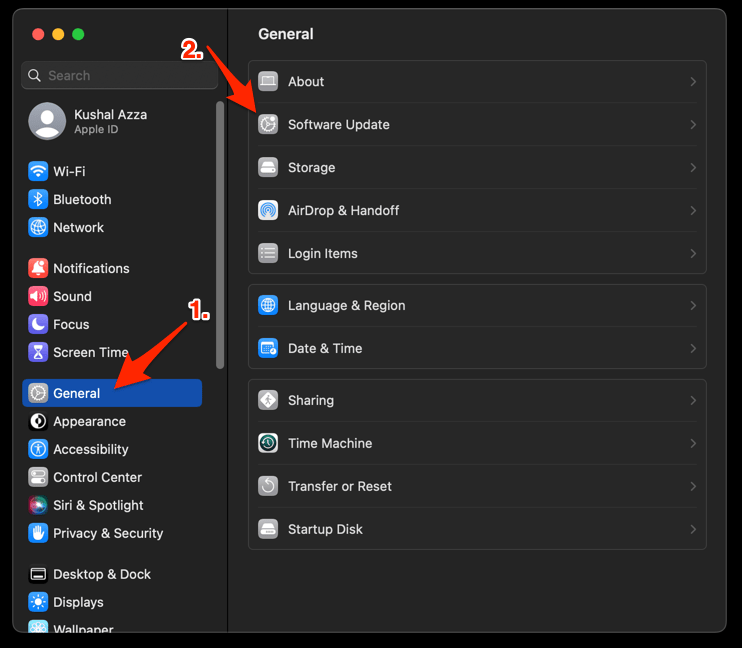 The macOS System will check for any available upgrades in the background.
 - Click on the More Info... tab and enable the checkbox for Safari updates (if any are available).
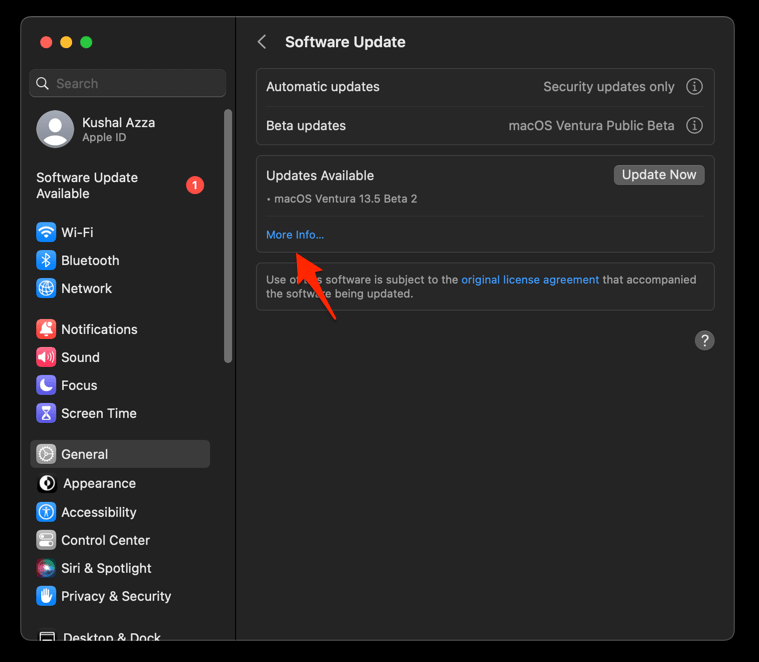
- Hit on the button.
It will update the Safari browser.
Reopen Fandom once the update finishes. If the wiki loads correctly now, the old build was the cause and you can stop here.
Update Safari on iPhone and iPad
On iPhone and iPad, Safari updates with iOS and iPadOS, so one software update covers the browser. Install it, then reopen Fandom from the Home Screen.
- Open Settings on your phone, and head on to the General section.
- Select Software Update to open the screen.
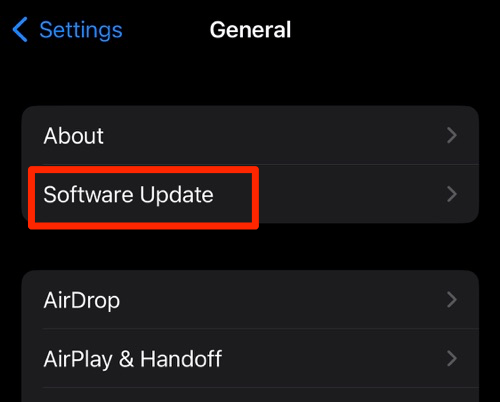 The device will automatically start looking for updates.
 - Tap the button.
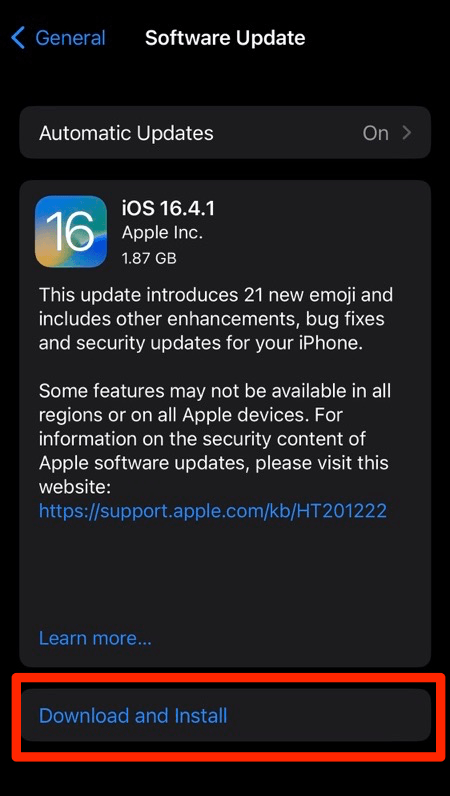 The update will download and install the latest Safari on your device, if available.
If the wiki opens properly after the update, you are done. If it still fails, carry on with the content and data checks below.
Allow Fandom’s Content and Pop-ups on Mac
Safari keeps its per-site controls on the Websites tab of Safari Settings. Open the wiki’s entry there and you can stop content blocking for Fandom and allow the pop-up windows that some wiki features rely on.
- Choose Safari → Settings… in the menu bar.
- Open the Websites tab.
- Select the Fandom wiki in the list, or use the search field to find its domain.
- Set Content Blockers to Off so Safari stops filtering that site’s content.
- Set Pop-up Windows to Allow.
- Open Auto-Play for the wiki and allow automatic playback if videos are the part that will not play.
- Reload the Fandom tab to apply the new permissions.
Apple’s own warning explains why Allow beats Block here: some websites use pop-up windows for essential content. A wiki you trust qualifies.

If the wiki is not listed on the Websites tab, open it in Safari first and then return to Settings. Safari adds a site to that list once you visit it.
Turn Off Blocking Extensions on Mac
Third-party ad blockers and privacy extensions can strip out the scripts Fandom uses to render articles, media, and community features. Turn them off for one test and you will know whether that is your cause.
- Launch the Apple Safari app on your Mac computer.
- Click on the Safari menu from the menu bar at the top, and select Settings... sub-menu.
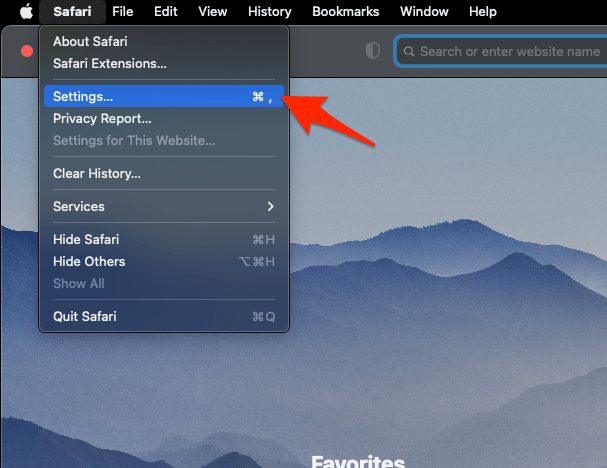 It will open the Safari Settings window.
 - Switch to the Extensions tab in the Settings window.
It will display the list of all the Safari extensions installed. - Uncheck the checkbox in the left side pane to Disable the extension.
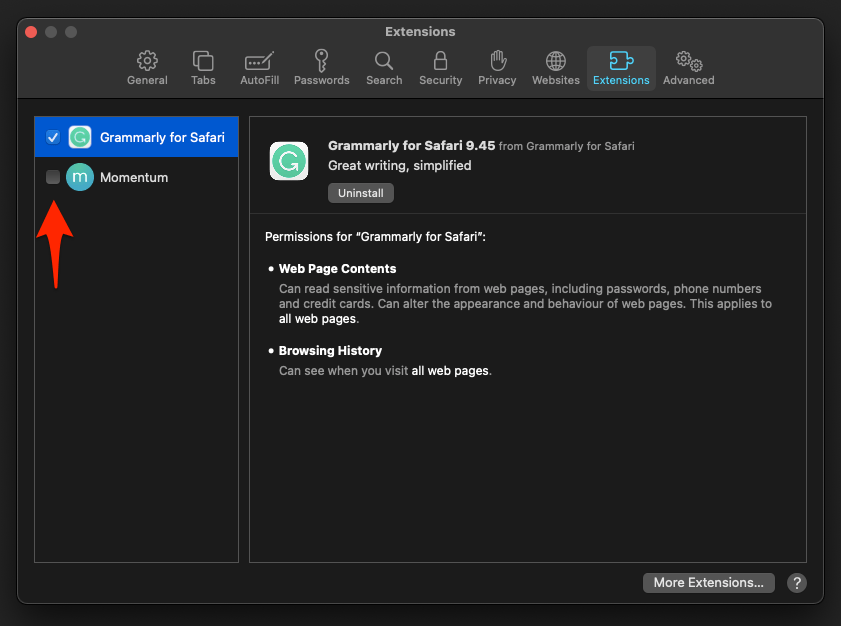
Reload the wiki with the extensions off and sign in again if you are asked. If the content comes back, an extension was blocking it. Switch that extension on again and restrict it to the sites you trust.
Remove Fandom’s Website Data on Mac
Corrupted cookies and cached files can keep a broken wiki page alive long after a reload. Safari lets you delete the stored data for one site, so your other logins survive.
- Choose Safari → Settings… in the menu bar.
- Select Privacy in the sidebar.
- Choose Manage Website Data.
- Search for the Fandom domain and select its entries.
- Click to delete the selected data.
- Reload the Fandom tab and sign in again.
Apple notes that removing website data may sign you out of sites or change how they behave. For a wider cleanup, see our guide to Clear Site and Browsing Data from Safari browser on Mac.
Clear All Safari Cookies and Cache on Mac
If clearing one site’s data does not fix the wiki, reset Safari’s cookies and cache completely. This is the clean-slate test, and it clears every other site in Safari too.
- Launch the Safari app on your Mac computer.
- Click on the Safari menu from the menu bar, and select the Settings... sub-menu. It will open the Safari Settings window.
- Switch to the Privacy tab, and click to open the button.
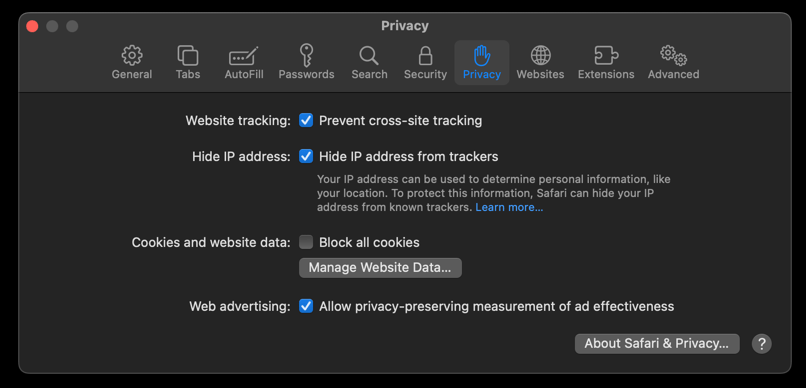 It will load the list of websites currently storing the cache and cookies in the browser.
 - Hit on the command and then the button.
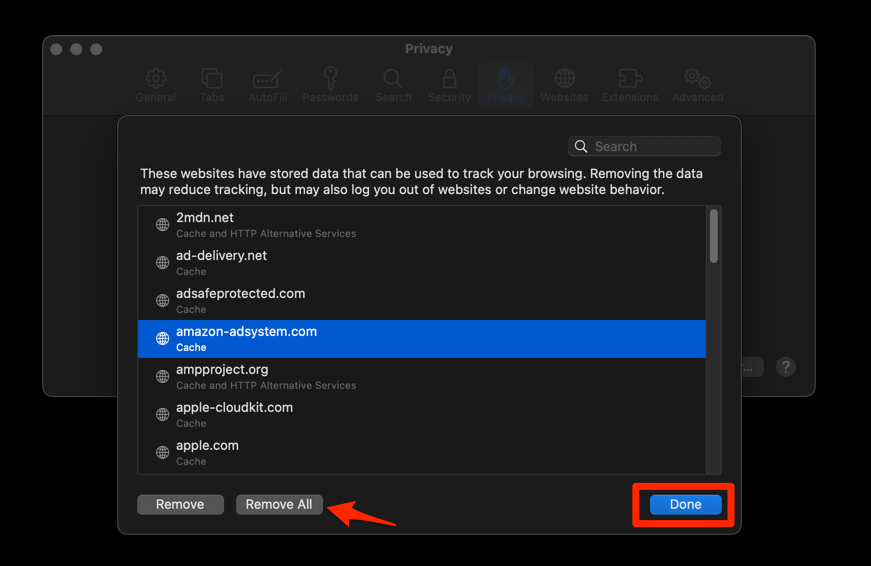 It will flush the cookies and cache for all sites in Safari.

ALERT: Clearing cookies and cached data signs you out of websites across Safari and can change how those sites behave. Have the passwords for any accounts you use handy before you continue.
Reopen Fandom and sign in. If the wiki works now, the fault was in Safari’s stored data and you can leave it cleared.
Fix Fandom on iPhone and iPad
Safari settings live in the Settings app on iPhone and iPad, and the Safari folder has moved in recent iOS releases. Use these three fixes when Fandom misbehaves on your phone or tablet.
Turn Off Block Pop-ups
- Open Settings.
- Choose Apps → Safari.
- Turn off Block Pop-ups.
Some wiki features, including media windows and sign-in prompts, open in a separate window. Turning off the blocker gives those features room to work.
In current iOS and iPadOS versions Safari sits inside an Apps folder in the Settings app. Older versions list Safari at the top level, so use the Safari entry you actually see.
Clear Cookies and Cache on iPhone and iPad
Stale cookies and cached files can leave a wiki stuck on a half-loaded page. Clearing them gives Safari a clean start and rules out stored data in one move.
- Launch the iPhone or iPad's Settings app.
- Select Safari in settings and scroll to the bottom to choose the Advanced option.
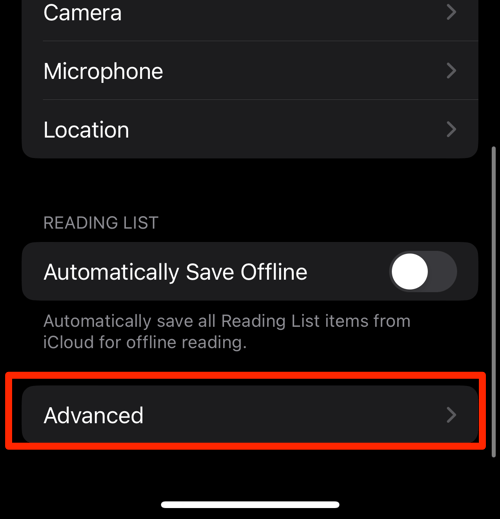
- Tap on the Website Data option.
It will display the list of all websites and corresponding data. - Tap on the command.
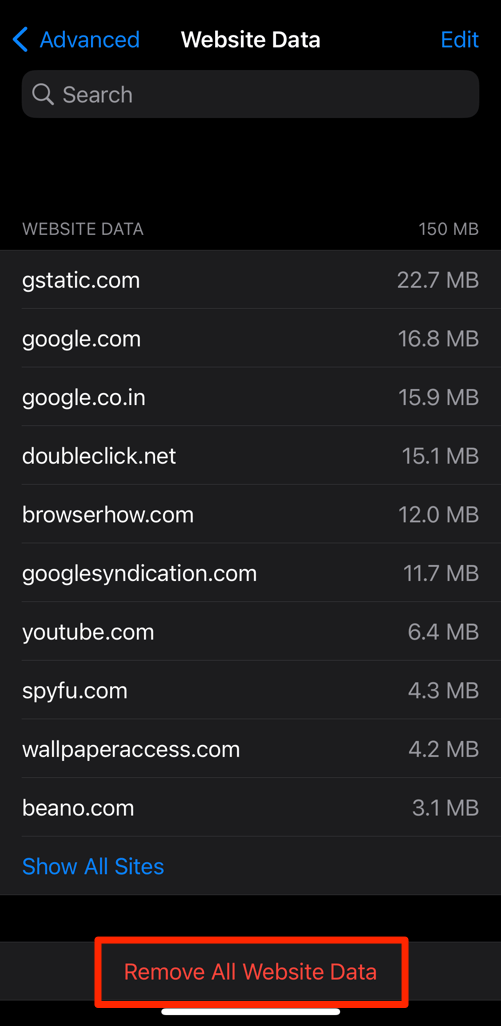 It will delete all the stored website data from the Safari browser.
Apple notes that the remove button is greyed out when there is no website data to delete, which means Safari is already clean. Reopen Fandom after the reset and sign in again.
Turn Off Content Blockers
- Open Settings.
- Choose Apps → Safari.
- Choose Extensions.
- Turn off any content blocker or ad blocker you have added.
Content blockers run inside Safari on both devices, so switching one off for a test shows quickly whether it is filtering Fandom’s scripts. If you would rather fine-tune cookies than clear everything, see Block or Allow Browser Cookies in Safari on iPhone & iPad.

Clear the DNS Cache in Safari on Mac
When one wiki refuses to load at all and every other site is fine, the address lookup may be at fault rather than the page. Clearing the DNS cache makes Safari resolve the address again.
- Open the Apple Safari app on your Mac, and select Safari > Settings... from the menu bar.It will open the Safari Settings window.
- Switch to the Advanced tab, and enable the checkbox for the Show Develop menu in the menu bar option.
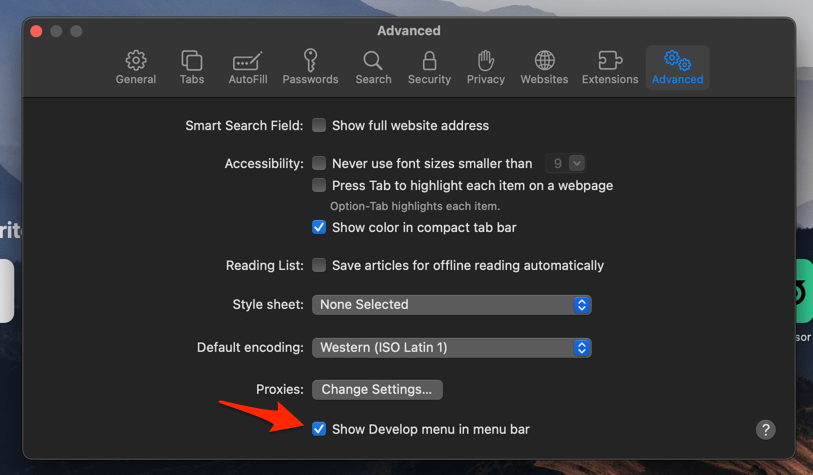 It will enable a new Develop menu in the Safari menu bar.
 - Click on the Develop menu and select the Empty Caches command.
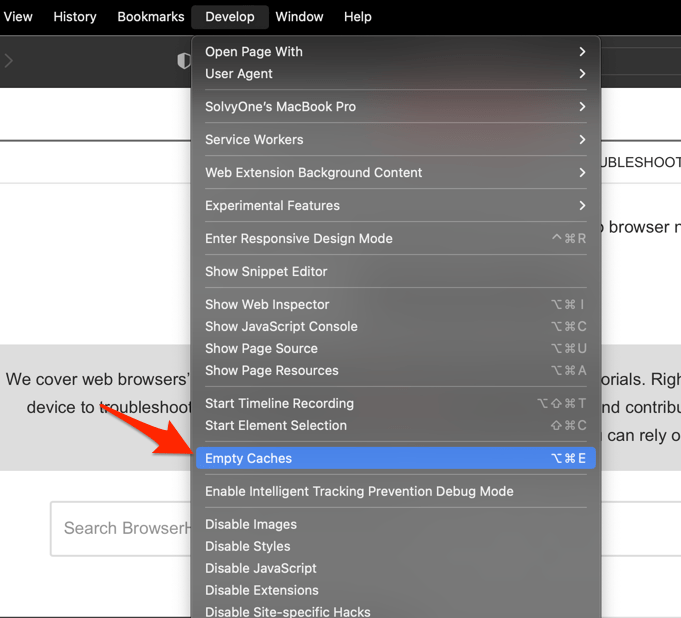 It will clear all cache, including the Safari DNS host cache.
Try the wiki once more after the cache is cleared. If it still fails in every browser and on every network, the problem is on Fandom’s side rather than yours.
If Fandom Still Does Not Work
Run through this short list before you reinstall anything or file a report.
- Confirm the fault follows the wiki, not the browser, by opening a different Fandom wiki.
- Confirm the fault follows the network by trying the same wiki on a different connection.
- Check for a Fandom service announcement on the platform’s social accounts.
- Restart the device and the router if Safari behaves oddly on other sites too.
If the wiki loads on another device, keep working through the Safari fixes above on the affected machine. That is where the block lives.
Frequently Asked Questions
Why does Fandom work in Chrome but not in Safari?
Safari applies stricter rules for scripts, pop-ups, and content blockers than some other browsers, and blocking extensions can remove the code Fandom uses to render pages. Turn off content blocking and extensions for the wiki, then clear the site’s stored data, and work through those three checks first.
Will clearing Safari cookies sign me out of Fandom?
Yes. Removing website data signs you out of the affected sites, and Apple notes that it can change how a site behaves. Sign in again at Fandom once the reset is done.
Where is the Safari setting on iPhone and iPad now?
In current iOS and iPadOS versions, Safari settings sit inside Settings → Apps → Safari. Older versions list Safari directly at the top level of the Settings app.
How do I allow Fandom pop-ups in Safari on Mac?
Open Safari Settings, go to the Websites tab, select the Fandom wiki, and set Pop-up Windows to Allow. Apple warns that some websites need pop-up windows for essential content.
Is Fandom down, or is it my Safari setup?
If the wiki fails in every browser and on every device, the fault is likely on Fandom’s side. If it fails only in Safari on one device, the browser-side fixes in this guide are the ones that apply.