Safari's back button should return you to the page you just left. When it drops you on the Start Page instead, the cause is usually the tab's history, stored website data, or your homepage setting.
Start with a private-window test to see whether one site or every site is affected, then work through history, per-site data, and Safari's Start Page options.
In this guide, I have covered:
Contents
Why Safari’s back button lands on the Start Page
You press back and Safari jumps to the Start Page instead of the page you were reading a second ago. That is rarely a broken website. Most of the time the cause is the tab’s own history, the website data Safari stored for that site, or the page Safari treats as your homepage.
Run one quick test before you change anything. If back navigation fails on a single site, clear that site’s data first. If it fails everywhere, clear history and website data, then restart Safari.
There is no hidden cache switch to flip, either. Safari does not offer a separate back-forward cache or page-cache toggle in its Settings window, so the fixes below work on history, stored data, and startup pages instead.
Is it one site or every site? Test it first
Before you reset anything, you want to know how wide the problem reaches. A private window answers that in about a minute.
Private browsing keeps its own temporary history, so the test leaves your normal settings and saved pages untouched.
- Open a new private browsing window in Safari.
- Visit a page, open another link from that page, then press the back button.
- Note whether Safari returns to the first page or jumps to the Start Page.
If back navigation works in the private window, your regular profile’s history or website data is the likely cause. If it still jumps to the Start Page, keep going with the data and settings steps below.

Clear Safari history
The back and forward buttons read from your history list. If that list holds a Start Page entry where your previous page should be, clearing it forces Safari to build the list again.
- Open the Safari app on your Mac.
- Click on the History and select Clear History from the menubar.
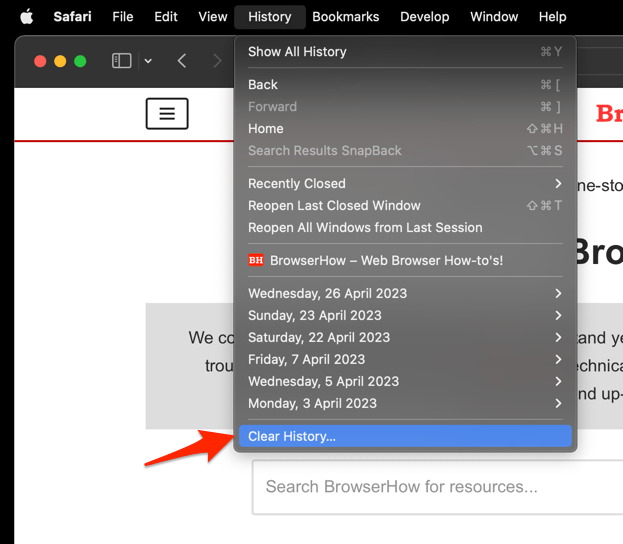 It will open the clear history pop-up window.
 - Select the Time Range from the drop-down and hit on the command button.
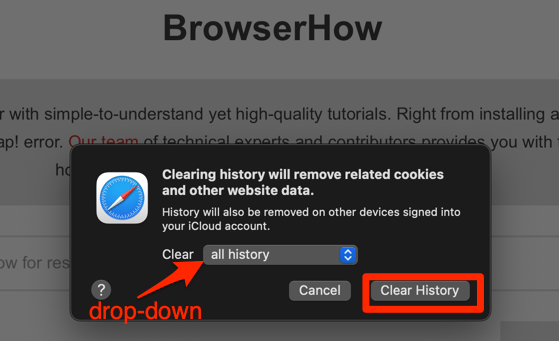 That's it, the browsing history will be removed from the selected range.
Reopen the affected page and press back again. You’ll know it worked when Safari returns to the page you actually came from and the forward button takes you back to where you left off.
Pick the shortest clearing period that still covers your session. Anything older stays in the History menu.
Clear stored website data for a single site
When the back button only misbehaves on one site, start there. Cookies, cached files, and saved scripts can all change how a page rebuilds itself when you come back to it.
- Open Safari → Settings….
- Select the Privacy pane.
- Select Manage Website Data.
- Find the website that causes the problem.
- Select the website and choose .
Reload the page, open another page, and press back. If the jump to the Start Page is gone, that site’s stored data was the cause.
Need a wider reset? Clear Safari’s cache and cookies together with our complete Safari data-clearing guide.

ALERT: Clearing cookies and website data signs you out of websites and can remove preferences stored by those sites. Confirm that you can sign in again before removing all data.
Check your Start Page and homepage settings
A Start Page that keeps appearing mid-navigation is sometimes just your homepage setting doing exactly what it says. Check what Safari opens for new tabs and new windows before you blame your history.
- Open Safari → Settings….
- Select the General pane.
- Review the Homepage setting.
- Review the New windows open with setting.
- Review the New tabs open with setting.
Set the option you actually want, or choose Empty Page so Safari has nothing to load. Restart Safari after the change.

TIP: Set New tabs open with to Empty Page and retest. If the back button now returns to the right page, the Start Page was being counted as a navigation entry.
Check for iCloud Safari synchronization
If your history syncs through iCloud, another Mac or iPhone can rewrite it while you are working. Sync alone rarely sends you to the Start Page, but it explains odd changes that appear out of nowhere.
- Open System Settings.
- Select Apple Account.
- Select iCloud.
- Select Safari.
- Review the options for syncing browsing history and other Safari data.
Turn off browsing-history sync, run the back-button test again, then switch it back on. If the problem follows your Apple Account to another device, sync is the thread to pull.

Turning off iCloud sync affects future syncing only. It does not delete the history you already have, and changes can take a few minutes to reach your other devices.
Restart Safari and force a fresh page reload
Sometimes the tab just needs a clean slate. Quitting Safari drops the current page state without touching your saved history.
- Close every Safari window.
- Open Safari again.
- Visit the first page in the sequence.
- Open the next page and press the back button.
If the jump to the Start Page survives the restart, reload the page before you move on. Use the menu bar or press +.
Pane names shift between macOS versions, so Apple’s official Safari settings guide is the place to confirm the exact wording.
Clear all website data in Safari
When the Start Page problem follows you from site to site, clearing one site will not be enough. Wipe everything and Safari starts its stored data over.
- Open Safari → Settings….
- Select the Privacy pane.
- Select Manage Website Data.
- Select .
Restart Safari and repeat the navigation test. If back navigation behaves normally again, the faulty stored data is gone.
Clearing everything is a one-off fix. If sites keep rebuilding the same broken state, review how Safari blocks or allows browser cookies so less gets stored between visits.
Check whether links are opening in new tabs
Some links are built to open in a new tab. When they do, the back button in the original tab has nowhere useful to go, which can look like a jump to the Start Page.
- Open Safari → Settings….
- Select the Extensions pane.
- Review the extensions that are enabled.
- Disable one extension at a time and repeat the back-button test.
Test after each change, so you know which extension altered the behavior. A private window is the faster check, since extensions are usually off there.
Our guide to Safari pages that do not load fully on Mac shows another way to tell a bad cached page from a wider navigation problem.
Update Safari when the problem continues
Nothing above helped? The behavior may already be fixed in a newer build. Safari ships with macOS, so updates arrive through System Settings rather than a separate Safari updater.
- Open System Settings.
- Select General.
- Select Software Update.
- Wait for macOS to check for updates.
- Select if an update is available.
After the Mac restarts, run the same page sequence you have been using. Keeping it identical is how you tell whether anything actually changed.
How to confirm back navigation is fixed
You are done when back and forward both behave, and they keep behaving in a brand-new window.
- Open the first page.
- Follow a link to a second page.
- Press the back button.
- Confirm that the first page is restored.
- Press the forward button and confirm that the second page is restored.
A real fix returns you to the page you just left, and that page also appears in the History menu. Forward should take you back to where you came from.
Frequently Asked Questions
If the checks above did not settle it, these answers cover the remaining cases.
Why does Safari’s back button go to the Start Page?
Safari may be restoring a new-tab or Start Page history entry instead of the page you expected. Stored website data, homepage settings, a site that opens links in new tabs, or an extension can all affect this.
Does Safari have a back-forward cache setting?
No. The current Safari Settings on Mac has no separate back-forward cache or page-cache toggle. The fixes here focus on history, website data, homepage settings, extensions, sync, and a clean restart.
Will clearing Safari history sign me out of websites?
Clearing history removes navigation entries only. Removing cookies and website data signs you out of the affected sites, so use Manage Website Data to clear one site first when you can.
Can I test the problem without changing my settings?
Yes. Open a private browsing window and repeat the same link-then-back sequence. If it works there, your regular profile, stored website data, or an extension is probably responsible.
What if Safari still returns to the Start Page after clearing data?
Check whether the affected links open in new tabs, review enabled extensions, and confirm that iCloud is not rewriting your history. Updating macOS is the next step if none of those reveal the cause.