Tap a YouTube or Reddit link in Safari on your iPhone and the app opens instead of the page. iOS calls that hand-off a Universal Link, and Apple does not provide a single switch to turn it off.
You can still take back control. Hold the link to force it back into Safari, add a content blocker to hide the in-page "Open in App" banner, and clear website data when a remembered override refuses to budge.
In this guide, I have covered:
Contents
Why Safari Opens the App Instead of the Website
You tap a link in Safari, and the app takes over before the page has a chance to load. Nothing you changed caused that. iOS uses a system feature called Universal Links to hand a matching link straight to its installed app, with no prompt and no confirmation.
Apple does not ship a single global “Open in App” toggle in Settings, so this takes a couple of fixes rather than one switch. Treat it as two separate problems, because the fixes are different:
- Universal Links and auto-redirects: the silent hand-off when a tap matches an app that supports them. Safari remembers your per-site choice after the first long-press override.
- “Open in App” banners: the pop-up that many sites show on a first visit, inviting you to switch to the app. Safari’s pop-up blocker in Settings → Apps → Safari → Block Pop-ups does not hide these.
Keep a Single Link in Safari With the Long-Press Menu
When one particular link keeps jumping into its app, you don’t need a system-wide change. The link’s own context menu carries the override, and Safari remembers it for that domain afterward.
- Open Safari on your iPhone or iPad.
- Go to a page that contains the link you want to keep in Safari.
- Press and hold the link until the context menu appears.
- Tap Open in Safari (or the website’s name) from the menu.
- Confirm the page loads inside Safari instead of the app.
You’ll know it worked when the page appears in Safari rather than the app opening on top of it. The same menu also lists open-in-new-tab and open-in-background options, so opening new and private tabs in Safari is worth a look if you would rather stack pages than switch apps.
To undo the override later, press and hold the same link and pick the entry that names the app, such as Open in YouTube.

The long-press override is stored per domain, so three sites kept in Safari means three repeats of the same step.
Hide “Open in App” Banners With a Safari Content Blocker
Those banners come from the website, not from iOS, which is why Safari’s built-in pop-up blocker leaves them alone. A content blocker is the reliable way to silence them, and Banish for Safari ships with a rule set built for exactly this.
- Open the App Store on your iPhone or iPad and search for Banish.
- Tap to download and install the app.
- Open Banish and follow the on-screen steps to enable it as a Safari extension under Settings → Apps → Safari → Extensions.
- Turn on the Open in App rule (or all rules) inside Banish.
- Return to Safari and reload the affected site. The banner should no longer appear.
You’ll know it worked when a first visit to one of those sites loads cleanly, with no strip sliding up from the bottom of the screen.

TIP: Would rather not pay for a third-party app? Skip this section and rely on the long-press override plus the website data clear below.
Reset Safari’s Stored Universal Link Preferences
A remembered override can be the thing keeping a site in its app, and no settings screen lists those choices. Clearing Safari’s history and website data is how you make iOS forget every per-domain decision it has stored.
- Open the Settings app on your iPhone or iPad
- Scroll down and select Safari for settings.
- Within the Safari settings page, scroll down and tap on Clear History and Website Data option.
- Finally, hit on the command button.
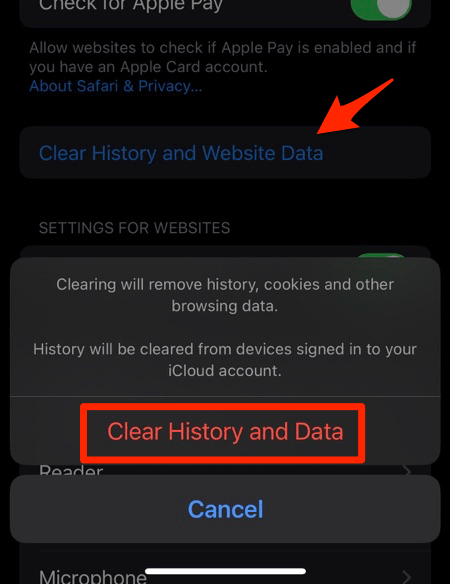 It will completely wipe out the Safari app's browsing history and website data.
Reopen Safari and revisit the site once the clear finishes. The per-domain choices are gone, so the next long-press override you set becomes the one Safari follows from here on.

Change Your Default Browser as a Partial Workaround
Switching your default browser will not stop Universal Links from launching their own apps. What it changes is which browser opens when you tap a link inside Mail, Messages, or another app, so Safari stops being where you land out of habit.
If most of the links you tap reach you by Mail or Messages, that alone can cut the hand-offs you see in a day.
- Install a third-party browser such as Chrome, Firefox, Edge, or Brave from the App Store.
- Open Settings and scroll down to tap the browser’s name (for example, Chrome).
- Tap Default Browser App and select the new browser.
- Test by tapping a website link from Mail or Messages to confirm it opens in the browser you picked.
iOS still routes Universal Links from any browser into their own app, so this is a partial fix, not a full stop.
Check the Offending App for an “Open Links” Toggle
Before you blame Safari, look inside the app itself. Some apps carry their own switch for how they handle web links, and Gmail is the usual example, with a menu that decides whether a link opens in the app’s own browser or somewhere else. Nothing here changes Safari’s behavior, but it can stop an app’s built-in browser from feeling like Safari.
Apple’s iPhone User Guide on opening and closing tabs covers the same kind of tab controls elsewhere in iOS.
- Open Settings on your iPhone or iPad.
- Scroll to the app that keeps grabbing links (for example, Gmail).
- Look for an Open Links option.
- Choose In Background, In New Tab, or In Safari if any of them are available.
- Open the app and test that links now open in Safari instead of inside the app.
Frequently Asked Questions
Is there a single “Open in App” toggle in iOS Settings?
No. Apple does not currently ship a global switch that keeps Safari from following Universal Links into third-party apps. The workarounds are per link (the long-press menu), per app (the app’s own Open Links setting), or system-wide (a content blocker such as Banish that hides the in-page banners).
Why does the long-press menu not show “Open in Safari” on every link?
Universal Links are opt-in. A developer has to enable them on the site and the app. If no Universal Link is registered for the URL you tapped, the menu only shows the standard share, copy, and open-in-new-tab options.
Does turning on Block Pop-ups also hide “Open in App” banners?
No. Smart App Banners and similar invitations are rendered as part of the page itself, so Safari’s pop-up blocker leaves them alone. Hiding them takes a content blocker.
Will deleting the app stop Safari from handing off to it?
Yes. Universal Links only hand off when the matching app is installed. Delete YouTube, Twitter, Reddit, or any other offending app, and those links load as normal web pages in Safari.
Does changing my default browser stop Universal Links from opening apps?
No. The default browser setting only decides which app opens a link you tap outside a browser, such as in Mail or Messages. Once you are in any browser, Universal Links still hand off to their own app on tap.
The short version: no single iOS setting turns Universal Links off everywhere. Between the long-press override, a content blocker, and a website data clear, you can keep the sites you care about inside Safari.