Safari can report that cookies are disabled even when you never touched a setting. Either the global block is on, or a single website has a rule or stored data that stops sign-ins, forms, and checkout pages from working.
Start with the Block all cookies checkbox in Advanced, then check the affected site's own settings and clear its data if needed. Each step below tells you what a successful fix looks like.
In this guide, I have covered:
Contents
Why Safari says cookies are disabled
You try to sign in, or reach the checkout on a store, and the page tells you cookies are disabled. That message almost always comes from one of two places: a Safari-wide block, or a restriction attached to that single website.
The Safari-wide block is a checkbox called Block all cookies. Apple warns that turning it on can stop some websites from working properly, so sign-in forms, saved choices, and other interactive features break.
The pattern tells you where to start. Several failing sites point to the global switch. A single failing site points to its own settings and stored data.
Turn cookies back on in Safari
If every site behaves as though cookies are unavailable, this global switch is the first thing to check.
- Open the Safari application.
- Choose Settings… from the Safari menu.
- Select Advanced.
- Clear the Block all cookies checkbox.
- Reload the affected page.
Try the sign-in or form that failed. If it works now, the global cookie block was the cause.

The checkbox is in Advanced, not Privacy. Apple’s Safari User Guide for Mac confirms that the Privacy pane points to Advanced Settings for this control.
Allow cookies for one website
Cookies are on for Safari as a whole, but one site still says they are blocked. Check that site’s own setting before you touch any other privacy control.
- Switch to the Safari tab containing the affected website.
- Choose Settings for This Website… from the Safari menu.
- Click .
- Open Cookie and Website Data and review whether the site is blocking cookies.
- If cookies are blocked for the site, change the site’s cookie option to allow them.
- Reload the tab.
Test the feature that failed once the page reloads. If no per-site cookie control appears for that site, skip ahead to the data cleanup below and leave unrelated privacy settings alone.
Test cross-site cookies on an embedded feature
The page loads fine, but the embedded sign-in box or checkout frame inside it does not. That pattern points at cross-site tracking, when Safari offers that control for the website.
- Open Settings for This Website… for the affected site.
- Click .
- Open Cookie and Website Data and locate Prevent cross-site tracking.
- If the control is enabled for that site, turn it off temporarily.
- Reload the page.
Test the embedded feature again. If it now works, turn cross-site tracking protection back on after the test unless the site genuinely needs a lasting exception.
The same tracking control exists in Safari on iPhone and iPad, and Disable Cross-Site Tracking in Safari on iPhone & iPad shows where it lives.
Treat this as a short, targeted test. Leaving cross-site tracking protection off reduces your privacy.
Clear Safari cache and cookies
Every cookie control looks correct and the site still will not cooperate. Clearing the site’s cached data and cookies resets it.
Reopen the site and test it again. You’ll know it worked when the page loads without the cookie warning and your sign-in goes through.
Expect to sign in again, since clearing cookies logs you out. Clear Site and Browsing Data from Safari browser on Mac explains the different kinds of data Safari can remove.
Test the site without Safari extensions
One site misbehaves while everything else loads normally. A Safari extension is a common culprit, and switching extensions off for a few minutes is the fastest way to rule it out.
- Launch the Apple Safari app on your Mac computer.
- Click on the Safari menu from the menu bar at the top, and select Settings... sub-menu.
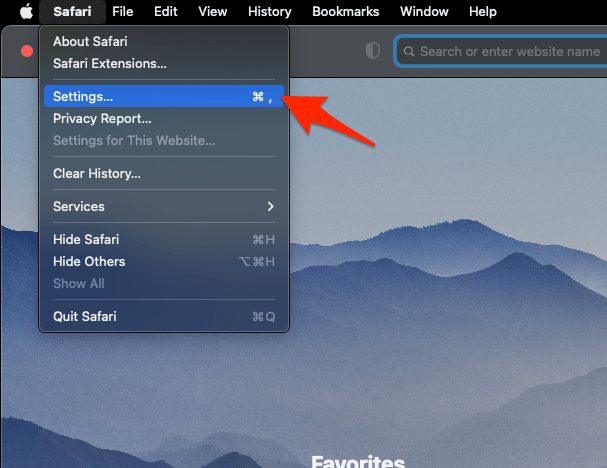 It will open the Safari Settings window.
 - Switch to the Extensions tab in the Settings window.
It will display the list of all the Safari extensions installed. - Uncheck the checkbox in the left side pane to Disable the extension.
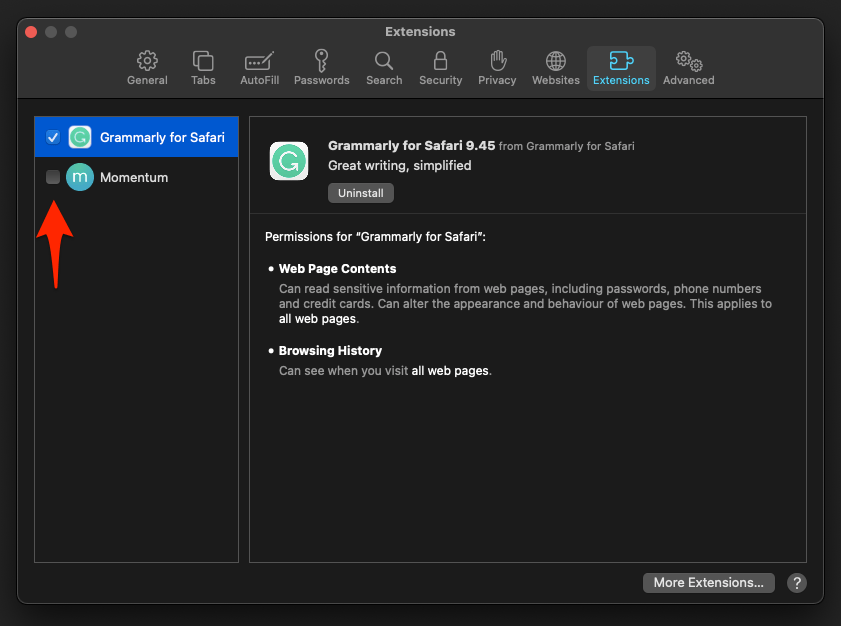
Reopen the site after the test. You’ll know an extension is at fault when the page works with everything disabled. Turn them back on one at a time to find the one that interferes.
Recheck the setting after a macOS update
You cleared Block all cookies weeks ago, and now the box is ticked again. A macOS update can restore Safari’s settings, so recheck the switch before looking for another cause.
- Choose Settings… from the Safari menu.
- Select Advanced.
- Confirm Block all cookies is still clear.
If settings keep reverting on their own, Stop Safari Settings from Resetting After a macOS Update goes beyond this one checkbox.

Frequently Asked Questions
Short answers to the follow-ups this problem usually raises.
How do I turn cookies back on in Safari on Mac?
Open Safari and choose Settings…, then select Advanced and clear Block all cookies. Reload the affected site and test the feature that failed.
Why is Block all cookies not in Safari’s Privacy settings?
The global checkbox is in Advanced, not Privacy. The Privacy pane points to Advanced Settings, where the actual Block all cookies checkbox is located.
Can I allow cookies for just one website?
Yes. Choose Settings for This Website… from the Safari menu, click , and review Cookie and Website Data. Allow cookies for the site if they are blocked.
Do I need to clear all Safari website data when cookies are disabled?
No. Check the global switch and the affected site’s setting first. Use the website-data cleanup as a reset if the site still fails, and expect to sign in again after its cookies are removed.
Why does one site still not work after I enable cookies?
The site may have a website-specific restriction, stale stored data, or an extension interfering with it. Check its website settings, clear the relevant data, and test the page without extensions.