Your video goes fullscreen in Safari and then stops: a spinner, a frozen frame, no sound. The symptom alone doesn't say whether the player, YouTube, stored site data, or an extension is behind it.
Start by leaving and re-entering fullscreen, then update Safari, test with extensions off, clear Safari's stored website data, and check YouTube's site settings before you try another browser.
In this guide, I have covered:
Contents
Why YouTube stalls in Safari fullscreen
You hit fullscreen, the picture fills the display, and then nothing: a spinner, a frozen frame, or silence while the video clock stops. That symptom by itself does not tell you whether the player, YouTube’s page, Safari’s saved website data, or an extension is behind it.
Pick one public video and use it for every comparison below. Keeping the video constant is what makes the results readable: they point at the fullscreen player, at your normal Safari profile, or at one specific video.
- Only fullscreen freezes: reset the player first, then check Picture in Picture.
- Every YouTube video freezes: look at extensions, cookies, and Safari’s stored website data.
- One video only: compare it with another YouTube video, then test it in a second browser.
Reset the fullscreen player
Leave fullscreen and come back in before you touch a single setting. It is the fastest test of whether Safari is simply stuck in the current display mode.
- Press to leave fullscreen.
- If the keyboard shortcut does not work, move the pointer to the top of the screen and click the green fullscreen button to return to the windowed view.
- Reload the YouTube tab with +.
- Play the same video in the normal Safari window for several seconds.
- Use YouTube’s fullscreen control to enter fullscreen again.
If the video plays in a window but stalls again in fullscreen, keep going with the Picture in Picture and extension checks. If both modes play fine, the cause is more likely in website data or cookies.
Why a GPU switch is not the fix
You have probably seen advice to turn off GPU acceleration in Safari. There is no such switch to flip. The Advanced pane in Safari for Mac has no Disable GPU or Disable hardware acceleration option.
Open that pane yourself and you will see the real controls listed in Apple’s Safari Advanced settings guide. If a workaround you found points to a hardware acceleration setting that is not there, skip it and work through the checks below.
Update Safari
Before you change website data or privacy settings, install any available Safari update. Testing on an outdated build wastes your time.
- Click on the Apple
 menu from the menu bar and select the System Settings... sub-menu.
  It will open the System Settings window.
 - Select the General tab in the left sidebar, and choose the Software Update tab.
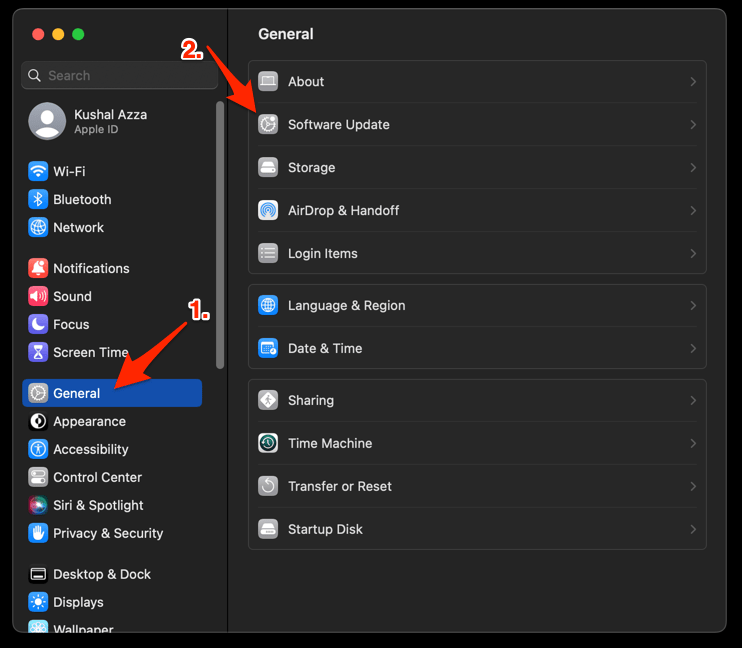 The macOS System will check for any available upgrades in the background.
 - Click on the More Info... tab and enable the checkbox for Safari updates (if any are available).
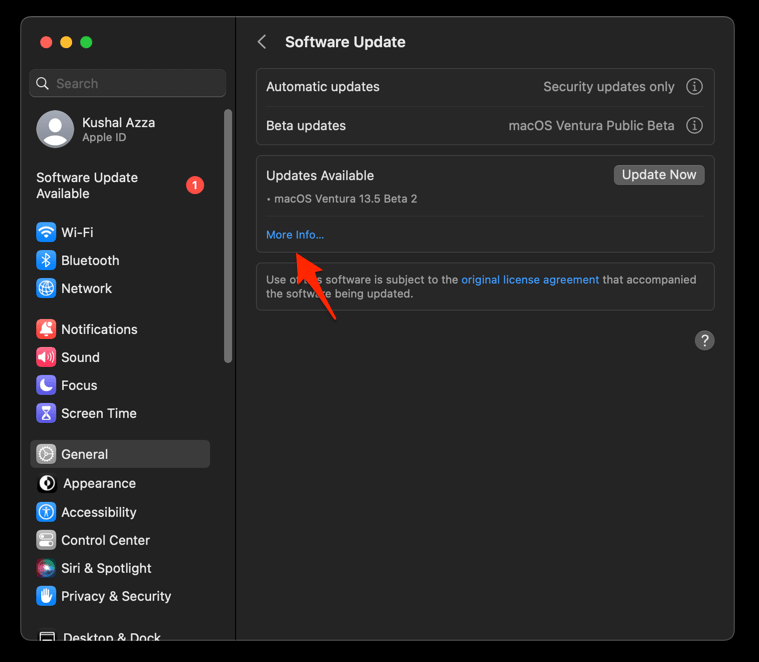
- Hit on the button.
It will update the Safari browser.
Reopen YouTube and play the same video in fullscreen. You’ll know it worked when the freeze is gone without any other change. If it still stalls, move on to the extension test.
Test without Safari extensions
An extension that touches page content, media, or privacy can change how YouTube’s player behaves. Disable all of them for a few minutes and see what changes.
- Launch the Apple Safari app on your Mac computer.
- Click on the Safari menu from the menu bar at the top, and select Settings... sub-menu.
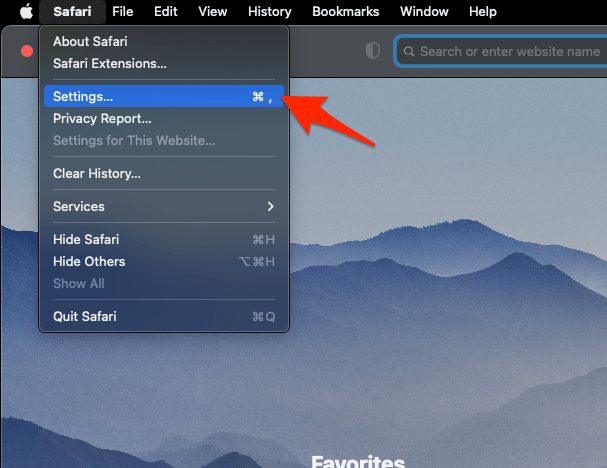 It will open the Safari Settings window.
 - Switch to the Extensions tab in the Settings window.
It will display the list of all the Safari extensions installed. - Uncheck the checkbox in the left side pane to Disable the extension.
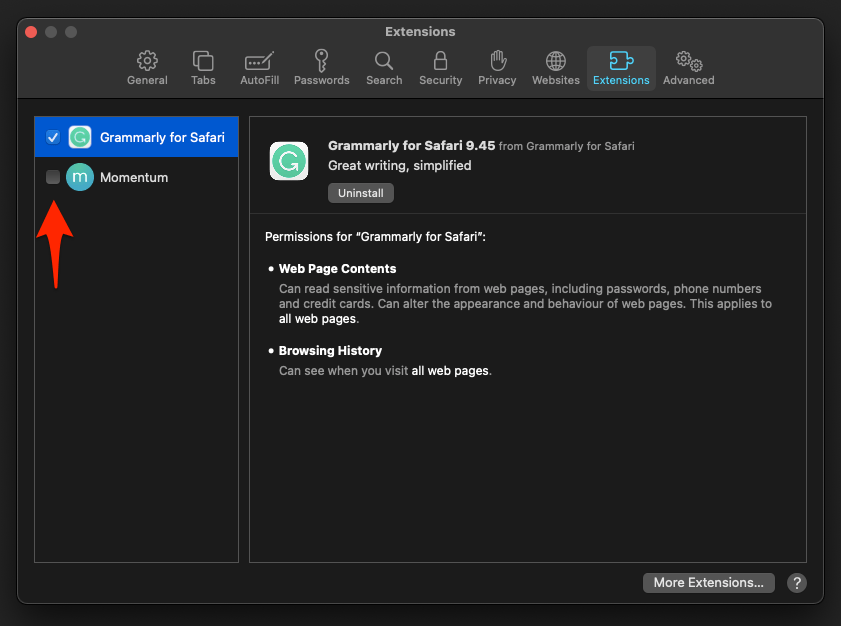
With extensions off, open Safari again and play the same video in fullscreen. You’ll know an extension is involved when playback now runs smoothly. No change at all means extensions are off the hook, so continue with the website data and site control checks.
Restore extensions after the test
If disabling extensions cleared the freeze, do not leave them off. Turn them back on one at a time until the freeze returns.
- Turn on one extension.
- Replay the same YouTube video in fullscreen after each change.
The extension you enabled right before the freeze came back is your prime suspect. Disable that one alone to confirm it, then decide whether to remove it or check for a newer version.
Clear Safari’s cache and cookies
No luck with extensions? Reset the website data Safari has stored. This sits after the narrower tests on purpose: it is the broadest step before you start editing individual site settings.
- Launch the Safari app on your Mac computer.
- Click on the Safari menu from the menu bar, and select the Settings... sub-menu. It will open the Safari Settings window.
- Switch to the Privacy tab, and click to open the button.
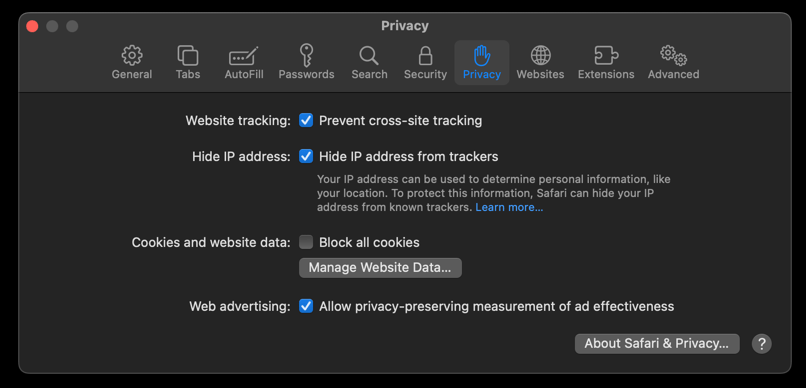 It will load the list of websites currently storing the cache and cookies in the browser.
 - Hit on the command and then the button.
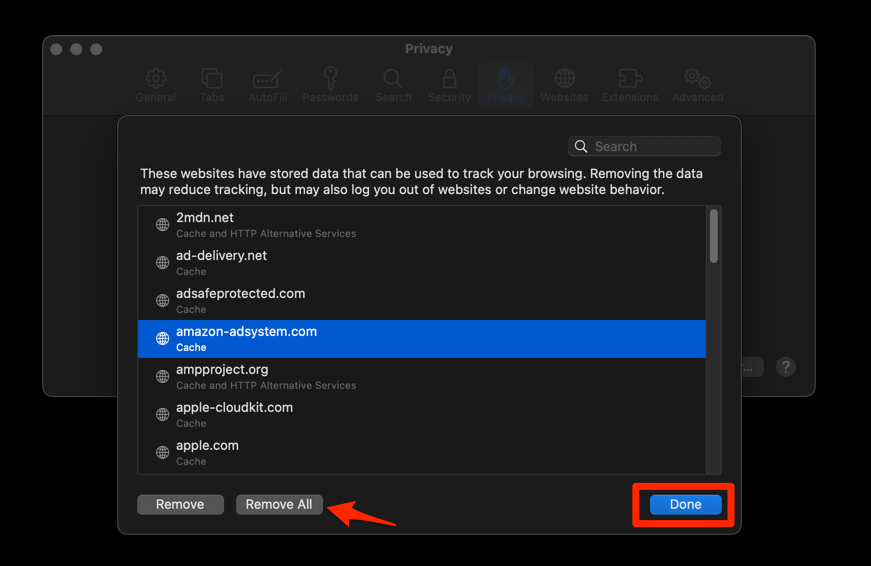 It will flush the cookies and cache for all sites in Safari.
Open YouTube, sign in if needed, and test the same video in fullscreen. You’ll know it worked when playback holds in fullscreen after the reset. If the freeze survives it, the trigger is probably a YouTube site setting rather than stored data.

This clears Safari’s cache and cookies across all sites, not only YouTube. Expect to sign in again on other websites too.
For the fuller cleanup options, including history and per-site data, see Clear Site and Browsing Data from Safari browser on Mac.
Review YouTube’s website controls
Safari keeps a separate settings entry for every site you visit, YouTube included. A saved setting or an active content blocker on that entry can get in the way of how the player loads.
- Open Safari → Settings… → Websites.
- Select YouTube in the website list.
- If Prevent videos from playing is enabled for YouTube, turn it off.
- If a Content Blockers entry is enabled for YouTube, temporarily disable it.
- Reload the YouTube tab and test fullscreen playback.
- Turn the content blocker back on if disabling it did not change the freeze.
If playback changes once the blocker is gone, that blocker is now the thing to investigate. If nothing changes, carry on with the Picture in Picture and cookie checks.
Check automatic Picture in Picture
Safari can move a video into a floating window on its own. When that fires on the same beat as YouTube’s fullscreen switch, the player can end up stuck.
- Open Safari → Settings… → General.
- Under Picture in Picture, turn off the setting that starts videos automatically, if it is enabled.
- Reload YouTube and test the video in fullscreen again.
- Restore the Picture in Picture setting if the test did not change the freeze.
You’ll know this test worked when the video stays responsive in fullscreen. If the same stall shows up, Picture in Picture is probably not the trigger and you can leave the setting as it was.
Check the Block all cookies setting
YouTube uses cookies for sign-in and saved preferences. If Safari is set to block all cookies, the player has less to work with, and that is worth one temporary test.
- Open Safari → Settings… → Advanced.
- If Block all cookies is enabled, turn it off.
- Reload YouTube, sign in if needed, and test fullscreen playback.
- Turn Block all cookies back on if turning it off did not restore playback.
If playback changes once cookies are allowed, review your cookie policy and any content blocker together. You can go back to your normal privacy choice afterwards if it was not responsible for the freeze.
Run a private-window comparison
A private window starts without your normal YouTube site data, and without extensions unless you allowed them in Private Browsing. That makes it the cleanest quick comparison you can run.
- Open File → New Private Window.
- Open the same YouTube video in the private window.
- Enter fullscreen and watch for the same stall.
If the private window plays normally, the problem is tied to your normal Safari site data or an extension. If it freezes there too, the cause sits outside your normal profile, so run the other browser test next.
Separate a YouTube problem from a Safari problem
When private mode also freezes, the question changes. Is YouTube failing, or is Safari failing? A second browser on the same Mac answers that.
- Open the same YouTube video in another browser.
- Play it in that browser’s fullscreen mode.
- If only one video fails, open a different YouTube video for comparison.
- Compare the results with Safari.
One video failing in every browser points at a YouTube playback issue worth reporting. If every video fails in every browser, a Safari setting is unlikely to be the cause and the Mac itself becomes the suspect.
Restart Safari and the Mac as a final reset
All the checks point at Safari, yet playback still stalls. Time to close the stuck media session properly and restart the system.
- Quit Safari with +.
- Reopen Safari and test the same video in fullscreen.
- If it still freezes, choose Apple → Restart.
- After the Mac restarts, open YouTube and test again.
Still frozen in Safari but fine in another browser? Come back to the extension and cache checks after the restart. For this symptom, those two remain the most useful Safari-only tests you have.

Frequently Asked Questions
Does Safari have a Disable GPU setting?
No. Safari’s Advanced settings do not include a Disable GPU or Disable hardware acceleration switch, so there is no supported option to click.
Can I turn off YouTube automatic fullscreen on a Mac?
The automatic fullscreen option covered by YouTube’s help is for mobile apps, not the desktop player on a Mac. Use the fullscreen control inside the YouTube player, and leave fullscreen while you run the tests.
Should I clear all Safari browsing data?
Only after the narrower tests. The cache-and-cookies procedure applies across Safari, so clearing it can remove saved site data and sign you out of websites, YouTube included.
Why does YouTube freeze only in Safari fullscreen?
The comparisons above show whether the stall is limited to the fullscreen player, to your normal Safari profile, to an extension, or to one specific video. A fullscreen-only failure does not by itself prove a graphics problem.
Should I leave Safari extensions disabled?
No. Disable them only long enough to run the comparison, then turn them back on one at a time and test YouTube after each change. That also tells you which extension is the likely culprit.