Chrome keeps offering a name that is not yours, or one you stopped using years ago, and you want it out of your forms for good.
The usual sources are a saved contact, your Google Account, or a second Chrome profile still syncing the same data. Delete the wrong entry first, then work through each source before you clear autofill data.
In this guide, I have covered:
Contents
Chrome Autofill Is Suggesting the Wrong Name
You click into a name field and Chrome offers someone else’s details: an old address, a relative’s name, a contact you stopped using years ago. That suggestion has to come from somewhere Chrome can still read, and finding that source is the whole fix.
Three places can hold it: the contact info saved in Chrome, your Google Account, or another Chrome profile syncing the same data. Start with the form you are trying to fill. Google’s Chrome autofill help page explains what Chrome stores and what it fills.
- Open the
 menu in the upper-right corner of Chrome.
 - Select Passwords and autofill.
- Open Contact info.
- Look for the entry holding the name Chrome keeps suggesting.
Is the wrong contact in that list? Delete it with the steps below. If it is not there, the name is coming from your Google Account or another profile, so keep reading.
Delete or Correct the Saved Contact
Finding the wrong name in Chrome’s contact list is the easy case. Remove that entry and Chrome stops reaching for it the next time you fill a form.
Editing is the better move when the name is slightly off but the address underneath is one you still use. Contact info sits next to your saved logins in Chrome’s settings, so the steps for adding and managing saved passwords in Chrome on computer will feel familiar.
- Open Passwords and autofill from the menu.
- Select Contact info.
- Find the incorrect saved contact.
- Open the More menu beside the entry.
- Select Edit to correct the saved name and address, or Delete to remove the entire contact.
- Return to the form and click the field again.
You’ll know it worked when the unwanted name no longer appears under that field. If it still does, the entry was never the real source. Move on to your Google Account and profile checks.
Check Your Google Account Name
Is the wrong name your own, just spelled differently or out of date? Then the saved contact may not be the problem at all. Chrome can pull details from the Google Account you are signed in with, so deleting the local entry alone will not stop it coming back.
- Open the Contact info list in Chrome.
- Compare the incorrect saved contact with the contact information in your Google Account.
- Open Google Account Personal info.
- Check the name and contact details shown for your account.
- Correct any outdated name, then save the change.
- Return to Chrome and click the form field again.
If your account name is already correct, leave it alone. Changing it to test Chrome would push that name into Gmail, Drive, and everything else tied to the account. Check the active profile and sync settings instead.
Check the Active Chrome Profile
A shared computer changes the picture. One Chrome install can hold several profiles, and each keeps its own autofill data, so the profile on screen may not be the one you think you are using.
- Open the menu in Chrome.
- Select Settings.
- Open You and Google or enter chrome://settings/people in the address bar.
- Check which profile is shown at the top of the page.
- Open the profile list and switch to the profile you use for the affected form.
With the right profile in front of you, reopen the form. If the wrong name comes back, open that profile’s Contact info list and delete the entry there.
Stop the Wrong Contact From Returning
Deleted the entry, then saw the same name a day later? That is sync, not a Chrome bug. Something still holds the old contact and keeps pushing it back into your browser.
- Open chrome://settings/people in Chrome’s address bar.
- Select Sync and Google services.
- Open Manage what you’re synced.
- Check whether contact information is being synced.
- Turn off contact information sync if it is copying data from another profile or account you no longer use.
- Sign out of any old Google Account that still has access to Chrome.
Signing out takes that account’s synced data out of Chrome. If the account is also on your phone, look at saved passwords in Chrome on Android first, so you know what Chrome was syncing there.
Quit Chrome completely and reopen it. Click the field again. The name should stay gone.

If the same name appears in Chrome, in your Google Account personal info, and in a second active profile, fix all three. Removing only the local Chrome entry gives sync a chance to bring it right back.
Turn Off Contact Autofill Temporarily
Still no idea where the name comes from? Switch contact autofill off and watch what the form does. It is the quickest way to prove whether Chrome is filling that field at all.
- Open the menu in Chrome.
- Select Settings.
- Open Autofill and passwords.
- Open Autofill settings.
- Turn off Save and fill contact info.
- Open the form again and check whether the unwanted suggestion has disappeared.
No suggestion with the toggle off means the data lives in Chrome or in your Google Account, and you know to keep digging through Contact info. Delete the entry, then switch that setting back on.
Clear Stored Autofill Form Data
Nothing above matched, and the wrong name still turns up? Clearing stored autofill data wipes Chrome’s local form history in one pass. It is the broad option, so try the contact, account, and profile checks first.
This clears autofill form data in Chrome only. Details stored in your Google Account or Google Wallet stay where they are.
- Go to chrome://history/clearBrowserData in the address bar.
- Select the Time range from the drop-down.
- Enable the checkboxes for Browsing history, Cookies and other site data, and Cached images and files.
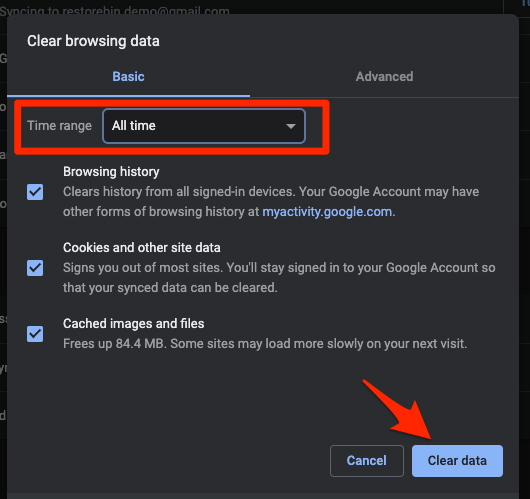
- Hit the Clear data button.
You’ll know it worked when a blank form offers no name suggestions at all. Reopen Chrome and test the field. If the same name returns, recheck Google Account Personal info and confirm which Chrome profile you are signed in to.

Frequently Asked Questions
Why does Chrome autofill another person’s name?
Chrome may be using a stale contact, information from your signed-in Google Account, data in another Chrome profile, or contact details restored through synchronization. The source is often easier to spot on Chrome’s Contact info page.
How do I remove one incorrect autofill suggestion?
Open Passwords and autofill from the menu, select Contact info, and open the More menu beside the incorrect entry. Select Delete, then reopen the form and test the field.
Will clearing Chrome autofill data delete my Google Account name?
No. Clearing autofill form data removes the information Chrome has stored for form filling, but it does not delete details stored directly in your Google Account or Google Wallet. Check Google Account Personal info separately if the wrong name remains.
Why did the wrong Chrome autofill name come back?
The entry may have returned through Chrome synchronization or been restored from another device using the same Google Account. Delete it again, check the active profile, and review which contact information is syncing.
Can I stop Chrome from suggesting names without deleting my saved addresses?
Yes. Turn off Save and fill contact info in Chrome’s autofill settings. Chrome stops filling names and addresses, and the saved entries stay available until you delete them or clear autofill form data.